

Overview
To import your external database into PlanetScale, you need to allowlist PlanetScale’s IP addresses in your database firewall or security group. This lets PlanetScale connect to your database when you create the external keyspace and for the rest of the import.Where to find your IP addresses
The IP addresses depend on the region of your PlanetScale database. From the CLI: list your organization’s regions in JSON. Each region’spublic_ip_addresses field lists the IP addresses to allowlist:
slug as your database’s region.
From the dashboard: when you create an external keyspace from the Clusters page, the form lists the IP addresses that need access to your external database.
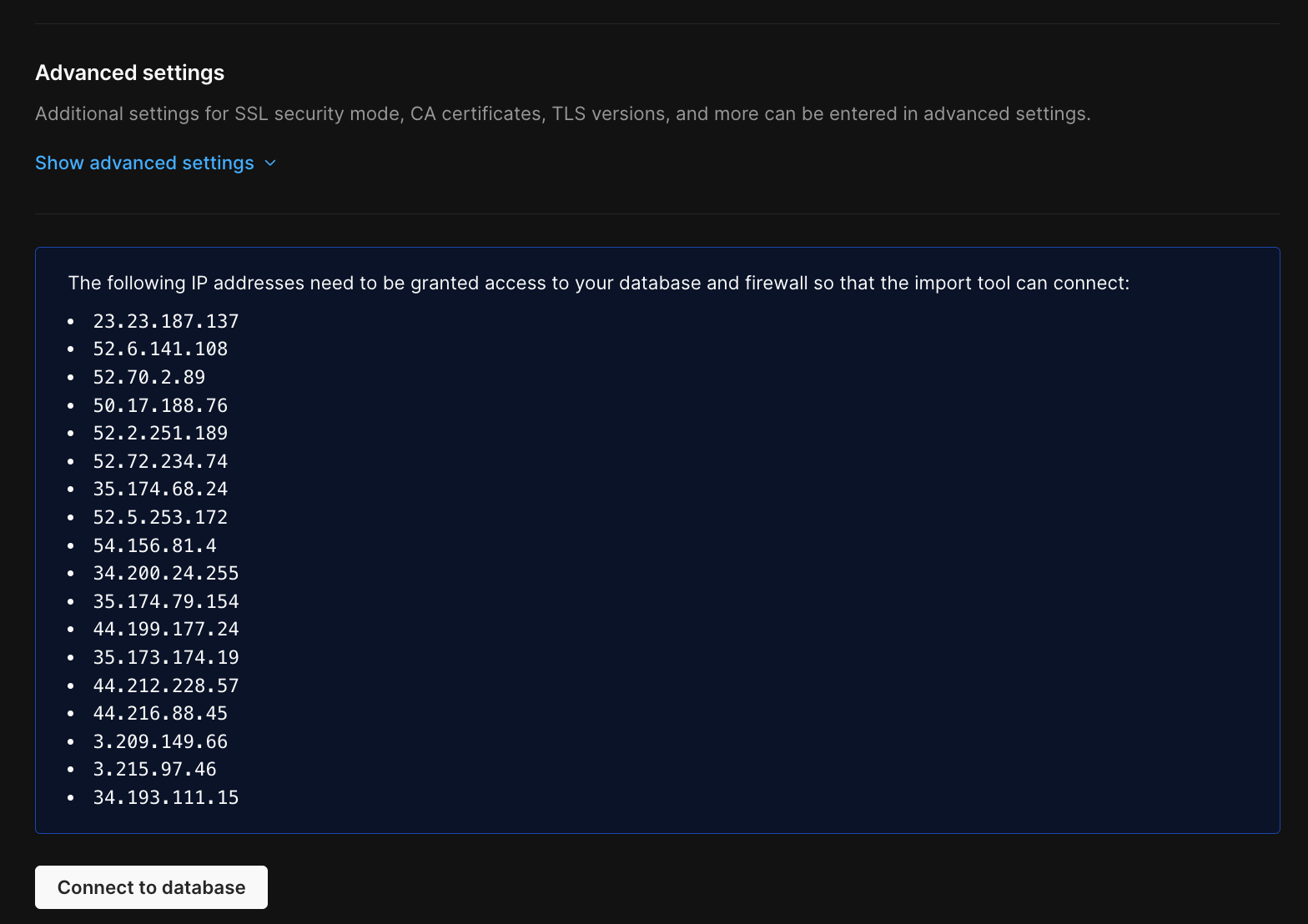
public_ip_addresses field.
Provider-specific firewall guides
If you’re connecting to a known database provider, see the provider’s migration guide for how to allow these IP addresses:Important notes
- Region-specific IPs - The IP addresses differ by region. Make sure you’re using the IPs for your database’s region.
- IPs may change - IP addresses can change occasionally. Check the current list before you start an import.
- All IPs required - You need to allowlist all the IP addresses listed, not just one.
This guide is meant to be used alongside the Database imports guide or one of the provider-specific migration guides.