

Overview
This document will demonstrate how to migrate a database from Amazon Aurora (MySQL compatible) to PlanetScale.This guide assumes you are using Amazon Aurora (MySQL compatible) on RDS. If you are using MySQL on Amazon RDS, follow the Amazon RDS for MySQL migration guide. Other database systems (non-MySQL or MariaDB databases) available through RDS will not work with this guide.
Prerequisites
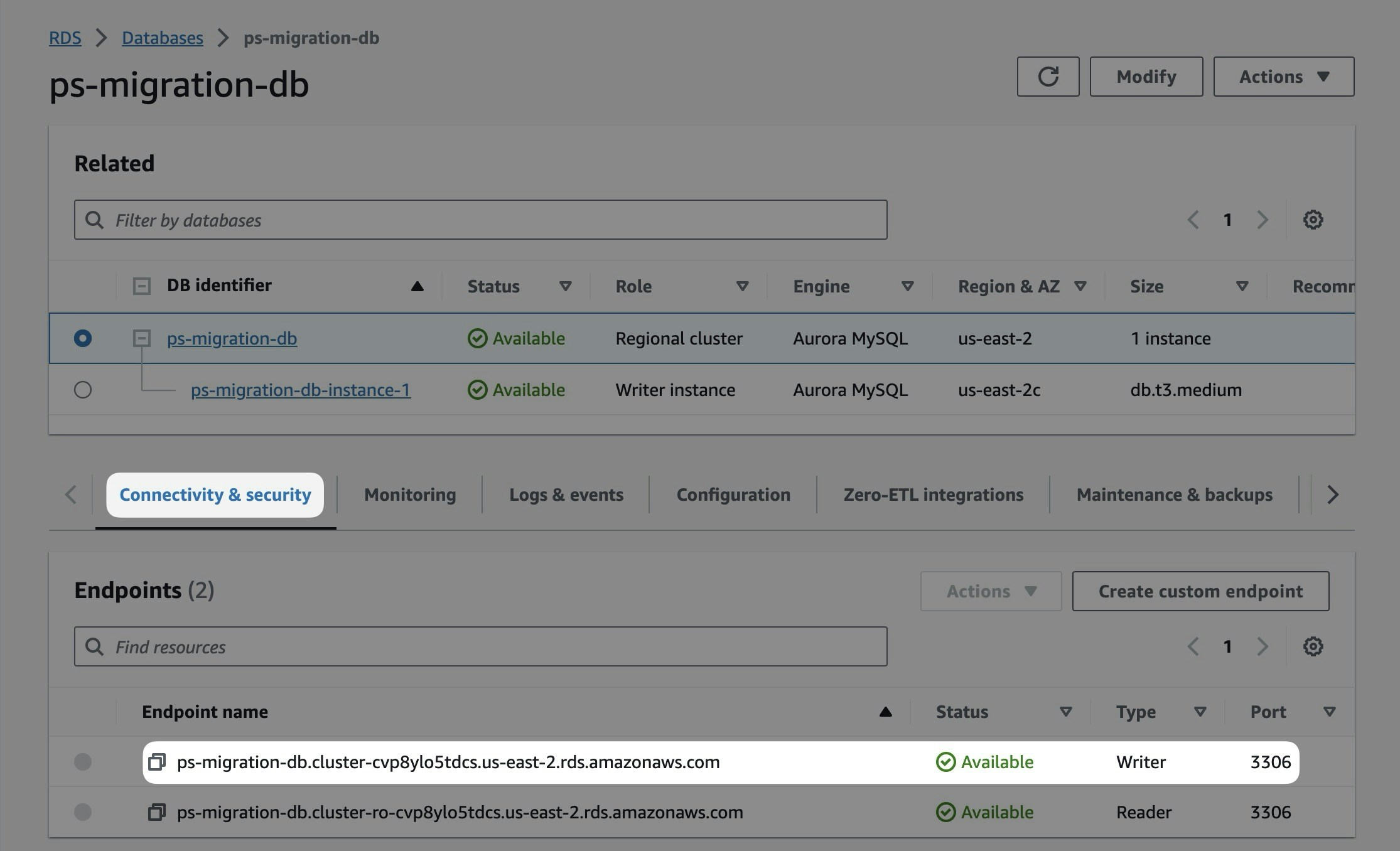
Gather the following information from the AWS Console:- Database cluster endpoint address - Located in “Connectivity & security” tab (use the regional cluster endpoint, not reader or writer instances)
- Port number - Typically 3306
- Master username and password - Your Aurora root credentials
Step 1: Configure server settings
Your Aurora database needs specific server settings configured before you can import. Follow these steps to configure GTID mode, binlog format, and sql_mode.Check your current parameter group
Your Amazon Aurora database is either using the default DB cluster parameter group (e.g., default.aurora-mysql8.0) or a custom one. You can view it in the “Configuration” tab of your regional database cluster (not reader or writer instances).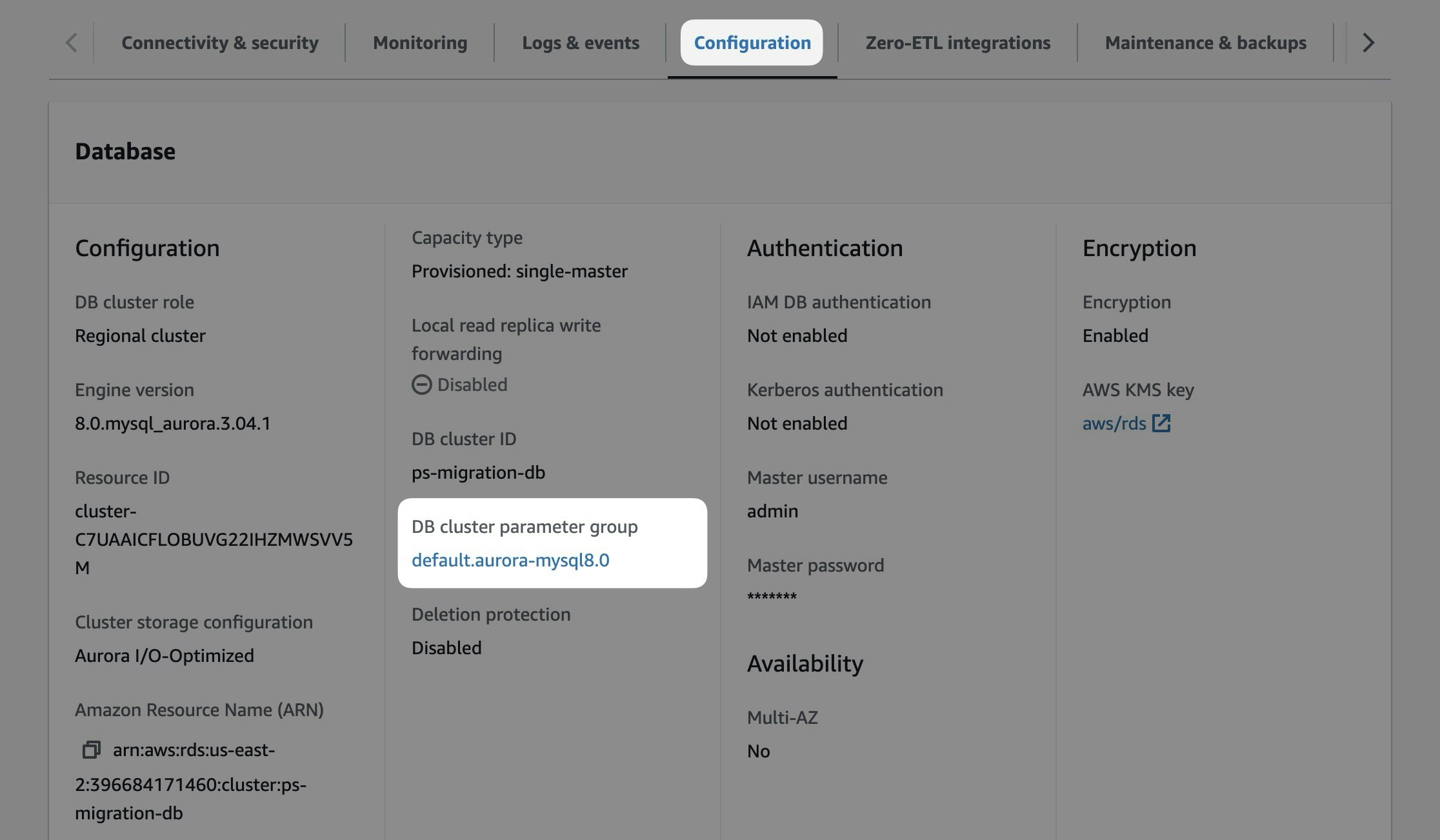
Configure the parameter group
1
If you are using the default DB cluster parameter group, you’ll need to create a new parameter group to reconfigure settings.To create a parameter group, select “Parameter groups” from the left nav and then “Create parameter group”.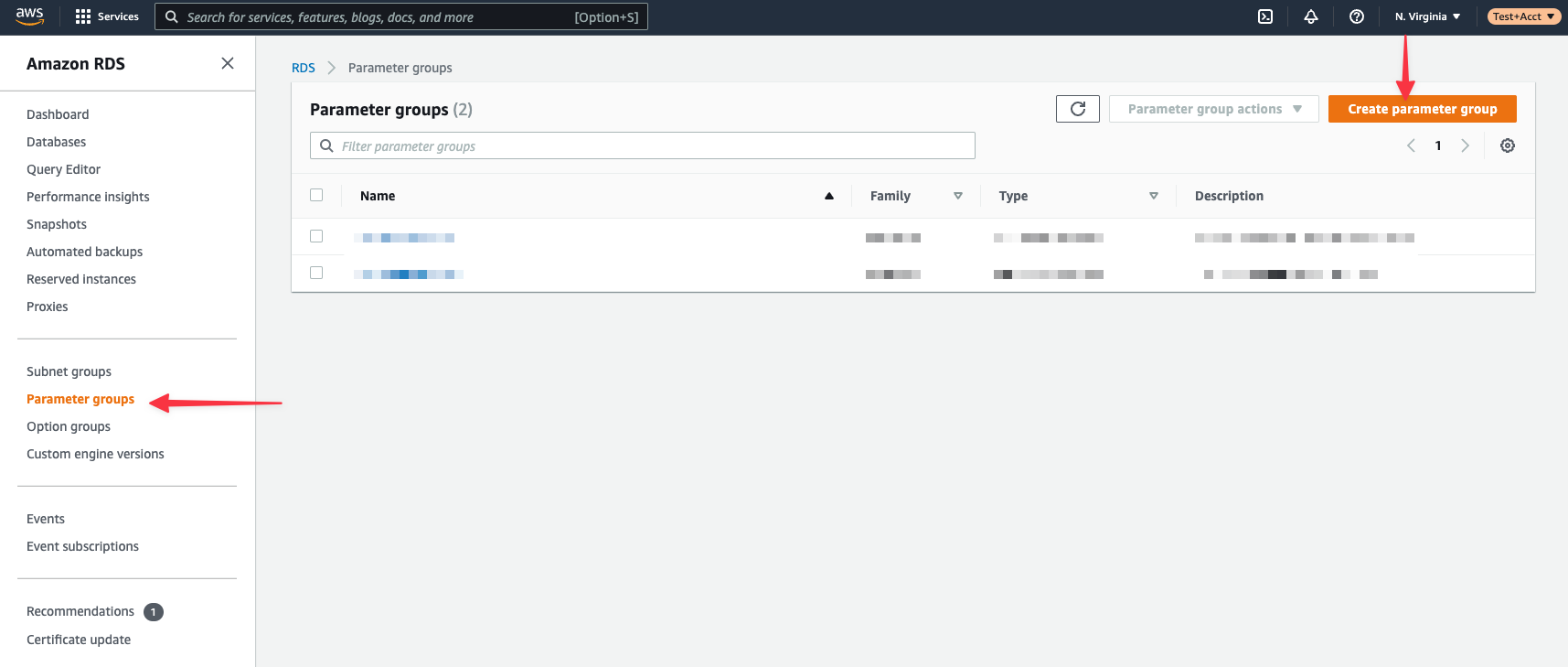
- Parameter group family: aurora-mysql8.0
- Type: DB Cluster Parameter Group (Note: Not “DB Parameter Group” type)
- Group name: psmigrationgroup (or your choice)
- Description: Parameter group for PlanetScale migration
2
Edit the settings in your custom DB cluster parameter group. Select your parameter group from the list.Click “Edit parameters” to unlock editing.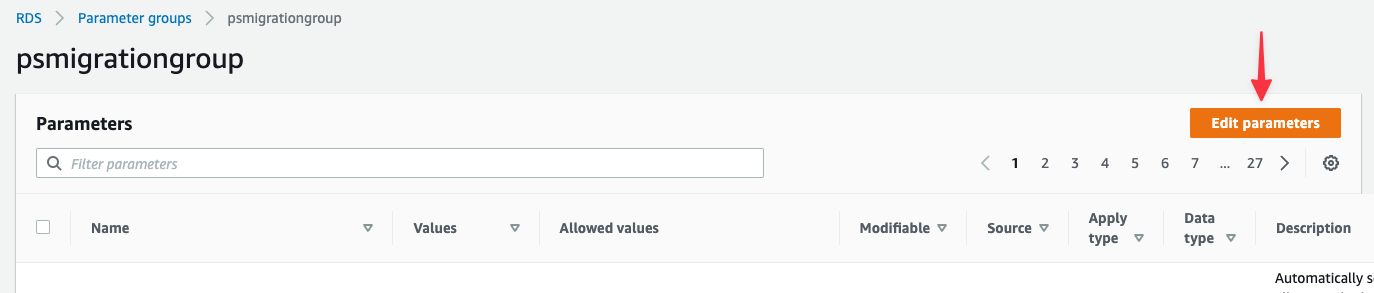
- gtid-mode: ON
- enforce_gtid_consistency: ON
- sql_mode: NO_ZERO_IN_DATE,NO_ZERO_DATE,ONLY_FULL_GROUP_BY
- binlog_format: ROW
3
Associate the DB cluster parameter group to your database. Select “Databases” from the left nav, select your regional cluster (not writer or reader instance), and click “Modify”.Scroll to Additional configuration section. Update the DB cluster parameter group to your new parameter group. Click “Continue”.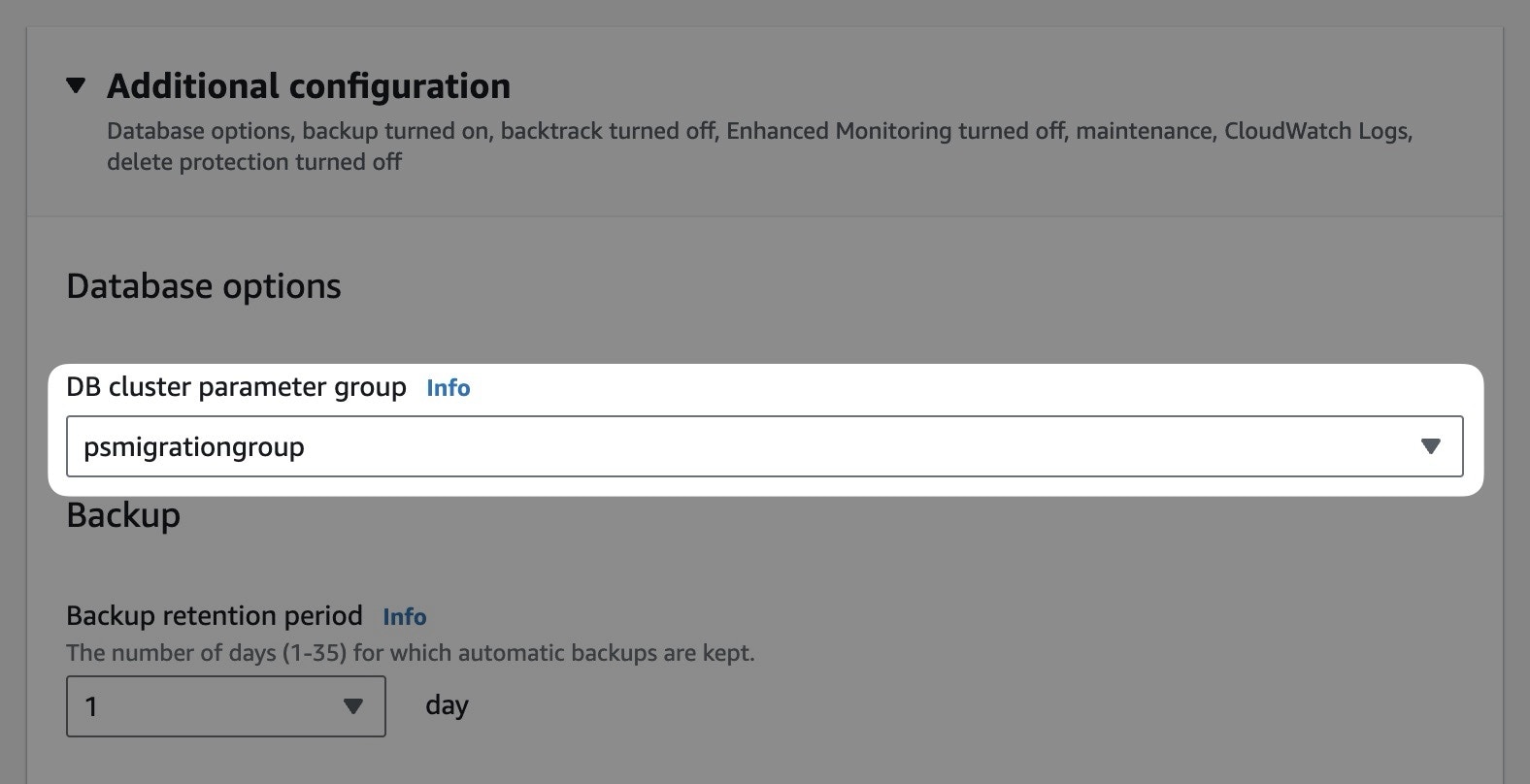
- Apply during the next scheduled maintenance window - Applied during maintenance window
- Apply immediately - Applied now, but requires manual reboot
4
Reboot your database’s writer instance to apply the settings. Click “Actions” > “Reboot”. (Make sure you’re selecting the writer instance, not the regional cluster.)Confirm the reboot. You can check the status in the databases list (click refresh to update).
Step 2: Enable binary logging
Binary logging must be enabled for the import to work. On Aurora/RDS, binary logging is tied to automated backups. To enable binary logging, enable automated backups by setting the backup retention period to any value greater than zero days. Verify binary logging is enabled:Step 3: Configure binlog retention
Set the binary log retention period to ensure logs aren’t purged during the import. For most cases, 48 hours is sufficient, but larger imports may need more time. Set the retention period using themysql.rds_set_configuration() procedure:
Step 4: Ensure database is publicly accessible
PlanetScale needs to connect to your Aurora database over the internet. Check that your database is publicly accessible. In the writer instance, go to “Connectivity & security” tab. Under “Security”, check if Publicly accessible is set to “Yes”. If it says “No”, you’ll need to modify the database settings to enable public access. If you cannot make the database publicly accessible, contact us to discuss alternative import options.Step 5: Create a migration user
Create a dedicated user with limited privileges for the import process. Connect to your Aurora database using the MySQL command line with your master credentials:<SUPER_STRONG_PASSWORD>- Password for the migration_user account<DATABASE_NAME>- Name of the database you’re importing
Step 6: Configure RDS security group
Allow PlanetScale to connect by adding PlanetScale’s IP addresses to your security group. The specific IP addresses depend on your PlanetScale database region. See Import public IP addresses for how to find them.Add IP addresses to security group
- Navigate to “Connectivity & security” tab of your writer instance
- Click the VPC security group link
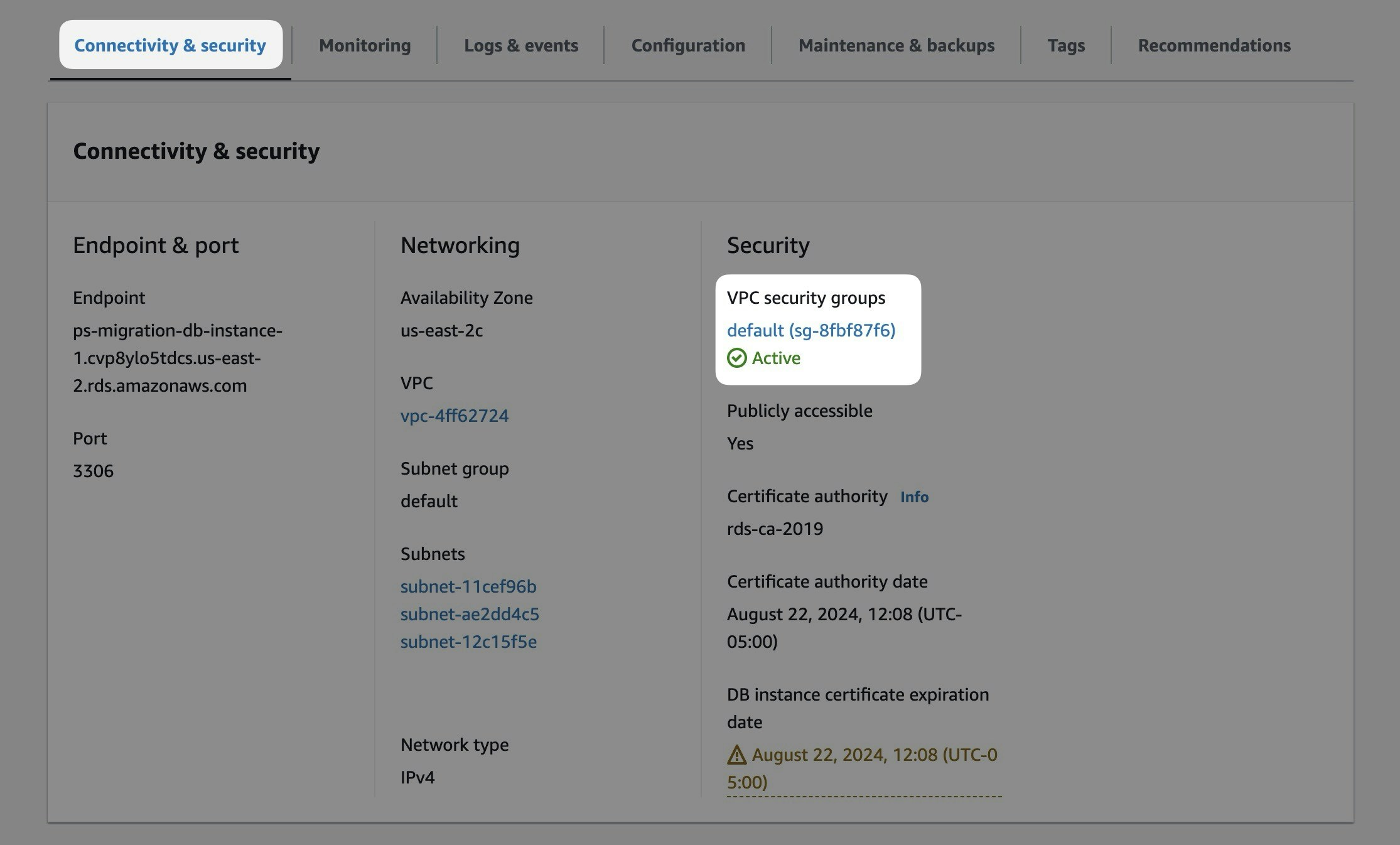
- Select “Inbound rules” tab, then “Edit inbound rules”
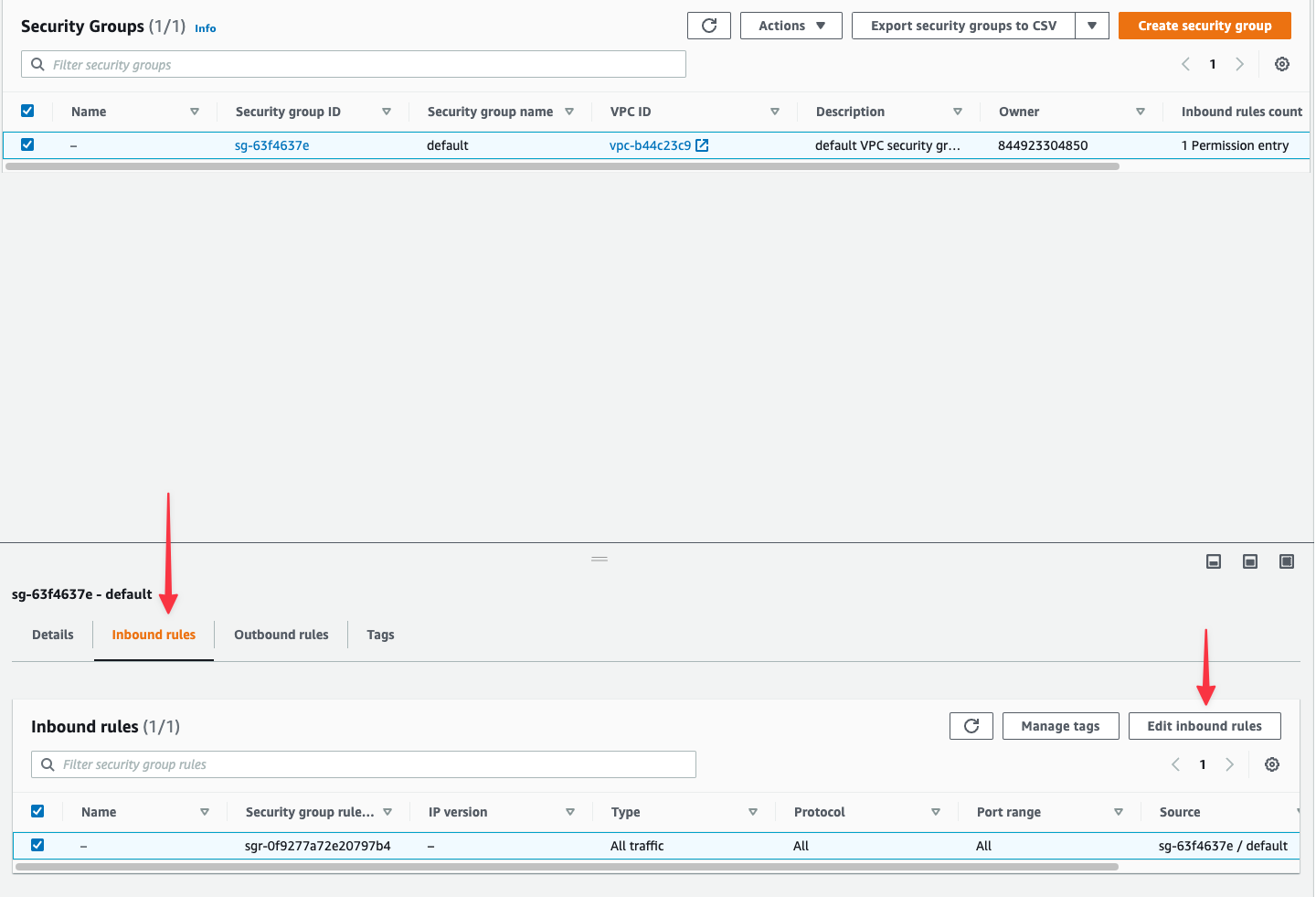
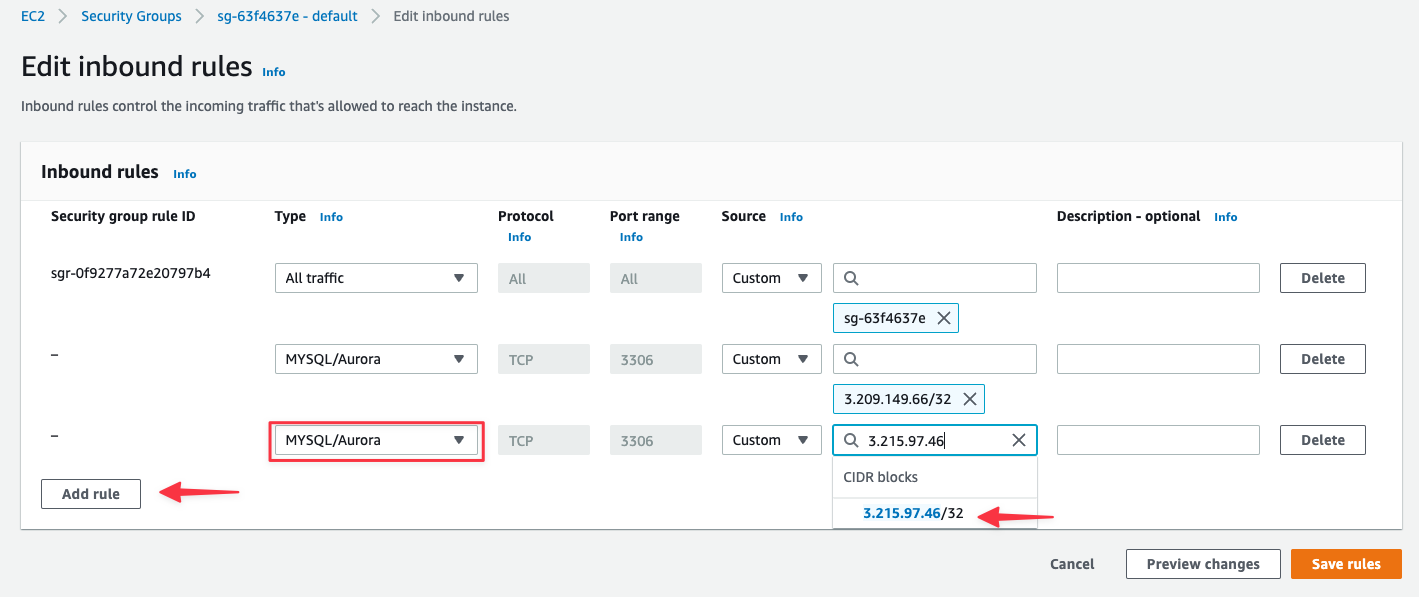
- Click “Add rule”
- Type: Select
MYSQL/Aurora - Source: Enter the first PlanetScale IP address (AWS will format it as
x.x.x.x/32) - Repeat for each IP address in your region
- Click “Save rules”
Importing your database
Now that your Aurora database is configured, follow the Database imports guide to complete your import. When you create the external keyspace, use the following connection settings:- Host name (
--host) - Your Aurora cluster endpoint address (from Prerequisites) - Port (
--port) - 3306 (or your custom port) - Database name (
--source-database) - The exact database name to import - Username (
--username) -migration_user - Password (
--password) - The password you set in Step 5 - SSL verification mode (
--ssl-mode) - Select based on your Aurora SSL configuration
- Creating your PlanetScale database
- Connecting to your Aurora database with an external keyspace
- Checking your server settings, user grants, and schema
- Starting the import with MoveTables
- Monitoring the import progress
- Switching traffic and completing the import