

Already created a PlanetScale Postgres database? Jump straight to integration instructions.
- Creating a new Postgres database
- Cluster configuration options
- Connecting to your database
Prerequisites
Before you begin, make sure you have a PlanetScale account. After you create an account, you’ll be prompted to create a new organization, which is essentially a container for your databases, settings, and members. After creating your organization, it’s important to understand the relationship between databases, branches, and clusters.- Database: Your overall project (e.g., “my-ecommerce-app”)
- Branch: Isolated database deployments that provide you with separate environments for development and testing, as well as restoring from backups - learn more about branching
- Cluster: The underlying compute and storage infrastructure that powers each branch
Create a new database
- Dashboard
- CLI
Step 1: Navigate to database creation
1
Log in to your PlanetScale dashboard
2
Select your organization from the dropdown
3
Click “New database” button or navigate to
/newStep 2: Choose database engine
1
On the database creation form, you’ll see two engine options:
- Vitess (MySQL-compatible)
- Postgres (PostgreSQL-compatible)
2
Select Postgres to create a PostgreSQL database
Step 3: Configure your database cluster
1
Database name: Enter a unique name for your database
This “name” is referenced in the PlanetScale Dashboard and APIs and not created as a logical database inside of Postgres.
2
Region: Choose the primary region where your database will be hosted. For the lowest latency, select a region near you or your application’s hosting location.
3
Cluster configuration: Select your preferred cluster size and CPU architecture
Step 4: Create the database cluster
1
Review your configuration settings
2
Click “Create database” to provision your Postgres database
3
Your database will be created with a
main branch by defaultWhat happens during creation
When you create a Postgres database cluster, PlanetScale automatically:- Provisions a PostgreSQL cluster in your selected region
- Creates the initial
mainbranch - Prepopulates Postgres with required default databases
- Sets up monitoring and metrics collection
- Configures backup and high availability settings
Create credentials and connect
Postgres
Create role credentials with
pscale role, then connect using a connection string.pscale connect is not supported.Vitess / MySQL
Create a branch password with
pscale password, then connect with a connection string or pscale connect.The “Default role” is meant purely for administrative purposes. You can only create one and it has significant privileges for your database cluster and you should treat these credentials carefully. After completing this quickstart, it is strongly recommended that you create another role for your application use-cases.
- Dashboard
- CLI
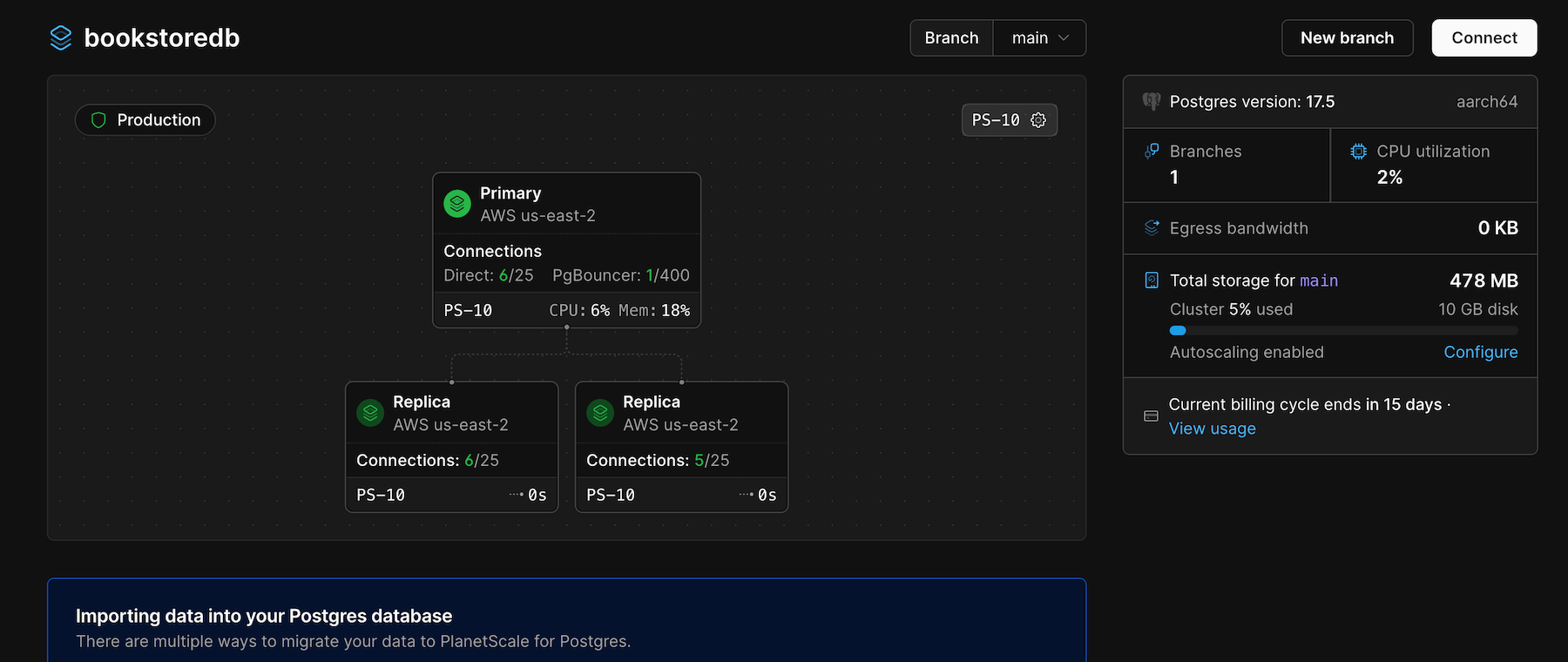
1
Navigate to your database in the PlanetScale dashboard
2
Click on the “Connect” button in the top right
3
Select “Default role”
4
Click “Create default role”. A new default role is created for your database branch.
5
Record the “Host”, “Username”, and “Password” for the “Default role” someplace secure.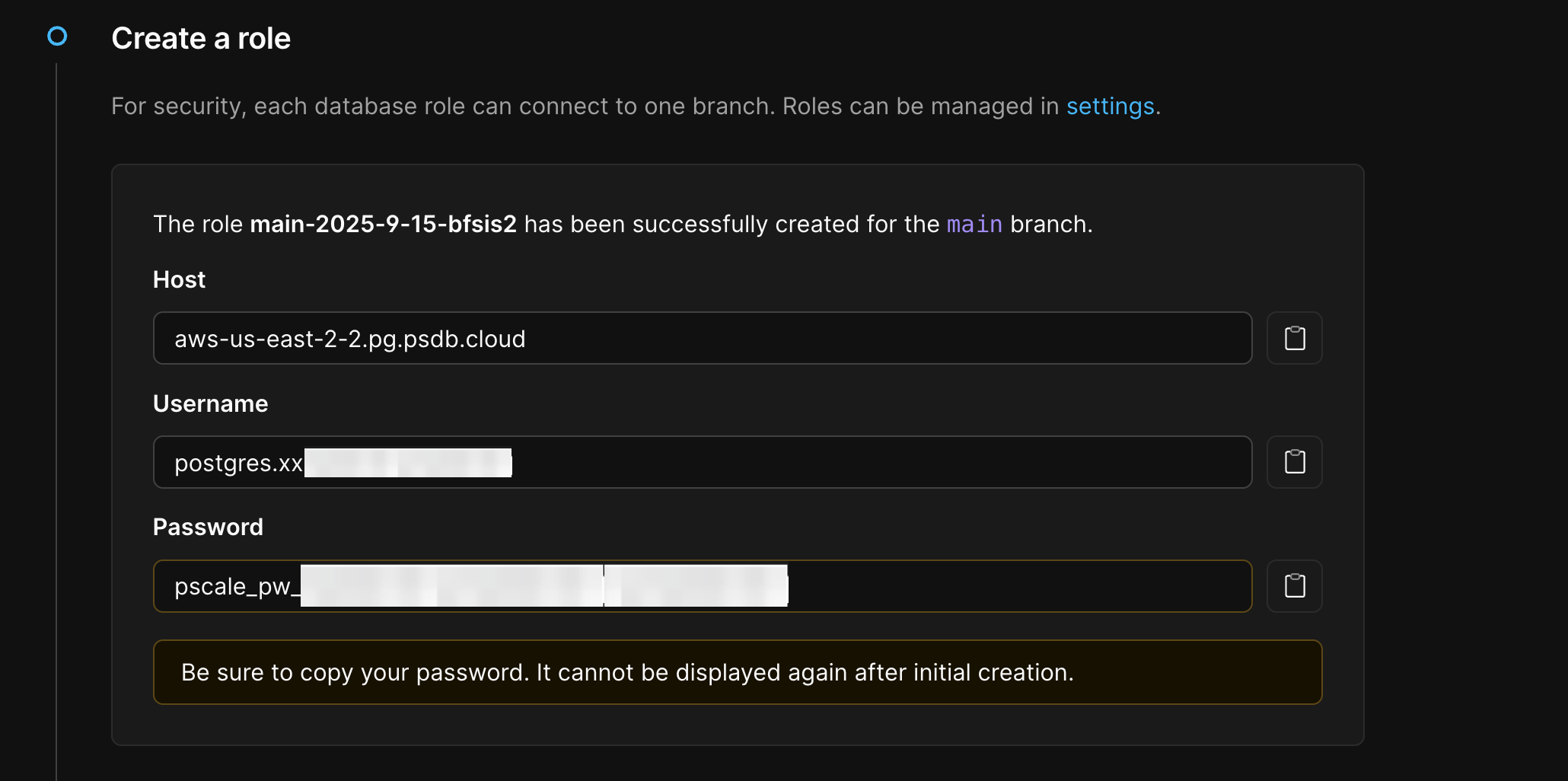
6
You can generate connection strings under “How are you connecting?” for major languages, frameworks, and tools.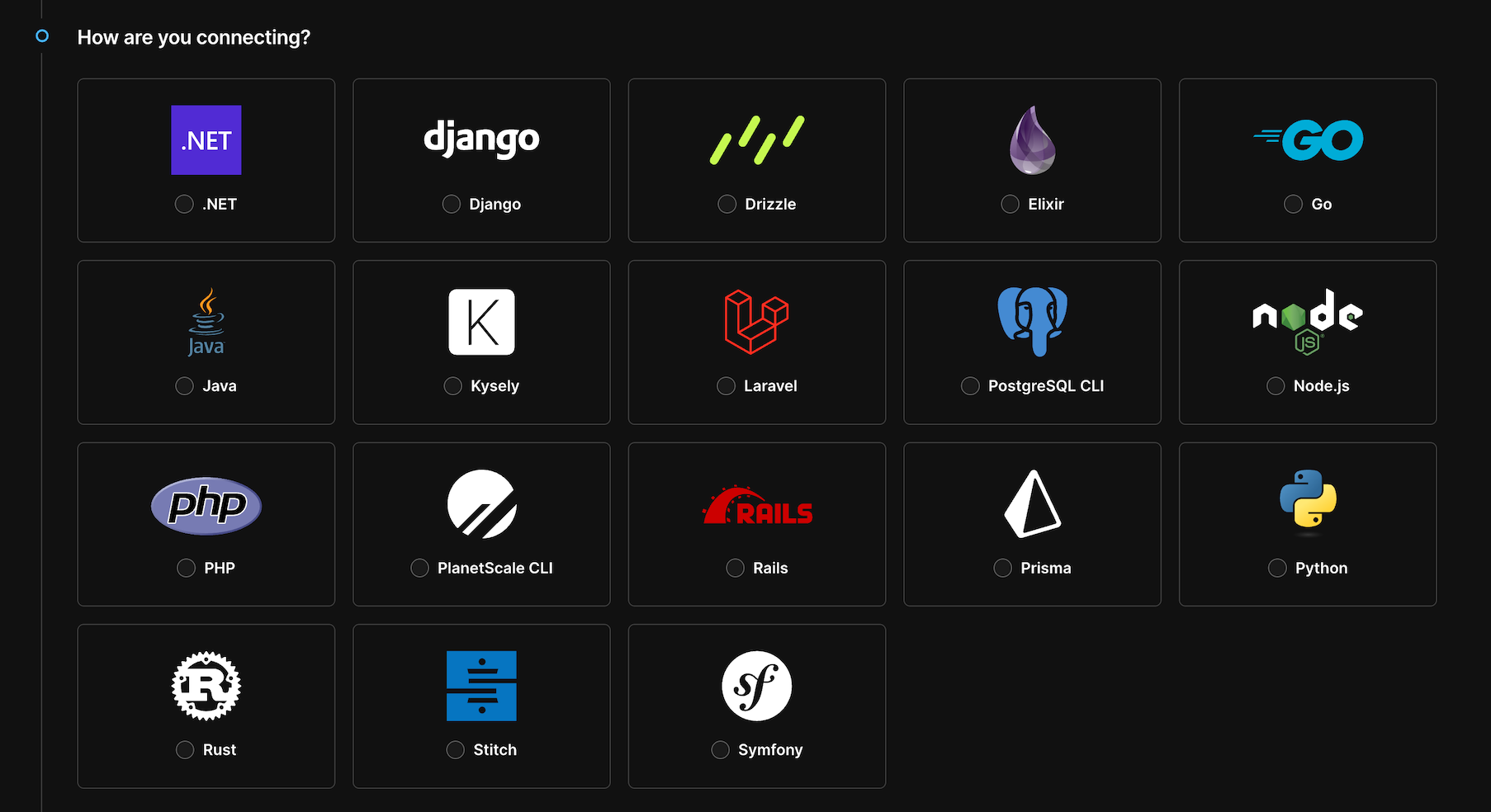
- Host: the DNS name of your database endpoint
- Username: automatically formatted for routing to the correct
branch - Password: A securely generated password
- Database:
postgres(default database) - Port:
5432(standard PostgreSQL port) or6432(for using PgBouncer)
Passwords are shown only once. If you lose your record of the password, you must reset the password.
Integrate with Rails
Step 1: Install the pg gem
Add thepg gem to your Gemfile:
Gemfile
Terminal
Step 2: Add credentials
We recommend using Rails encrypted credentials to store your database connection details securely.Terminal
config/credentials/production.yml.enc
PgBouncer
Port
6432 enables a lightweight connection pooler for PostgreSQL. This facilitates better performance when there are many simultaneous connections.Direct
Port
5432 connects directly to PostgreSQL. Total connections are limited by your cluster’s max_connections setting.Both connection types will disconnect when your database restarts or handles a failover scenario.
Step 3: Configure database.yml
Update yourconfig/database.yml to use your PlanetScale credentials in production:
config/database.yml
If deploying to Heroku, add
sslrootcert: /etc/ssl/certs/ca-certificates.crt to your configuration.Step 4: Run migrations
Run your migrations against PlanetScale to set up the schema:Terminal
Terminal
Schema migrations
Running schema migrations safely is critical in production environments. Here are our recommendations for Rails applications.Run migrations during deployment
Schema migrations should run as part of your deployment process, before the new code is released. Most deployment platforms support running a release command:Use strong_migrations
We recommend the strong_migrations gem to catch potentially dangerous migrations in development before they reach production.Gemfile
Terminal
CONCURRENTLY or changing column types on large tables.
Separate schema and code changes
For safer deployments, we recommend separating schema changes from code changes into different deployments:- Schema-only deployment: Contains only the migration file with no application code changes. Deploy this first.
- Code deployment: Contains the application code that uses the new schema. Deploy after the schema change is live.
Dropping columns and tables
When removing columns or tables, follow this process:- Stop using the column: Deploy code that no longer reads from or writes to the column.
- Verify with Insights: Use PlanetScale Insights to confirm no queries are accessing the column.
- Drop the column: In a separate deployment, add the migration to remove the column.
Connection management
Understanding how many database connections your Rails application uses is essential to avoid exhausting your connection pool.Calculating connections with Puma
If you’re using Puma as your web server, the total number of database connections your application needs is:Staying within limits
Your total connection count must stay below your Postgres cluster’smax_connections setting. Check your current limit in the PlanetScale dashboard under cluster configuration.
Configure your Rails connection pool in database.yml:
config/database.yml
Use PgBouncer for scaling
If your application needs more connections thanmax_connections allows, we recommend using PgBouncer. PlanetScale provides both a local PgBouncer (included with every database) and dedicated PgBouncers for higher connection counts.
To use PgBouncer, change your port from 5432 to 6432:
config/credentials/production.yml.enc
database.yml to use direct connections (port 5432) for migrations while your application uses PgBouncer:
config/database.yml
Terminal
Querying replicas
PlanetScale Postgres includes replicas that you can query directly to reduce load on your primary. Rails 6+ has built-in support for multiple databases, making it straightforward to route read queries to replicas.Connection options for replicas
There are two ways to connect to replicas:
Direct connections work well for all traffic types and are simpler to set up. The tradeoff is that each connection goes to a single replica rather than being distributed, and you’re limited by
max_connections since there’s no connection pooling.
Dedicated replica PgBouncers provide connection pooling and route queries across your replica nodes, allowing your application to scale beyond max_connections. This is the better choice when you have high read traffic or many application instances connecting to replicas.
The local PgBouncer (port
6432) does not support replica routing. To get connection pooling for replica traffic, create a dedicated replica PgBouncer in the PlanetScale dashboard.Step 1: Configure database.yml
Add a replica configuration. The example below uses a direct connection with the|replica suffix:
If you configure Rails with
DATABASE_URL (URI format), URL-encode the pipe character in username suffixes. For example, use %7Creplica instead of |replica:config/database.yml
Step 2: Configure ApplicationRecord
Update yourApplicationRecord to use multiple databases:
app/models/application_record.rb
Step 3: Query the replica
Useconnected_to to explicitly route queries to the replica:
When to use replicas
Replicas are useful for offloading read-heavy workloads from the primary. Some examples:- Scheduled and background jobs: Sidekiq jobs, cron tasks, or batch processing that read data.
- Analytics and reporting: Aggregations, reports, or dashboards that run expensive queries.
- Search features: Full-text search or filtering that scans large datasets.
- Read-only views: Serving data to logged-out users or public pages where replication lag is acceptable.
- Debugging and one-off queries: Running queries against production data without impacting the primary.