

Before beginning your migration, we recommend running our migration assessment tool for instant feedback on migration complexity, potential blockers, and the recommended migration path.
pg_dump and restore. The pg_dump/restore approach is simpler, but is only for applications where downtime is acceptable.
This guide assumes that public internet access is enabled on your Aurora database, as it will be needed to connect and replicate to the new PlanetScale host. If you cannot enable this due to security policies, consider using AWS DMS for your migration, or contact support for more specific guidance.
These instructions work for all versions of Postgres that support logical replication (version 10+). If you have an older version you want to bring to PlanetScale, contact us for guidance.
Before beginning a migration, you should check our extensions documentation to ensure that all of the extensions you rely on will work on PlanetScale.
As an alternative to this guide, you can also try our Postgres migration scripts. These allow you to automate some of the manual steps that we describe in this guide.
Want expert guidance for your migration? PlanetScale’s migration services are available to help you plan and execute a smooth, successful move.
1. Prepare your PlanetScale database
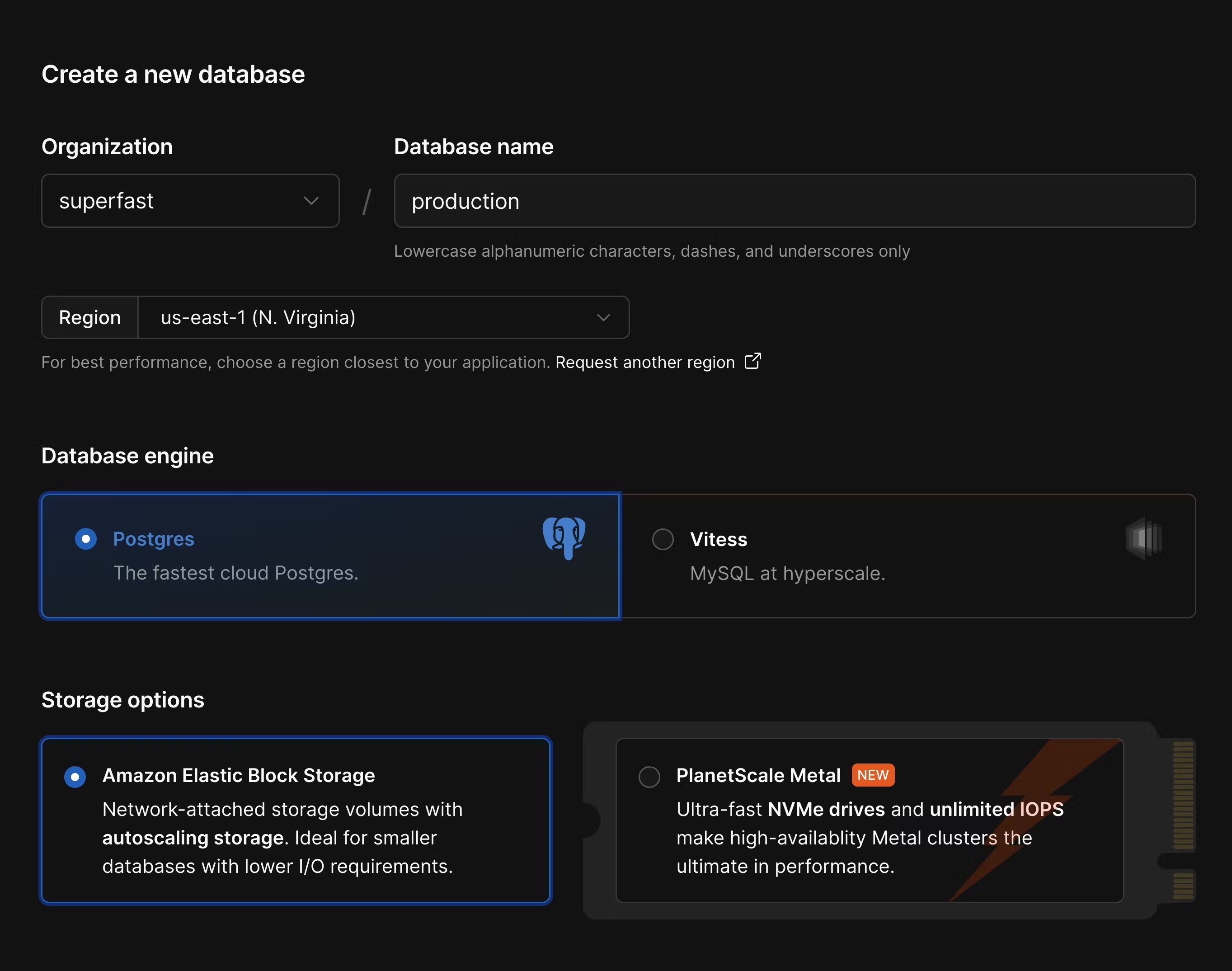
Create a new database in the PlanetScale dashboard or using the PlanetScale CLI. A few things to check when configuring your database:- Ensure you select the correct cloud region. You typically want to use the same region that you deploy your other application infrastructure to.
- This guide assumes you are migrating from a Postgres Aurora database, so also choose the Postgres option in PlanetScale.
- Choose the best storage option for your needs. For applications needing high-performance and low-latency I/O, use PlanetScale Metal. For applications that need more flexible storage options or smaller compute instances, choose “Elastic Block Storage” or “Persistent Disk.”
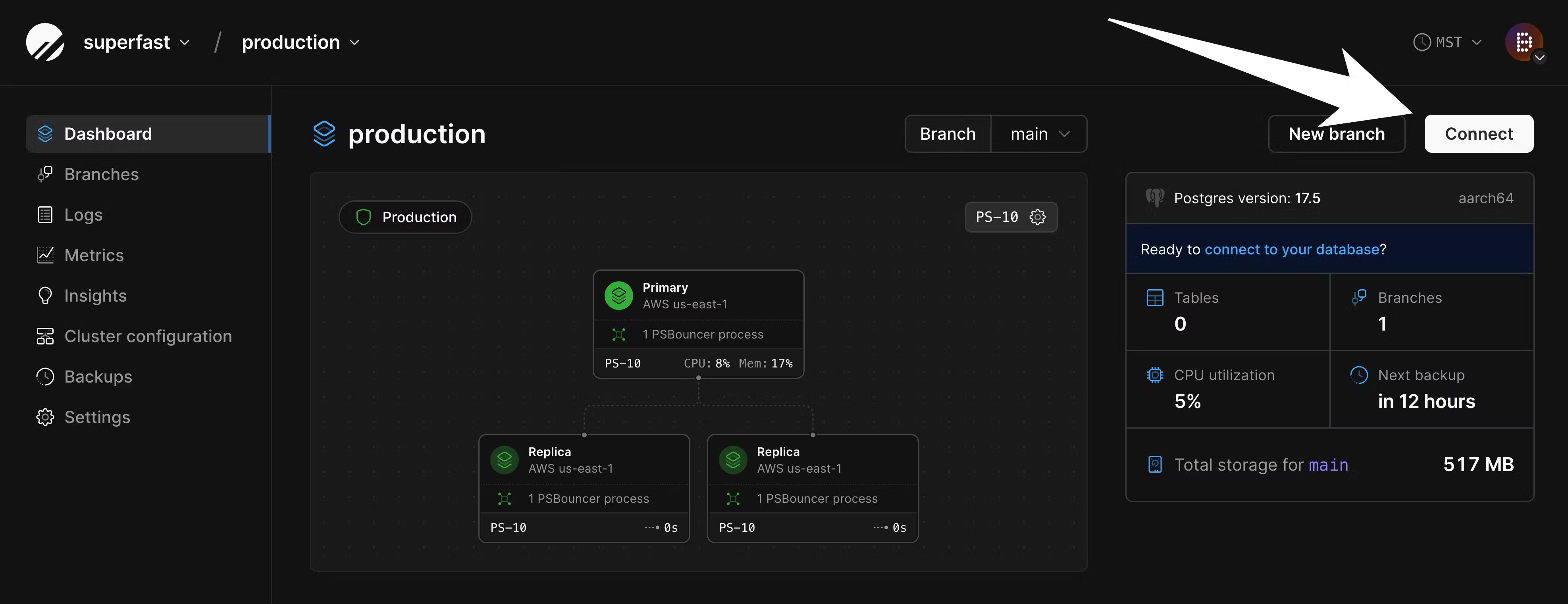
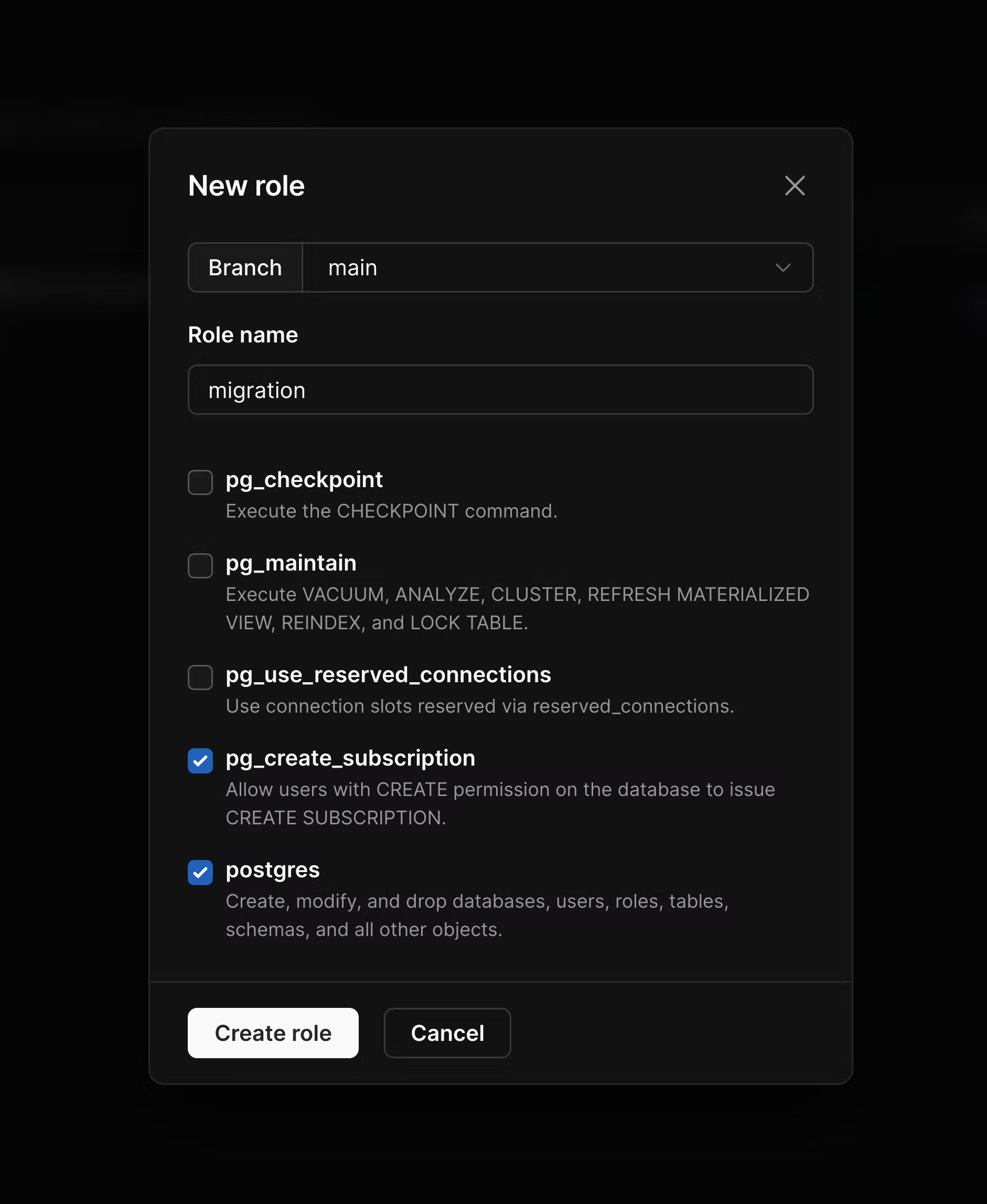
pg_read_all_data and pg_write_all_data are enabled. In addition to these, enable pg_create_subscription and postgres, and then create the role.
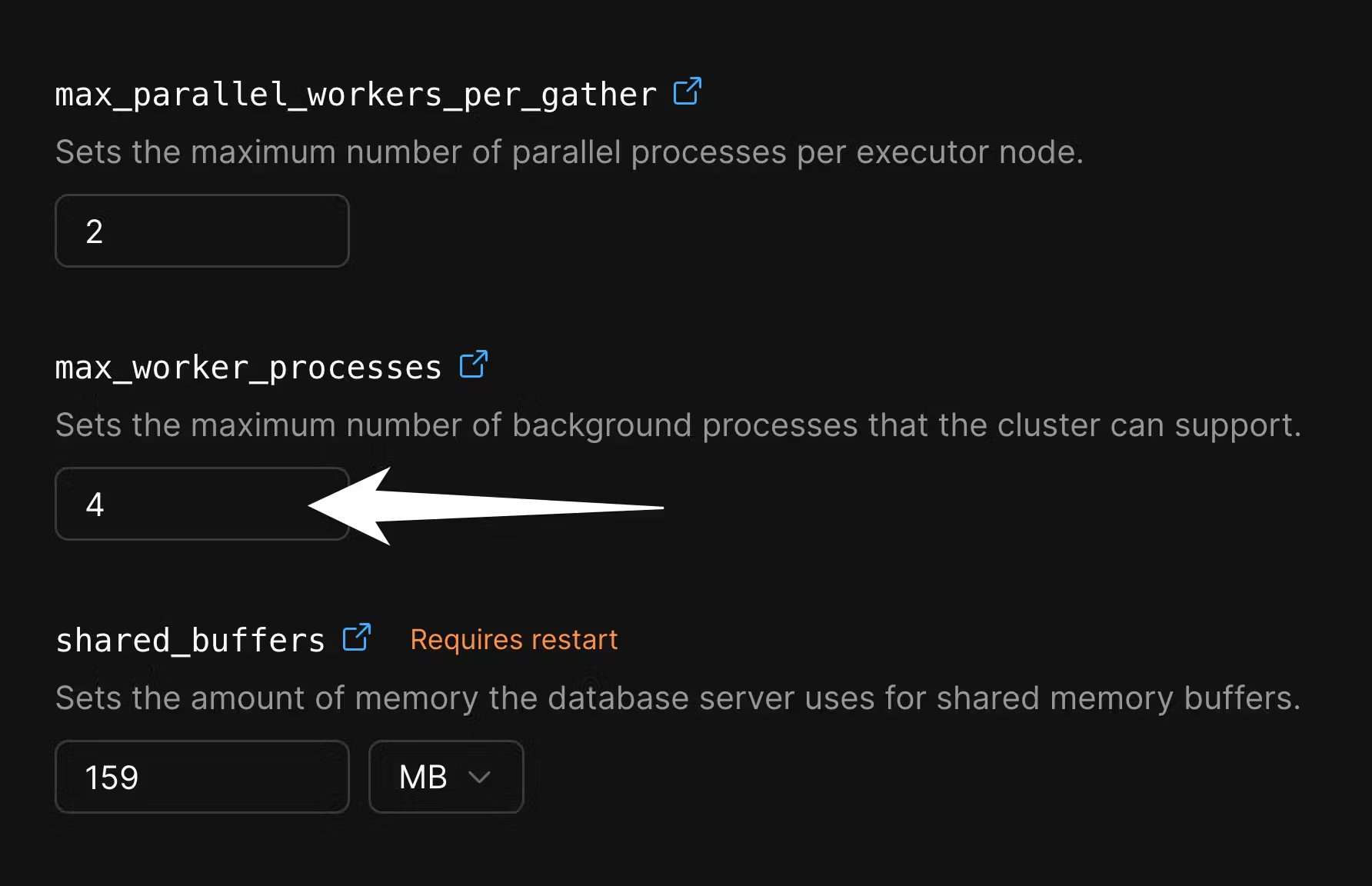
max_worker_processes for the duration of the migration, in order to speed up data copying. Go to the “Parameters” tab of the “Clusters” page:
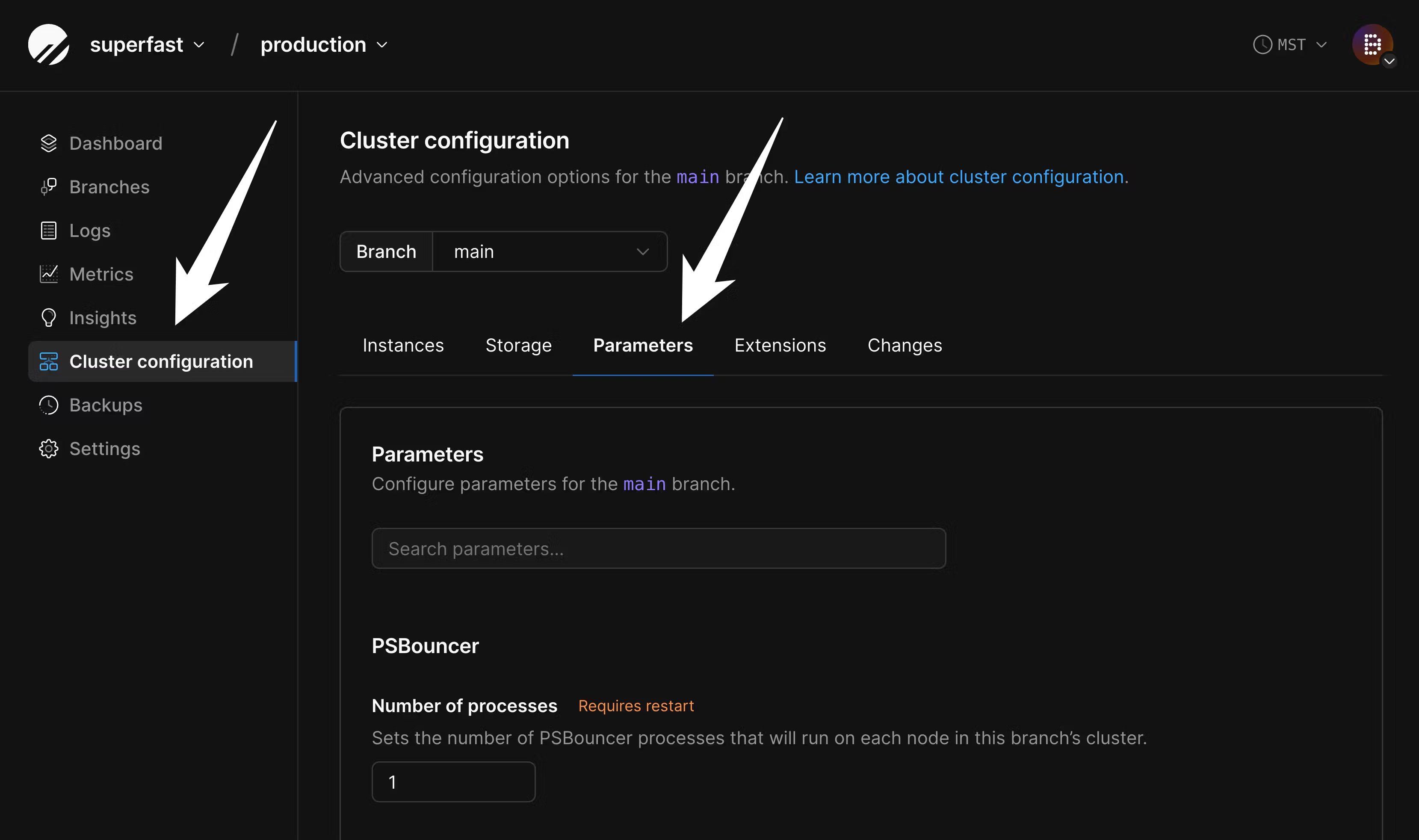
4 to 10 or more:
2. Configure disk size on PlanetScale
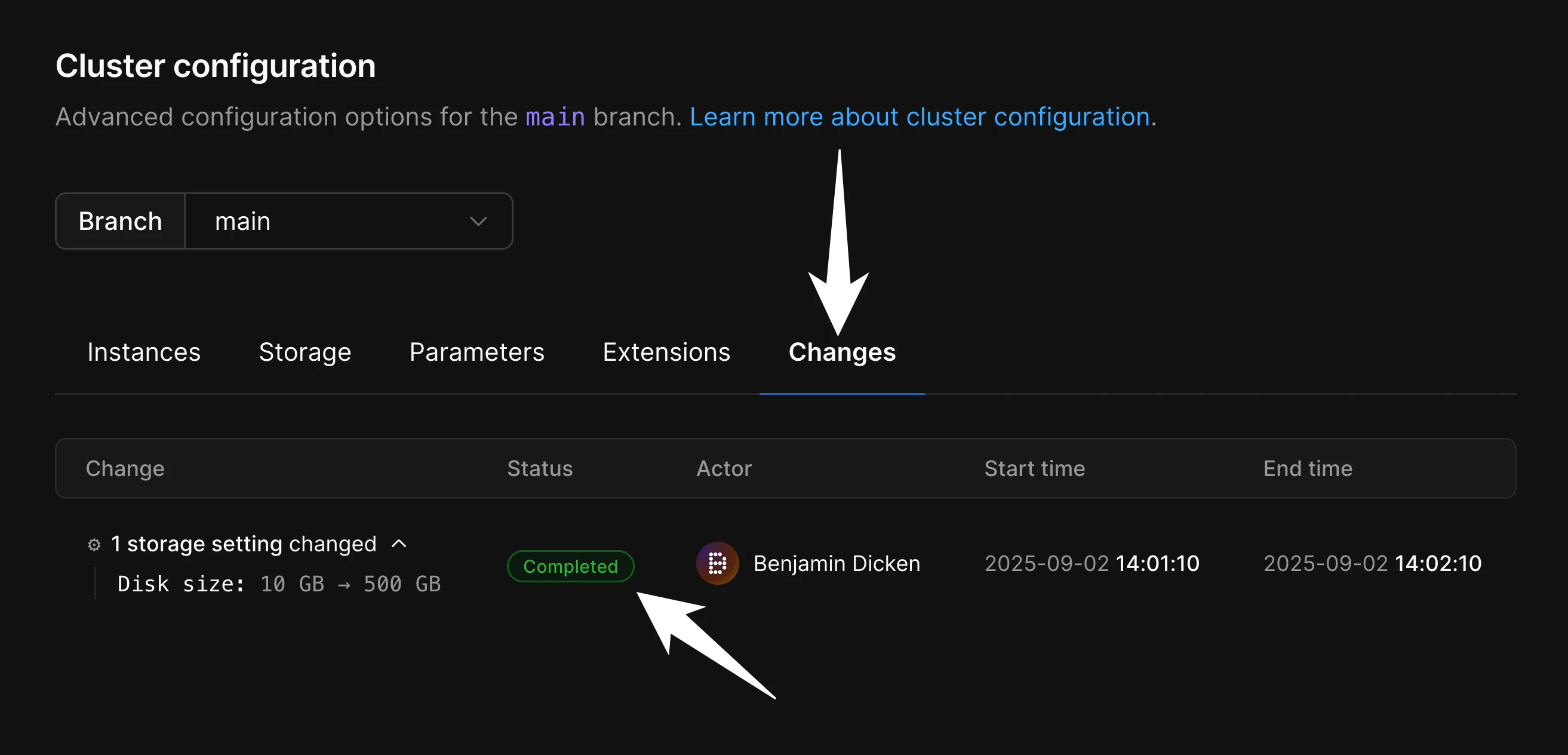
If you are importing into a database backed by network-attached storage, you must configure your disk in advance to ensure your database will fit. Though we support disk autoscaling for these, AWS and GCP limit how frequently disks can be resized. If you don’t ensure your disk is large enough for the import in advance, it will not be able to resize fast enough for a large data import. To configure this, navigate to “Clusters” and then the “Storage” tab: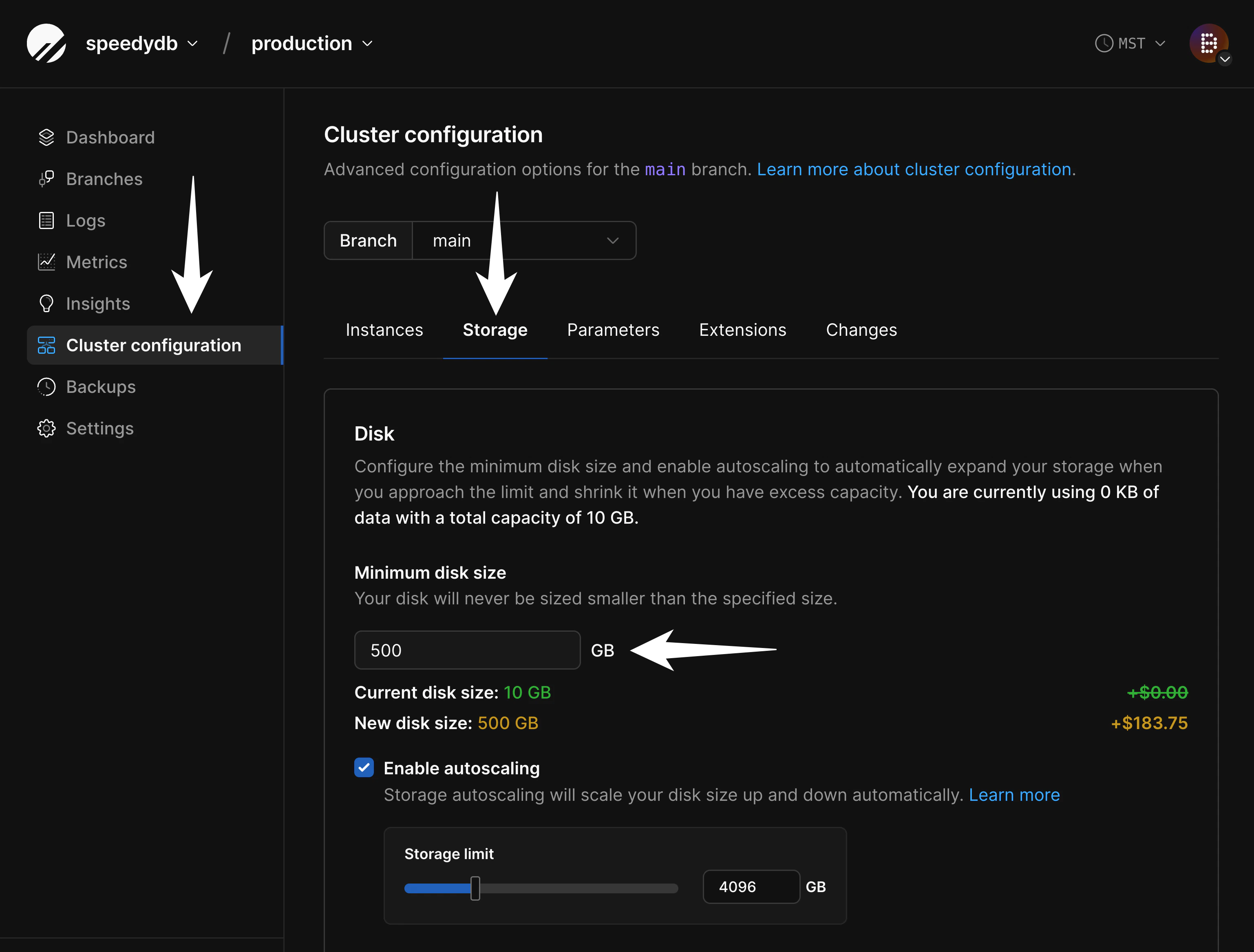
- Data growth during the import process and
- Table and index bloat that can occur during the import process. This can be later mitigated with careful VACUUMing or using an extension like pg_squeeze, but is difficult to avoid during the migration itself.
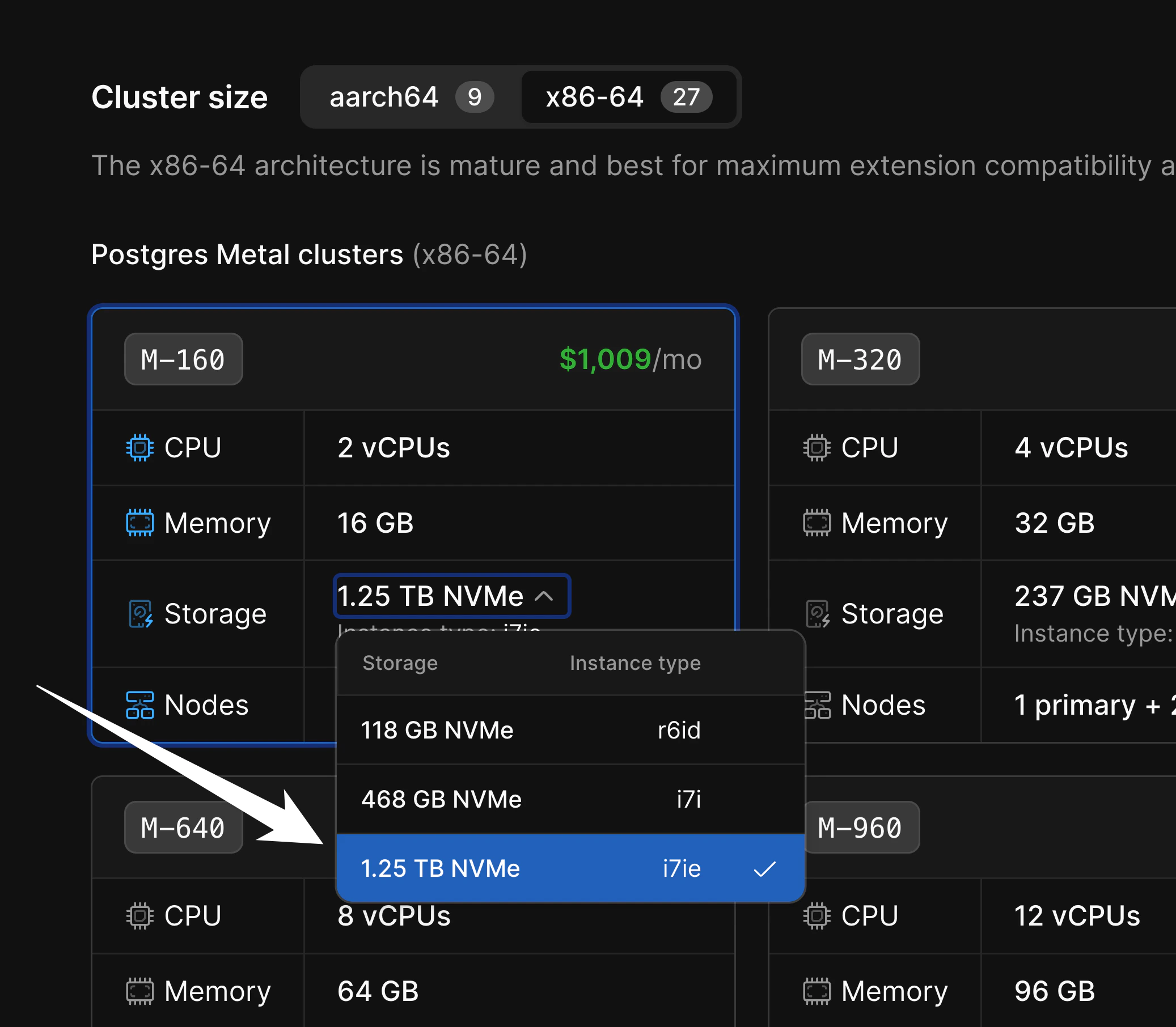
M-160 there are three storage sizes available:
3. Prepare the Aurora database
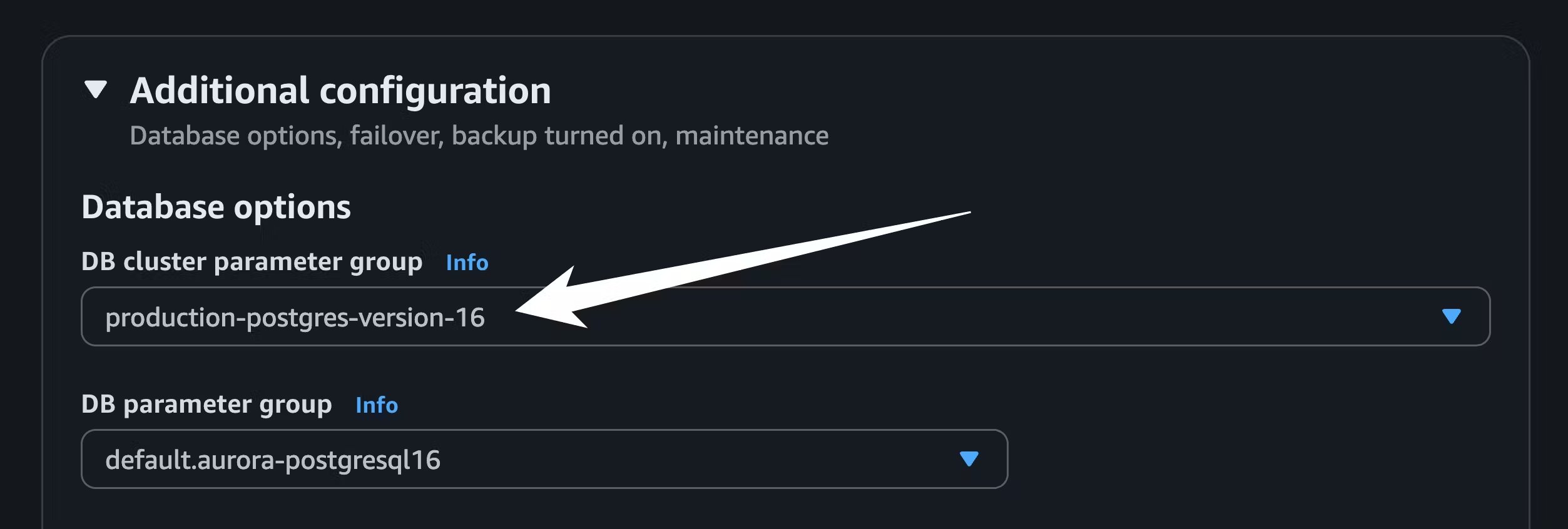
For PlanetScale to import your database, it needs to be publicly accessible. You can check this in your AWS dashboard. In the writer instance of your database cluster, go to the “Connectivity & security” tab, and under “Security” you will see if your database is publicly accessible. If it says “No,” you will need to change it to be publicly accessible through the “Modify” button. If this is an issue, you cannot do this, or you have questions, please contact support to explore your migration options. You will also need to change some parameters and ensure that logical replication is enabled. If you don’t already have a parameter group for your Aurora cluster, create one from the “Parameter groups” page in the AWS console: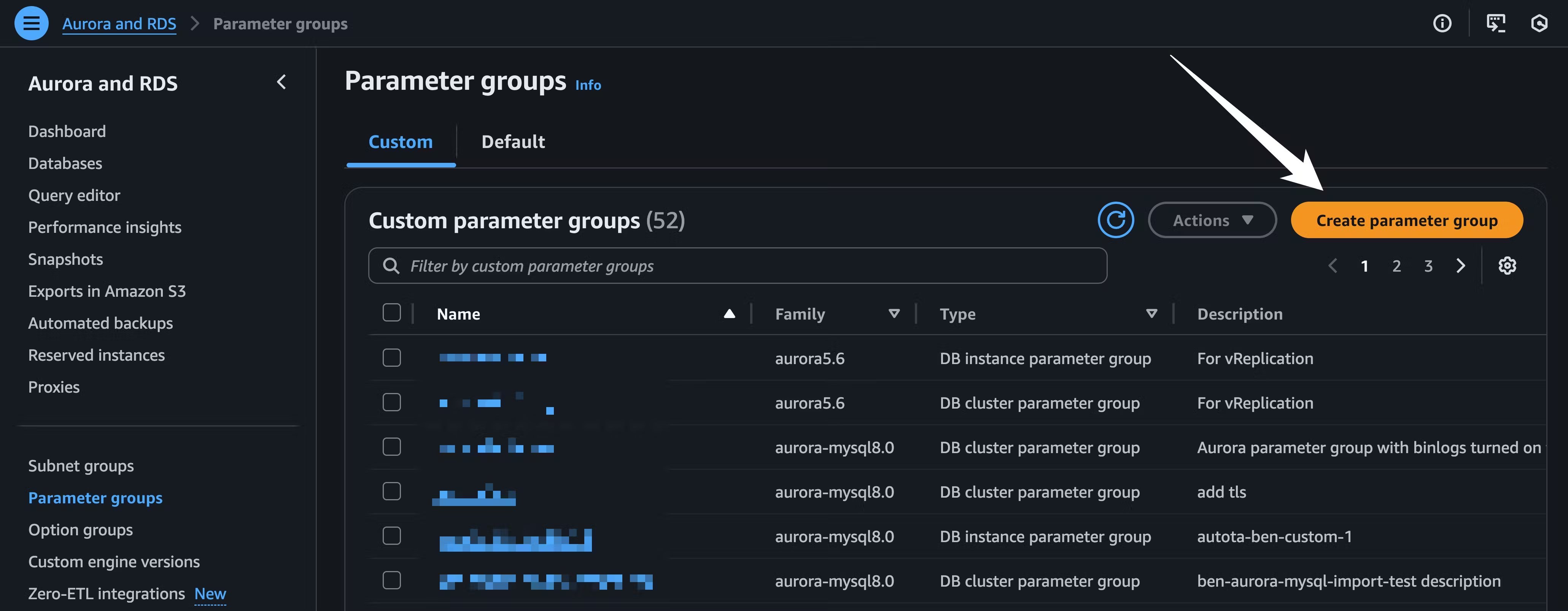
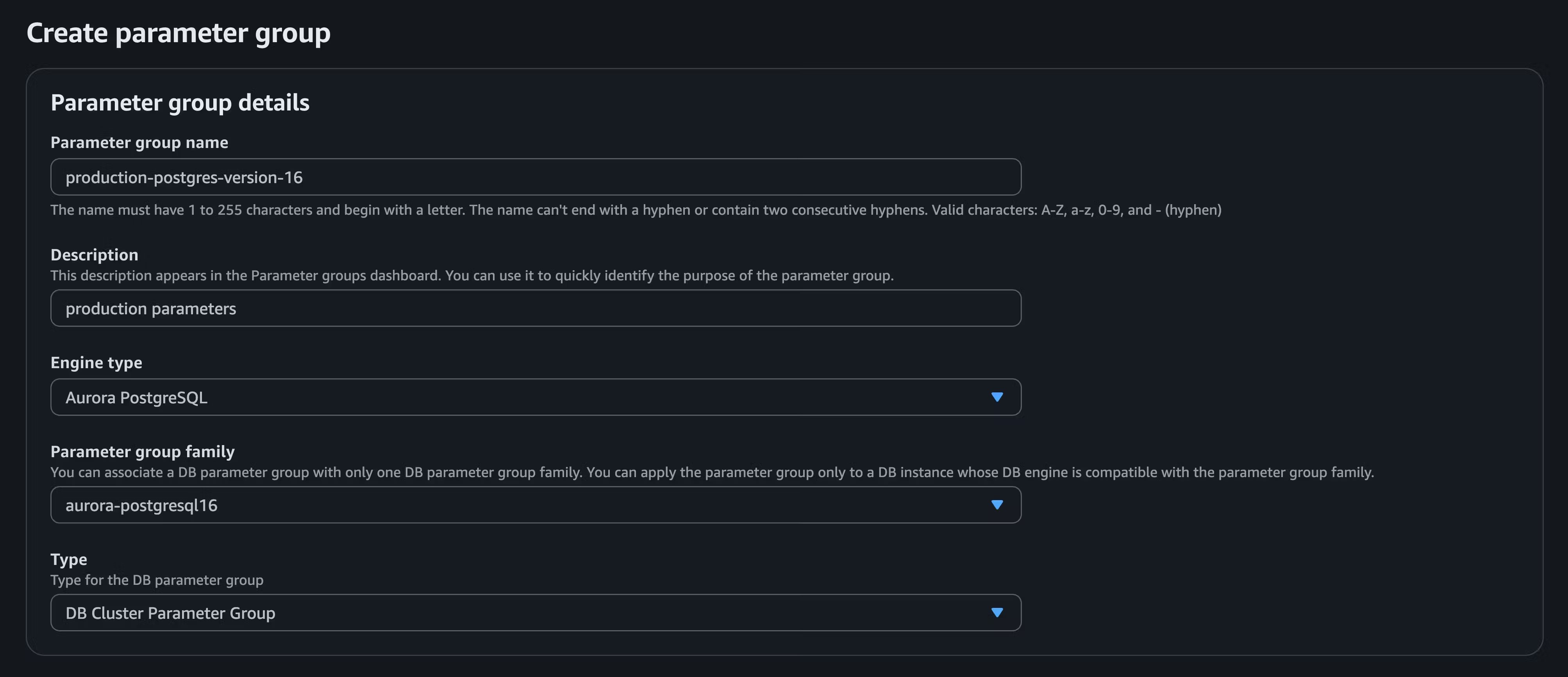
Engine type to Aurora Postgres and the Parameter family group to the version that matches your Aurora Postgres database. Set the Type to DB Cluster Parameter Group.
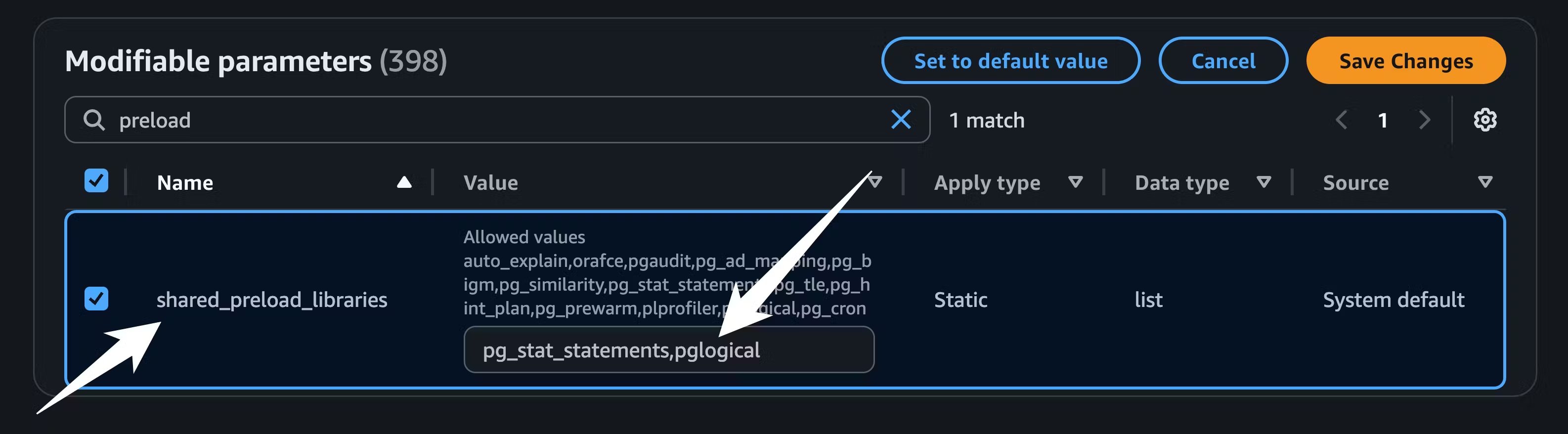
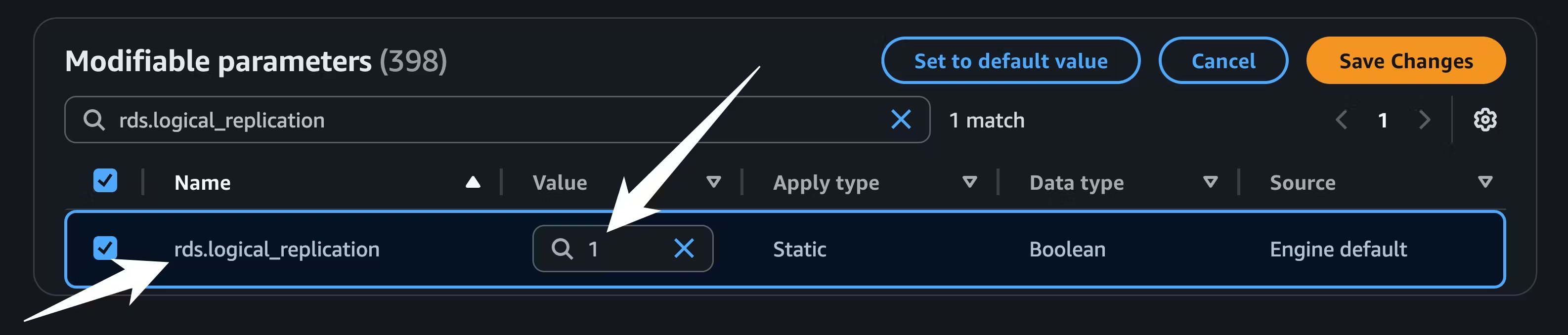
pglogical to shared_preload_libraries and setting rds.logical_replication to 1:
wal_level is set to logical by running SHOW wal_level; on your Aurora database:
logical, then it is not configured correctly. If you are having trouble getting the settings to propagate, you can try restarting the Aurora instance, though that will cause a period of downtime.
4. Copy schema from Aurora to PlanetScale
Before we begin migrating data, we first must copy the schema from Aurora to PlanetScale. We do this as a distinct set of steps usingpg_dump.
For these instructions, you’ll need to connect to Aurora with a role that has permissions to create replication publications and read all data. Your default role that was generated by Aurora when you first created your database should suffice here, but you may also use other roles. We will assume that the credentials for this user and other connection info are stored in the following environment variables.
$AURORA_DBNAME that you want to migrate:
schema.sql.
The above command will dump the tables for all schemas in the current database. If you want to migrate only one specific schema, you can add the
--schema=SCHEMA_NAME option.5. Set up logical replication
We now must create aPUBLICATION on Aurora that the PlanetScale database can subscribe to for data copying and replication.
To create a publication for all tables in all schemas of the current database, run the following command on your Aurora database:
To publish changes for only one specific schema, run the following query:This will generate a query that looks like this:You can then copy/paste this and execute on Aurora. This will create a publication that only publishes changes for the tables in
YOUR_SCHEMA_NAMESUBSCRIBE to this publication.
6. Handling sequences
Logical replication is great at migrating all of your data over to PlanetScale. However, logical replication does not synchronize thenextval values for sequences in your database. Sequences are often used for things like auto incrementing IDs, so it’s important to ensure we update this before you switch your traffic to PlanetScale.
You can see all of the sequences and their corresponding nextvals on your source Aurora database using this command:
nextval for the users_id_seq is 105, the nextval for the posts_id_seq is 1417, and the nextval for the followers_id_seq is 3014. If you run the same query on your new PlanetScale database, you’ll see something like:
nextvals produced will be greater than any of the values previously produced on the source Aurora database, avoiding constraint violations. There are several approaches you can take for this. A simple way to solve the problem is to first run this query on your source Aurora database:
nextval by 10,000 for each sequence:
nextvals before you switch your primary to PlanetScale. For tables that have a high insertion rate, you might need to increase this by a larger value (say, 100,000 or 1,000,000).