

- A Confluent Cloud cluster in a region that supports custom connectors.
- The plugin archive
planetscale-debezium-connector-planetscale-<version>.zipfrom the releases page. Pick the release line as described on the main page. - A PlanetScale password for the branch you want to capture.
Upload the plugin and create the connector
Upload the plugin archive as a custom connector and configure it like a self-hosted Kafka Connect connector.1
In Confluent Cloud, go to Connectors → Add plugin. In the Upload custom connector plugin dialog choose Create new plugin, give it a name such as 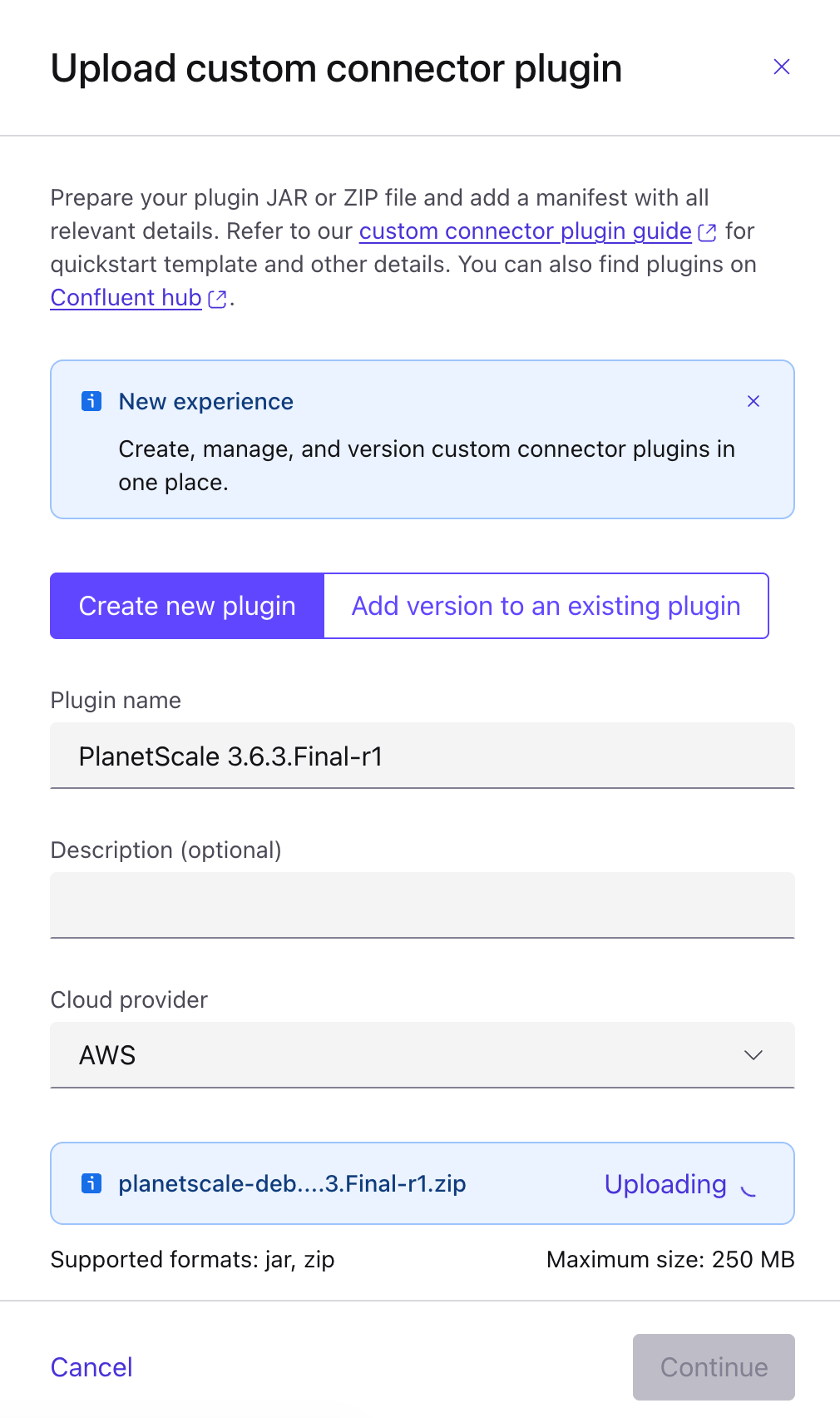
PlanetScale 3.6.3.Final-r1, pick the cloud provider of your Kafka cluster, and upload planetscale-debezium-connector-planetscale-<version>.zip (zip or jar, 250 MB maximum). Take a look at our connector releases on GitHub.2
Click Continue. Confluent reads the plugin manifest from the archive and shows the plugin details: the version, the type (Source), the documentation link, and the connector classes it found.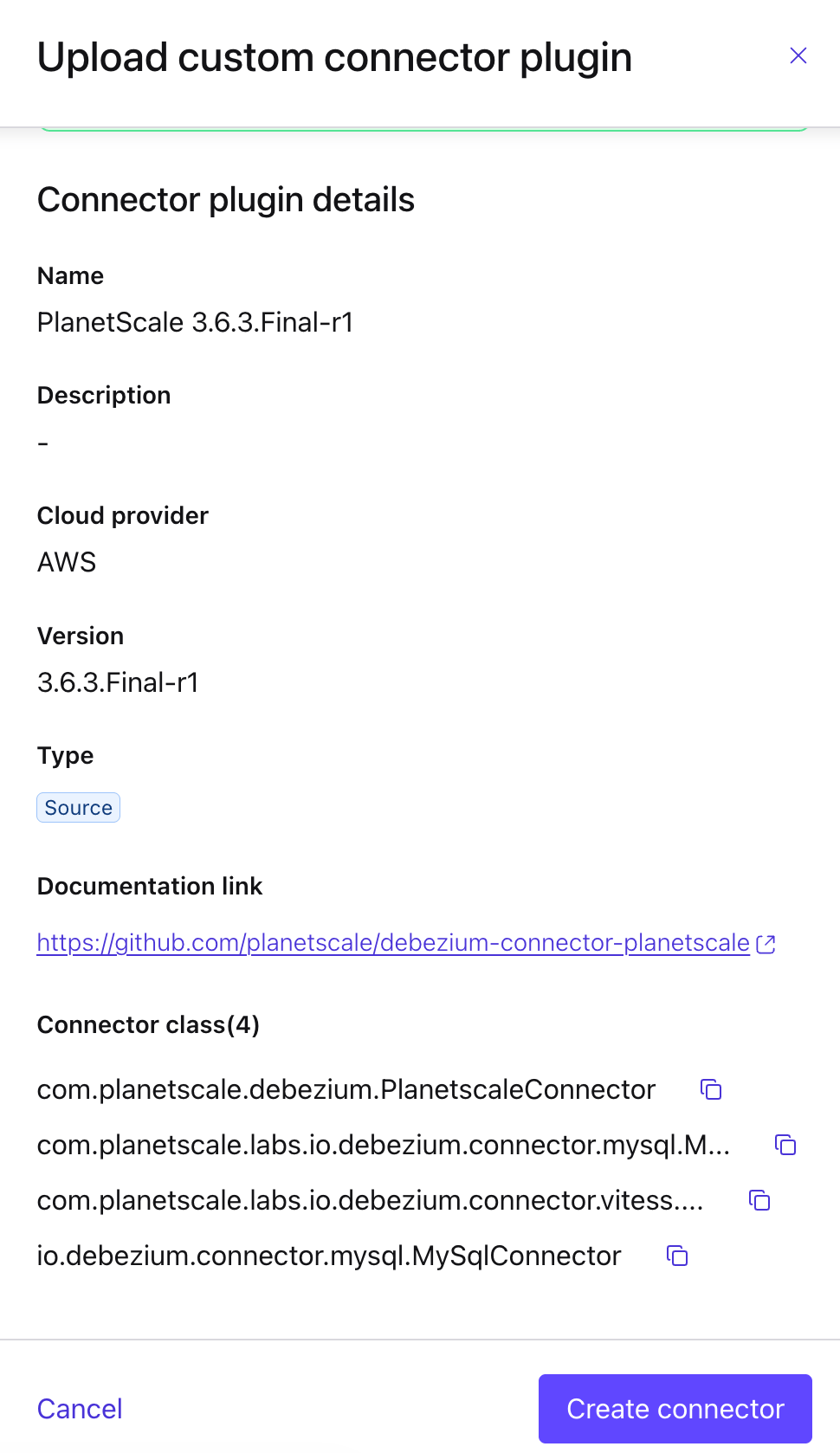
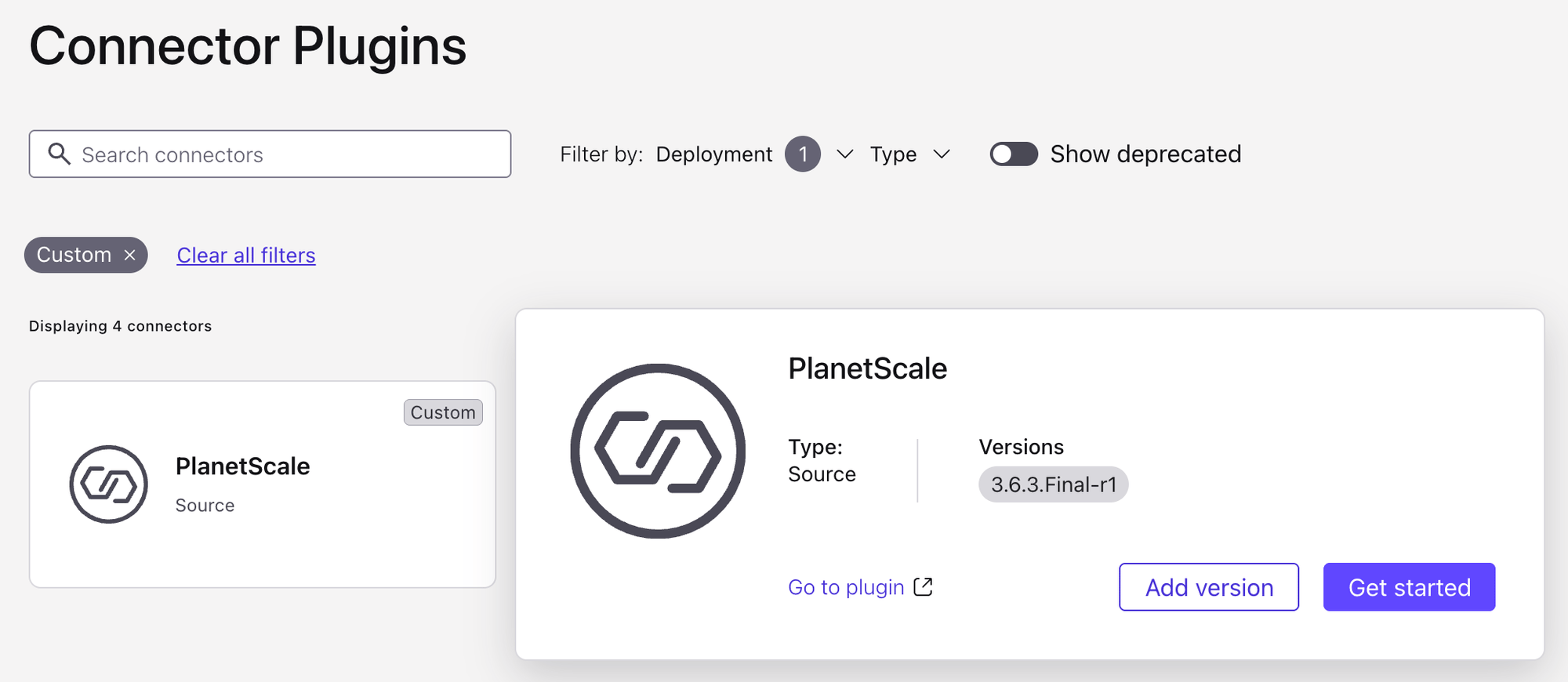
com.planetscale.debezium.PlanetscaleConnector. The other three (com.planetscale.labs.io.debezium.connector.vitess…, com.planetscale.labs.io.debezium.connector.mysql…, and io.debezium.connector.mysql.MySqlConnector) are internal dependencies bundled with the plugin and are not meant to be run on their own.Click Create connector to go straight to creating a connector from the new plugin.You can also come back later: the plugin stays listed under Connectors → Connector Plugins (filter on Custom). From there, Get started creates a connector from it, and Add version uploads a newer release of the archive next to the existing one.3
The Add connector wizard opens on Connector details. Select the plugin version, keep the connector type on Source, and under Select class choose 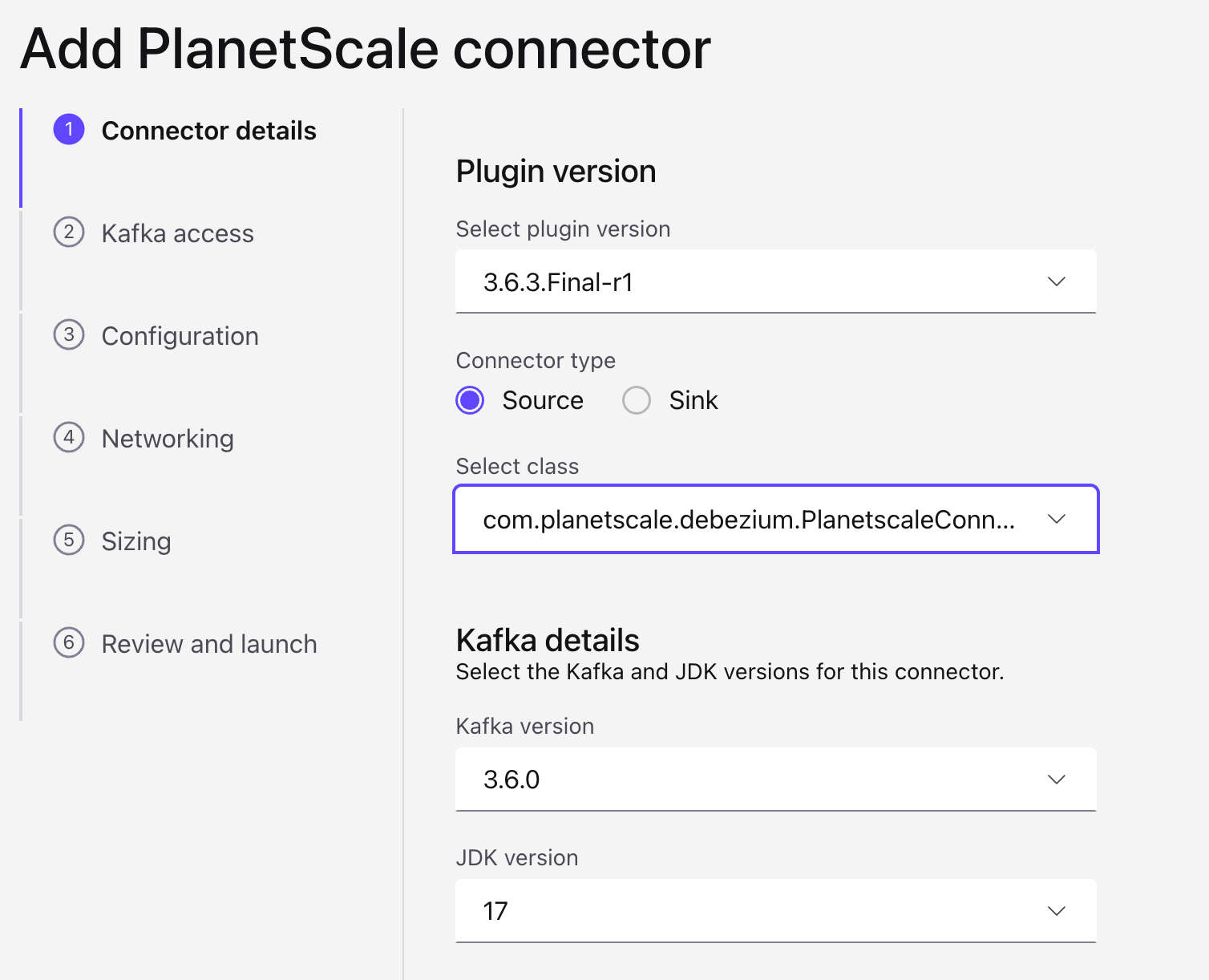
com.planetscale.debezium.PlanetscaleConnector.Under Kafka details, the defaults work: the connector targets Java 17, so JDK version 17 or newer is fine, and any offered Kafka version from 3.6 up is supported.4
On Kafka access, pick or create the API key the connector uses to write to your cluster.
5
On Configuration, Confluent shows the connector’s settings as a form. Fill in: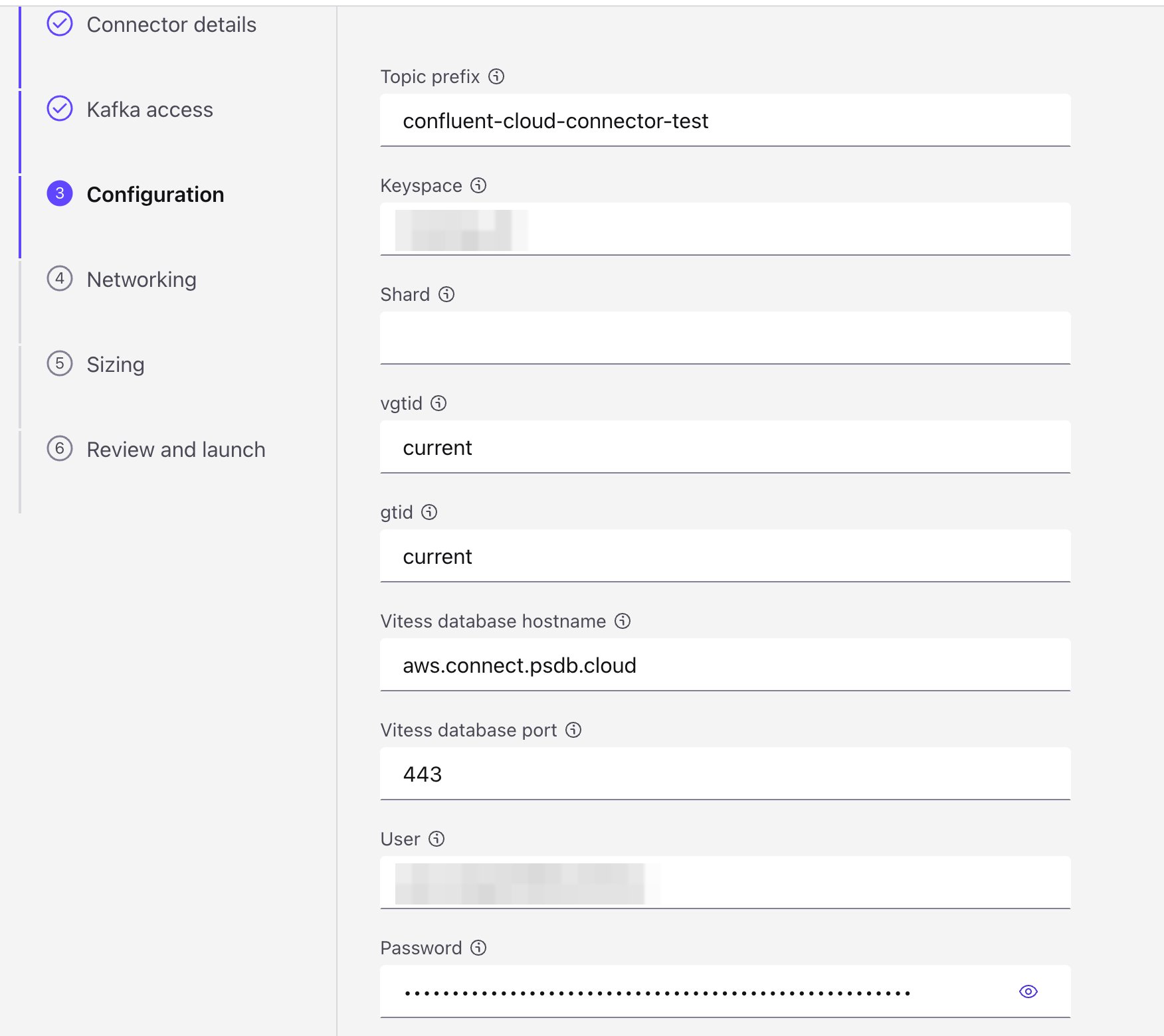
- Topic prefix: the prefix for the topics the connector creates.
- Keyspace: your PlanetScale database name.
- Shard: leave empty to capture all shards. Ignore the field’s tooltip example of
"0"for an unsharded keyspace: an unsharded Vitess keyspace’s shard is named-, and a0here makes the connector fail to start. - vgtid and gtid: leave at
currentto start streaming from the current position, after the initial snapshot. - Vitess database hostname and port: the hostname from your PlanetScale connection string, and
443. The port field is pre-filled with the connector’s default15991. Change it to443, the only port PlanetScale listens on. - User and Password: your PlanetScale password credentials. The password field is masked and stored encrypted by Confluent.
6
On Networking, add your PlanetScale hostname with port 443 (for example 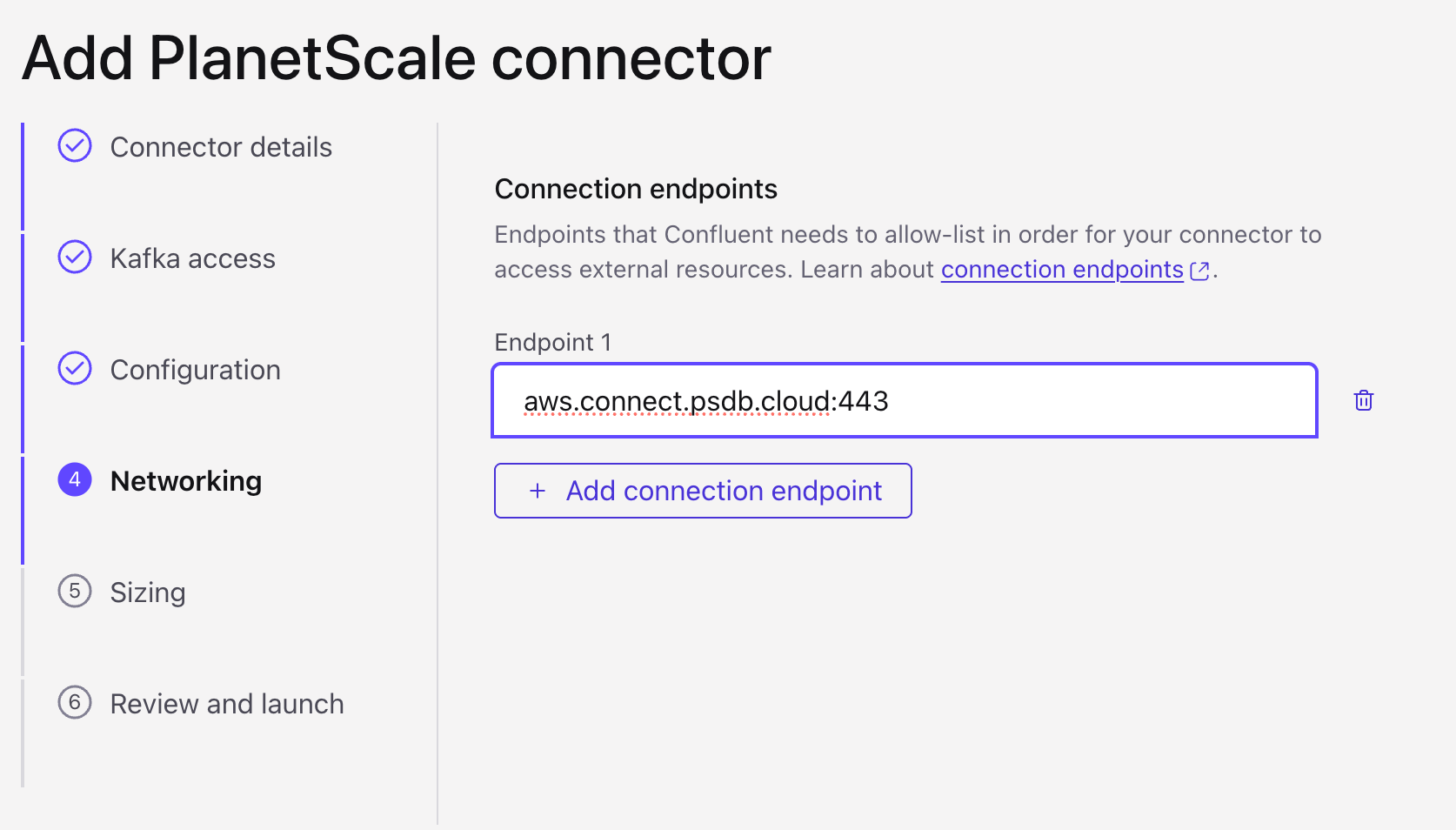
aws.connect.psdb.cloud:443) as a connection endpoint. Confluent allow-lists outbound traffic to it; without this the connector cannot reach PlanetScale. Confluent’s endpoint syntax is <hostname>:<port>, so include the port.7
Choose a size on Sizing (one task is enough; the connector runs a single task), then Review and launch. The connector shows Provisioning for a minute or two and then Running with one task; the topics named 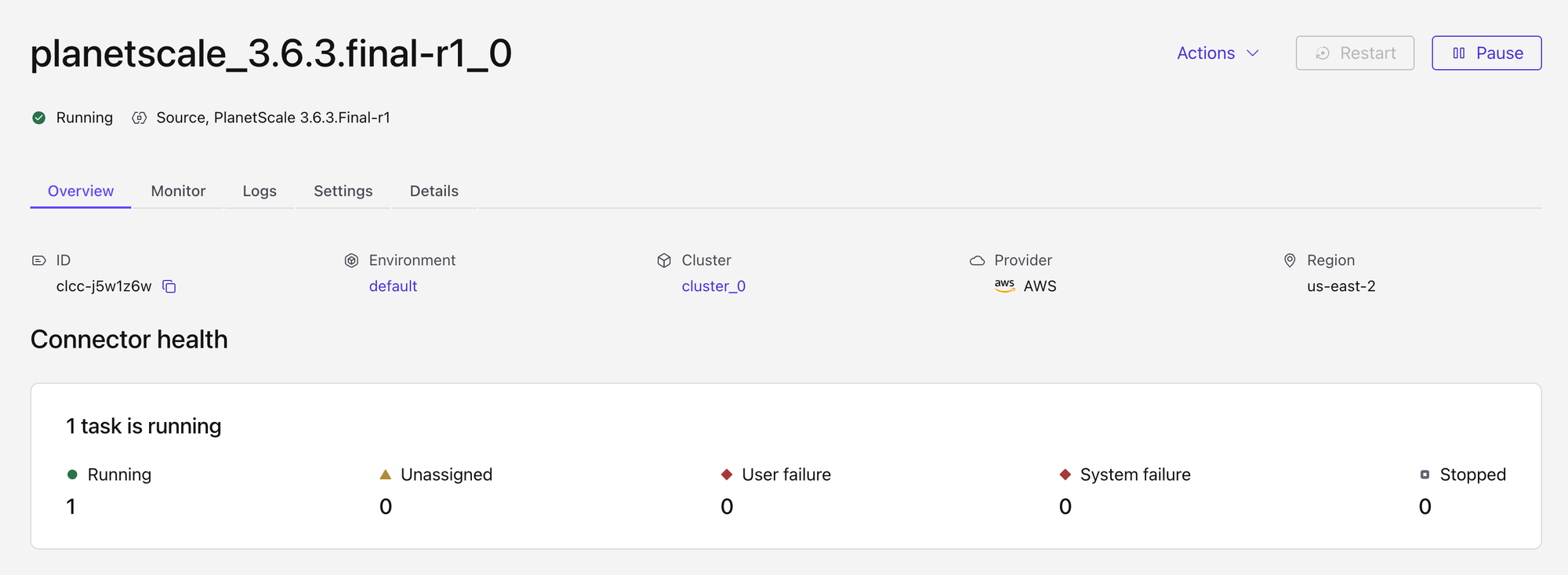
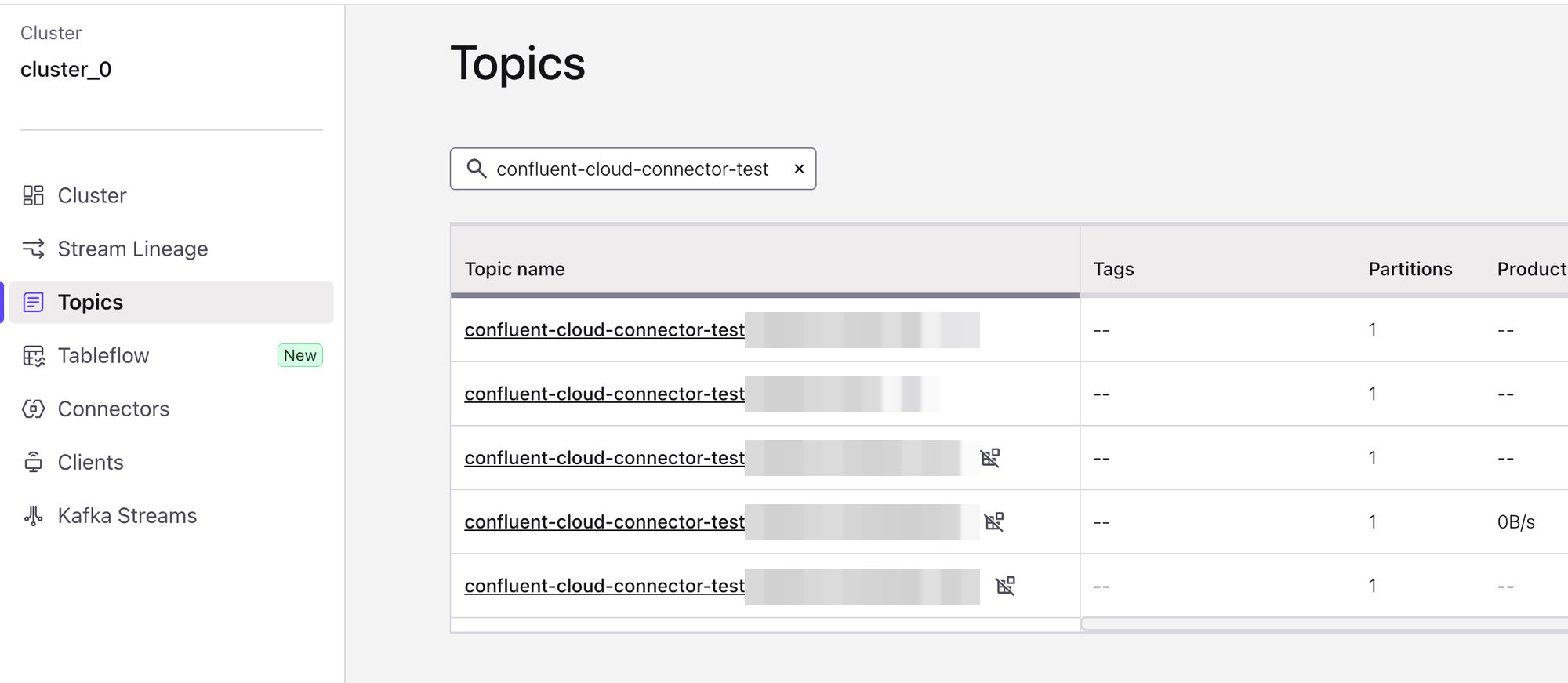
<topic prefix>.<database>.<table> fill with the initial snapshot followed by live changes.