Connect to Airbyte
Only Airbyte Open Source supports the PlanetScale data source. In this section, you’ll learn how to set up Airbyte and connect your PlanetScale source.Requirements
- A PlanetScale database
- Docker Desktop (Docker terms apply)
Set up Airbyte locally
1
Install Docker Desktop.
2
Follow the related installation instructions included within the Airbyte Quickstart Documentation.
3
Open Airbyte in the browser at http://localhost:8000.
Set up PlanetScale source
Now that Airbyte is running locally, let’s set up the custom PlanetScale source.1
In the Airbyte dashboard, click “Settings” on the bottom left.
2
Click “Sources” on the left sidebar.
3
Click the “New connector” button.
4
Click the “Add a new Docker connector” option.
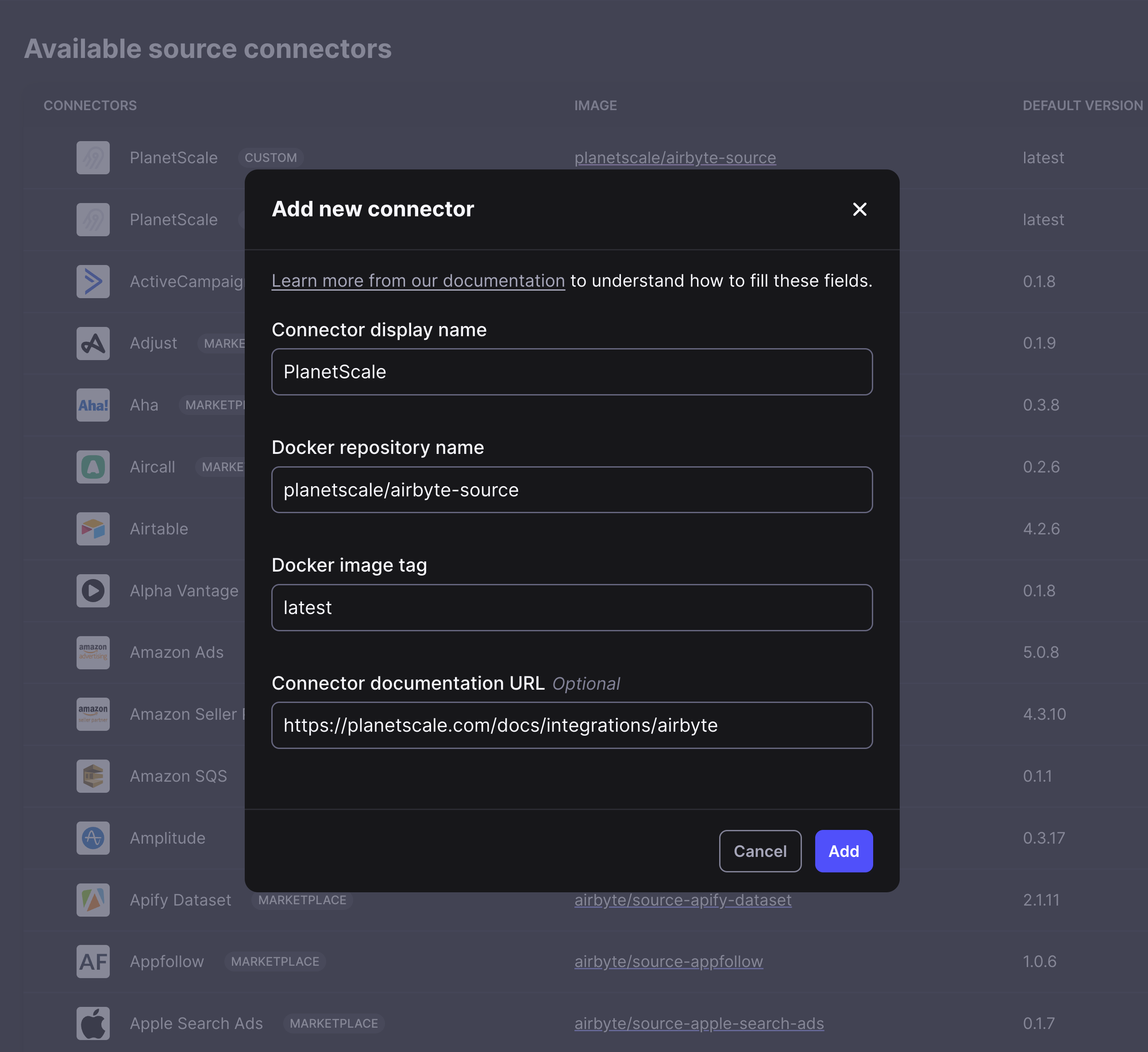
Fill in the connector values as follows:
- Connector display name: PlanetScale
- Docker repository name: planetscale/airbyte-source
- Docker image tag:
latest - Connector Documentation URL:(/vitess/integrations/airbyte
Fill in PlanetScale connection information
You’re now ready to connect your PlanetScale database to Airbyte.1
Click on the database and branch you want to connect to.
2
Click “Connect”, select “General” from the “Connect with” dropdown.
3
Leave this tab open, as you’ll need to copy these credentials shortly.
4
Back in Airbyte, click “Sources” in the main left sidebar > “New source”.
5
Select the new PlanetScale source you created from the dropdown.
6
Fill in the “Set up the source” values as follows: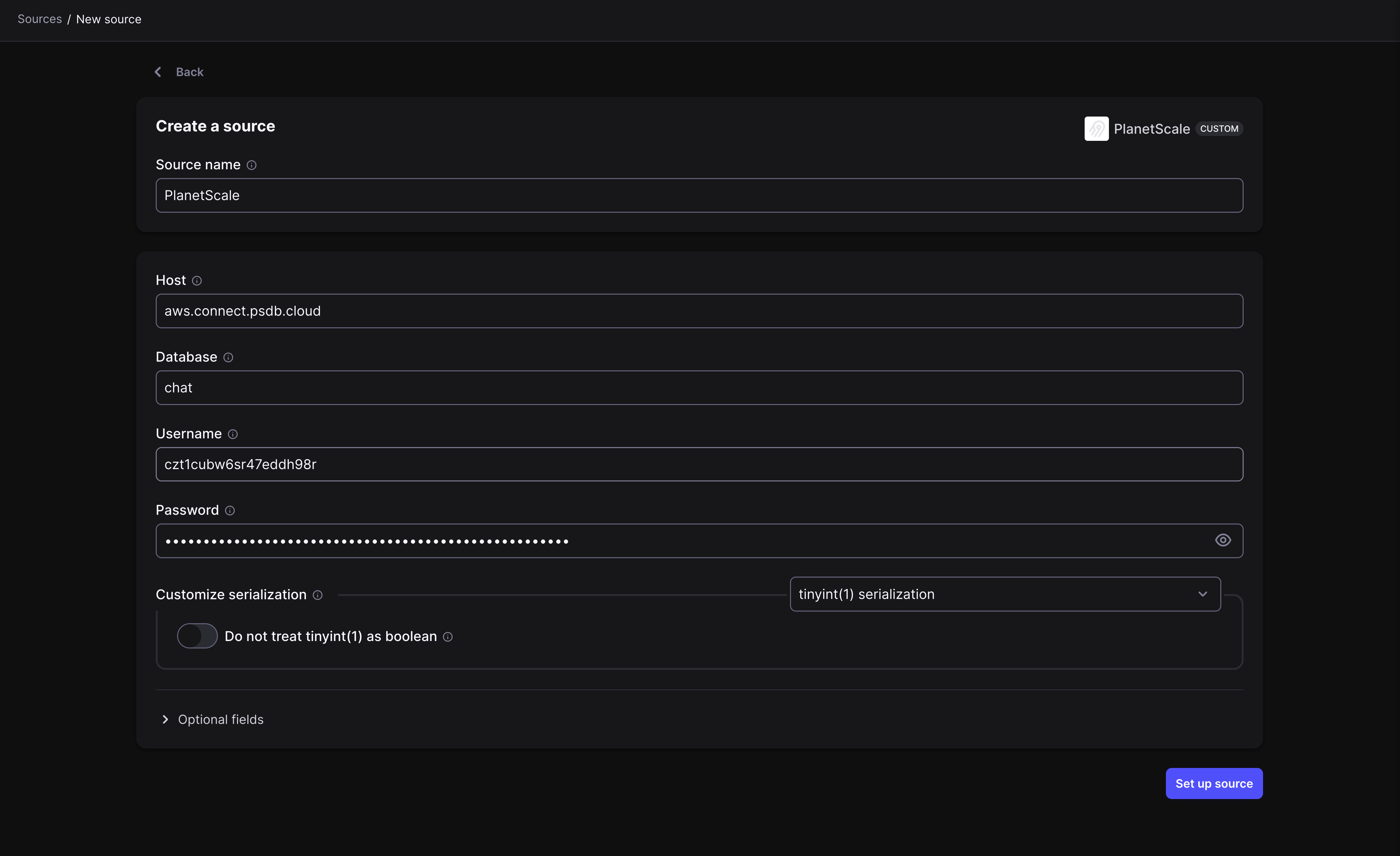
- Name: Any name of your choice
- Source type: Select “PlanetScale”
- Host: Paste in the copied value for
host - Database: Paste in the copied value for
database - Username: Paste in the copied value for
username - Password: Paste in the copied value for
password
7
You can also provide some optional values: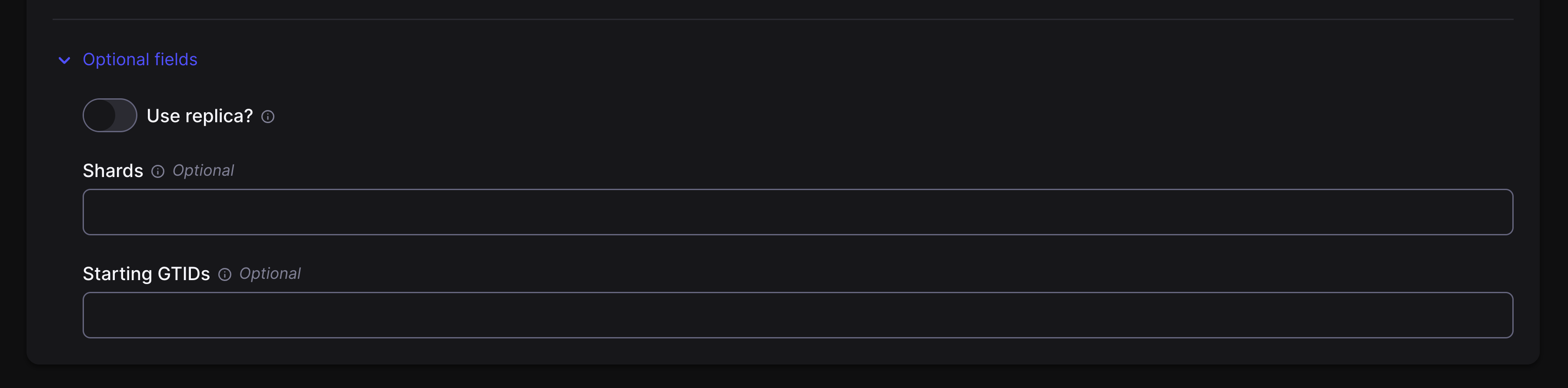
- Replicas: Select whether or not you want to collect data from replica nodes.
- Shards: Map your shards.
- Starting GTIDs: Start replication from a specific GTID per keyspace shard.
8
Click “Set up source” to connect.
Choose your destination
With the connection complete, you can now choose your destination.1
Click “Destinations” in the sidebar or the “New destination” button on the source connection page.
2
Set up the destination you want to sync your data to.
Configure a connection
Now to get the connection fully set up. Click on “Connections” on the left side bar. If you have not yet set up any connectors, you should see this: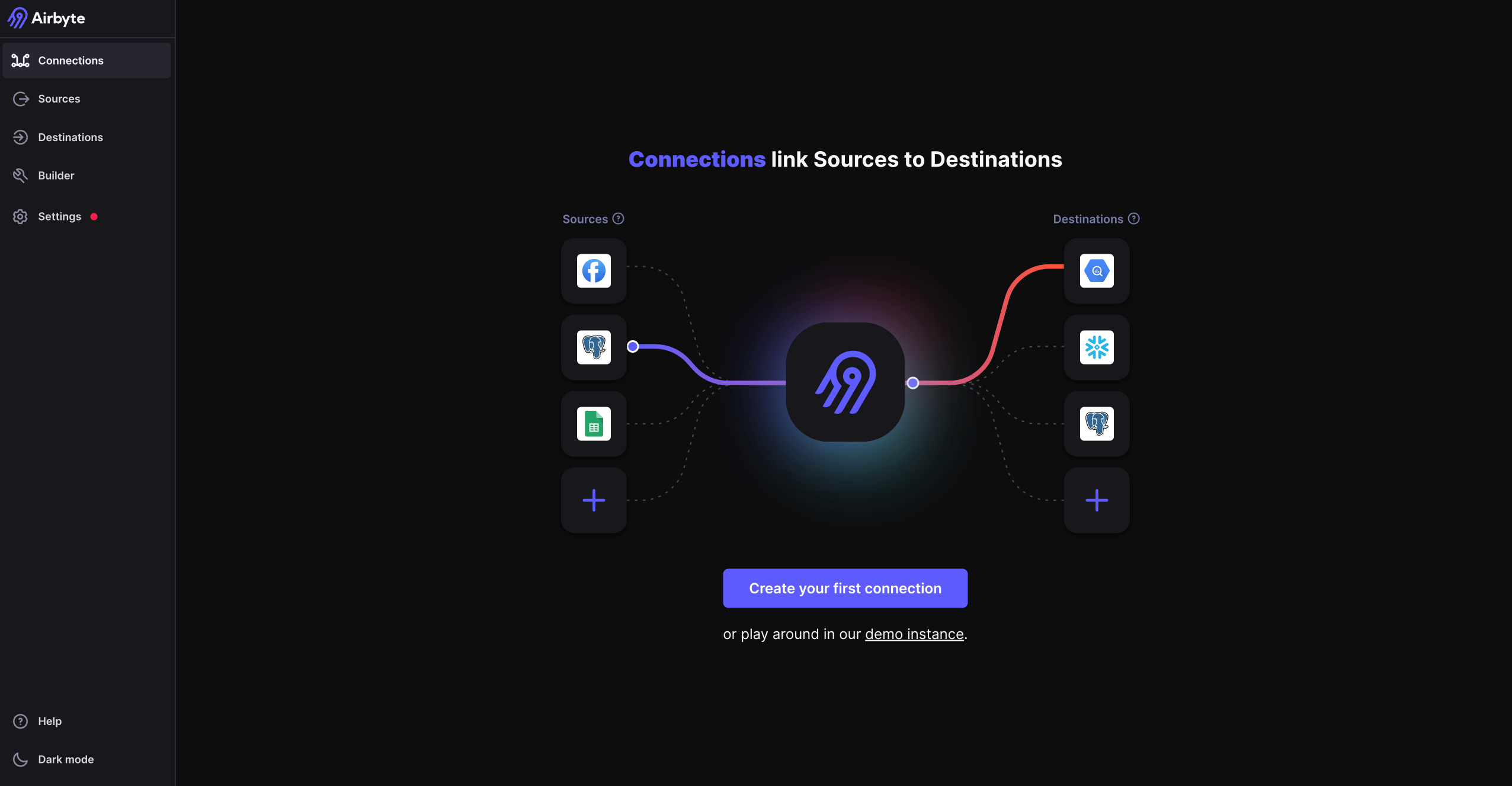
1
On the “Define source” page, choose your PlanetScale source as the source.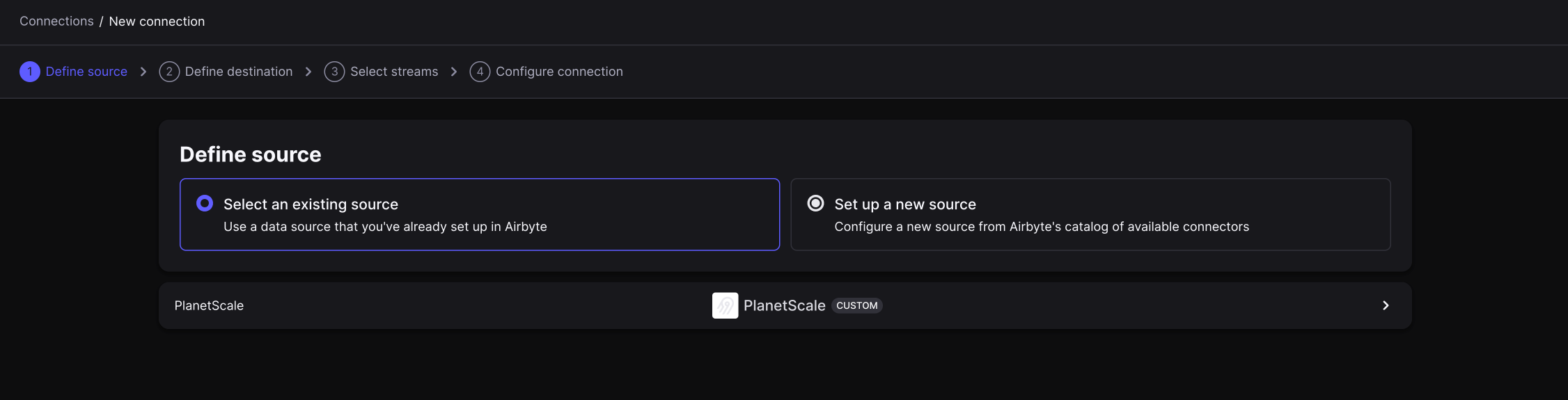
2
On the “Define destination” page, select the destination you want to sync your PlanetScale data to.
For this demo, we are using a CSV destination.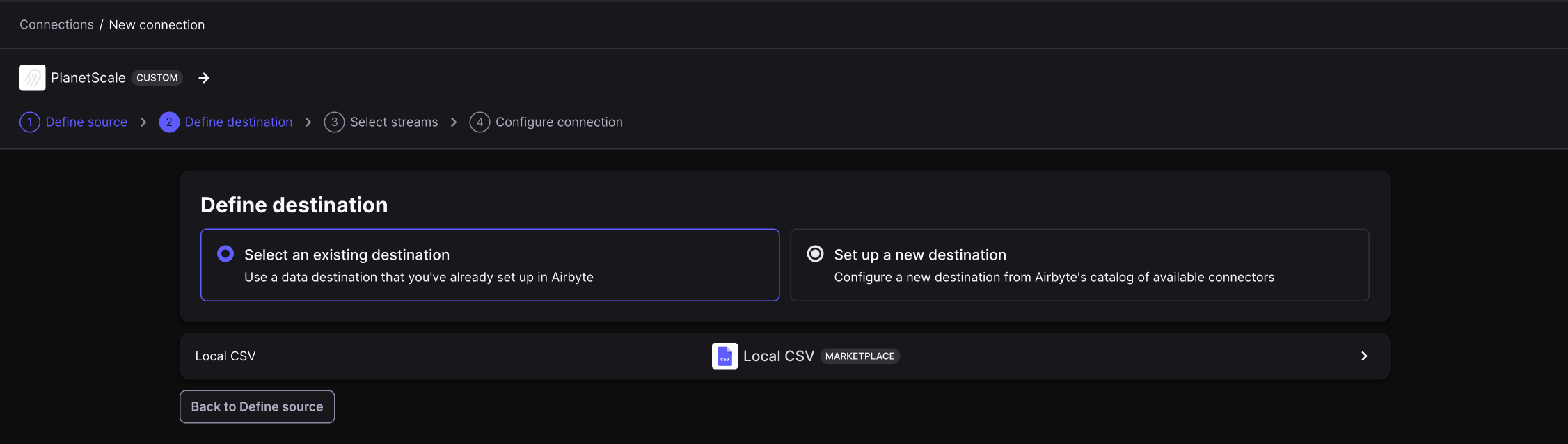
3
On the “Select streams” page, select a sync mode.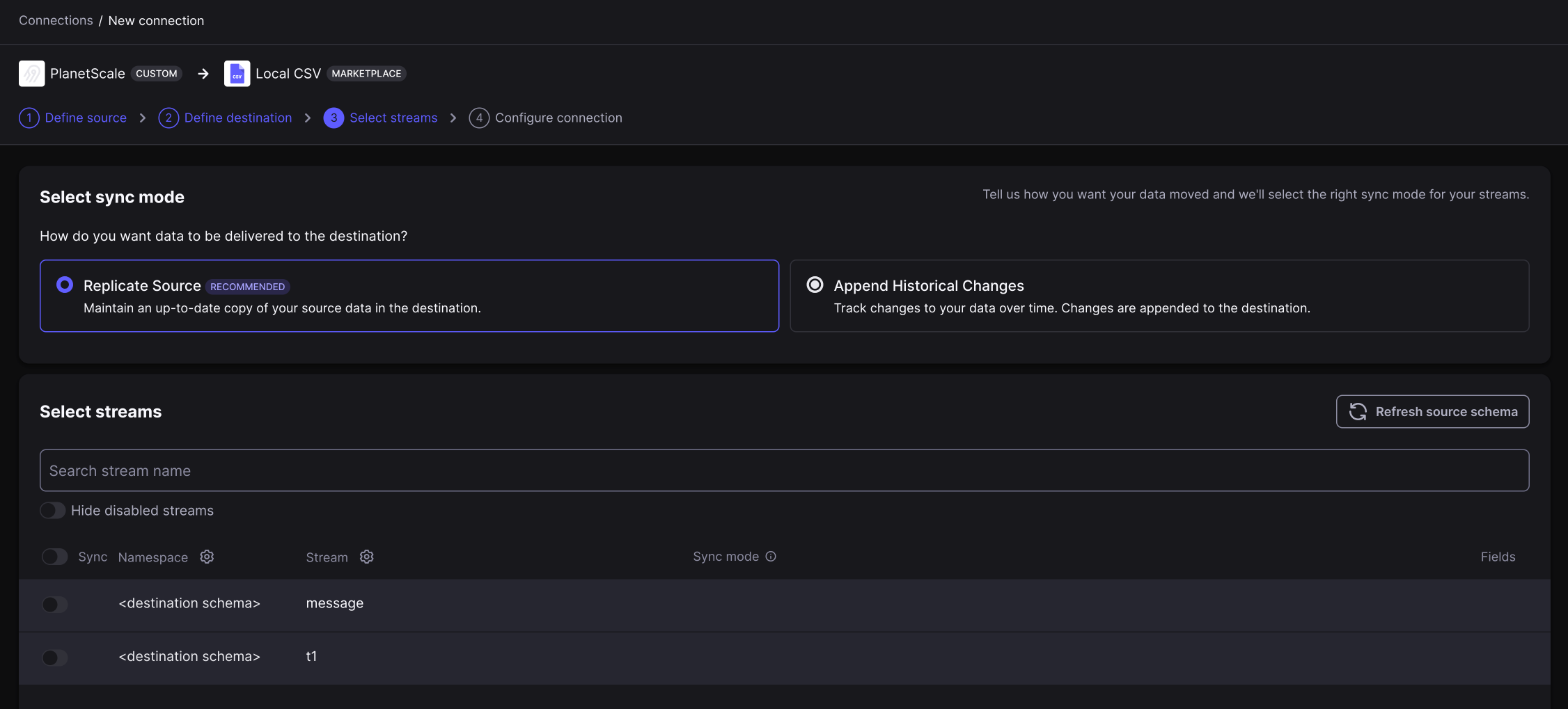
4
Also on this page, you will need to select the specific tables and columns you want to sync. For each, choose what type of sync mode you’d like to use for each source table.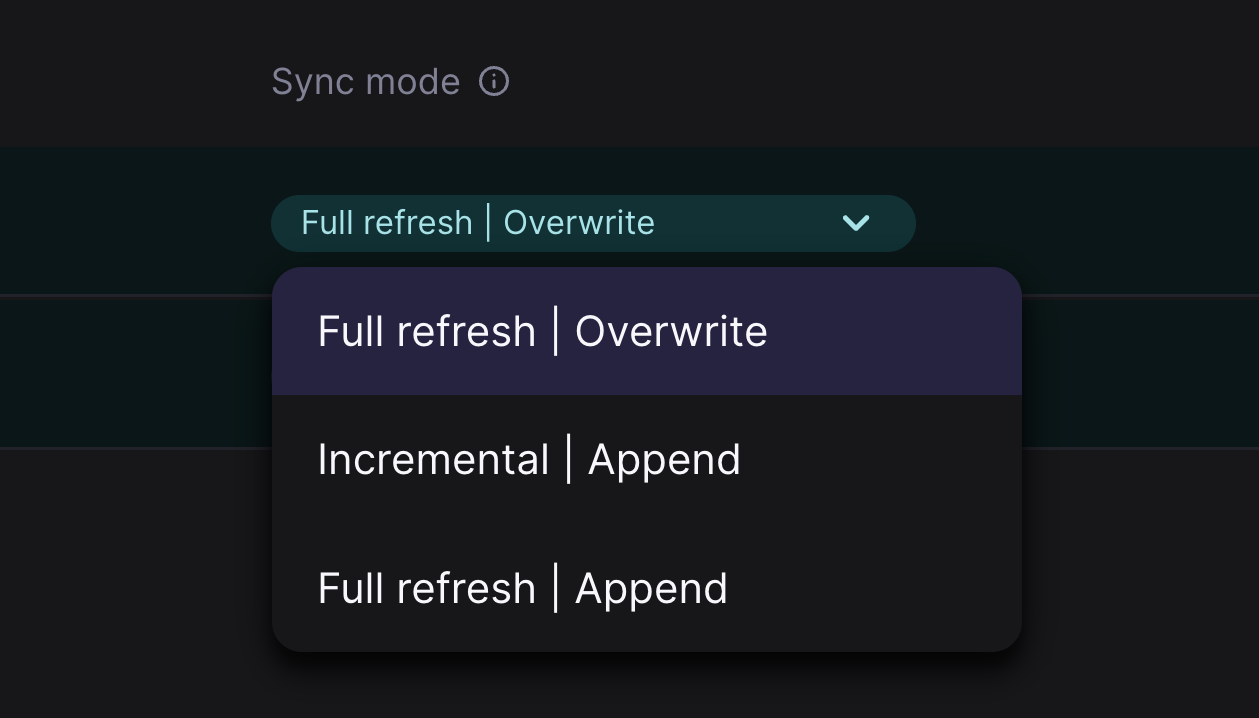
- Incremental — Incremental sync pulls only the data that has been modified/added since the last sync. We use Vitess VStream to track the stopping point of the previous sync and only pull any changes since then.
- Full refresh — Full refresh pulls all data at every scheduled sync frequency.
5
On the “Configure connection” page, choose a sync frequency, which is how often we will connect to your PlanetScale database to download data.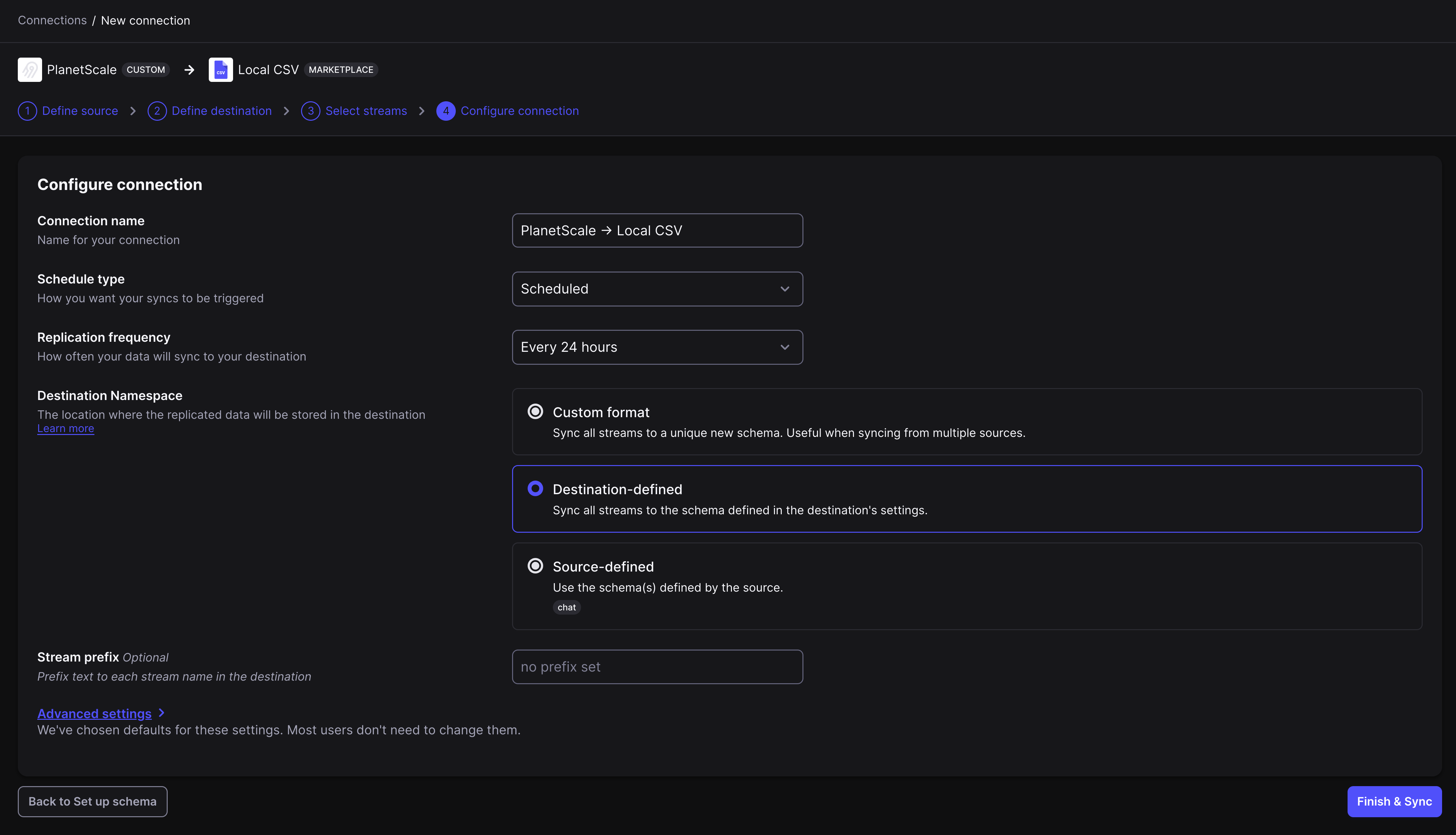
6
Click “Finish and sync”.
Handling schema changes
Airbyte will not automatically detect when you make schema changes to your PlanetScale database. If you drop a column, your sync should throw an error as it looks for a column that doesn’t exist. However, if you add a column, the sync will continue without any errors. Airbyte will be unaware of the new column altogether. This is known as schema drift. Whenever you perform a schema change, you need to notify Airbyte of it:1
In the Airbyte dashboard, click “Connections”, select the connection, then navigate to the “Schema” tab.
2
Click “Refresh source schema”.
3
Click “Save changes”. Keep in mind, this might delete all data for the connection and start a new sync from scratch.
Stopping Airbyte
At any point, you can disable any incremental or full syncs by going to the ‘Connection’ settings page and clicking ‘Delete this connection’. This will not touch any of the source or destination data, but will prevent Airbyte from doing any further operations.