

Choose a configuration-profile size
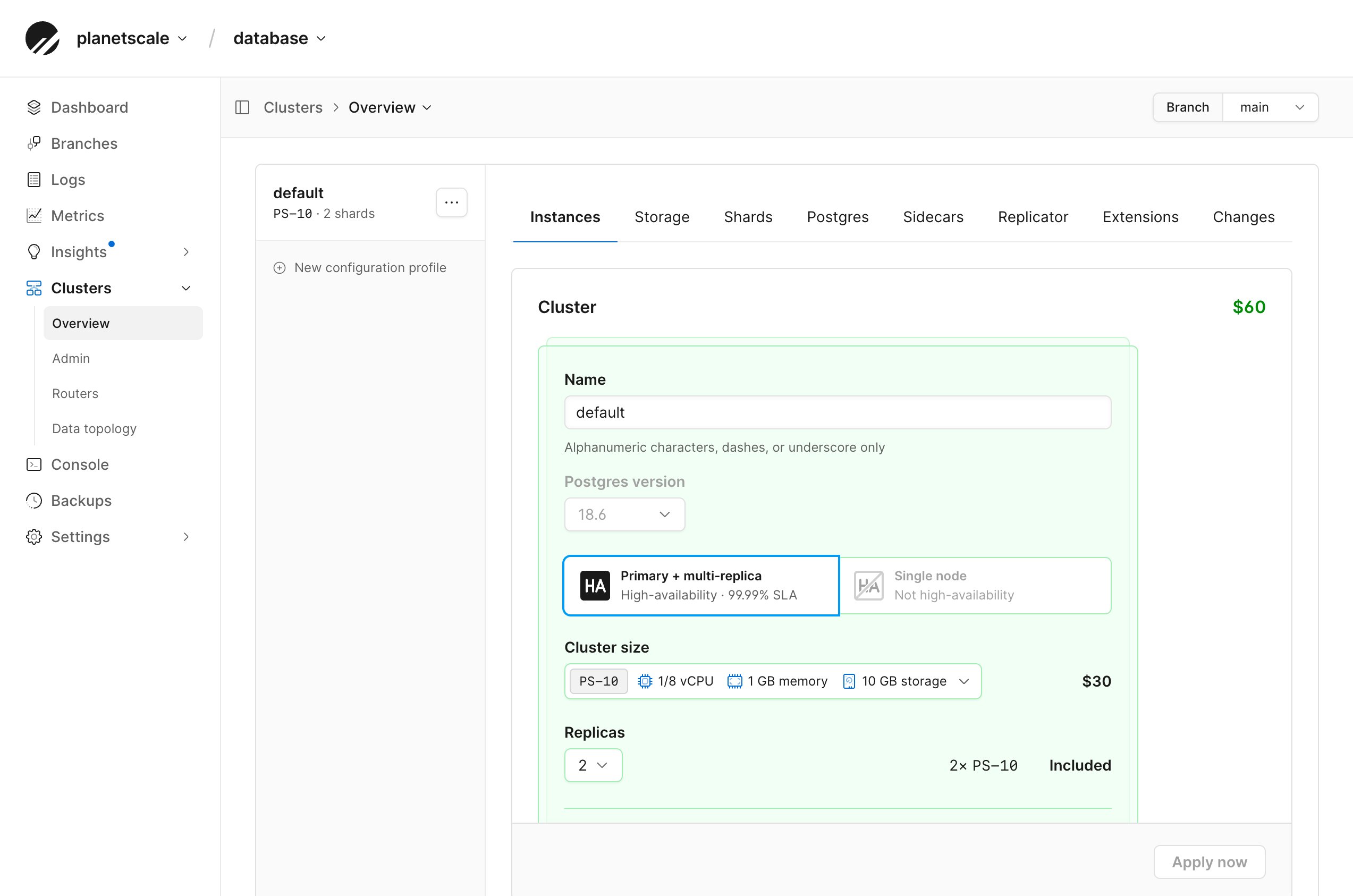
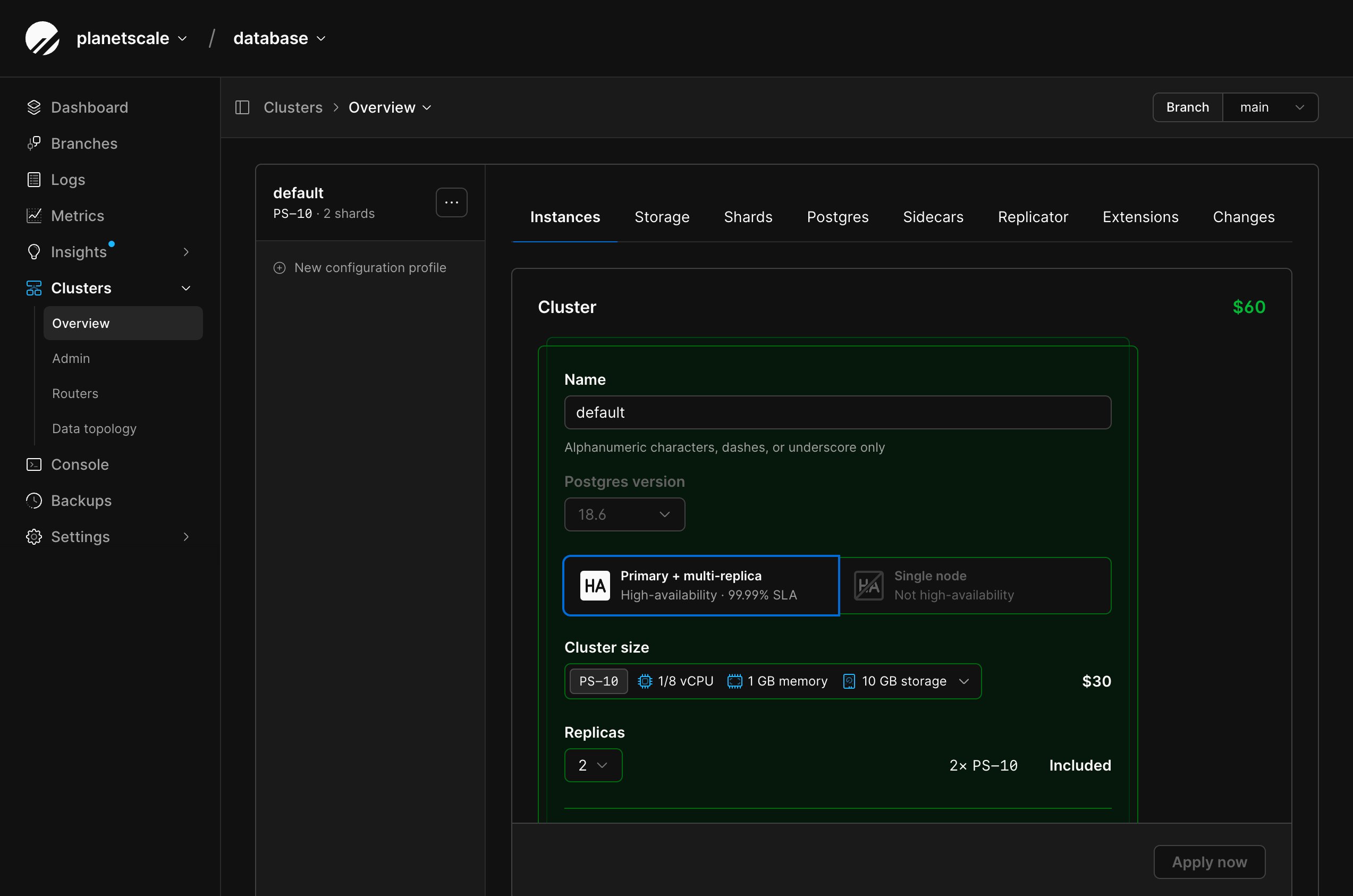
Open a configuration profile’s Instances tab to compare the cluster sizes available for the selected branch. The size menu shows the vCPU, memory, storage, and estimated price of each option. The available choices depend on the branch’s infrastructure, region, and the sizes enabled for your organization. Use the dashboard as the source of truth for the sizes and prices currently available to a profile. You can also list cluster sizes withpscale size cluster list --engine neki.
Network-attached storage and Metal
The cluster-size menu separates network-attached storage and Metal options.
Metal sizes have fixed storage capacity. The dashboard checks current storage
usage and disables sizes that do not leave the required storage margin.
On AWS, when using the smaller Metal sizes (M-10 through M-160) you can
select the storage capacity separately from the vCPU and memory.
The capacity is still fixed after you select it and does not autoscale.
To get more storage, select a larger storage option or a larger size.
See Metal options on AWS for the full list.
Use the profile’s Storage tab to configure network-attached storage disk
capacity, autoscaling, IOPS, and bandwidth. See Configure profile
storage.
The CPU architecture of an existing configuration profile cannot be changed.
The dashboard only lists compatible sizes when you update the profile.
Size profiles for their assigned shards
Every shard assigned to a profile receives the same cluster size and replica count, but each shard can have a different workload. Compare the Postgres metrics for the assigned shards before changing the profile:- Review CPU, memory, IOPS, storage, connections, and WAL activity.
- Size the profile for the shard with the greatest resource requirements.
- Check whether uneven utilization comes from the workload or data topology before adding capacity.
Change a configuration profile
1
From the PlanetScale dashboard, select your Neki database and branch.
2
Open Clusters and select the configuration profile.
3
Select Instances.
4
Choose the cluster size and replica count.
5
Review the estimated monthly cost, then select Apply now.
6
Use the profile’s Changes tab to follow the change and review any parameter defaults updated by the new size.
Profiles without shards
Creating a configuration profile does not create Postgres instances. A new profile starts with no assigned shards, so its current profile total is zero. The creation form shows the estimated cost per shard that would apply after a shard is created in or assigned to the profile.Size the admin service independently
Changing the admin size does not change the Postgres resources assigned to a shard or the size of any router. The available admin sizes are NKA-0, NKA-1, NKA-2, NKA-5, NKA-20, and NKA-40. A new Neki cluster uses NKA-0 by default; change the size after creation from the branch’s Admin configuration. Use the dashboard as the source of truth for the sizes currently available to your branch. You can also list admin SKUs withpscale branch admin sizes <DATABASE> <BRANCH>.
The size you select establishes Admin’s baseline capacity. PlanetScale
automatically increases Admin memory when it needs more capacity. Choose a
larger size when the branch needs more capacity available immediately for
cluster-health and recovery work.
Admin capacity is separate from application query capacity. Increasing the
Admin size does not add router throughput, Postgres CPU or memory, replicas, or
shards. Size those resources separately. Admin is not billed during Platform
Preview; see what appears on the bill.
1
From the selected Neki branch, open Clusters, then select Admin.
2
Select Configuration.
3
Choose an Admin size, then select Apply now.
4
Use the Changes tab to follow the change.
Size routers independently
Router groups have their own sizes and replica counts. Changing a router does not change the Postgres resources assigned to any shard.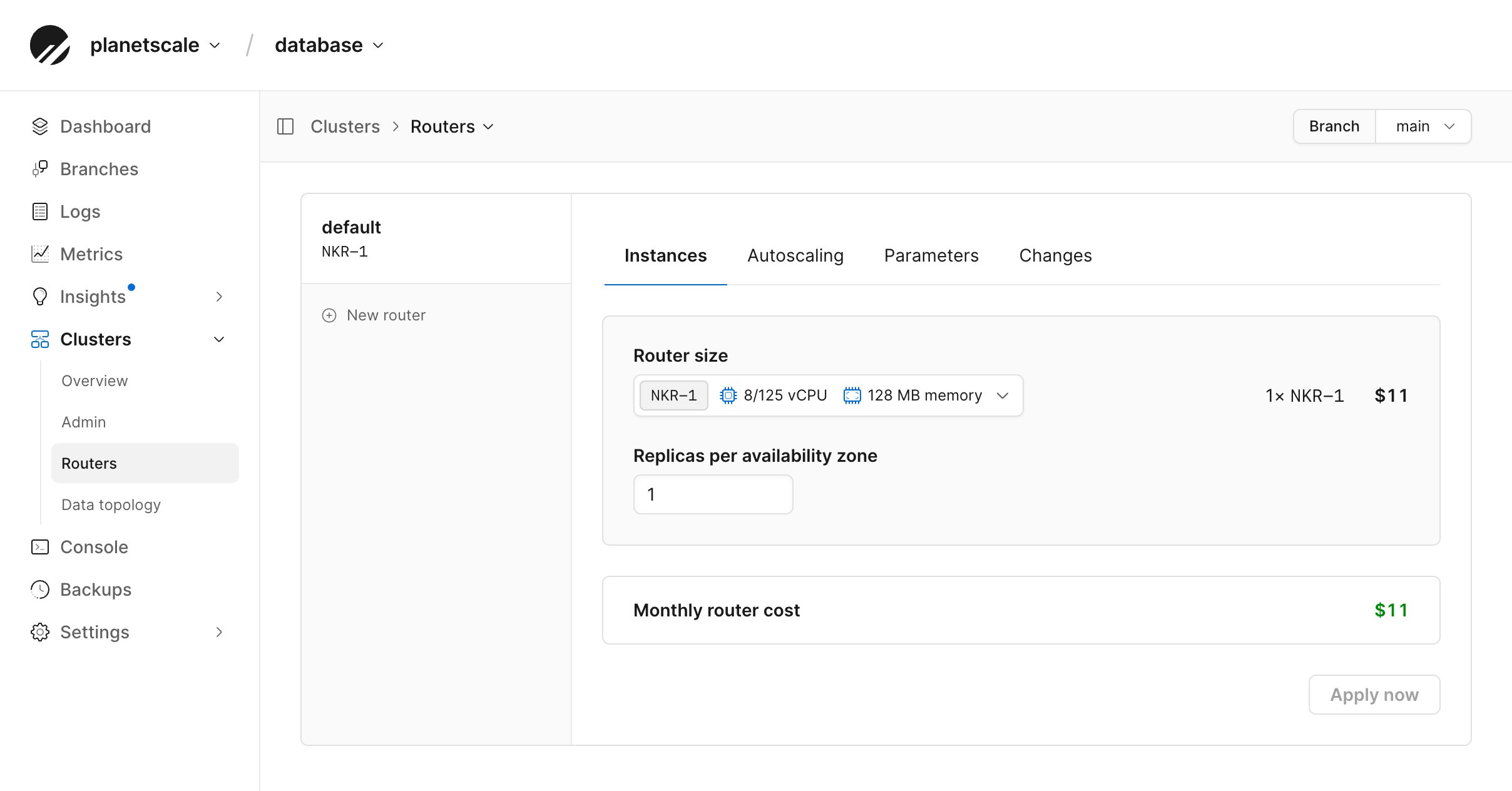
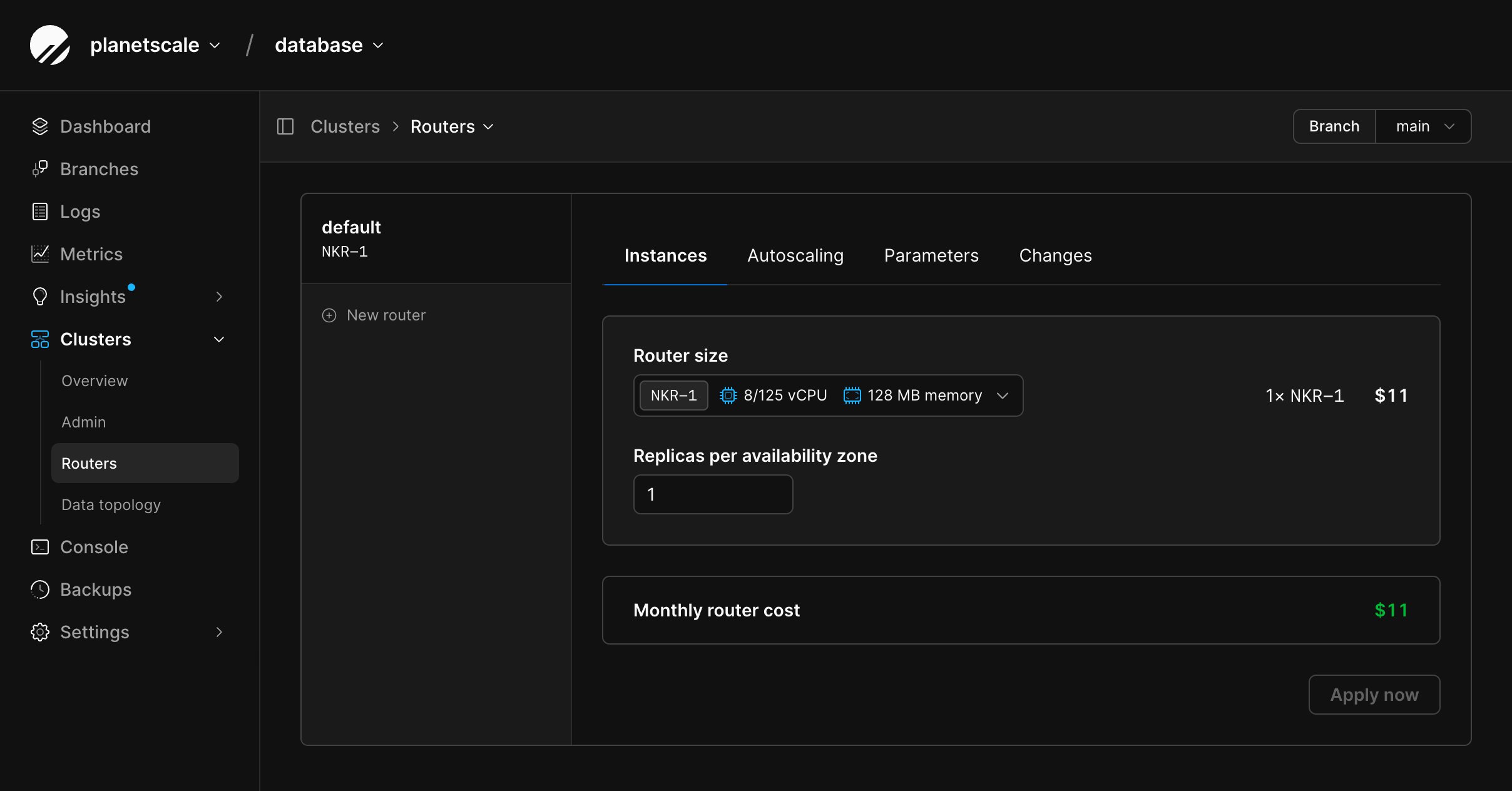
pscale branch router sizes <DATABASE> <BRANCH>.
1
From the selected Neki branch, open Clusters, then select Routers.
2
Select the router group, then select Instances.
3
Choose a router size and the number of replicas per availability zone.
4
Review the estimated monthly cost, then select Apply now.
5
Use the router group’s Changes tab to follow the change.