

Overview
MFA strengthens security by requiring two or more methods (i.e. authentication factors) to verify your identity. PlanetScale allows users logging in with an email address and password to set MFA as a requirement for logging into the user account.If you’re authenticating via GitHub OAuth or SSO, MFA settings will not be displayed.
Authentication providers
PlanetScale supports login with a unique time-based one-time password (TOTP) that is generated for your user account by using TOTP apps such as 1Password, Authy, or LastPass Authenticator.Enable MFA
You can enable MFA for your user account under your PlanetScale account settings.1
Go to your PlanetScale account settings page.
2
Find the Security row and click the “Setup multi-factor authentication” button.
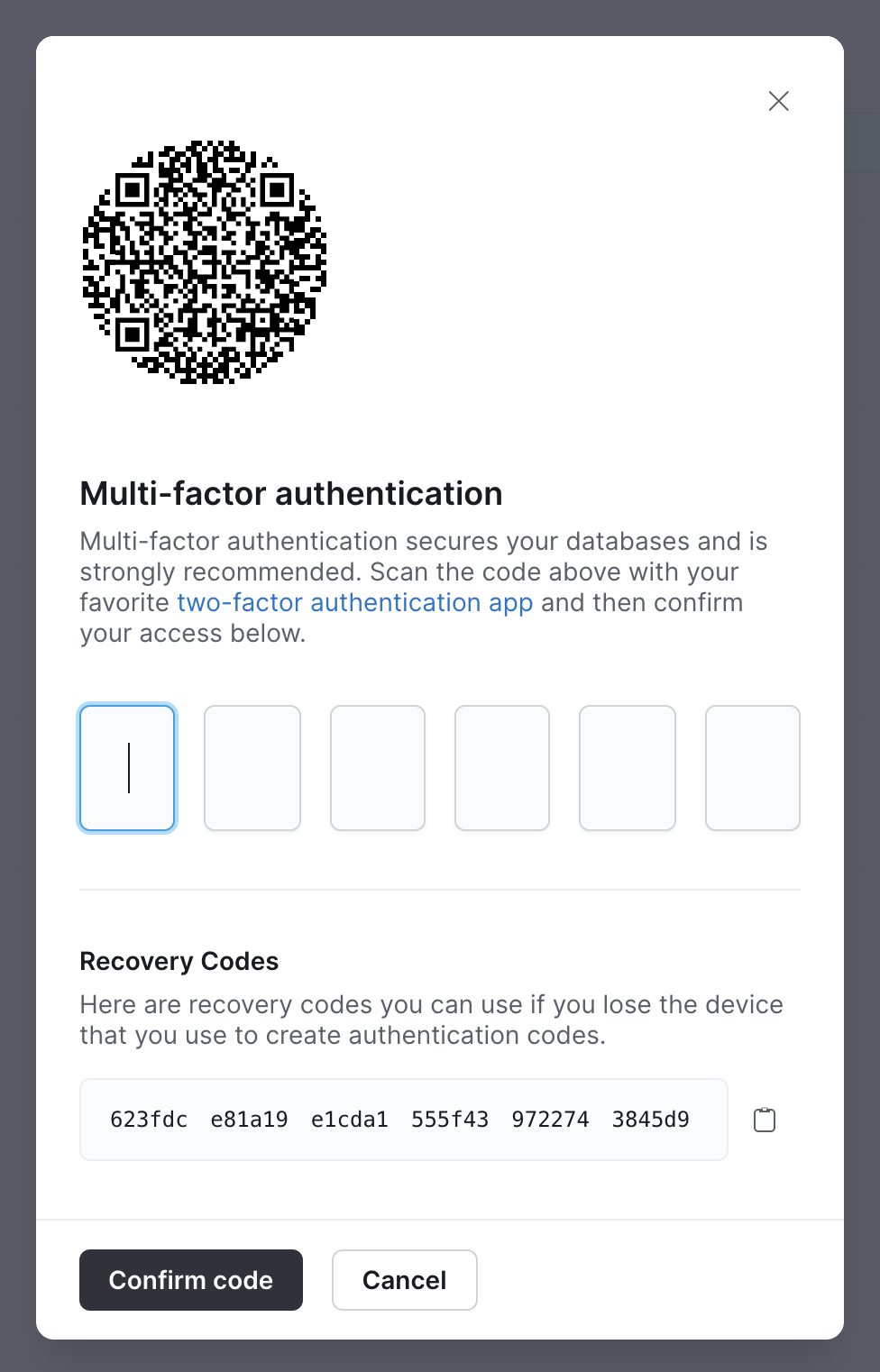
recovery codes that you will need to copy.3
Scan the QR Code with your preferred TOTP app and enter the generated code.
4
Press “Validate OTP” to ensure that your application setup is correct.
5
Once the generated code is validated, click the Copy button in the 
recovery codes section.6
Click Done to close the pop-up modal.
Login with two-factor authentication
Once you’ve enabled MFA in your PlanetScale user account, the next time you login, you’ll be prompted to enter your two-factor authentication (2FA) code.- Use the OTP code generated by your preferred TOTP app to login to your PlanetScale account.
Recovery code login
Therecovery codes shown during MFA setup are the only way regain access to your account in the event that you lose the device that generates your authentication codes. PlanetScale will not accept any other method of authentication or identification.
You can use one of the recovery codes in the place of a TOTP token on the second screen during login.
Disable MFA
- Any devices setup with the QR code for your account will no longer be able to produce valid OTP tokens.
- Any recovery codes that were generated when MFA was enabled will no longer be valid.
1
Go to your PlanetScale account settings page.
2
Click the Disable button next to “Multi-factor authentication enabled” in the Security row.
3
Enter an OTP code or one of the 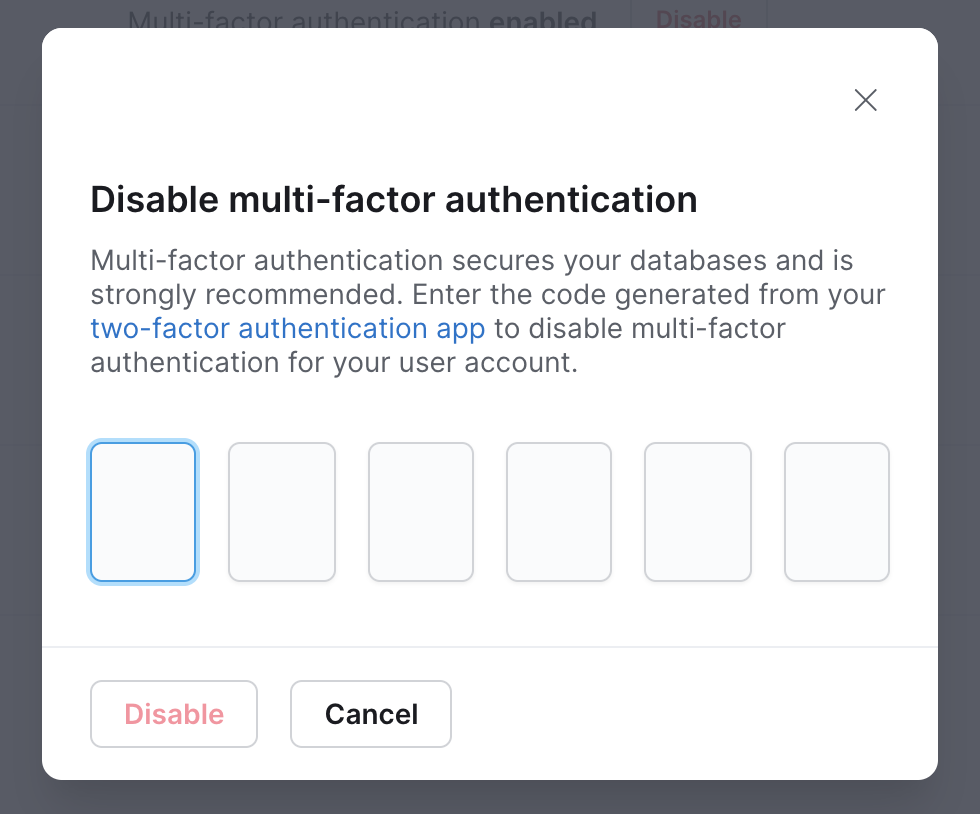
recovery codes generated by your preferred TOTP app to confirm.4
Click the Disable button to close the pop-up modal.