

Overview
PlanetScale provides the ability to create, schedule, and restore backups for production and development database branches.Our Base plan includes automated backups every 12 hours.
View backups
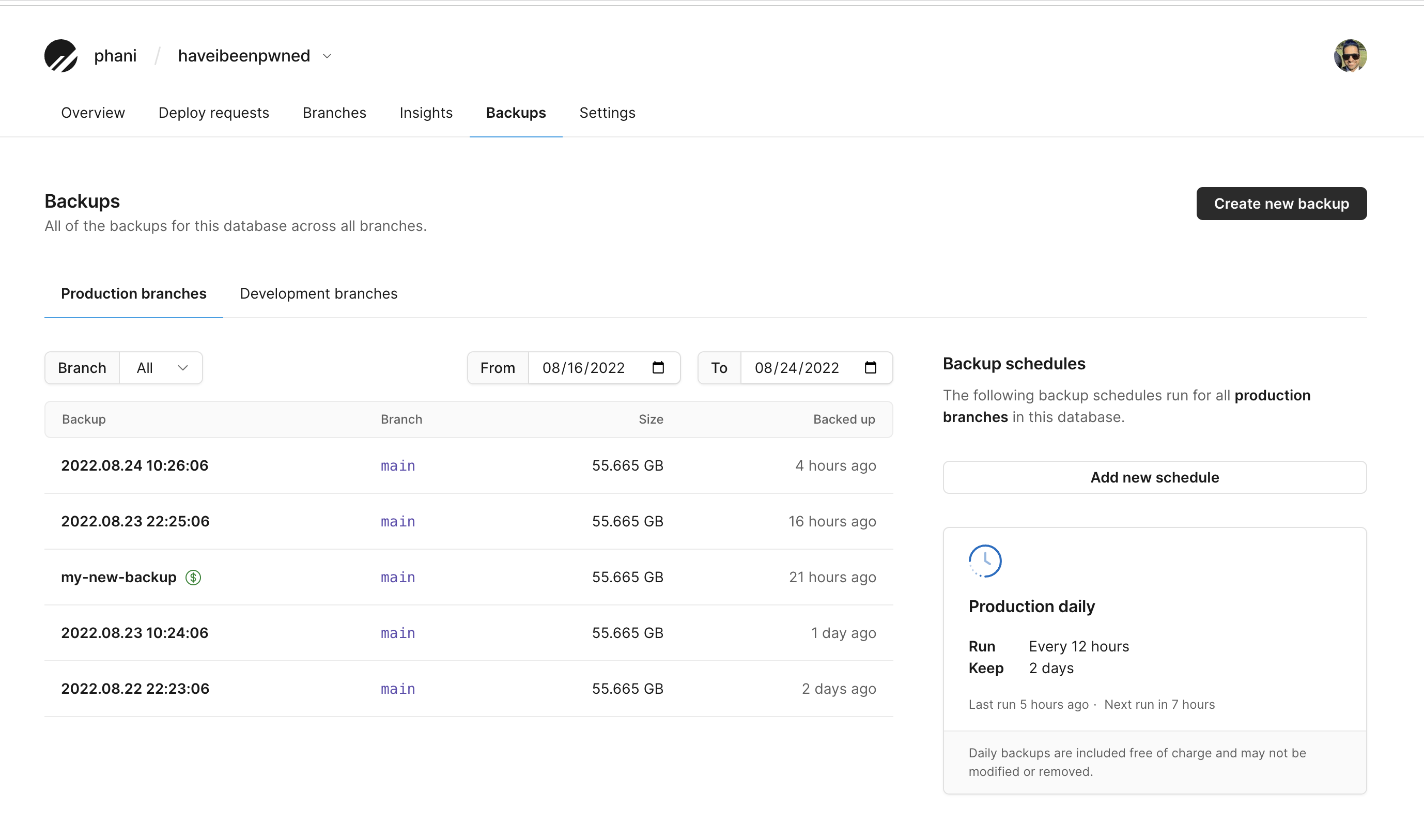
To view backups for all of your branches, go to your database backups page:app.planetscale.com/<org>/<database>/backups.
Once there, you’ll find additional details about your backup history.
Create manual backups
In addition to the daily default backups that PlanetScale schedules for your database branches, you can create additional manual backups. To create a manual backup, follow the steps outlined below:1
Go to your database backups page:
app.planetscale.com/<org>/<database>/backups.2
Click the Create new backup button.This will bring up a pop-up modal that prompts you to pick a branch to backup, name your backup, and select how long you wish to keep the backup.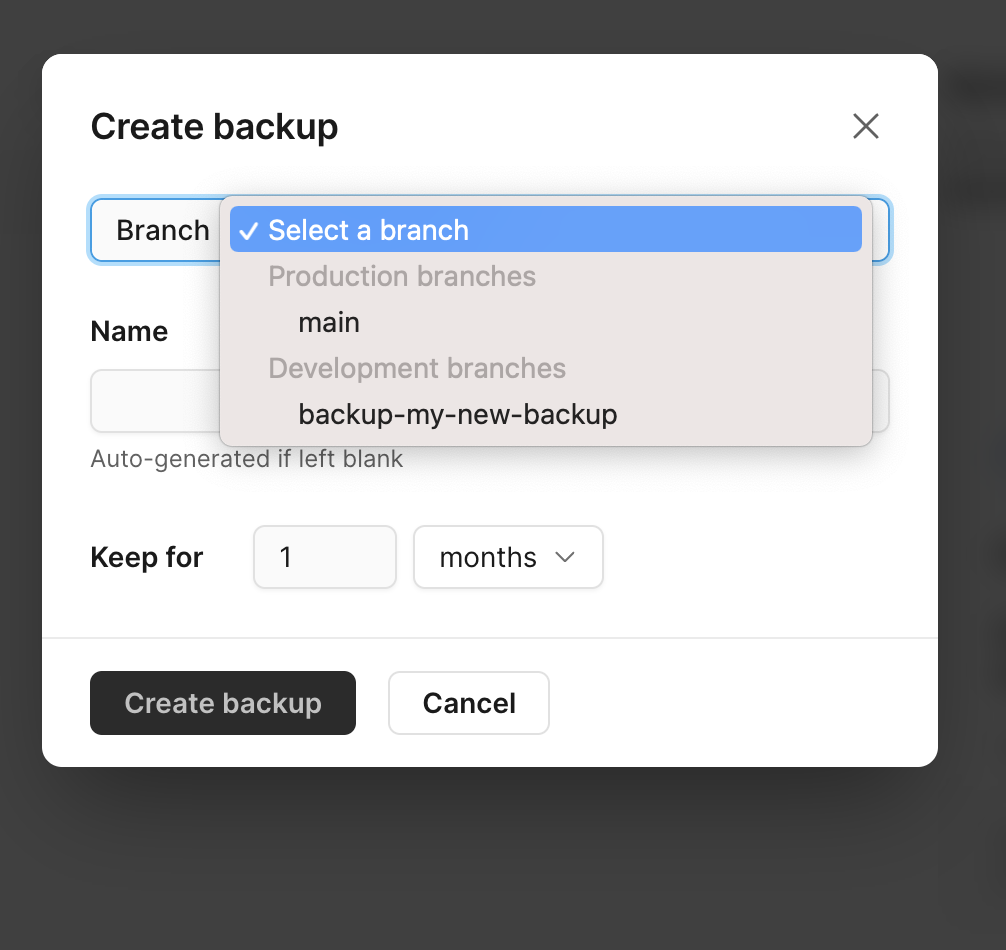
3
Select if this backup is an Emergency backup.
4
Click the Create backup button to finish the backup and close the pop-up modal.
5
Manual backups are not free and are denoted by the 
$ icon next to their name in the list view on the backups page.6
To see the cost associated with storage of a manual backup, click on the backup name. You will see the cost per month on the details page.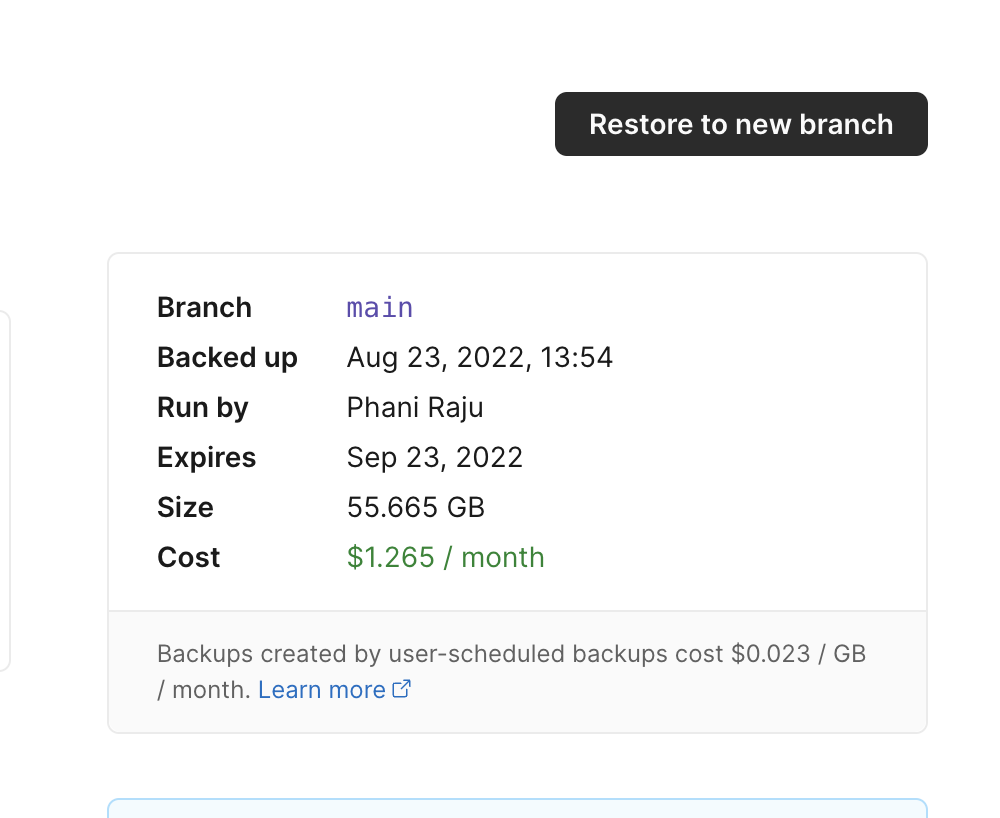
Emergency backups
Emergency backups are available when you need an immediate backup. Unlike regular backups, emergency backups do not start from a previous backup. They copy data directly from a running database server in each shard. They are only recommended when regular backups are failing or you can’t wait for the next scheduled backup. Choose where the backup copies data from:- Primary: copies data from the primary in each shard. This is the default on production branches. Copying from the primary uses additional primary resources while the backup runs.
- Replica: copies data from a replica in each shard, which reduces the load on the primary. A replica backup needs a replica in every shard. If a shard has no replica available, the backup fails for that shard. Your database keeps serving traffic either way.
--emergency and --emergency-source:
Emergency backups may impact database performance and should only be used in critical situations where immediate backup is required.
Schedule backups
You can add additional scheduled backups for your branches, billed at $0.023 per GB per month.1
Go to your database backups page:
app.planetscale.com/<org>/<database>/backups.2
Select the type of branch (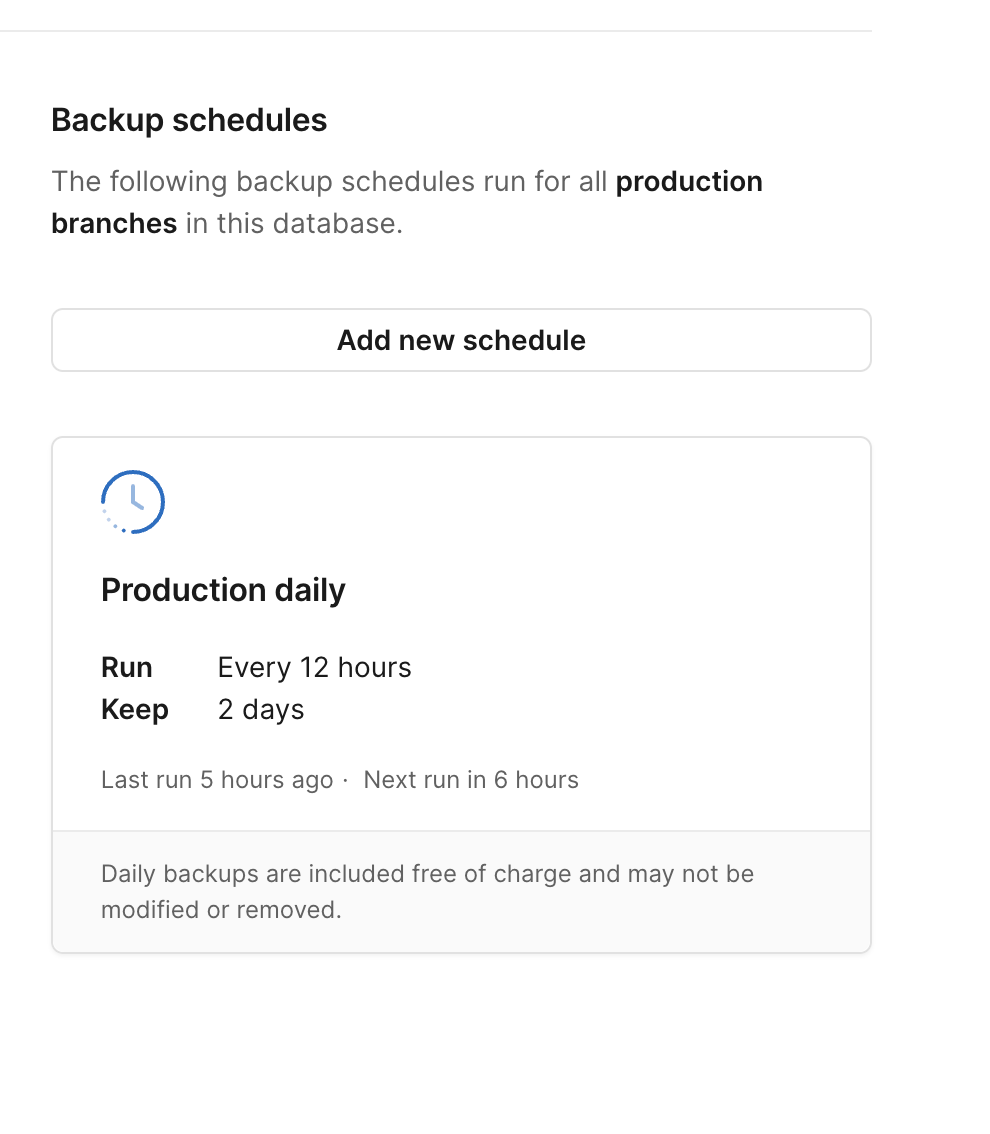
Production branches | Development branches ) you’d like to be backed up by the new backup schedule.3
Click the Add new schedule button.This will bring up a pop-up modal that prompts you to configure backup frequency, select how long you wish to keep the backup, and to name your schedule.
4
Click the Save schedule button to save your new scheduling configurations and to close the pop-up modal.
For additional scheduled backups beyond the included default (every 12 hours for the
Base plan, you will be billed
$0.023 per GB per month.
Restore from a backup
To restore a backup to a new branch, click on the individual backup to see the option to restore them.1
Go to your database backups page:
app.planetscale.com/<org>/<database>/backups.2
Select the backup you wish to restore.
3
Click the Restore backup button.
This will bring up a pop-up modal that prompts you to name your branch and select a cluster size.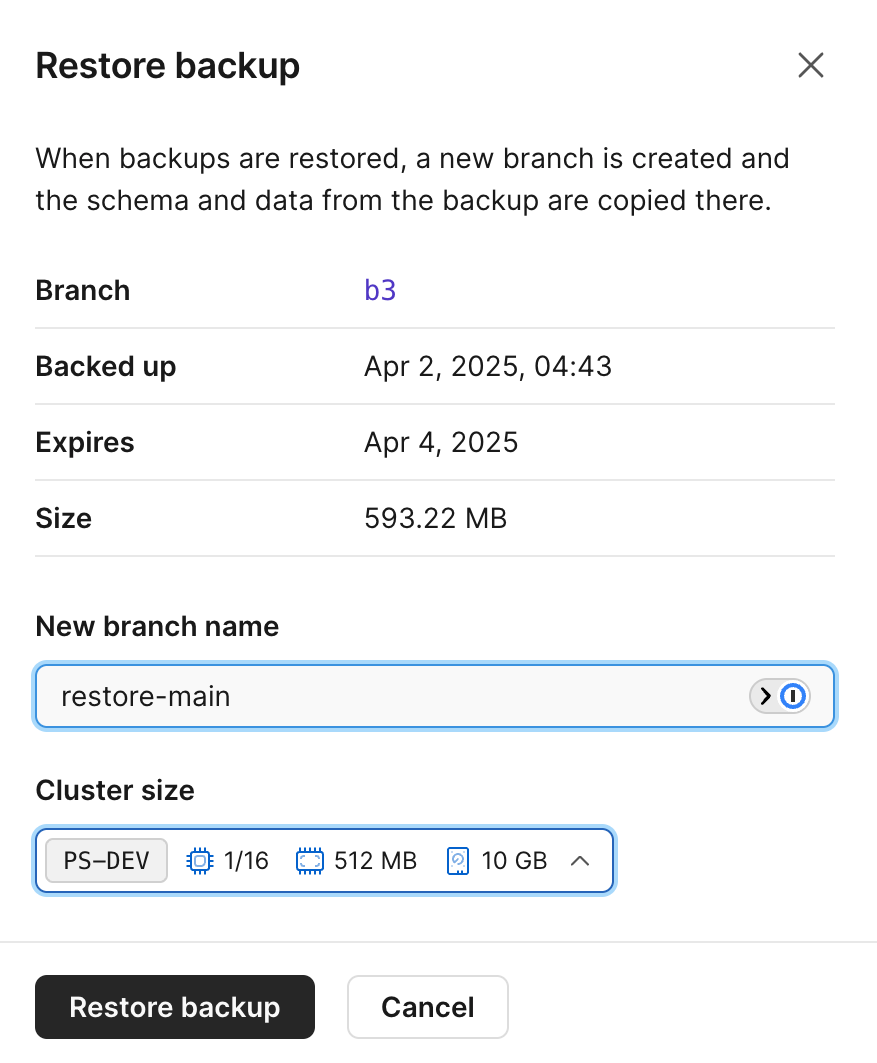
4
Click the Restore backup button to finish restoring your backup and to close the pop-up modal.
5
To see all branches that are 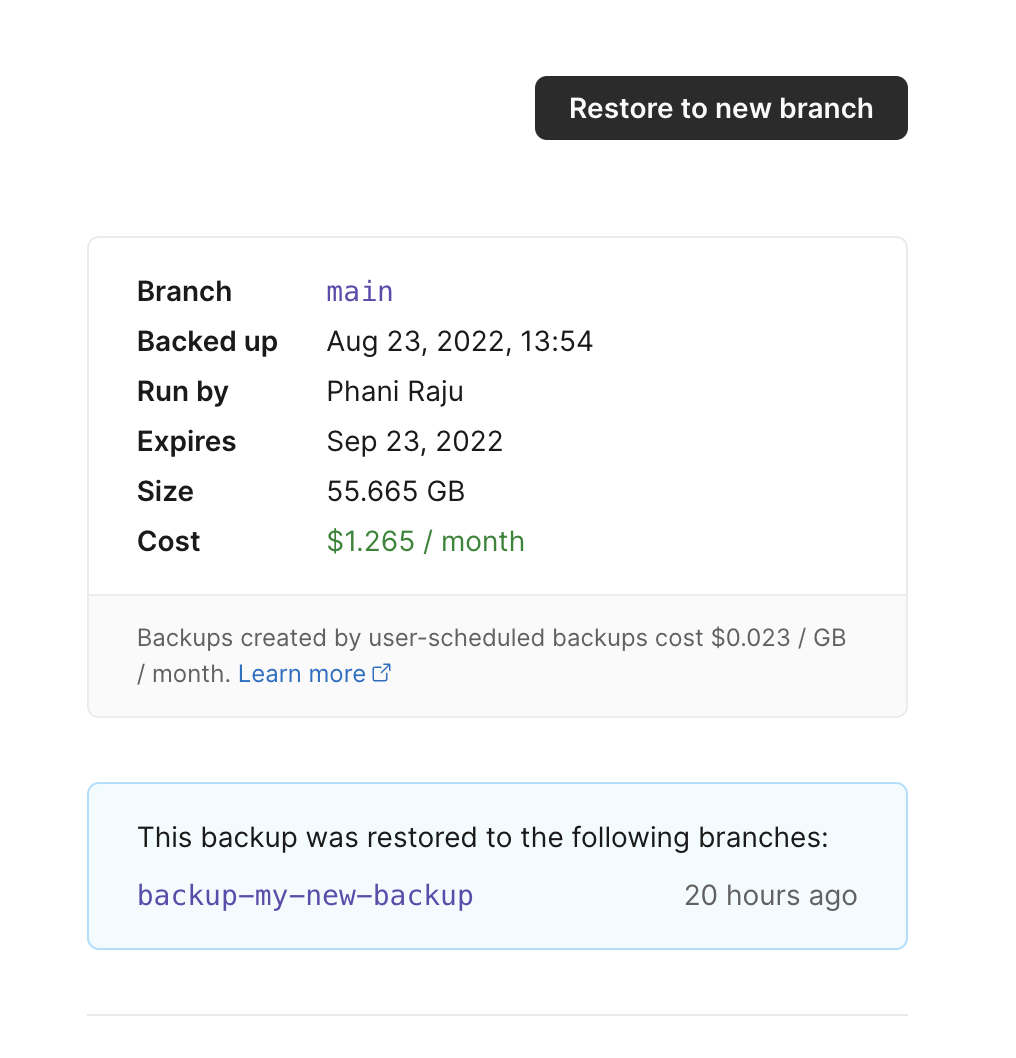
restored from a backup, head to the backup details and you’ll see a list of those branches.