

Overview
This document will show you how to create a service token for the API in PlanetScale. All PlanetScale API endpoints require one. You can read more about using service tokens outside of the API in the PlanetScale service token documentation.Authorization header
To make requests to the API, add the service token values in theAuthorization header in your HTTP API request using the following format:
Creating a service token
To create a service token using the dashboard, log into your organization and click Settings > Service tokens > New service token. Give the token a descriptive name (this is used for your reference only) and click Create service token.Service token ID
Copy this value to use asSERVICE_TOKEN_ID.
The ID is also visible on the service token page after you continue to token permissions.
Service token
The token is generated immediately after the service token is created. Copy this value to use asSERVICE_TOKEN.
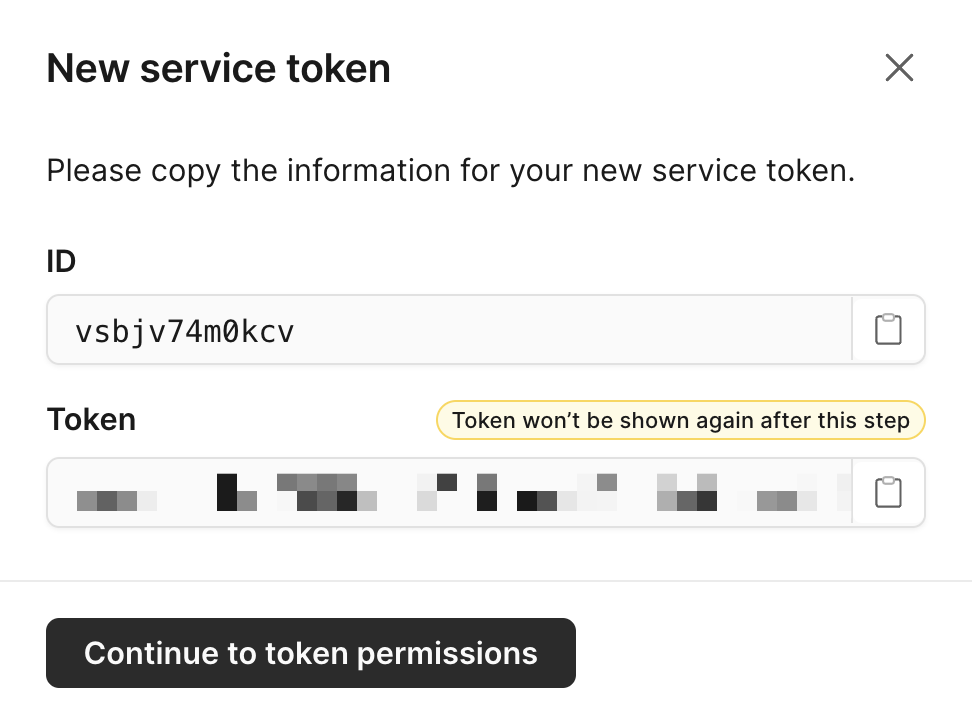
Modal showing service token ID and token secret
Access permissions
You can access your specific service token page from your organization’s Settings > Service token page. Service tokens are configured with granular permissions for both organizations and databases access. On the page for your specific service token you can add one or many of the following permissions.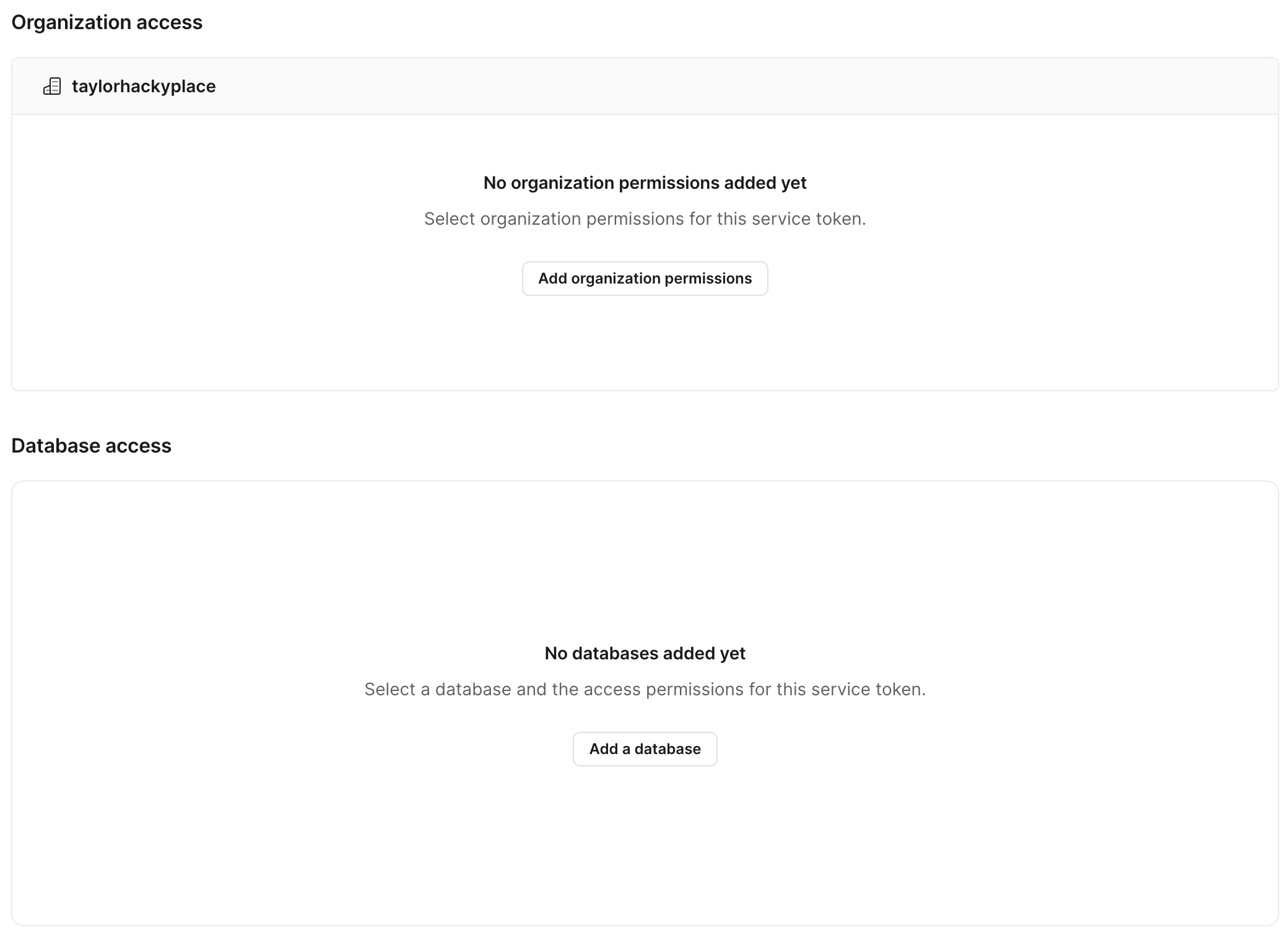
Showing the UI for organization and database access with buttons to add what access permissions.
create_databases access.
Organization access permissions
A service token can have granular permissions across an organization with one or multiple of the following access permissions. Check the box next to each permission option you need to grant. Once you are done, click Save permissions.Database access permissions
A service token can have granular permissions across a database with one or multiple of the following access permissions. Select the database you want to grant access for and check the box next to each permission option you need to grant. Once you are done, click Save permissions.Service tokens and deploy requests approvals
When a database requires administrator approval for deploy requests (located in your database’s Settings page), a service token cannot approve a deploy request created by the same service token. Also, users can’t approve a deploy request created by a service token that they created.Example
Creating a PlanetScale branch with service tokens
Creating a database branch is one of the many API endpoints documented in our PlanetScale API docs. The following steps are required to make a successful API request:1
Create a service token as described at the top of this page. Make sure to copy and paste the service token ID and service token somewhere safe.
2
You need to make sure your service token has the correct access permissions. Each endpoint documentation describes the service token access permissions it needs in the 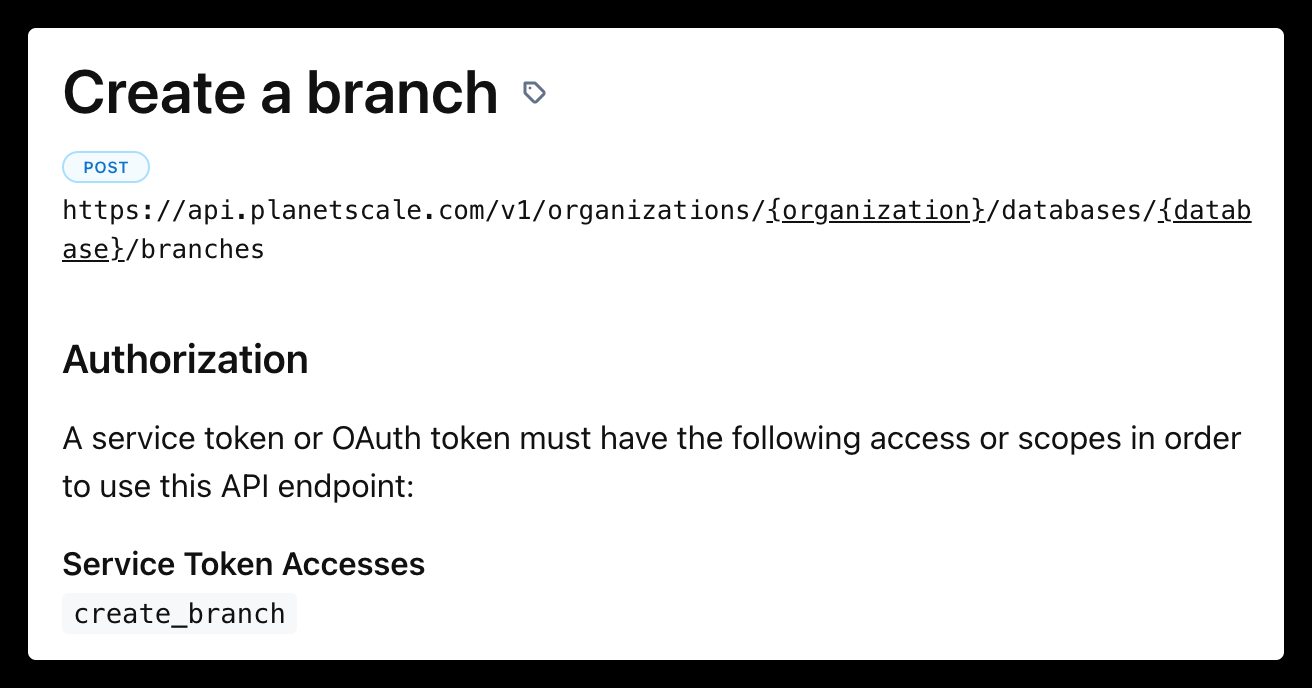
Authorization section. For example, in the create a branch endpoint you will need to grant the service token the create_branch access for your database:3
After your permissions are set, you can now use the service token in a cURL request:Make sure to fill in the
ORGANIZATION_NAME, DATABASE_NAME, BRANCH_NAME, PARENT_BRANCH_NAME, SERVICE_TOKEN_ID, and SERVICE_TOKEN variables.4
You will get a response with the following data, as described in the specific API endpoints documentation:
Potential errors
If you get a{"code":"not_found","message":"Not Found"} response, it is likely you either did not change the variables in the example cURL request or you did not set the access permissions correctly for the service token.