> ## Documentation Index
> Fetch the complete documentation index at: https://planetscale.com/docs/llms.txt
> Use this file to discover all available pages before exploring further.
# Node.js example using the PlanetScale serverless driver
> This guide will cover how to use the provided Node.js sample application using the PlanetScale serverless driver for JavaScript.
## Overview
This guide will be using VS Code as the IDE, but you may use your preferred IDE.
## Use the sample repository
We offer a sample repository that can be used as an educational resource. It is an Express API that can be run locally with sample `SELECT`, `INSERT`, `UPDATE`, and `DELETE` statements mapped to the proper API endpoints.
To follow along, you’ll need the following:
* A PlanetScale account, as well as knowing how to create a database.
* The PlanetScale CLI is installed on your computer, which will be used to seed data.
Start by creating a database in PlanetScale by clicking **"New database"** > **"Create new database"**.
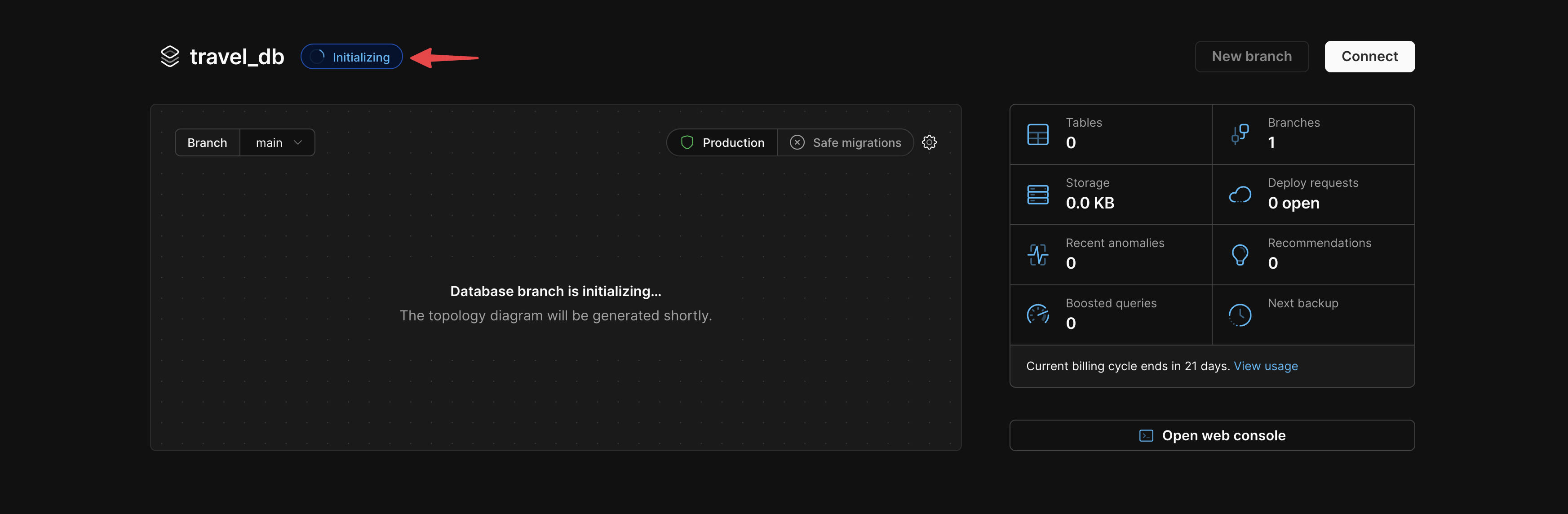
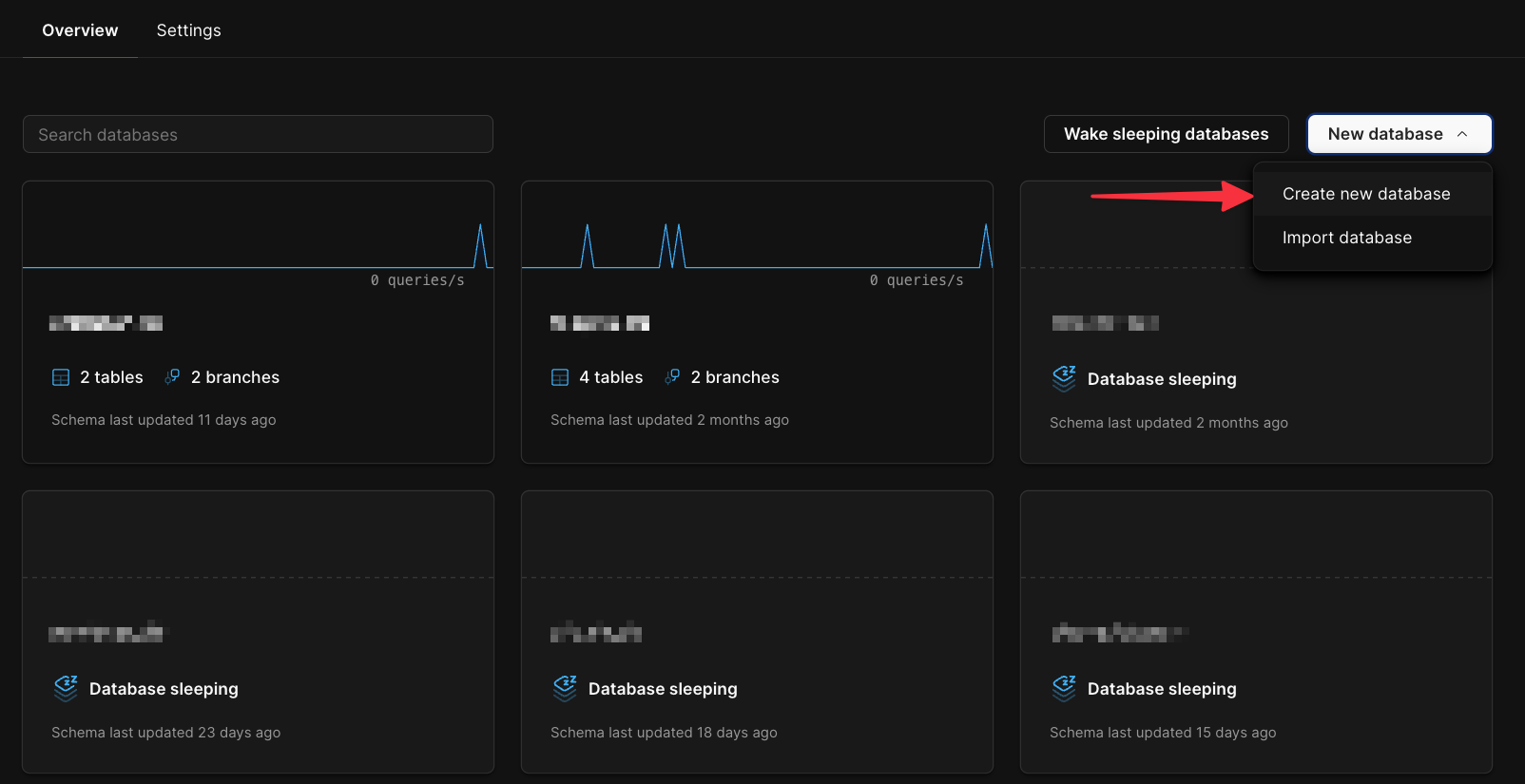 Name the database `travel_db`. Click **"Create database"**. Wait for the database to finish initializing before moving on.
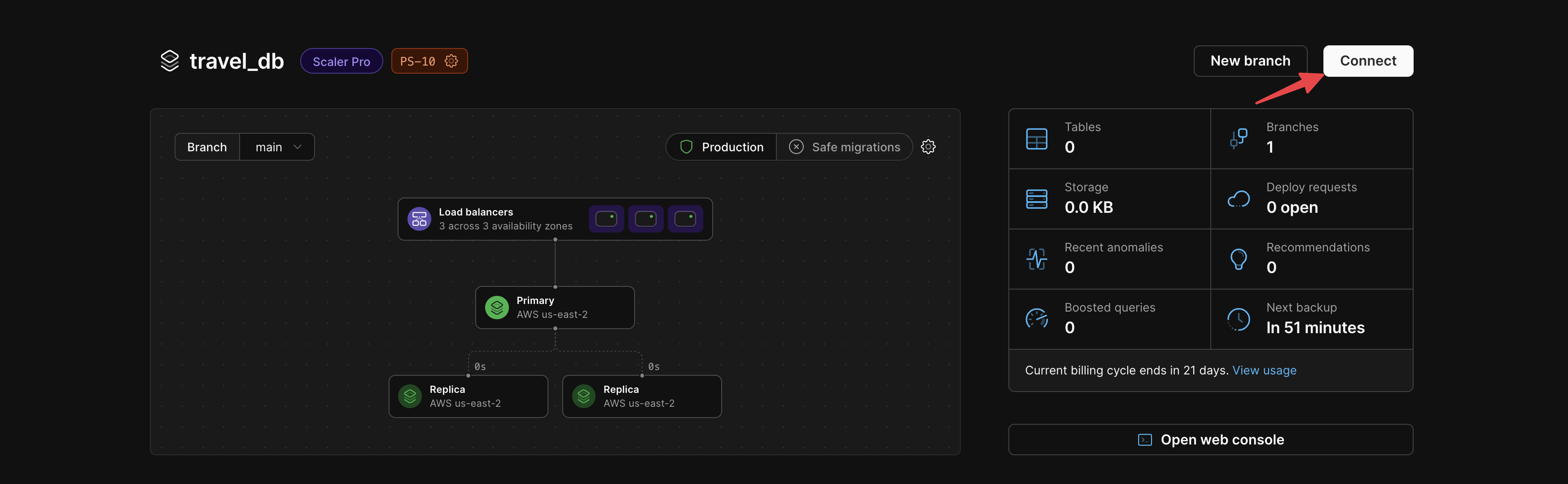
 Generate a set of credentials by clicking the **"Connect"** button.
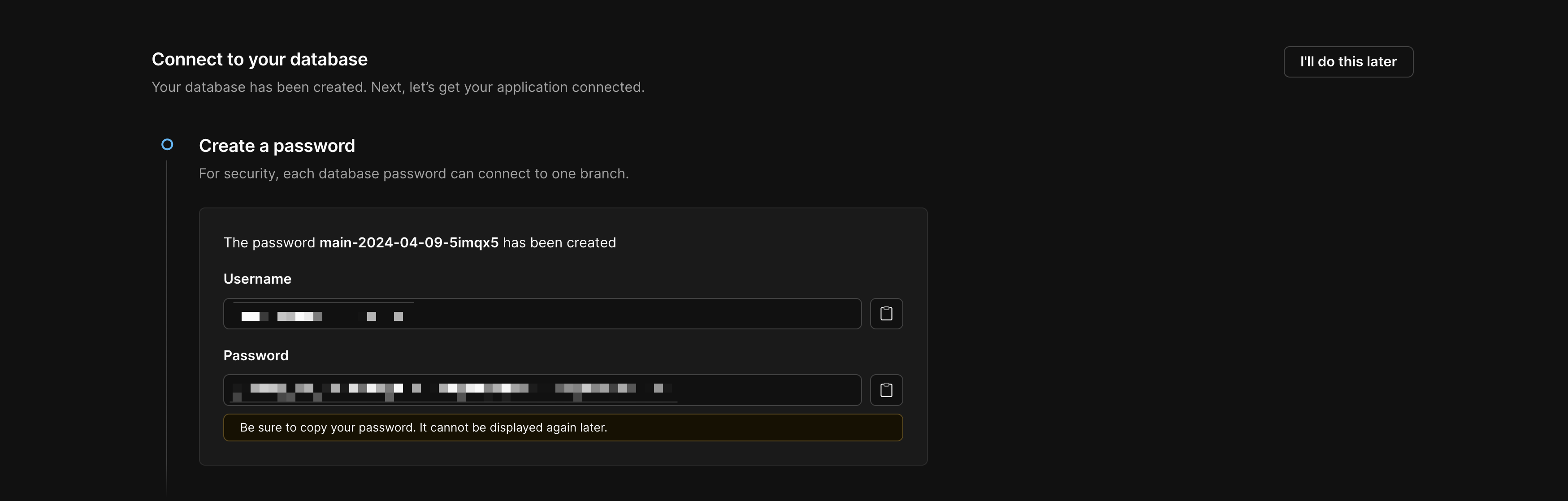
 Copy your password credentials first:
 Scroll down and select **"database-js"** from the "Select your language or framework" options. Copy the text from the **".env"** section, as we'll be putting this in the project after it's pulled down from GitHub.
 On your workstation, open a terminal and clone the repository to your computer by running the following command:
```bash theme={null}
git clone https://github.com/planetscale/database-js-starter
```
Navigate to the `scripts` folder and run the `seed_database.sh` script to populate a small database simulating a travel agency.
```bash theme={null}
cd database-js-starter/scripts
./seed-database.sh
```
If you are using Windows, run this command through the [Windows Subsystem for Linux (WSL)](https://docs.microsoft.com/en-us/windows/wsl/)
Create a new file named `.env` in the root of the project and paste in the sample provided from PlanetScale that you copied earlier.
To run the project, run the following commands from the root of the project.
```bash theme={null}
npm install
npm start
```
If the project is running properly, you should receive a message stating that the API is running.
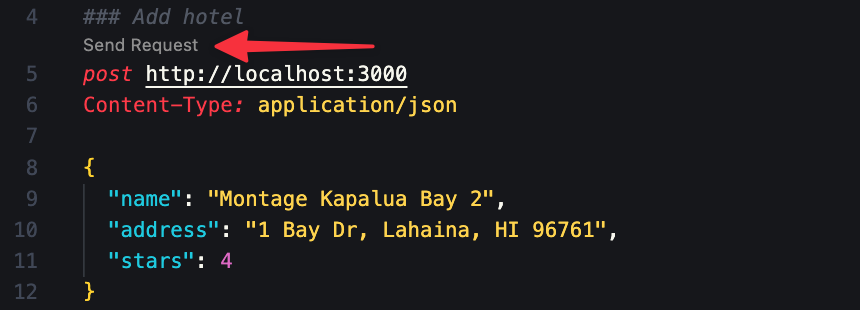
The `tests.http` file is designed to work with the [VS Code Rest Client plugin](https://marketplace.visualstudio.com/items?itemName=humao.rest-client), but can be used as a reference when testing with the tool of your choosing. If you are using the plugin, you may click the **"Send request"** button that appears above each request to see the API in action.
On your workstation, open a terminal and clone the repository to your computer by running the following command:
```bash theme={null}
git clone https://github.com/planetscale/database-js-starter
```
Navigate to the `scripts` folder and run the `seed_database.sh` script to populate a small database simulating a travel agency.
```bash theme={null}
cd database-js-starter/scripts
./seed-database.sh
```
If you are using Windows, run this command through the [Windows Subsystem for Linux (WSL)](https://docs.microsoft.com/en-us/windows/wsl/)
Create a new file named `.env` in the root of the project and paste in the sample provided from PlanetScale that you copied earlier.
To run the project, run the following commands from the root of the project.
```bash theme={null}
npm install
npm start
```
If the project is running properly, you should receive a message stating that the API is running.
The `tests.http` file is designed to work with the [VS Code Rest Client plugin](https://marketplace.visualstudio.com/items?itemName=humao.rest-client), but can be used as a reference when testing with the tool of your choosing. If you are using the plugin, you may click the **"Send request"** button that appears above each request to see the API in action.
 If you check the terminal where the API was started, the response from the `execute` function is logged out for review.
## Need help?
Get help from [the PlanetScale Support team](https://planetscale.com/contact?initial=support), or join our [Discord community](https://pscale.link/community) to see how others are using PlanetScale.
If you check the terminal where the API was started, the response from the `execute` function is logged out for review.
## Need help?
Get help from [the PlanetScale Support team](https://planetscale.com/contact?initial=support), or join our [Discord community](https://pscale.link/community) to see how others are using PlanetScale.