> ## Documentation Index
> Fetch the complete documentation index at: https://planetscale.com/docs/llms.txt
> Use this file to discover all available pages before exploring further.
# Deploy to Netlify
> This guide will walk you through setting up and deploying your PlanetScale database on Netlify.
This doc is intended for users that are manually storing a connection string in an environment variable in Netlify. If you want to use the Netlify integration, which handles this for you, see the [PlanetScale integration in the Netlify docs](https://docs.netlify.com/integrations/planetscale-integration).
## Prerequisites
* A PlanetScale database — If you haven't created a database, refer to our [PlanetScale quickstart guide](/vitess/tutorials/planetscale-quick-start-guide) to get started
* A [Netlify account](https://netlify.com/)
* A project deployed to Netlify — If you're just poking around and don't already have an application to deploy, you can use our [Next.js + PlanetScale sample](/vitess/tutorials/connect-nextjs-app)
## Connecting your PlanetScale database to your Netlify application
### Get your connection string from PlanetScale
In your [PlanetScale dashboard](https://app.planetscale.com), click on the database you want to connect to.
Click "**Connect**".
Create a new password. Make sure to copy the password, as you'll only be shown it once.
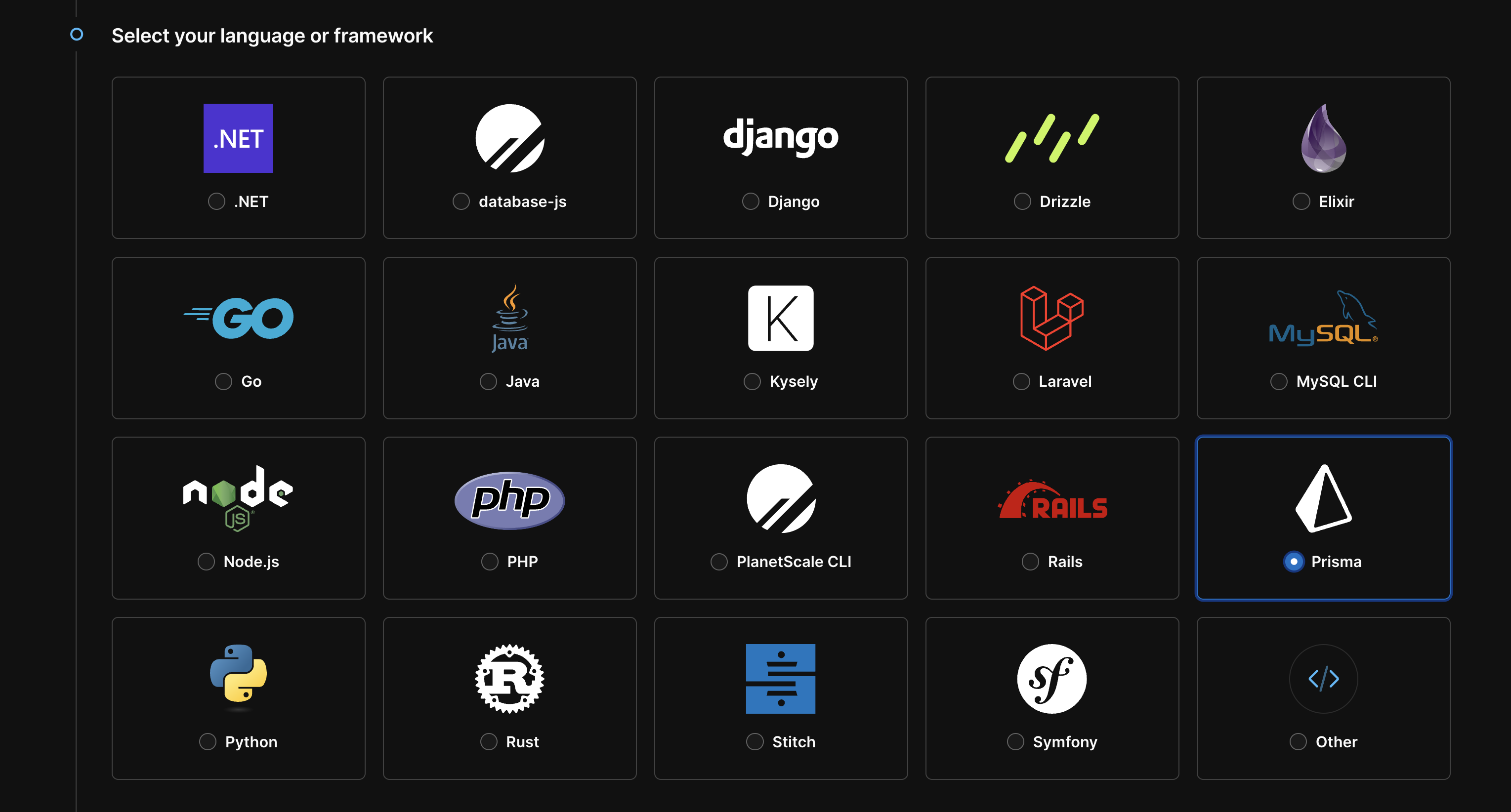
Select the framework you're using from the "**Select your language or framework**" section. This will give you the exact environment variable names you need for your selected framework. If your framework is not listed, choose "Other".
 Keep this page open, as you'll need to copy these to Netlify momentarily.
If you navigate away from the page, and can no longer access the password, create a new password by repeating steps 1-5.
### Copy environment variables to Netlify
Go to your Netlify dashboard.
Click on your Netlify project.
Click "**Site settings**".
Click "**Build & deploy**," then "**Environment**".
Click "**Edit variable**".
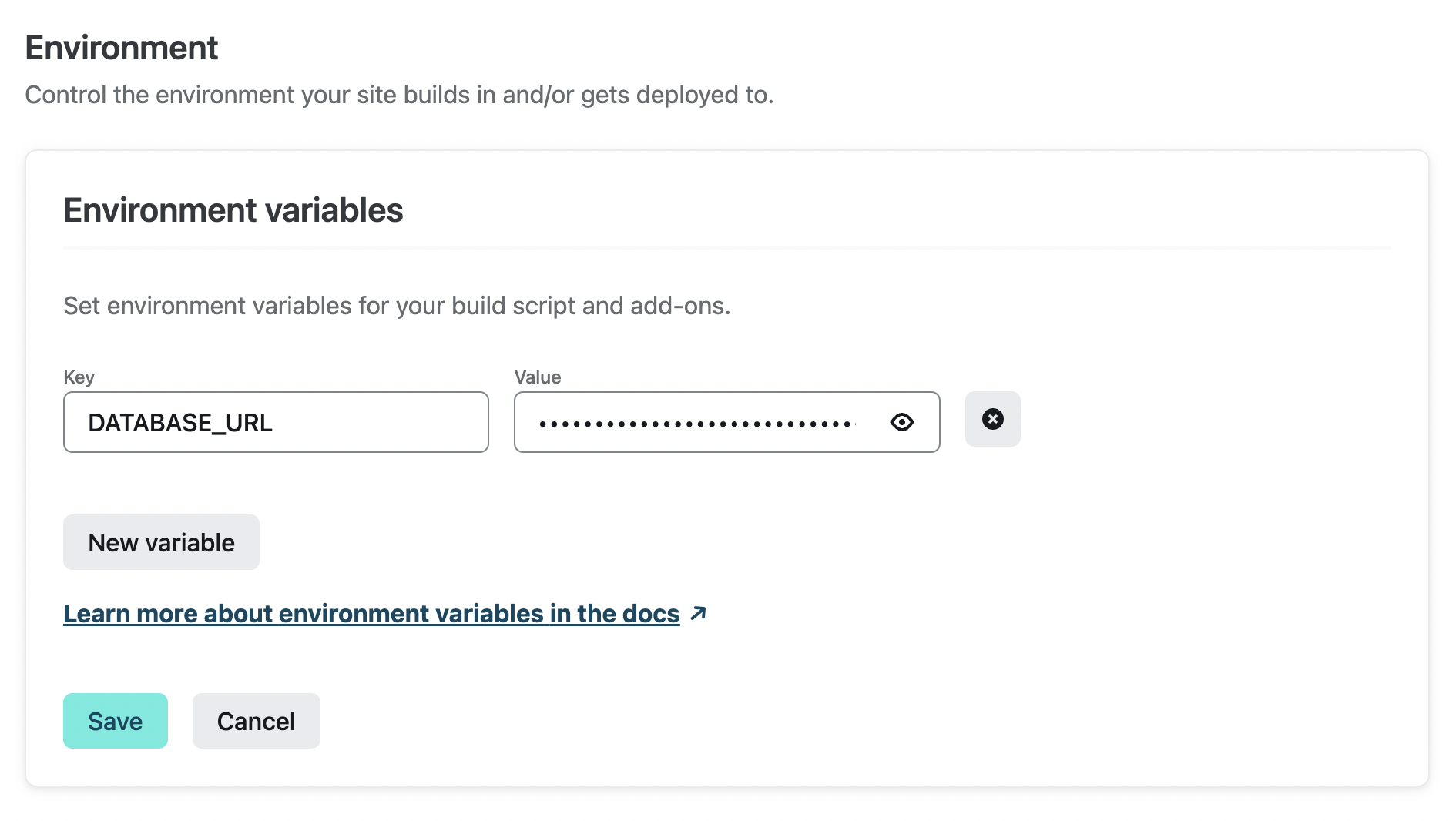
Click "**New variable**" and copy each value from your PlanetScale dashboard into a new environment variable in Netlify. Once you're done with one, click "**Add**" and continue to the next, if applicable.
For example, if you're using Prisma, your connection string will look similar to this:
```bash theme={null}
DATABASE_URL='mysql://xxxxxxxxx:************@xxxxxxxxxx.us-east-3.psdb.cloud/my-database?sslaccept=strict'
```
Your environment variable name will be the same in your application's code. We used `DATABASE_URL` as an example, but this can be given a different name.
In Netlify, you'll set it as follows:
* **Key** = `DATABASE_URL`
* **Value** = `mysql://xxxxxxxxx:************@xxxxxxxxxx.us-east-3.psdb.cloud/my-database?sslaccept=strict`
The credentials are blurred for the example, but when you paste them in, use the actual values.
Keep this page open, as you'll need to copy these to Netlify momentarily.
If you navigate away from the page, and can no longer access the password, create a new password by repeating steps 1-5.
### Copy environment variables to Netlify
Go to your Netlify dashboard.
Click on your Netlify project.
Click "**Site settings**".
Click "**Build & deploy**," then "**Environment**".
Click "**Edit variable**".
Click "**New variable**" and copy each value from your PlanetScale dashboard into a new environment variable in Netlify. Once you're done with one, click "**Add**" and continue to the next, if applicable.
For example, if you're using Prisma, your connection string will look similar to this:
```bash theme={null}
DATABASE_URL='mysql://xxxxxxxxx:************@xxxxxxxxxx.us-east-3.psdb.cloud/my-database?sslaccept=strict'
```
Your environment variable name will be the same in your application's code. We used `DATABASE_URL` as an example, but this can be given a different name.
In Netlify, you'll set it as follows:
* **Key** = `DATABASE_URL`
* **Value** = `mysql://xxxxxxxxx:************@xxxxxxxxxx.us-east-3.psdb.cloud/my-database?sslaccept=strict`
The credentials are blurred for the example, but when you paste them in, use the actual values.
 After you have saved, you will need to rebuild the site with the new environment variable.
## What's next?
Learn more about how PlanetScale allows you to make [non-blocking schema changes](/vitess/schema-changes) to your database tables without locking or causing downtime for production databases.
## Need help?
Get help from [the PlanetScale Support team](https://planetscale.com/contact?initial=support), or join our [Discord community](https://pscale.link/community) to see how others are using PlanetScale.
After you have saved, you will need to rebuild the site with the new environment variable.
## What's next?
Learn more about how PlanetScale allows you to make [non-blocking schema changes](/vitess/schema-changes) to your database tables without locking or causing downtime for production databases.
## Need help?
Get help from [the PlanetScale Support team](https://planetscale.com/contact?initial=support), or join our [Discord community](https://pscale.link/community) to see how others are using PlanetScale.