> ## Documentation Index
> Fetch the complete documentation index at: https://planetscale.com/docs/llms.txt
> Use this file to discover all available pages before exploring further.
# AWS Lambda connection strings
> In this guide, you'll learn how to properly store and use PlanetScale MySQL connection strings for use in AWS Lambda Functions.
## Introduction
We'll use a [pre-built NodeJS](https://github.com/planetscale/aws-connection-strings-example) app for this example, but you can follow along using your own application as well.
## Prerequisites
* An AWS account
* A [PlanetScale account](https://auth.planetscale.com/sign-up)
## Set up the database
If you already have a database with a production branch, skip to [the next section](#configure-the-lambda-function).
Let's start by creating the database. In the PlanetScale dashboard, click the "**New database**" button followed by "**Create new database**". Name the database **lambda-connection-strings,** or any other name that you prefer. Click "**Create database**".
Once your database has finished initializing, you'll need to enable the web console on production branches. To do this, go to the "**Settings**" tab, check "**Allow web console access to production branches**", and click "**Save database settings**".
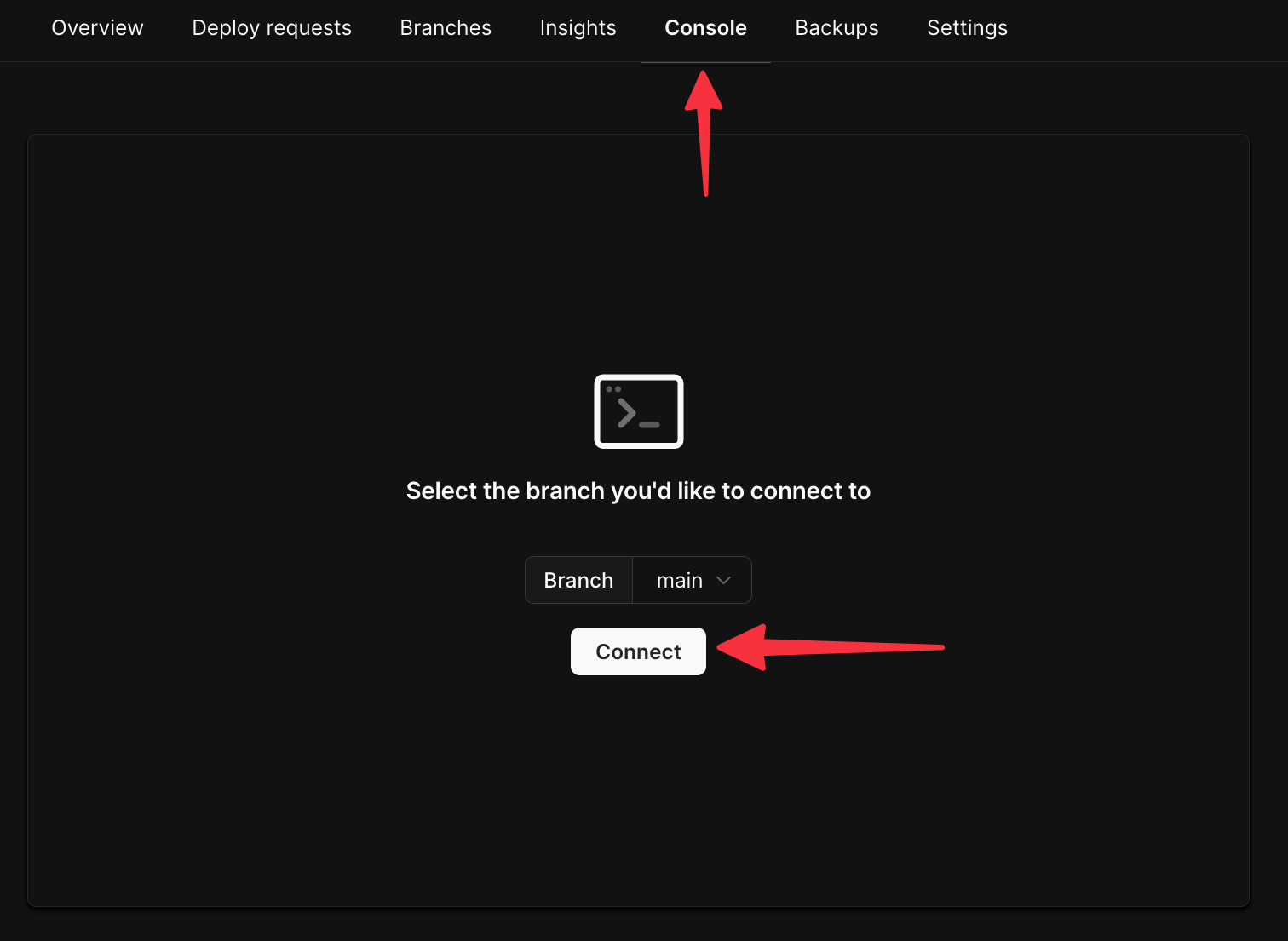
Now, access the console of the main branch by clicking "**Console**", then "**Connect**".
 Create a simple table & insert some data using the following script:
```sql theme={null}
CREATE TABLE Tasks(
Id int PRIMARY KEY AUTO_INCREMENT,
Name varchar(100),
IsDone bit
);
INSERT INTO Tasks (Name) VALUES ('Clean the kitchen');
INSERT INTO Tasks (Name) VALUES ('Fold the laundry');
INSERT INTO Tasks (Name) VALUES ('Watch the sportsball game');
```
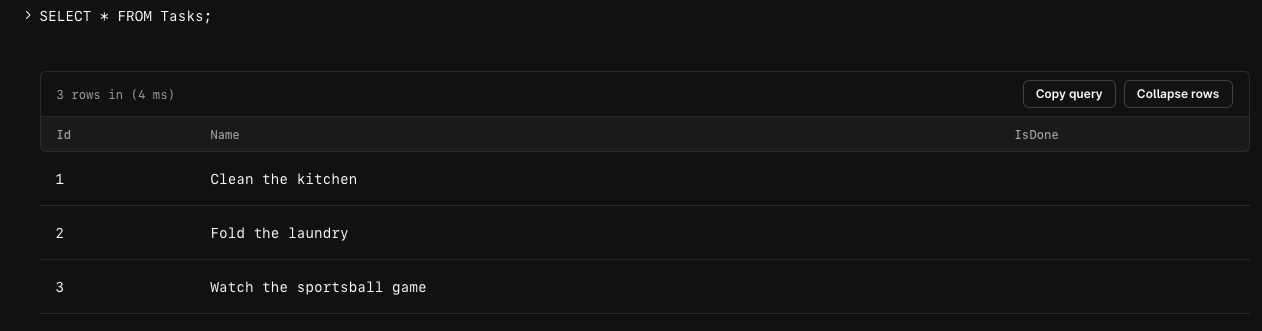
You may run `SELECT * FROM Tasks` to ensure the data was properly added from the console.
Create a simple table & insert some data using the following script:
```sql theme={null}
CREATE TABLE Tasks(
Id int PRIMARY KEY AUTO_INCREMENT,
Name varchar(100),
IsDone bit
);
INSERT INTO Tasks (Name) VALUES ('Clean the kitchen');
INSERT INTO Tasks (Name) VALUES ('Fold the laundry');
INSERT INTO Tasks (Name) VALUES ('Watch the sportsball game');
```
You may run `SELECT * FROM Tasks` to ensure the data was properly added from the console.
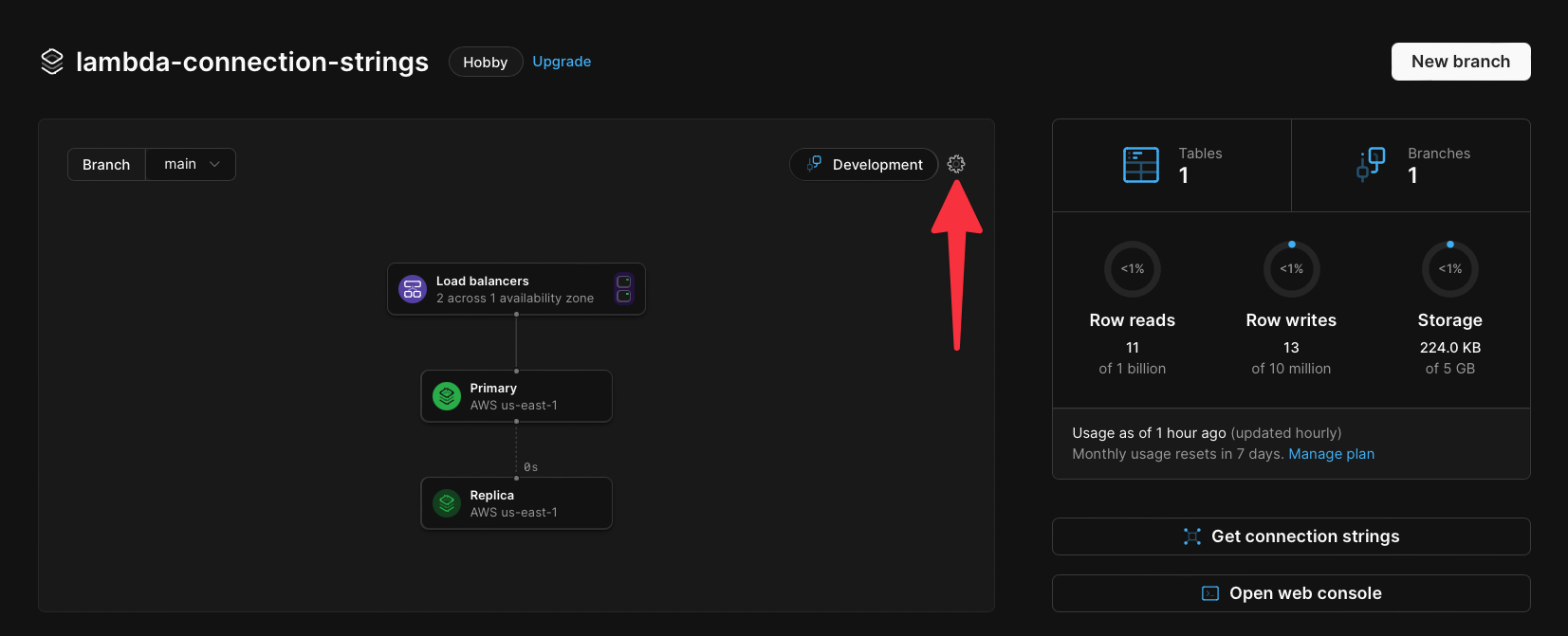
 Now we need to enable [**safe migrations**](/vitess/schema-changes/safe-migrations) on the **main** branch. Click the **Dashboard** tab, then click the **cog** icon in the upper right of the infrastructure card.
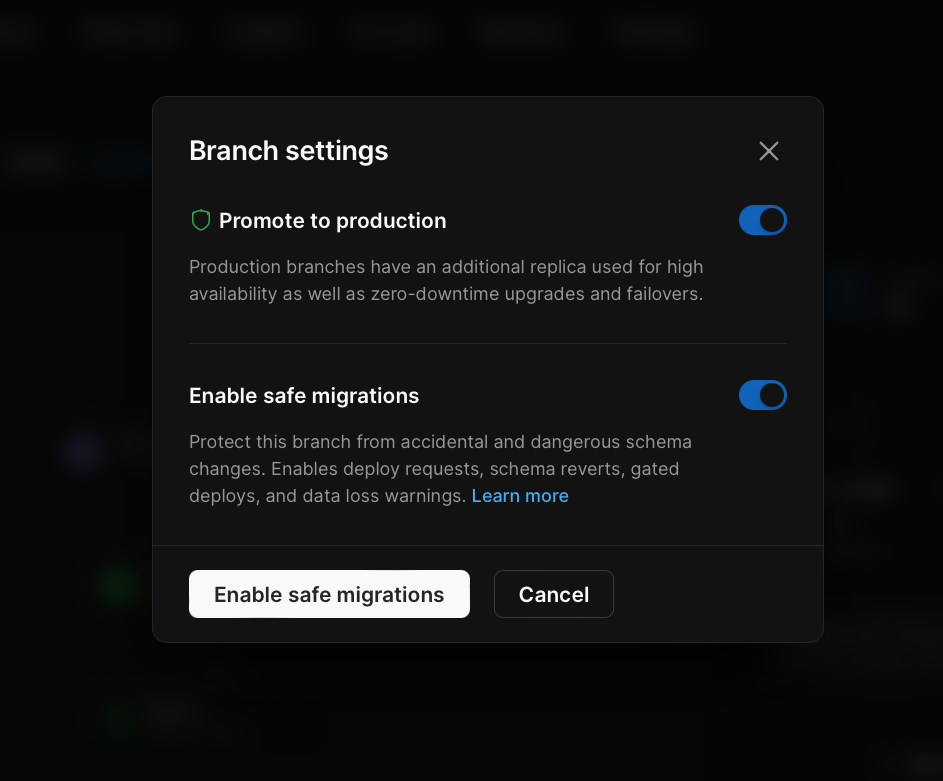
 Toggle on the "**Enable safe migrations**" option and click the "**Enable safe migrations**" button.
 Before moving on from the PlanetScale dashboard, grab the connection details to be used in the next step. Click on the **Connect** button to go to the Connect page. Enter a name for your password, and click the **Create password** button to generate a new password.
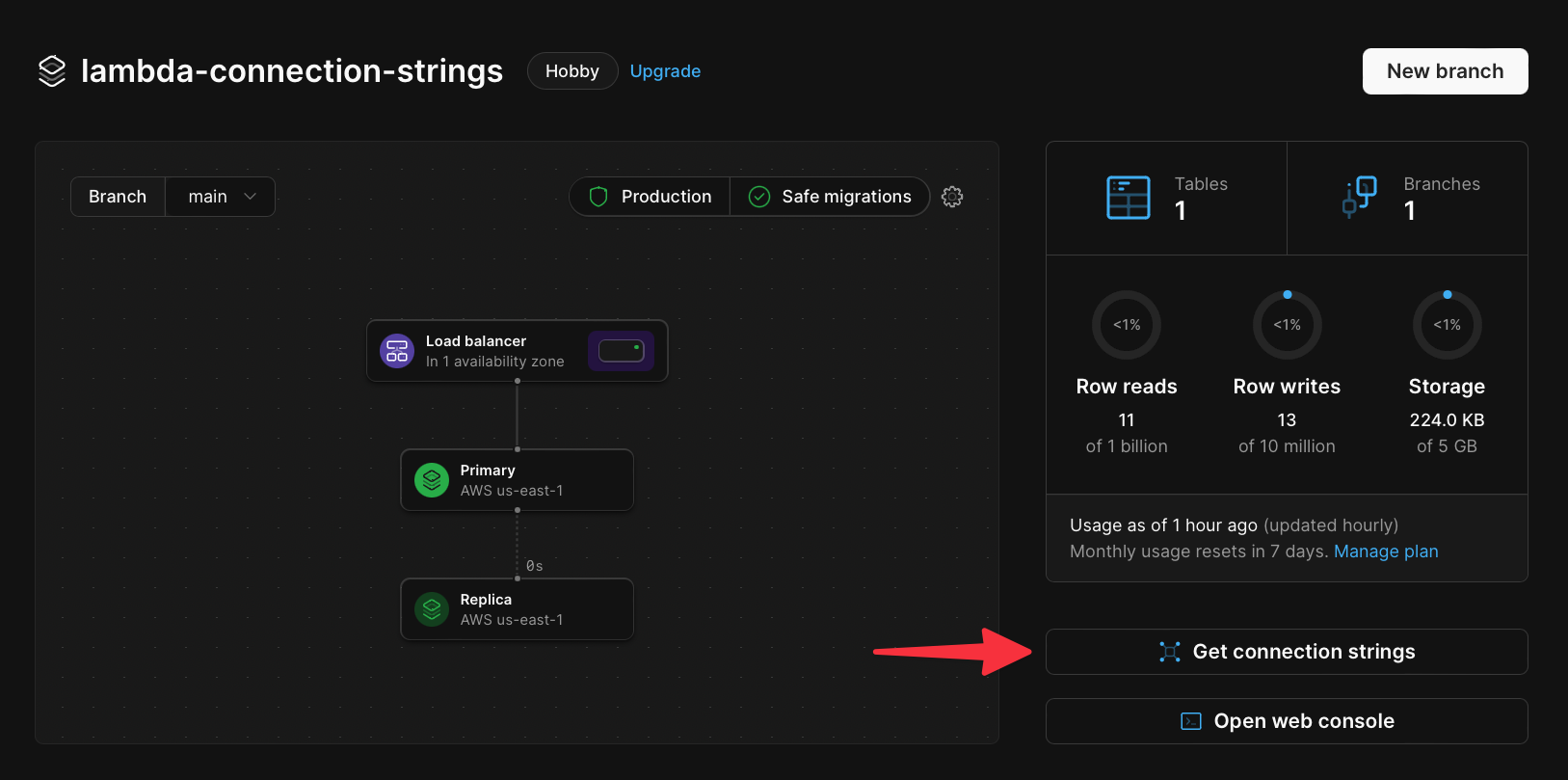 In the **Select your language or framework** section, select **Node.js** and note the details in the `.env` section of the guide. These details will be required to connect to the database.
## Configure the Lambda function
Secrets in AWS Lambda functions, which include database connection strings, are often stored as environment variables with the Lambda function. We’ll be uploading a sample NodeJS app that has been provided and storing the connection string from the previous section as an environment variable to test.
Start by cloning the following Git repository:
```bash theme={null}
git clone https://github.com/planetscale/aws-connection-strings-example.git
```
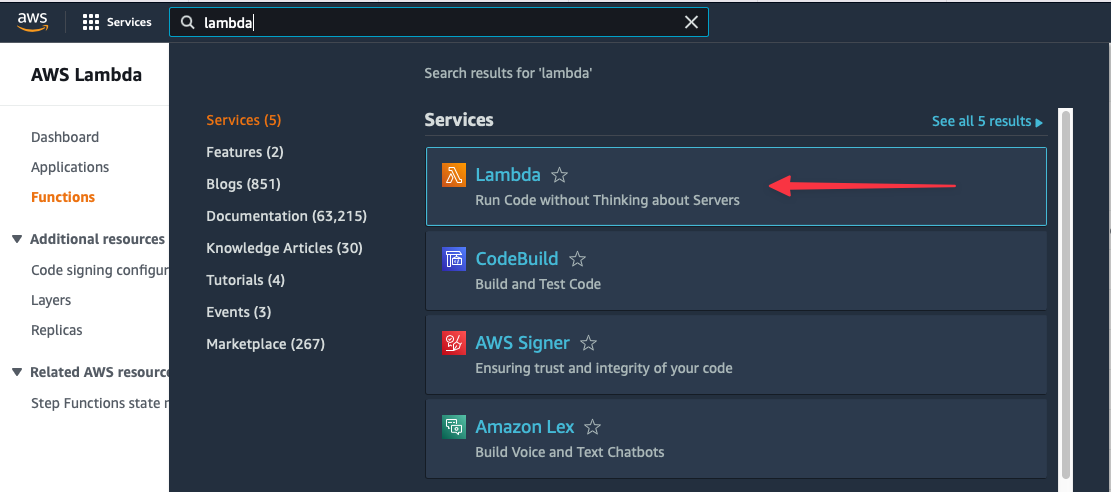
Log into the AWS Console, use the universal search to search for ‘**Lambda**’, and select it from the list of services.
In the **Select your language or framework** section, select **Node.js** and note the details in the `.env` section of the guide. These details will be required to connect to the database.
## Configure the Lambda function
Secrets in AWS Lambda functions, which include database connection strings, are often stored as environment variables with the Lambda function. We’ll be uploading a sample NodeJS app that has been provided and storing the connection string from the previous section as an environment variable to test.
Start by cloning the following Git repository:
```bash theme={null}
git clone https://github.com/planetscale/aws-connection-strings-example.git
```
Log into the AWS Console, use the universal search to search for ‘**Lambda**’, and select it from the list of services.
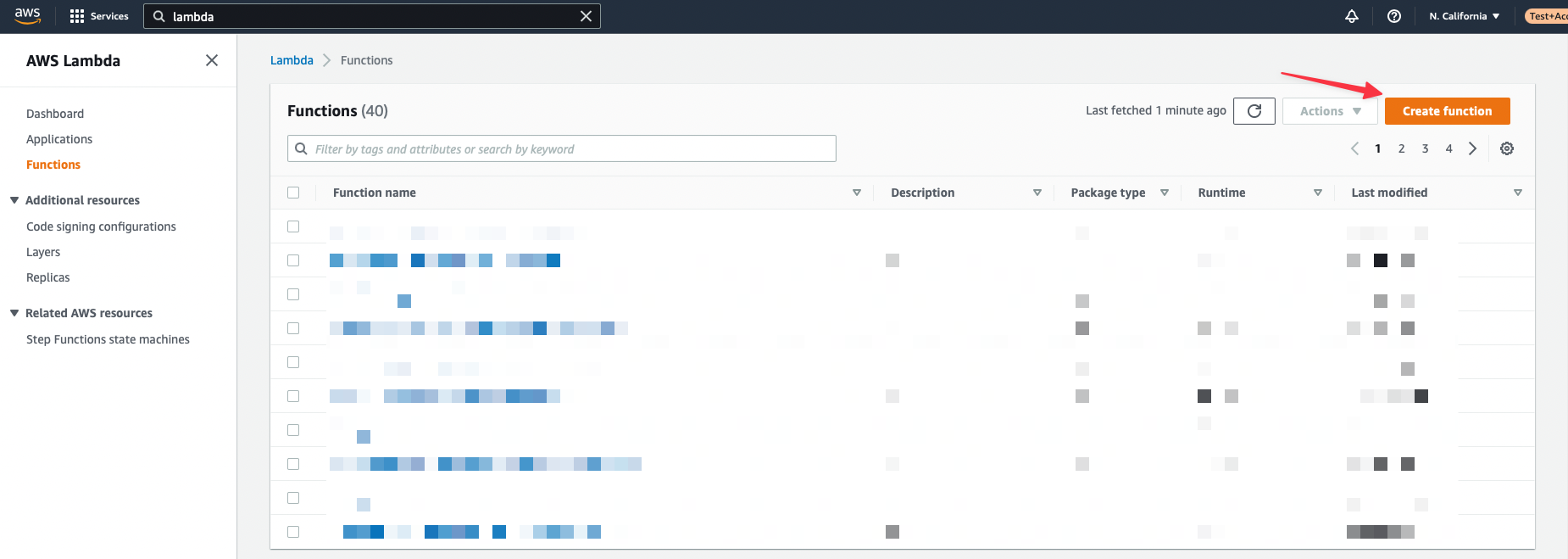
 Create a new function using the **Create function** button in the upper right of the console.
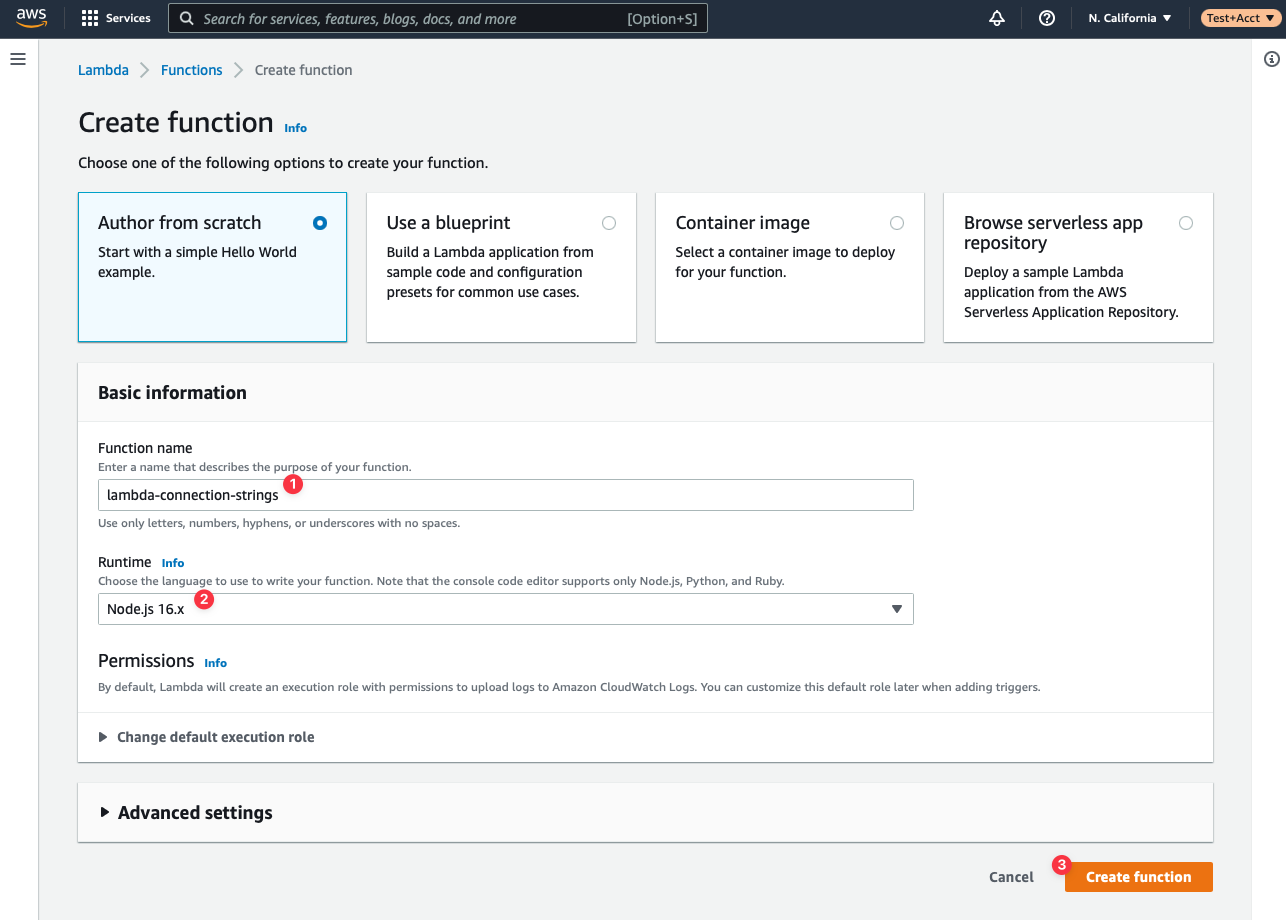
 Name your function **lambda-connection-strings** (or any other name that suits you) and select **NodeJS** under **Runtime**. The other fields can be left as default. Click **Create function** to finish the initial setup of your Lambda.
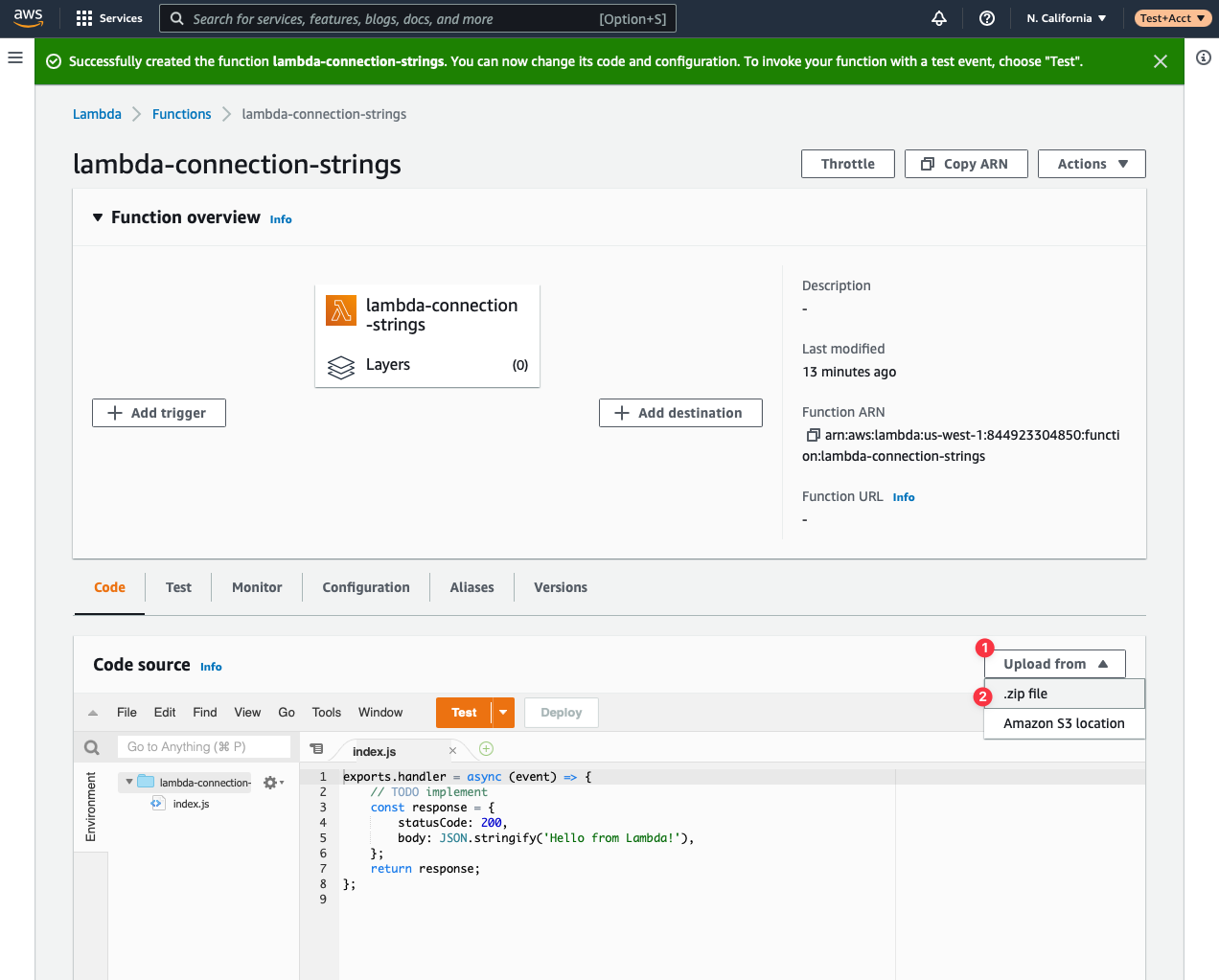
 On the next view, about halfway down the page you’ll see a section called **Code source**. Click the **Upload from** button, then **.zip file**.
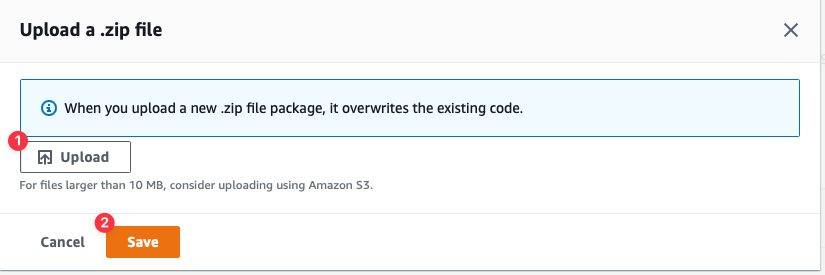
 Click the **Upload** button which will display a file browser. Select the **aws-connection-strings-example.zip** file from the **dist** folder of the provided repository. Click **Save** once it’s been selected.
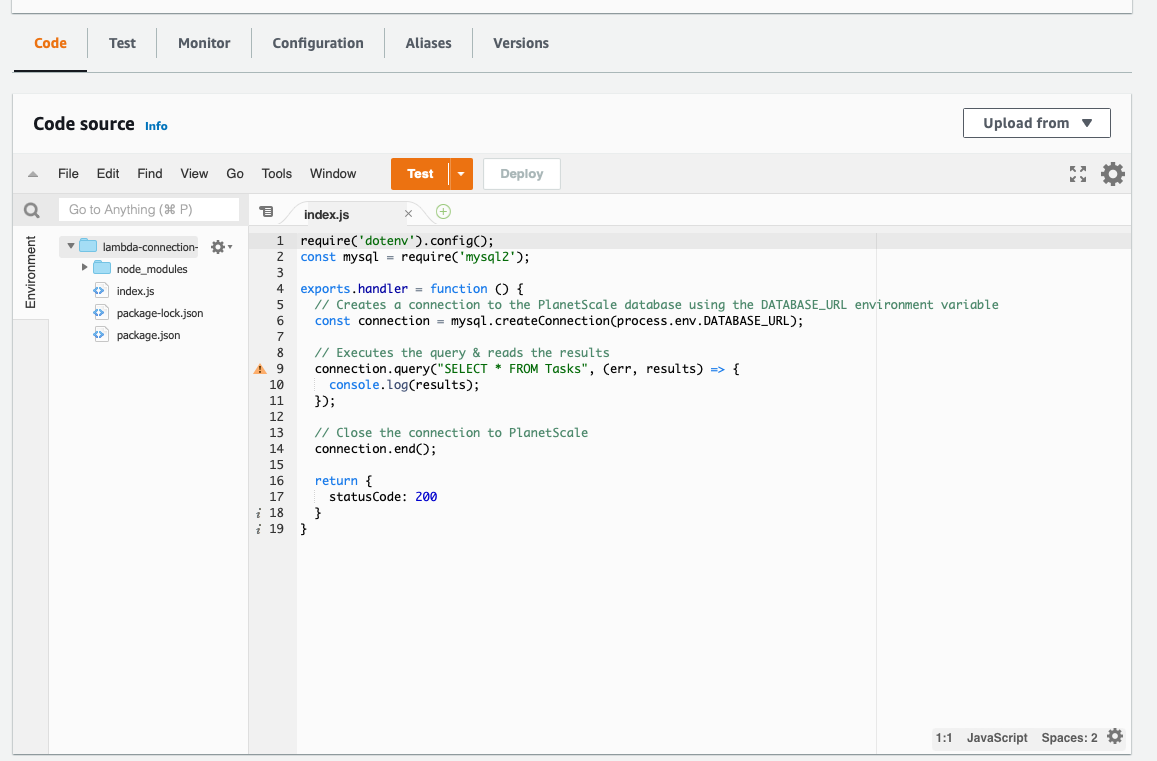
 The contents of the code editor under **Code source** should have updated to show the code stored in the zip file.
 ### Configure environment variables
Next, you need to set the PlanetScale `DATABASE_URL` environment variable that you copied earlier. Select the **Configuration** tab, and click **Edit**.
### Configure environment variables
Next, you need to set the PlanetScale `DATABASE_URL` environment variable that you copied earlier. Select the **Configuration** tab, and click **Edit**.
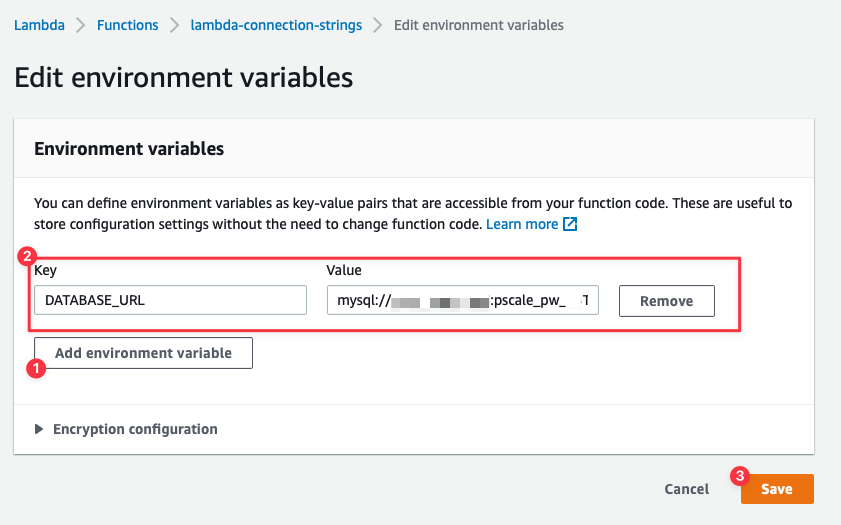
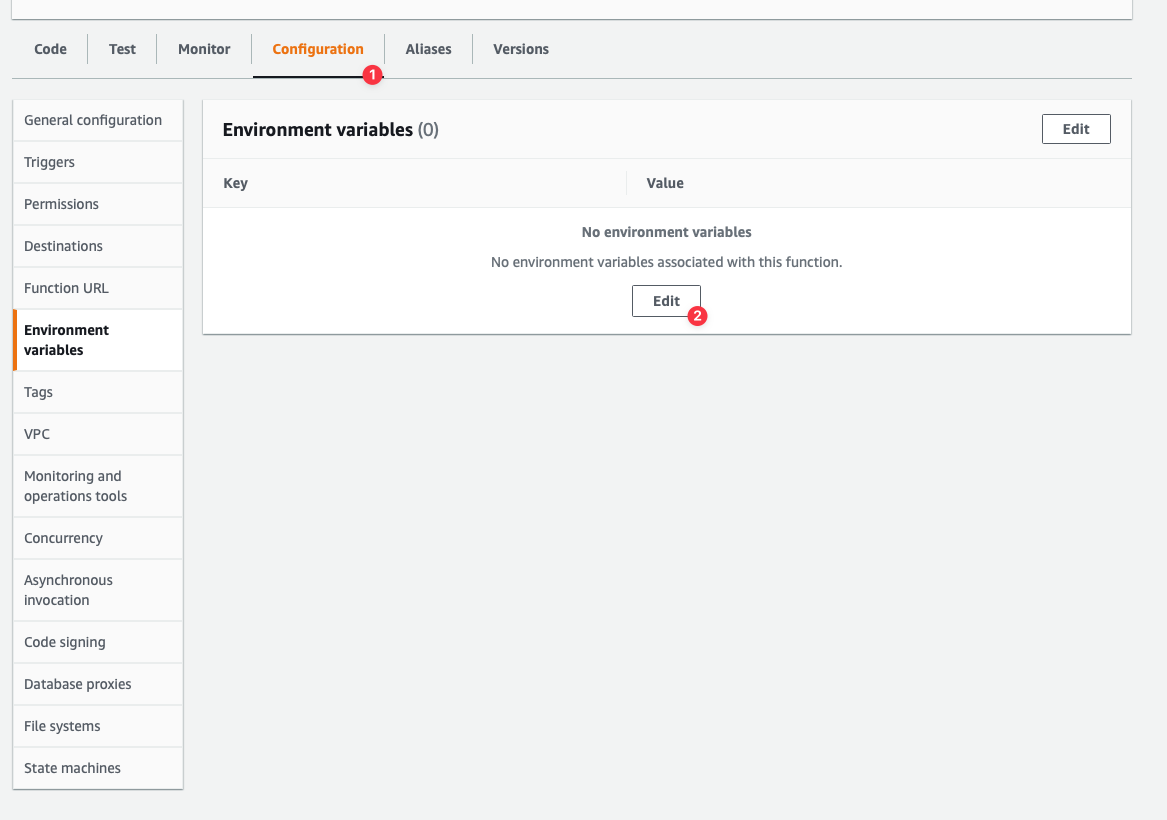 You’ll be presented with a view to add or update environment variables. Click **Add environment variable** and the view will update with a row to add an environment variable. Set the **Key** field to **DATABASE\_URL** and the **Value** to the connection string taken from the previous section. Click **Save** once finished.
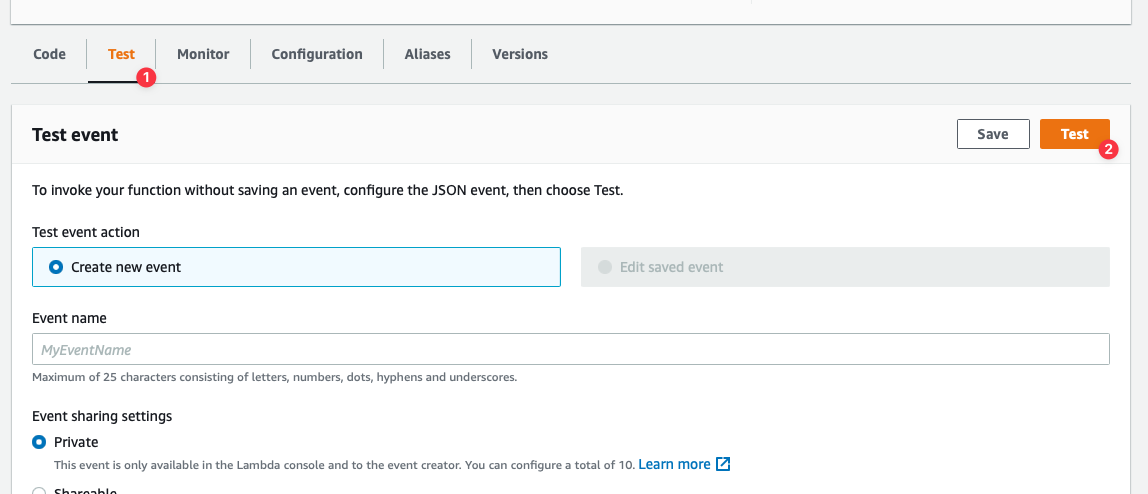
 Finally, test the function by selecting the **Test** tab, and then clicking the **Test** button.
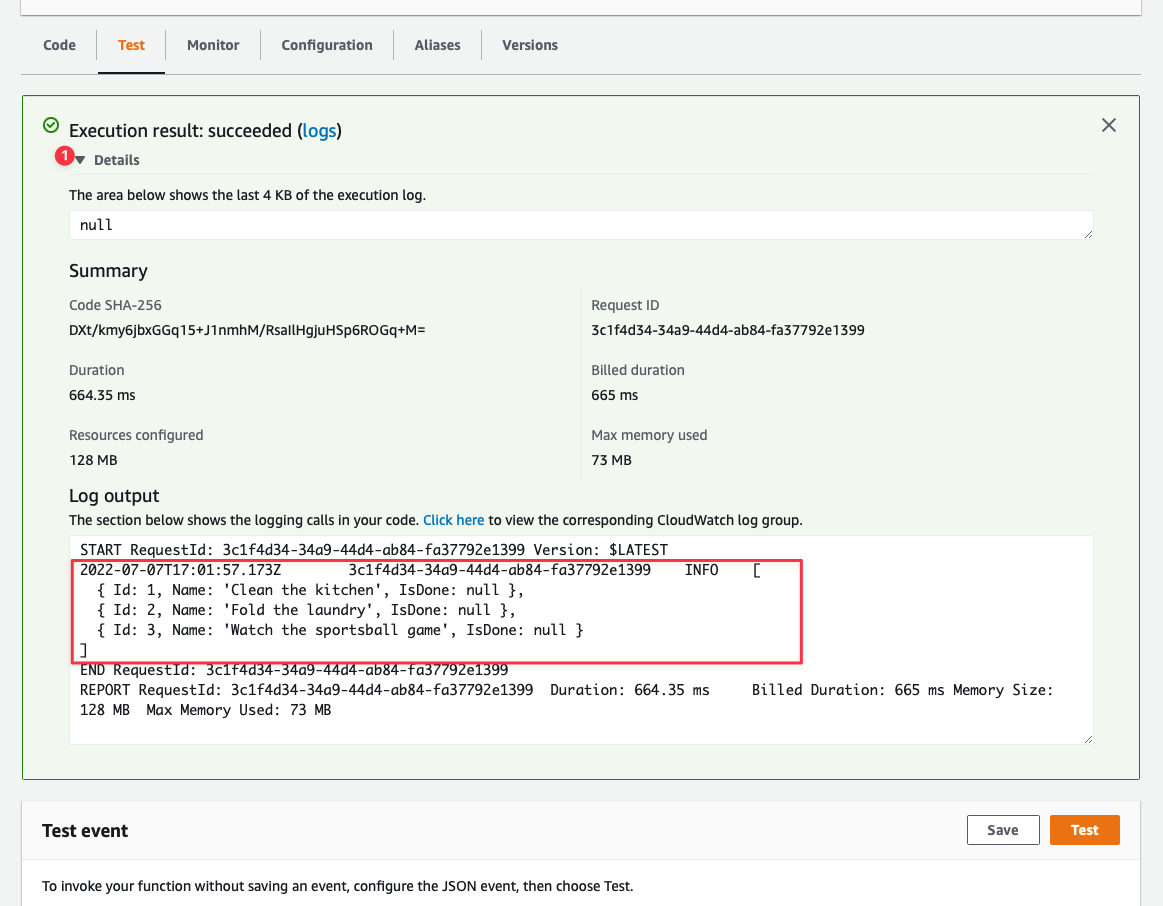
 An **Execution results** box will display above the **Test event** section. If the box is green, it likely means everything executed as expected. Click the dropdown next to **Details** to see the results of the query. Since the results of the query were logged out to the console, they will be displayed in the **Log output** section.
 ## Need help?
Get help from [the PlanetScale Support team](https://planetscale.com/contact?initial=support), or join our [Discord community](https://pscale.link/community) to see how others are using PlanetScale.
## Need help?
Get help from [the PlanetScale Support team](https://planetscale.com/contact?initial=support), or join our [Discord community](https://pscale.link/community) to see how others are using PlanetScale.