> ## Documentation Index
> Fetch the complete documentation index at: https://planetscale.com/docs/llms.txt
> Use this file to discover all available pages before exploring further.
# Stitch integration
> With PlanetScale Connect, you can extract data from your PlanetScale database and safely load it into other destinations for analysis, transformation, and more.
We implemented an [Stitch Singer Tap](https://stitchdata.com/) as the pipeline between your PlanetScale source and selected destination. This document will walk you through how to connect your PlanetScale database to Stitch.
## How to connect
### Step 1 : Setup an Import API integration in Stitch.
PlanetScale's Stitch tap outputs records and metadata to stdout so that the `http tap` can import them into Stitch via [Stitch Import API](https://www.stitchdata.com/docs/developers/import-api/).
Sign up for a [StitchData](https://app.stitchdata.com/signup) account
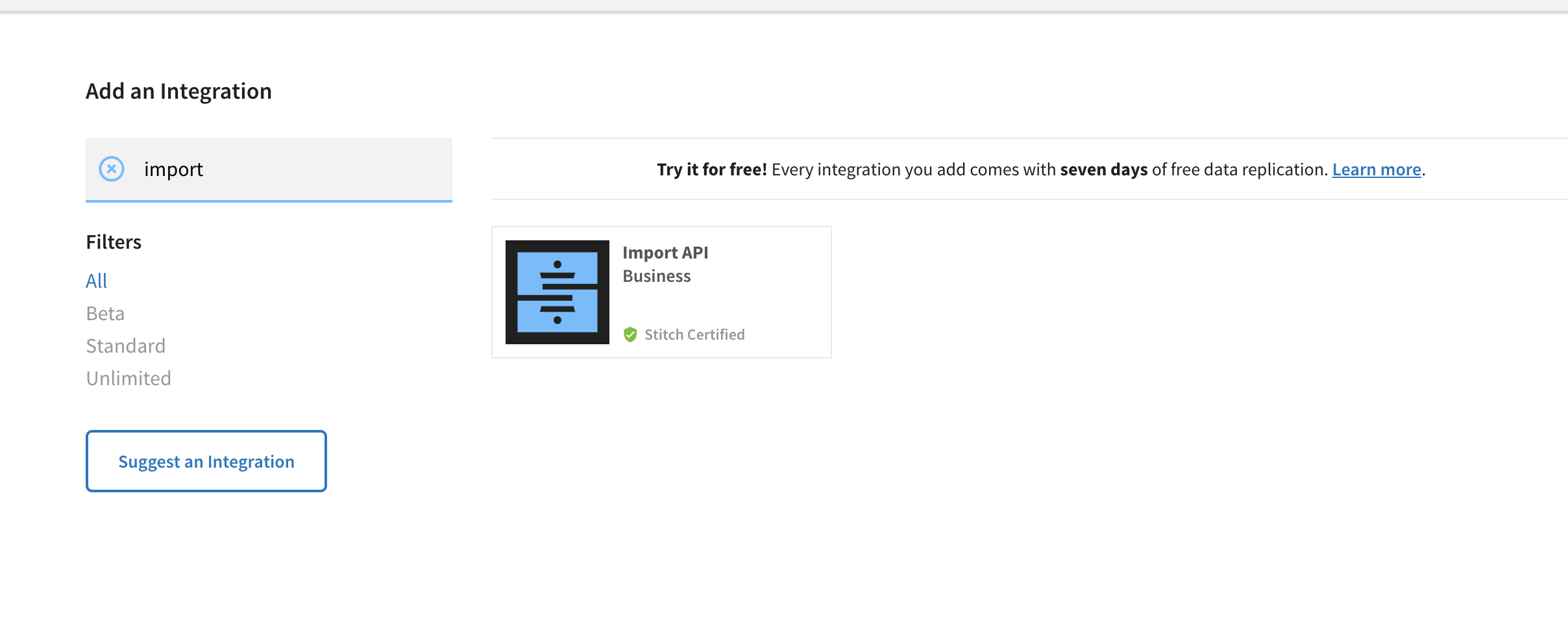
Once you've signed up, create an Integration by clicking on **Add Integration**.
On the marketplace screen, type in **import** to narrow the list down to the **Import API**
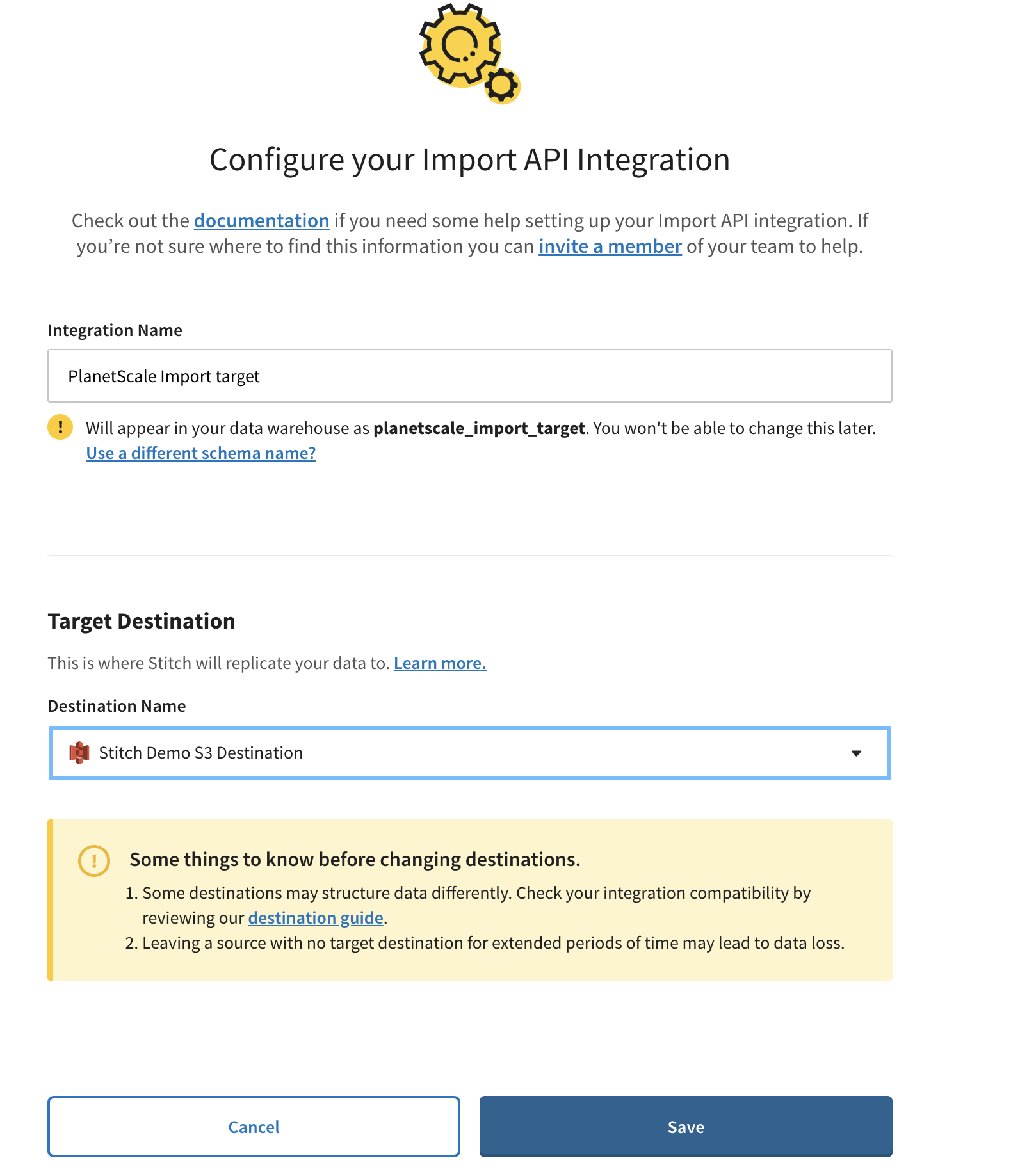
 On the next screen, configure your integration name and destination.
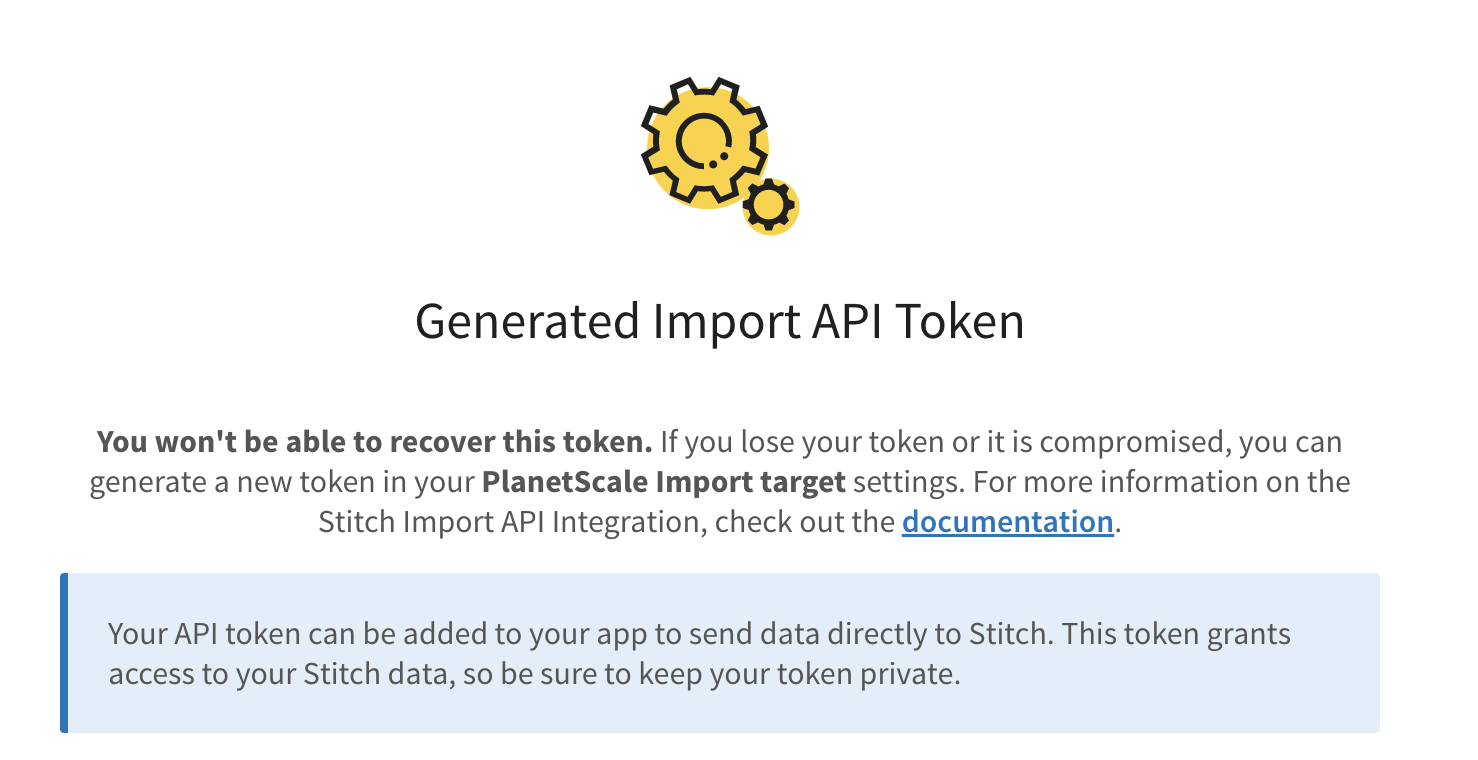
 Once the integration is created, save the access token for use with the PlanetScale tap.
 ### Step 2 : Configure the PlanetScale Stitch Tap
In this step, we will connect your PlanetScale database to the PlanetScale Singer Tap.
Click on the database and branch you want to connect to.
Click "Connect", and select "Stitch source" from the "Connect with" dropdown.
Leave this tab open, as you'll need to copy these credentials shortly.
### Step 2 : Configure the PlanetScale Stitch Tap
In this step, we will connect your PlanetScale database to the PlanetScale Singer Tap.
Click on the database and branch you want to connect to.
Click "Connect", and select "Stitch source" from the "Connect with" dropdown.
Leave this tab open, as you'll need to copy these credentials shortly.
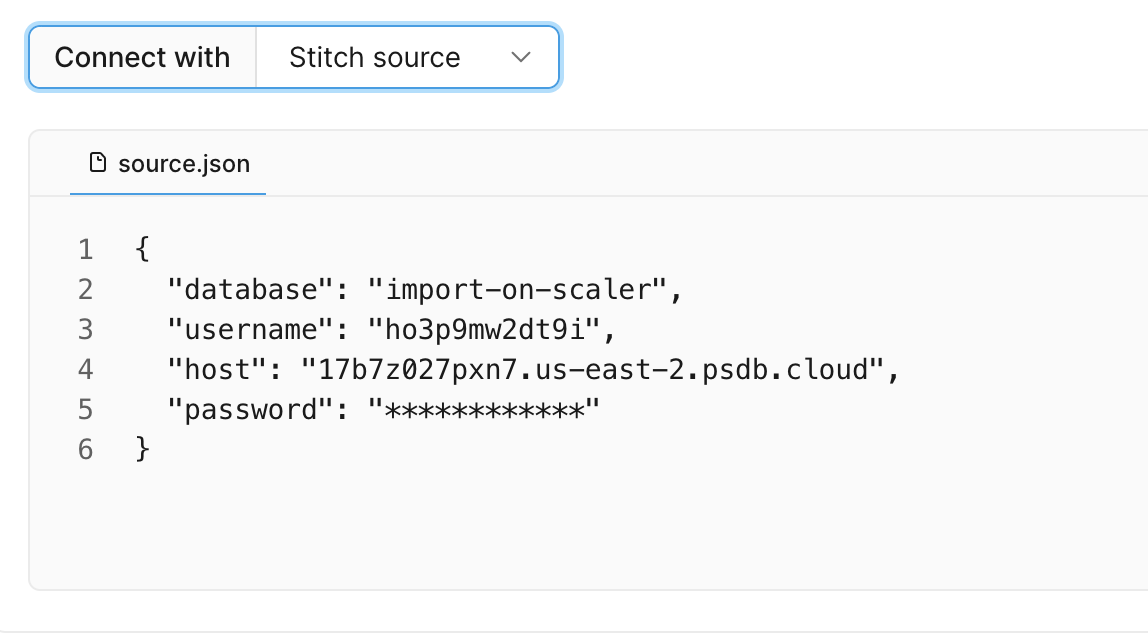 Copy the contents of `source.json` as a file on your local file system, and save it as `source.json`. This will now act
as the `PlanetScale source config` when connecting the `PlanetScale Stitch Tap` to your database.
### Step 3: Run the PlanetScale Stitch Tap
Install the PlanetScale Singer tap by running:
```bash theme={null}
brew install planetscale/tap/ps-singer-tap
```
Install the PlanetScale Http tap by running
```bash theme={null}
brew install planetscale/tap/ps-http-tap
```
Save the schema for your PlanetScale database.
```bash theme={null}
ps-singer-tap --config source.json --discover > schema.json
```
The `schema.json` file you saved in the previous step is a JSON document
that describes all tables & columns available in your PlanetScale database. By default, no tables/columns are selected.
You can select a column or table by setting its `selected` property in the table's `metadata` element in the JSON document to be true.
Here's an example of selecting the `dept_no` property in a table.
```json theme={null}
{
"metadata": {
"selected": true,
"inclusion": "available",
"breadcrumb": ["properties", "dept_no"]
}
}
```
Sync your PlanetScale database to Stitch by running the following command:
```bash theme={null}
ps-singer-tap --config source.json --catalog schema.json | ps-http-tap --api-token $(cat access_token)
```
You should see an output similar to this:
```bash expandable theme={null}
PlanetScale Tap : INFO : Syncing records for PlanetScale database : import-on-scaler
PlanetScale Tap : INFO : syncing rows from stream "departments" from shard "-"
PlanetScale Tap : INFO : [departments shard : -] peeking to see if there's any new rows
PlanetScale Tap : INFO : new rows found, syncing rows for 1m0s
PlanetScale Tap : INFO : [departments shard : -] syncing rows with cursor [shard:"-" keyspace:"import-on-scaler"]
PlanetScale Tap : INFO : Syncing with cursor position : [], using last known PK : false, stop cursor is : [MySQL56/e42292e8-e28f-11ec-9c5b-d680f5d655b3:1-705,e4e20f06-e28f-11ec-8d20-8e7ac09cb64c:1-26,eba743a8-e28f-11ec-9227-62aa711d33c6:1-20]
PlanetScale Tap : INFO : [departments shard : -] Continuing with cursor after server timeout
PlanetScale Tap : INFO : [departments shard : -] peeking to see if there's any new rows
HTTP Tap : INFO : flushing [20] messages for stream "departments"
PlanetScale Tap : INFO : [departments shard : -] no new rows found, exiting
HTTP Tap : INFO : Server response status : "OK", message : "Batch accepted"
HTTP Tap : INFO : flushing [1] messages for stream "departments"
HTTP Tap : INFO : Server response status : "OK", message : "Batch accepted"
HTTP Tap : INFO : saving state to path : state/state-1656850746251.json
```
Any state outputted by the PlanetScale Tap will be saved and you can look at the logs for the location.
Here is an example of outputted state:
```bash theme={null}
HTTP Tap : INFO : saving state to path : state/state-1656850746251.json
```
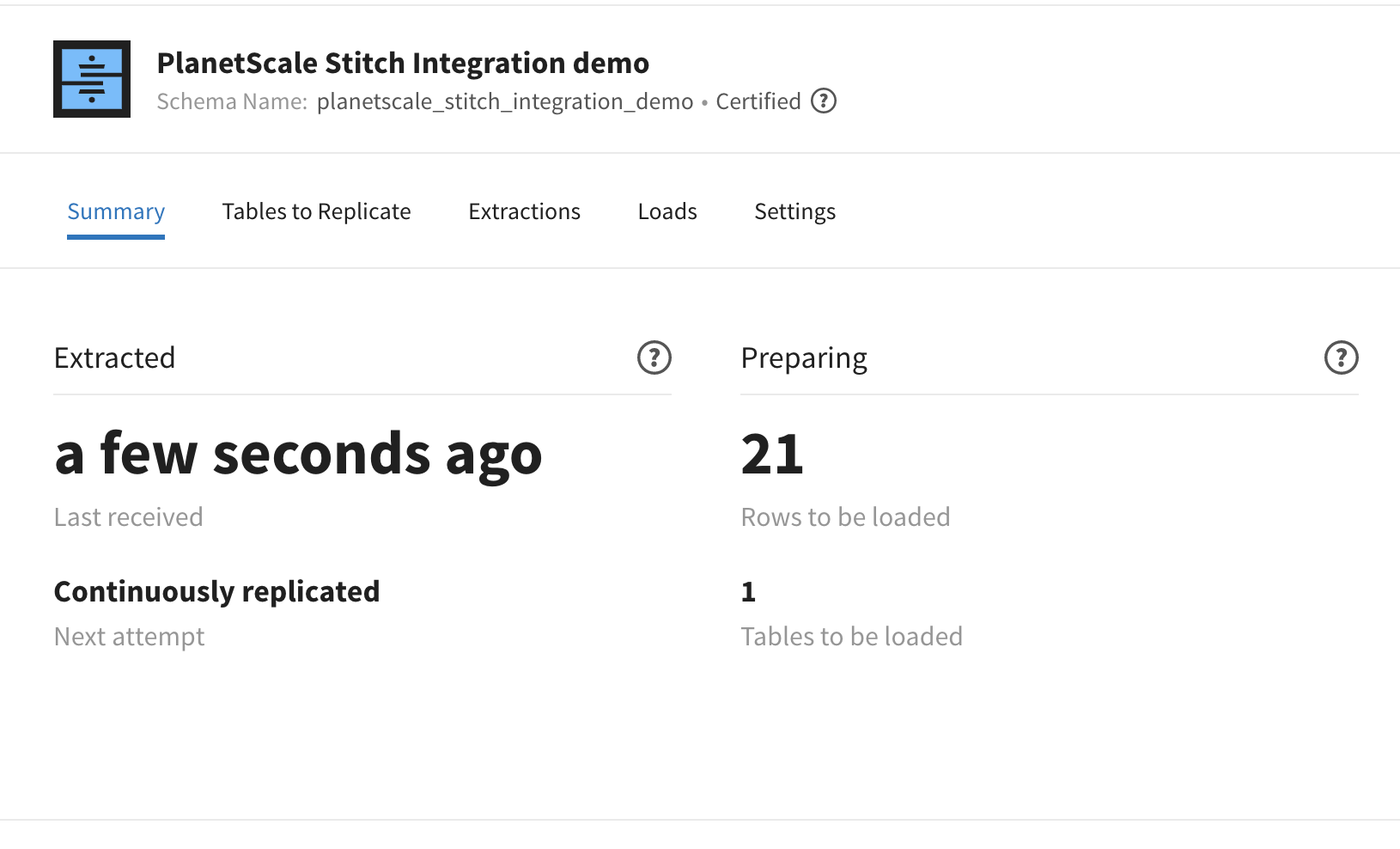
In this example, you should see that Stitch loaded `21` records to be replicated.
Copy the contents of `source.json` as a file on your local file system, and save it as `source.json`. This will now act
as the `PlanetScale source config` when connecting the `PlanetScale Stitch Tap` to your database.
### Step 3: Run the PlanetScale Stitch Tap
Install the PlanetScale Singer tap by running:
```bash theme={null}
brew install planetscale/tap/ps-singer-tap
```
Install the PlanetScale Http tap by running
```bash theme={null}
brew install planetscale/tap/ps-http-tap
```
Save the schema for your PlanetScale database.
```bash theme={null}
ps-singer-tap --config source.json --discover > schema.json
```
The `schema.json` file you saved in the previous step is a JSON document
that describes all tables & columns available in your PlanetScale database. By default, no tables/columns are selected.
You can select a column or table by setting its `selected` property in the table's `metadata` element in the JSON document to be true.
Here's an example of selecting the `dept_no` property in a table.
```json theme={null}
{
"metadata": {
"selected": true,
"inclusion": "available",
"breadcrumb": ["properties", "dept_no"]
}
}
```
Sync your PlanetScale database to Stitch by running the following command:
```bash theme={null}
ps-singer-tap --config source.json --catalog schema.json | ps-http-tap --api-token $(cat access_token)
```
You should see an output similar to this:
```bash expandable theme={null}
PlanetScale Tap : INFO : Syncing records for PlanetScale database : import-on-scaler
PlanetScale Tap : INFO : syncing rows from stream "departments" from shard "-"
PlanetScale Tap : INFO : [departments shard : -] peeking to see if there's any new rows
PlanetScale Tap : INFO : new rows found, syncing rows for 1m0s
PlanetScale Tap : INFO : [departments shard : -] syncing rows with cursor [shard:"-" keyspace:"import-on-scaler"]
PlanetScale Tap : INFO : Syncing with cursor position : [], using last known PK : false, stop cursor is : [MySQL56/e42292e8-e28f-11ec-9c5b-d680f5d655b3:1-705,e4e20f06-e28f-11ec-8d20-8e7ac09cb64c:1-26,eba743a8-e28f-11ec-9227-62aa711d33c6:1-20]
PlanetScale Tap : INFO : [departments shard : -] Continuing with cursor after server timeout
PlanetScale Tap : INFO : [departments shard : -] peeking to see if there's any new rows
HTTP Tap : INFO : flushing [20] messages for stream "departments"
PlanetScale Tap : INFO : [departments shard : -] no new rows found, exiting
HTTP Tap : INFO : Server response status : "OK", message : "Batch accepted"
HTTP Tap : INFO : flushing [1] messages for stream "departments"
HTTP Tap : INFO : Server response status : "OK", message : "Batch accepted"
HTTP Tap : INFO : saving state to path : state/state-1656850746251.json
```
Any state outputted by the PlanetScale Tap will be saved and you can look at the logs for the location.
Here is an example of outputted state:
```bash theme={null}
HTTP Tap : INFO : saving state to path : state/state-1656850746251.json
```
In this example, you should see that Stitch loaded `21` records to be replicated.
 To incrementally sync from this last sync position, pass the path to last saved state in step 7 as the `--state` argument when you run sync.
## Need help?
Get help from [the PlanetScale Support team](https://planetscale.com/contact?initial=support), or join our [Discord community](https://pscale.link/community) to see how others are using PlanetScale.
To incrementally sync from this last sync position, pass the path to last saved state in step 7 as the `--state` argument when you run sync.
## Need help?
Get help from [the PlanetScale Support team](https://planetscale.com/contact?initial=support), or join our [Discord community](https://pscale.link/community) to see how others are using PlanetScale.