> ## Documentation Index
> Fetch the complete documentation index at: https://planetscale.com/docs/llms.txt
> Use this file to discover all available pages before exploring further.
# Hightouch integration
> Hightouch is a platform that allows you to sync data between systems using a simple and intuitive UI.
## Overview
Hightouch supports PlanetScale databases as a data source and a destination to send data to. This article will provide an overview of setting up a PlanetScale database as a source and destination.
Connecting your PlanetScale database to a Hightouch workflow can be used in a number of different ways, but here are a few ideas to get you started:
* Automatically update customer records in your CRM when they are created or changed in your database.
* Send a notification to your Slack workspace when data is changed in your PlanetScale database.
* Execute asynchronous operations by sending data from your PlanetScale database to a data queue like AWS SQS.
* Automate paid ad targeting, suppression, and conversion uploads by syncing audiences from your database to ad platforms.
* Automatically sync account and user health scores to your customer success platforms.
Before you can proceed, you’ll need to create a set of credentials as covered in our [Connection strings doc](/vitess/connecting/connection-strings). Take note of the hostname, username, password, and database name.
## PlanetScale as a source
If you wish to sync data from your PlanetScale database to another system, you’ll need to configure your PlanetScale database as a source in Hightouch. I will be using a database named `bookings_db` in this demo.
### 1. Create the source
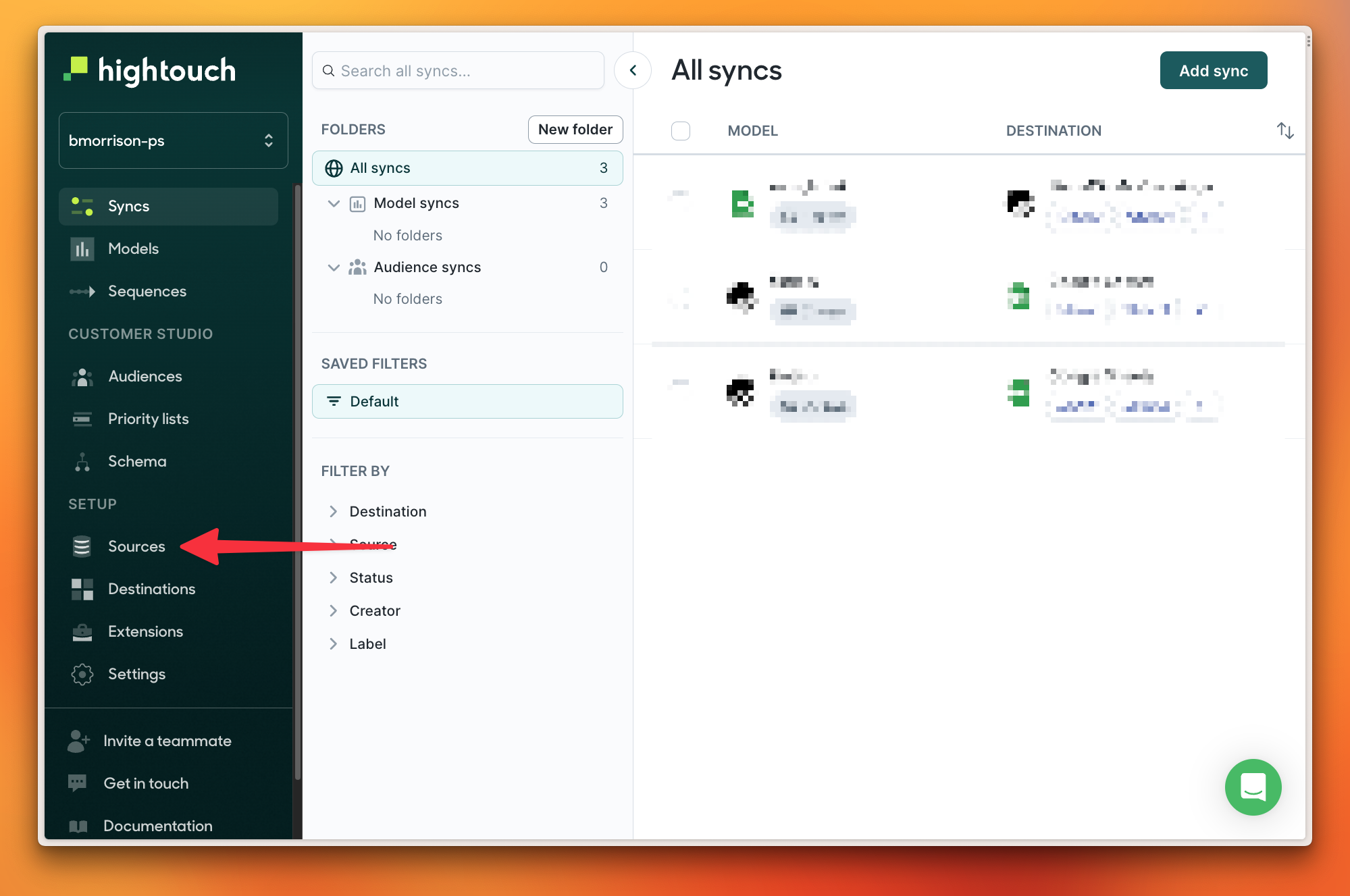
In Hightouch, start by selecting **"Sources"** from the sidebar.
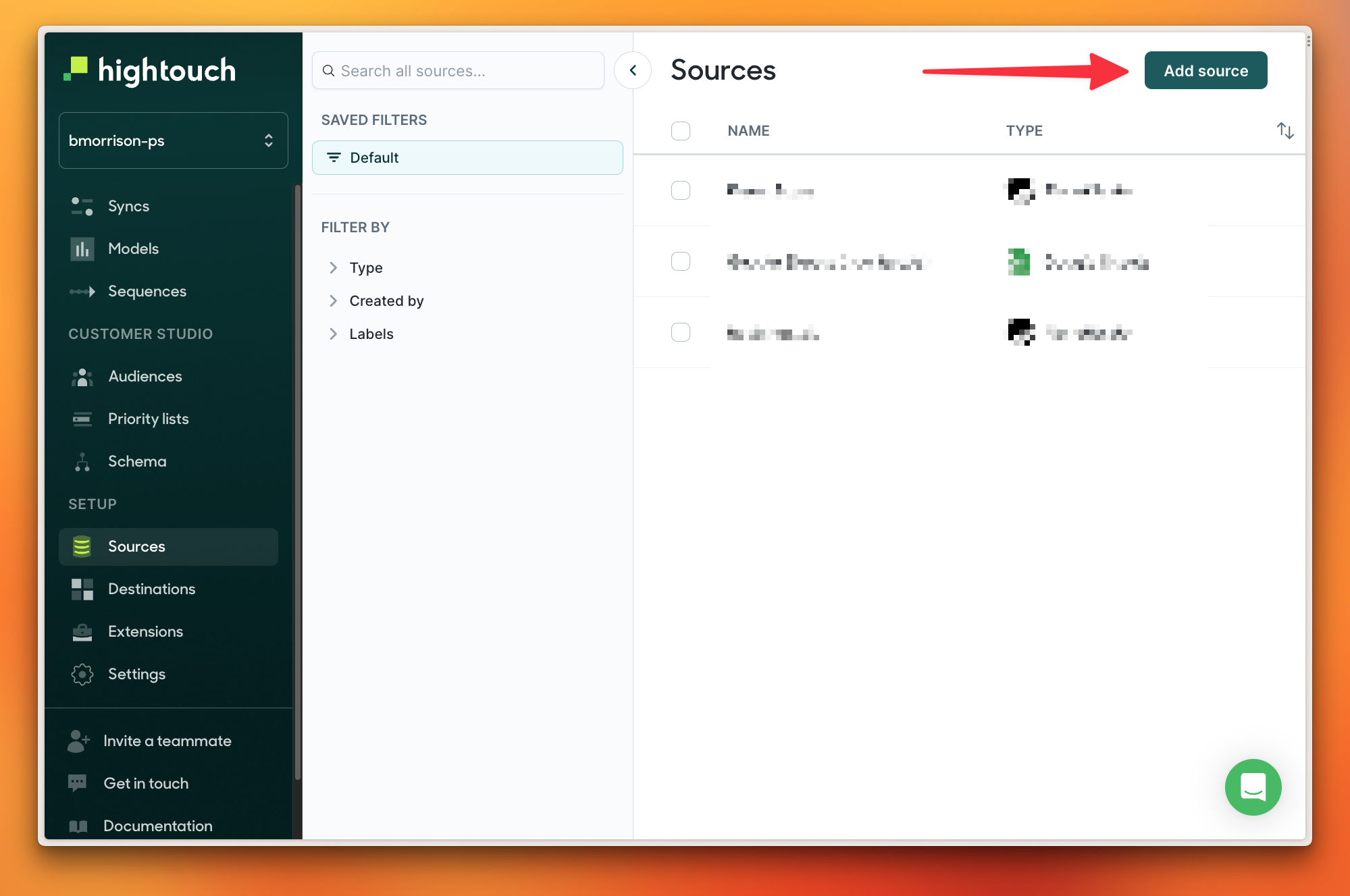
 Click **"Add Source"**.
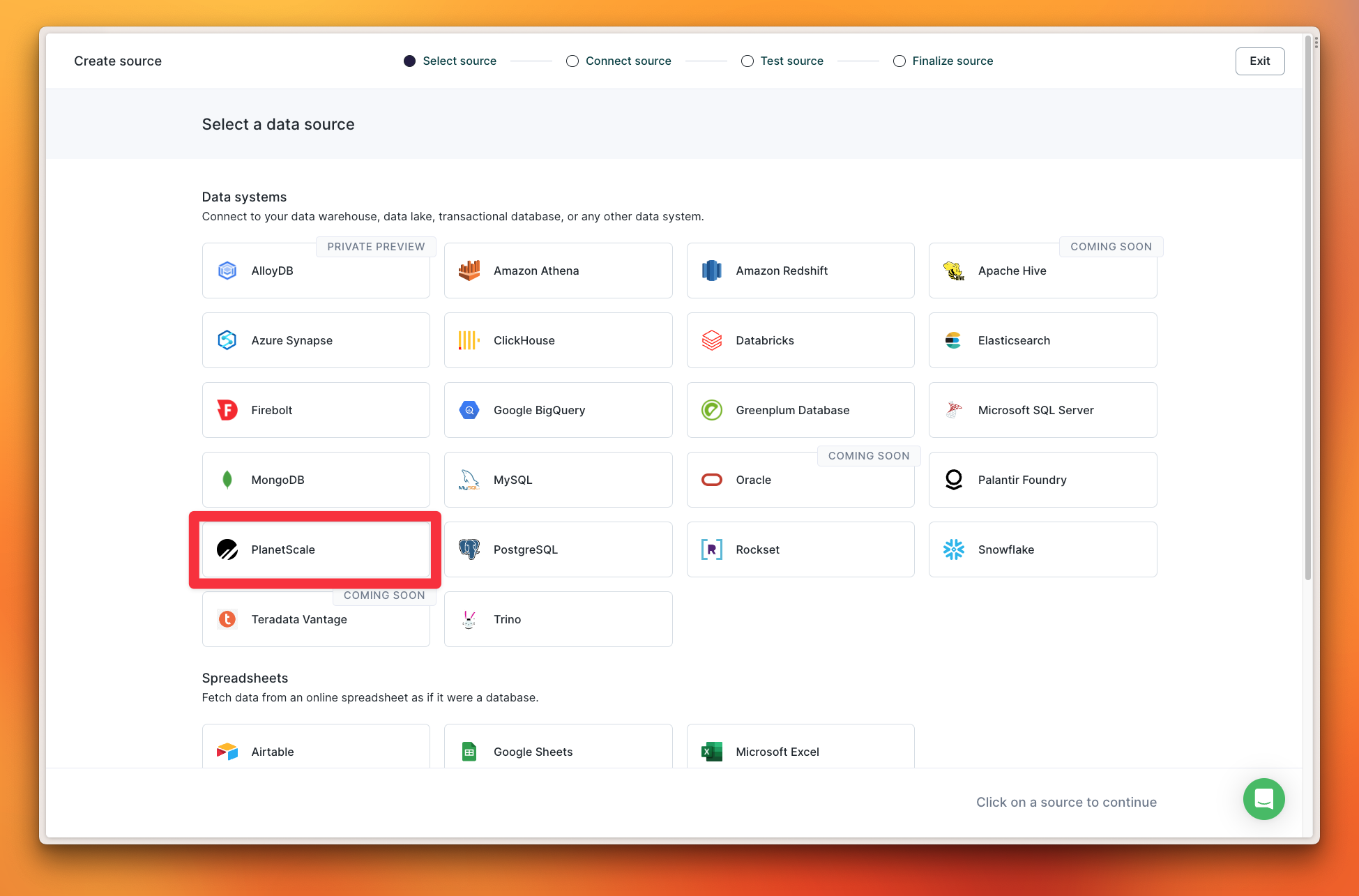
 Select **"PlanetScale"** from the list of supported data sources.
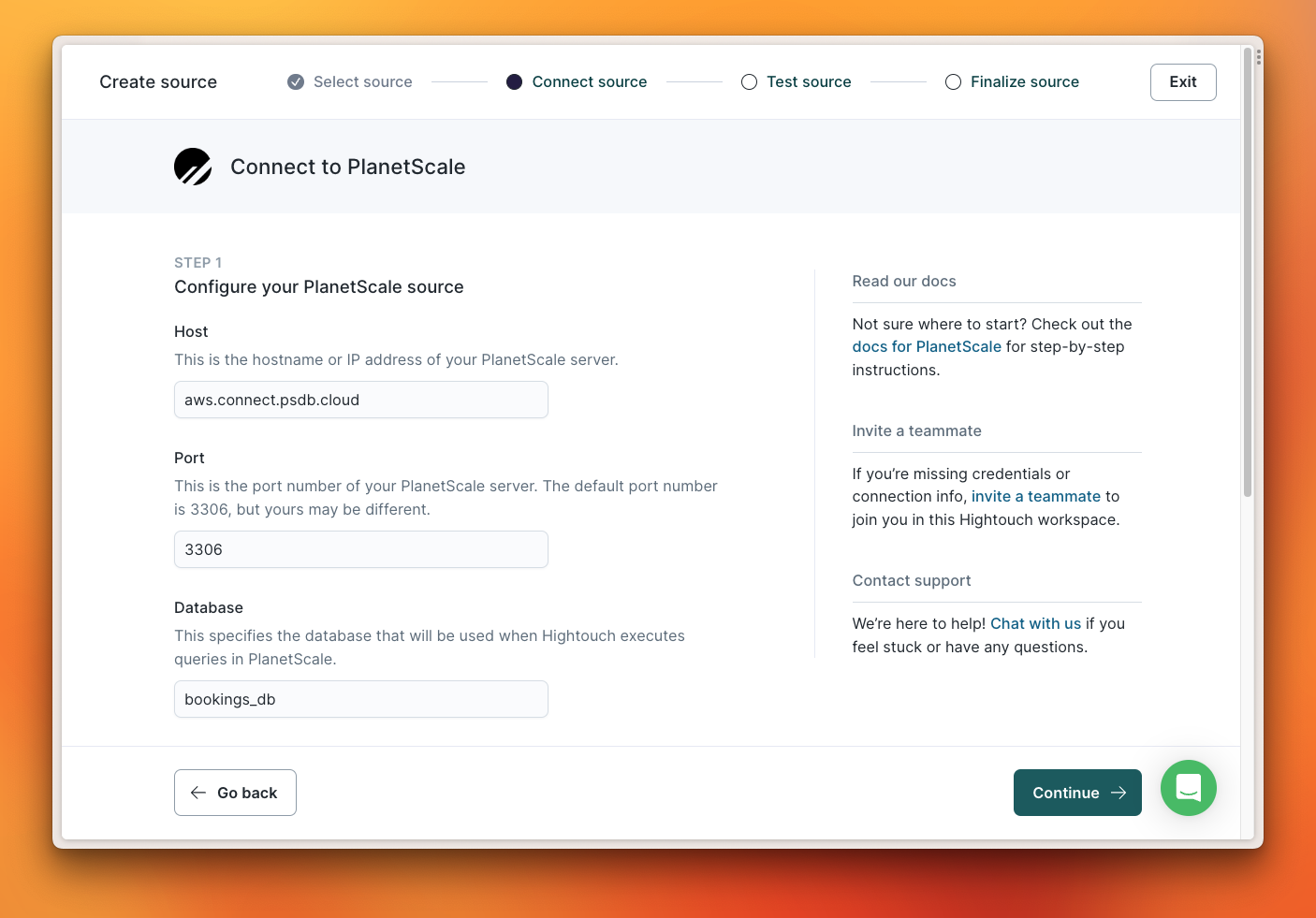
 On the Configure your PlanetScale source, populate Step 1 of the form using a set of credentials generated for your database. The **Port** will always be **3306**.
As a reminder, PlanetScale credentials can be generated by clicking **"Connect"** in the PlanetScale dashboard overview of your database. Review our [Connection strings doc](/vitess/connecting/connection-strings) for more details.
On the Configure your PlanetScale source, populate Step 1 of the form using a set of credentials generated for your database. The **Port** will always be **3306**.
As a reminder, PlanetScale credentials can be generated by clicking **"Connect"** in the PlanetScale dashboard overview of your database. Review our [Connection strings doc](/vitess/connecting/connection-strings) for more details.
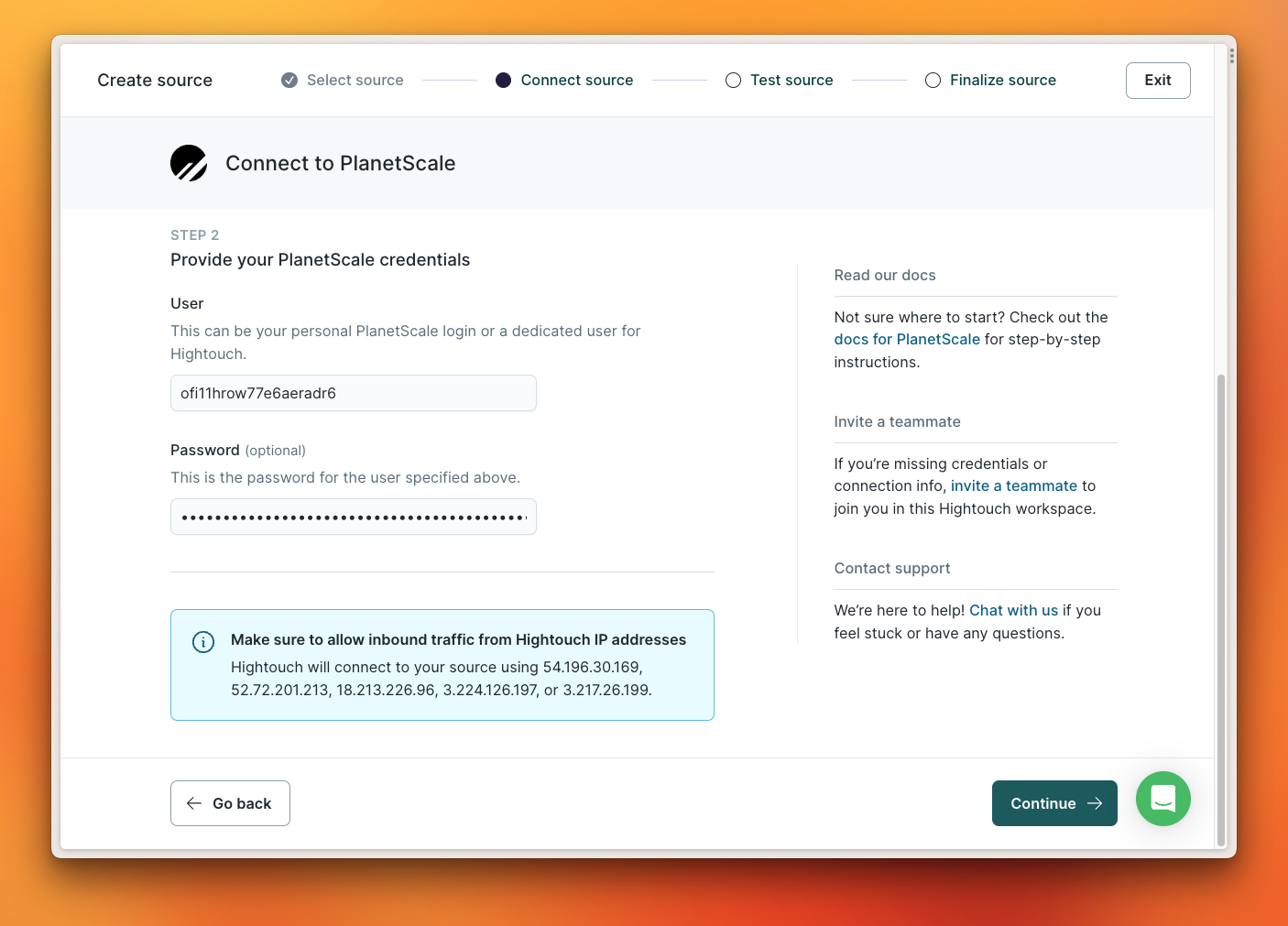
 Scroll down to Step 2, and populate your **User** and **Password** before clicking **"Continue"**.
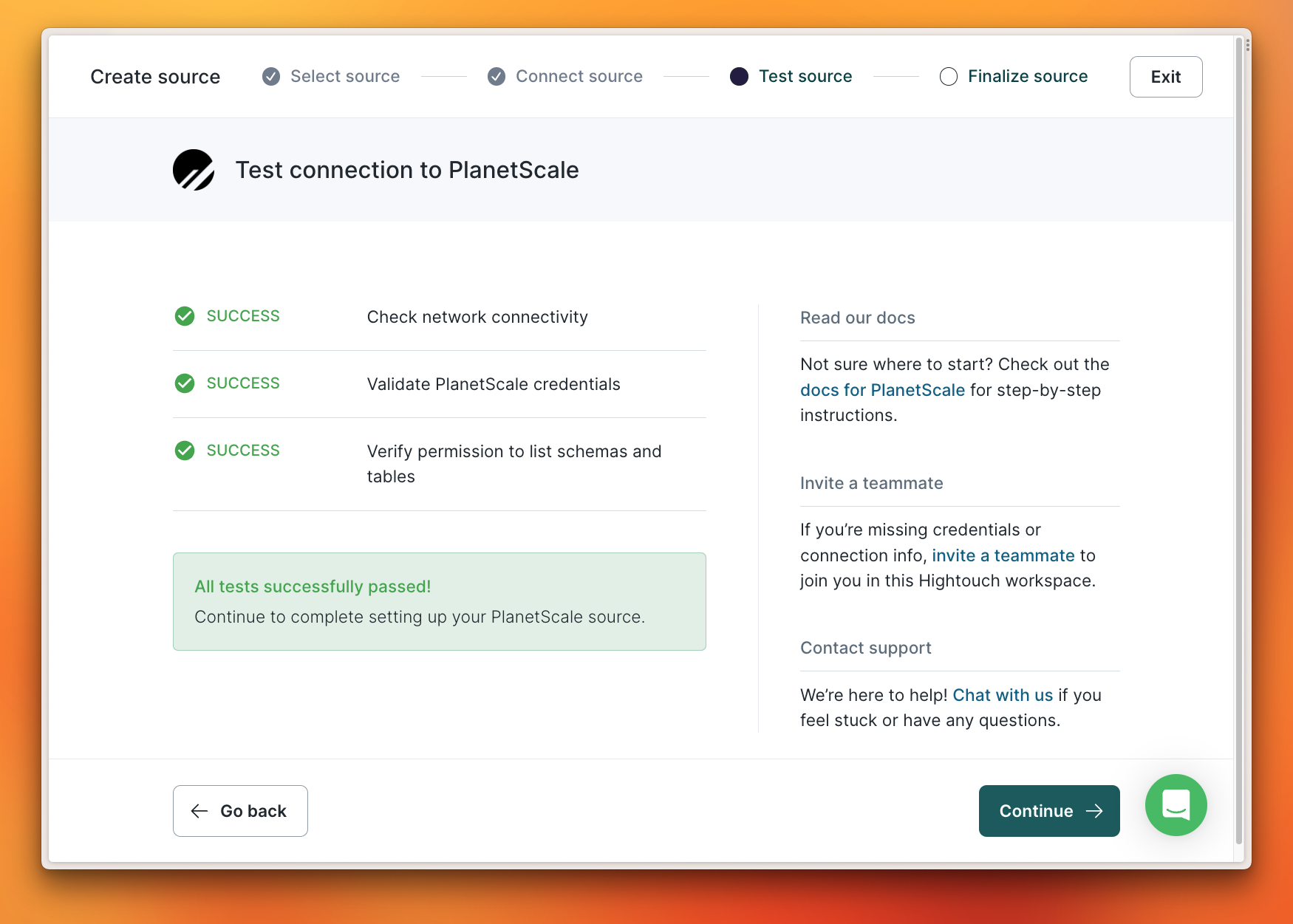
 In the next view, Hightouch will ensure that it can properly connect to your database. Provided it connects successfully, click **"Continue"**.
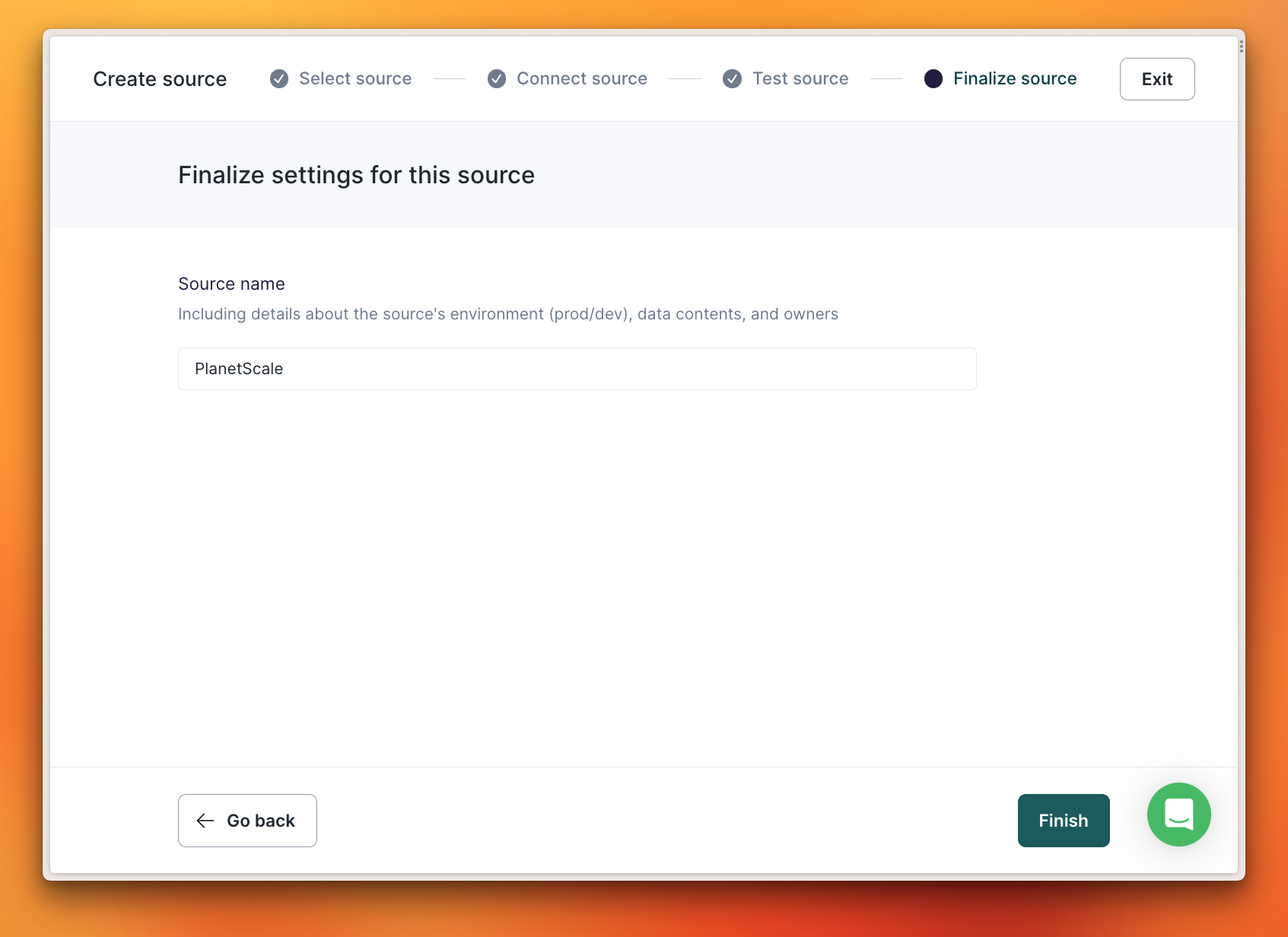
 Finally, name your source and click **"Finish"**.
 ### 2. Create a model
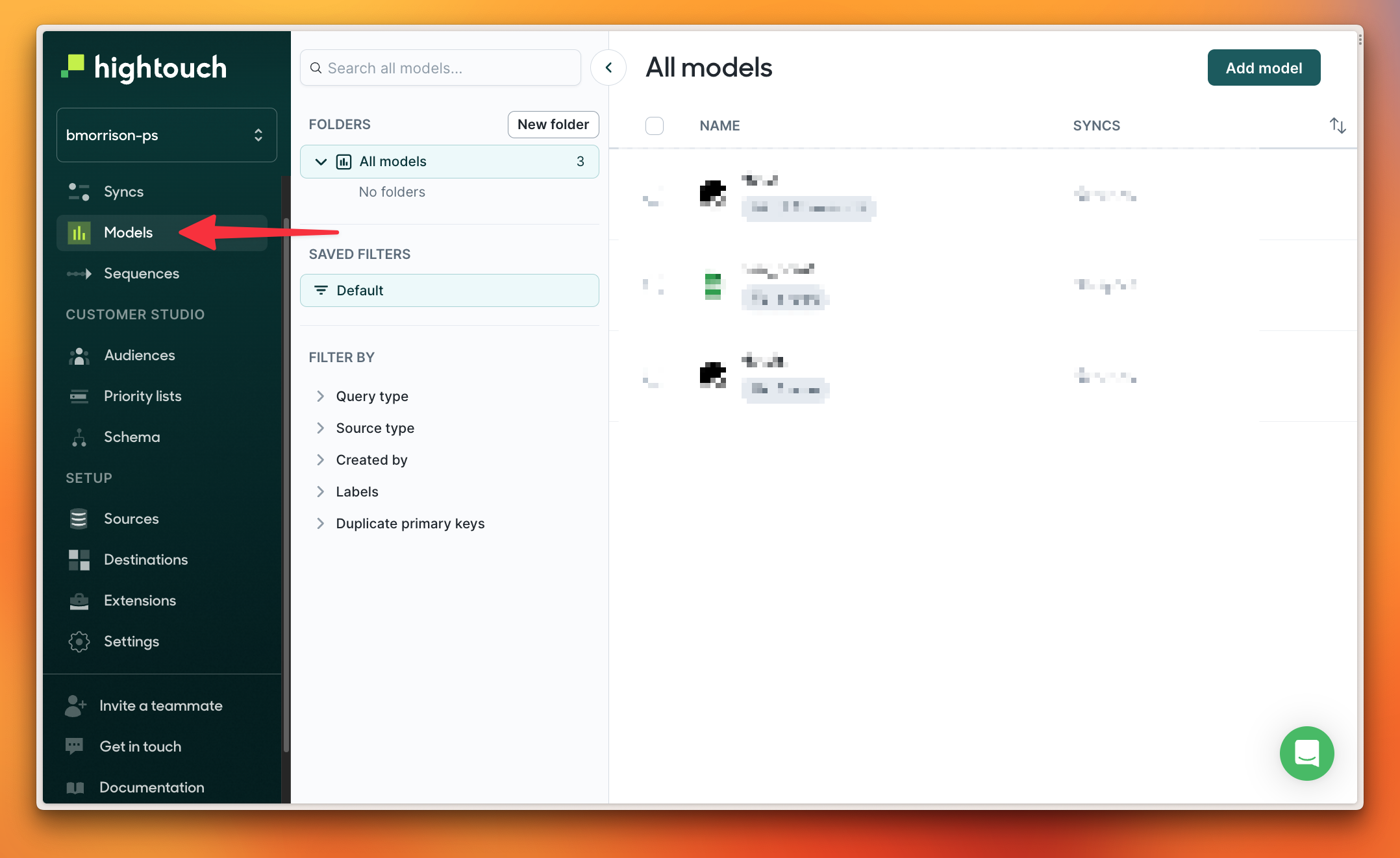
Before you can start syncing data, you need to tell Hightouch how the data looks with a Model. Start by selecting **"Models"** from the navigation.
### 2. Create a model
Before you can start syncing data, you need to tell Hightouch how the data looks with a Model. Start by selecting **"Models"** from the navigation.
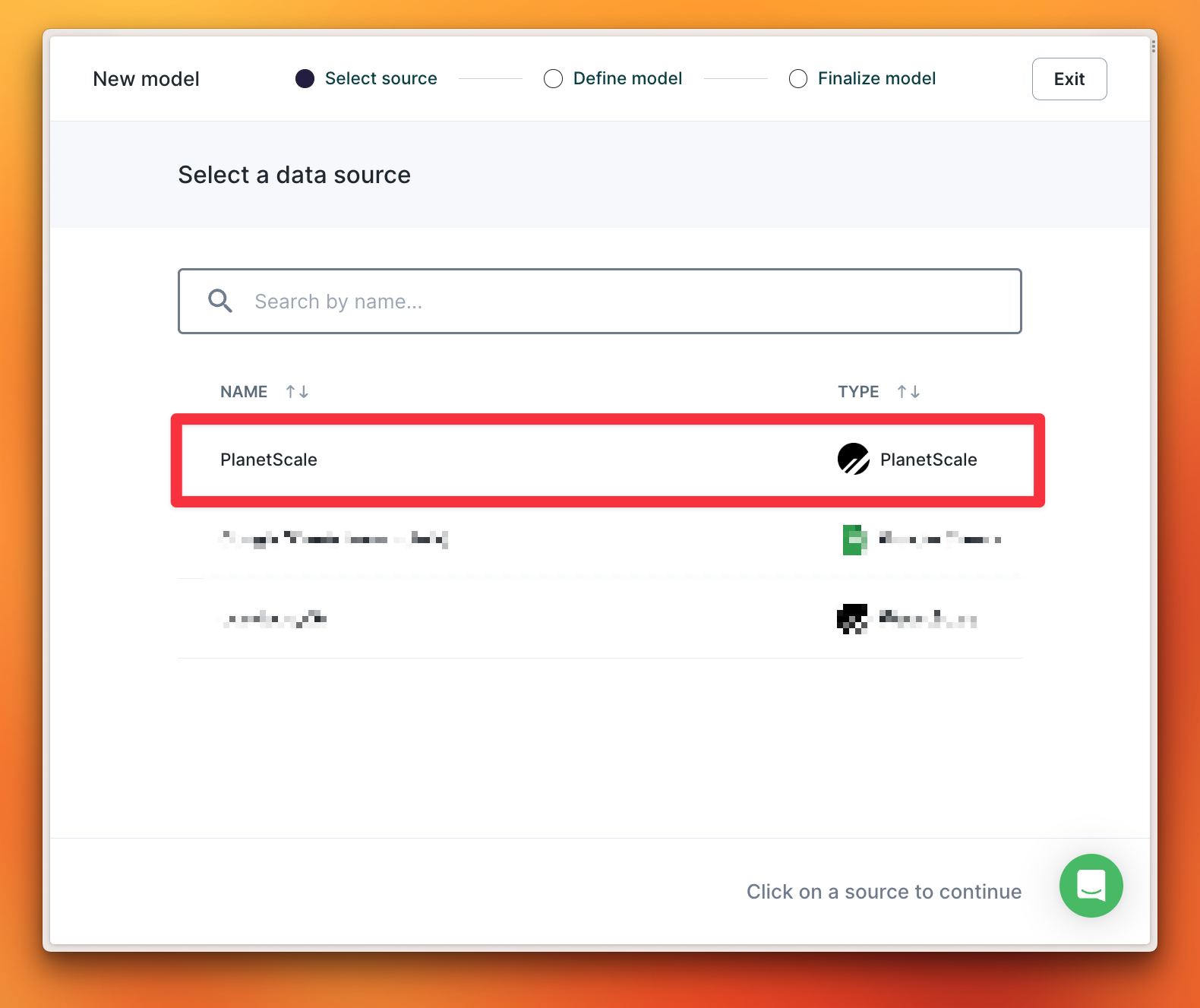
 Select the Source you created in the previous step.
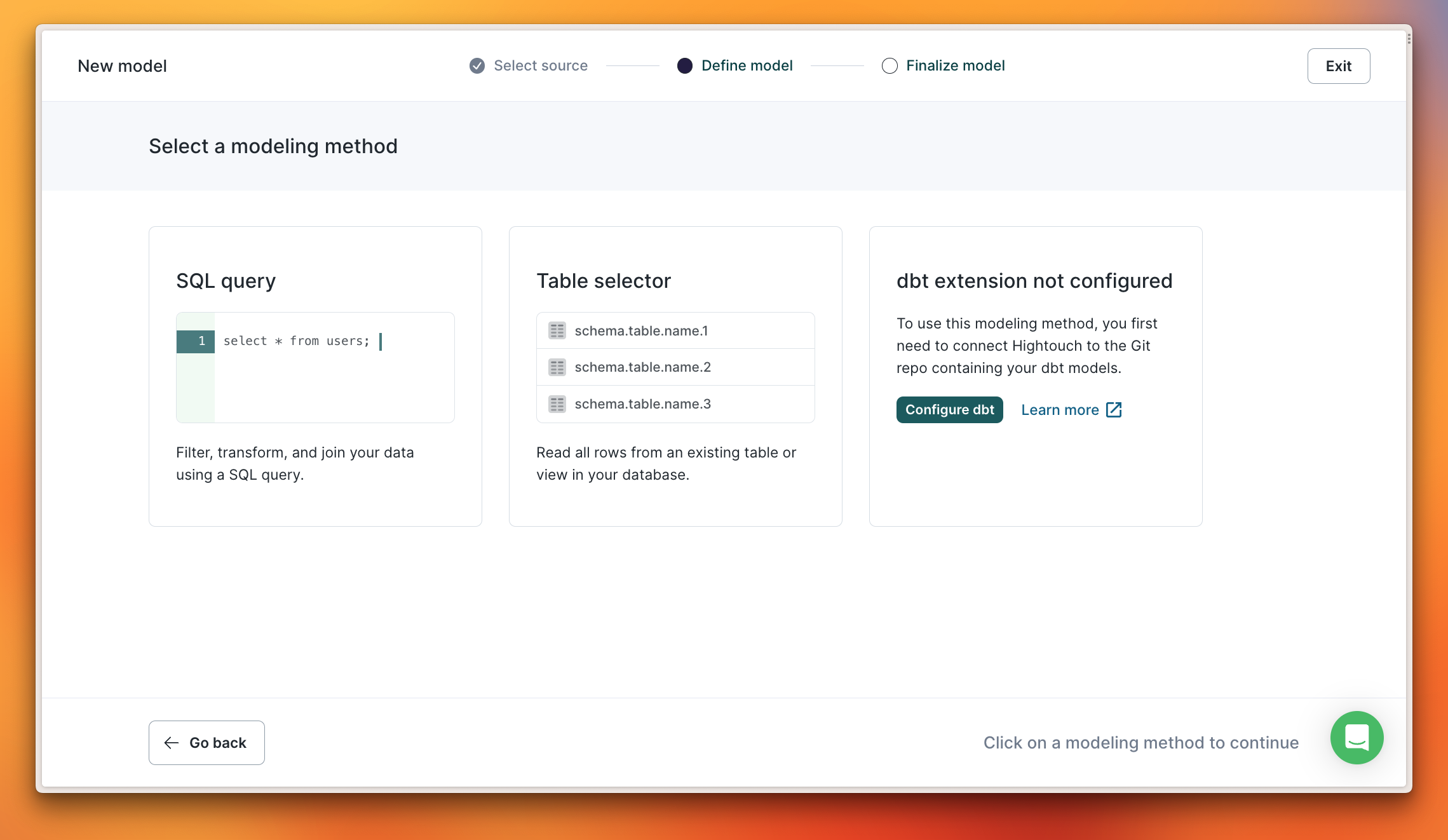
 There are two available methods to model your data from a PlanetScale database:
* SQL query - allows you to write a SQL query that returns the data you want to sync.
* Table selector - allows you to select a table and read every row in it.
I’ll use **"Table selector"** for this demo.
There are two available methods to model your data from a PlanetScale database:
* SQL query - allows you to write a SQL query that returns the data you want to sync.
* Table selector - allows you to select a table and read every row in it.
I’ll use **"Table selector"** for this demo.
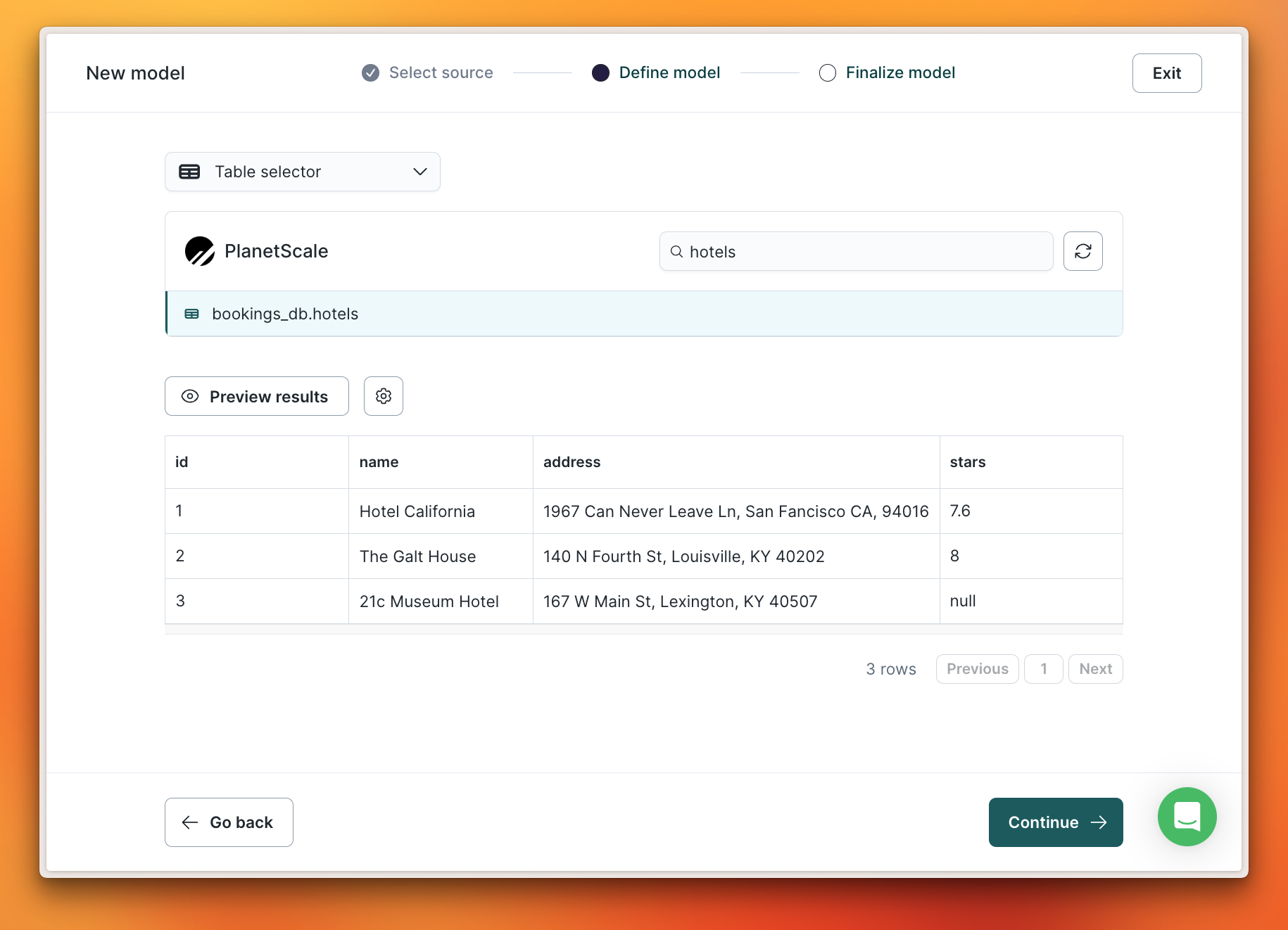
 Use the search to find the `hotels` table, select it from the list, and click **"Preview results"** to validate the data in that table. Once satisfied with the results, click **"Continue"**.
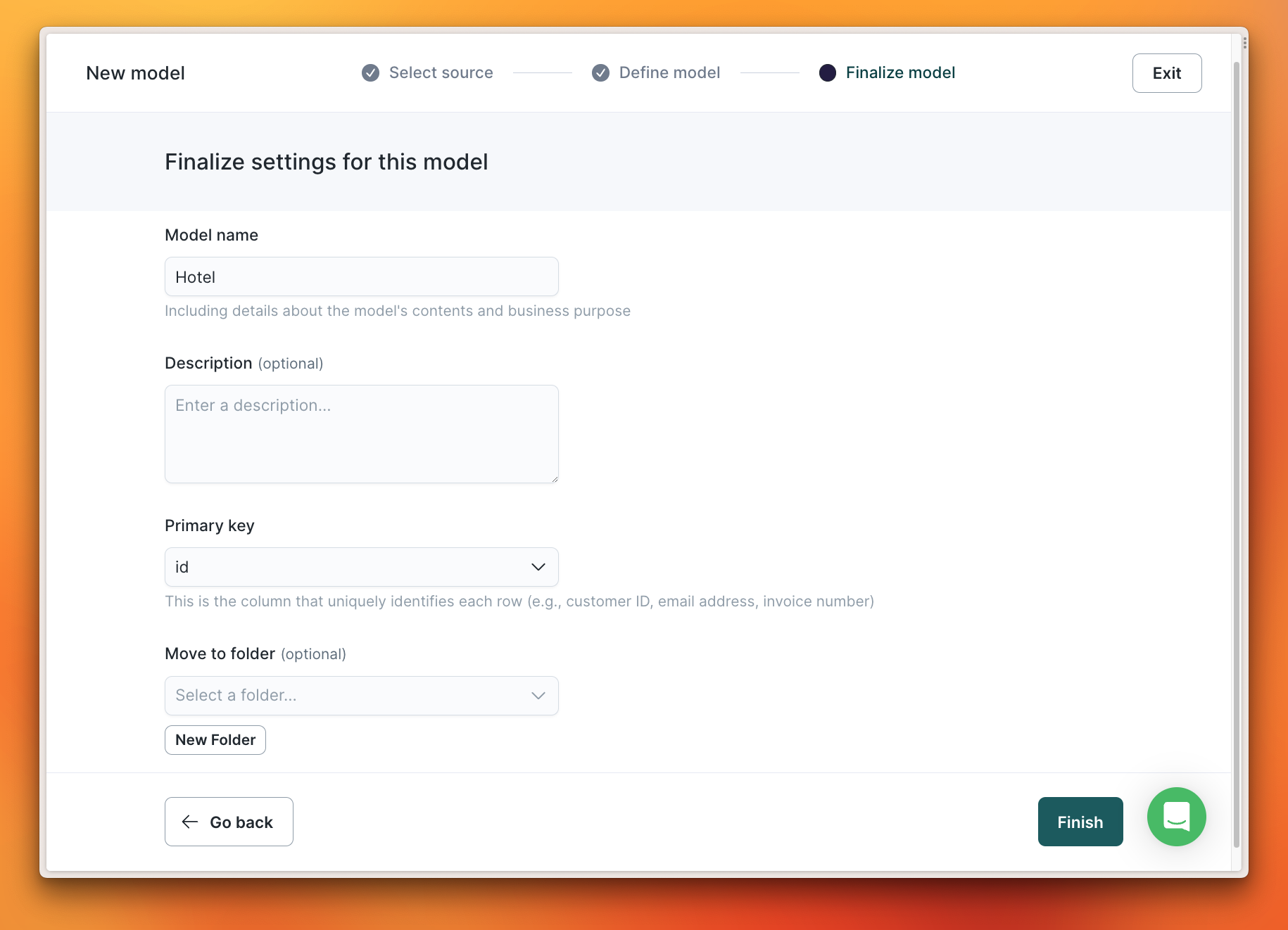
 Finally, name the model “Hotel” and set the Primary key to `id` before clicking **"Finish"**.
 ### 3. Create a sync
Now that the Source and Model are configured, a Sync can be created which will sync data from PlanetScale to another system. For this demo, I’ll be using a spreadsheet in my Google Drive account that I’ve already configured as a destination.
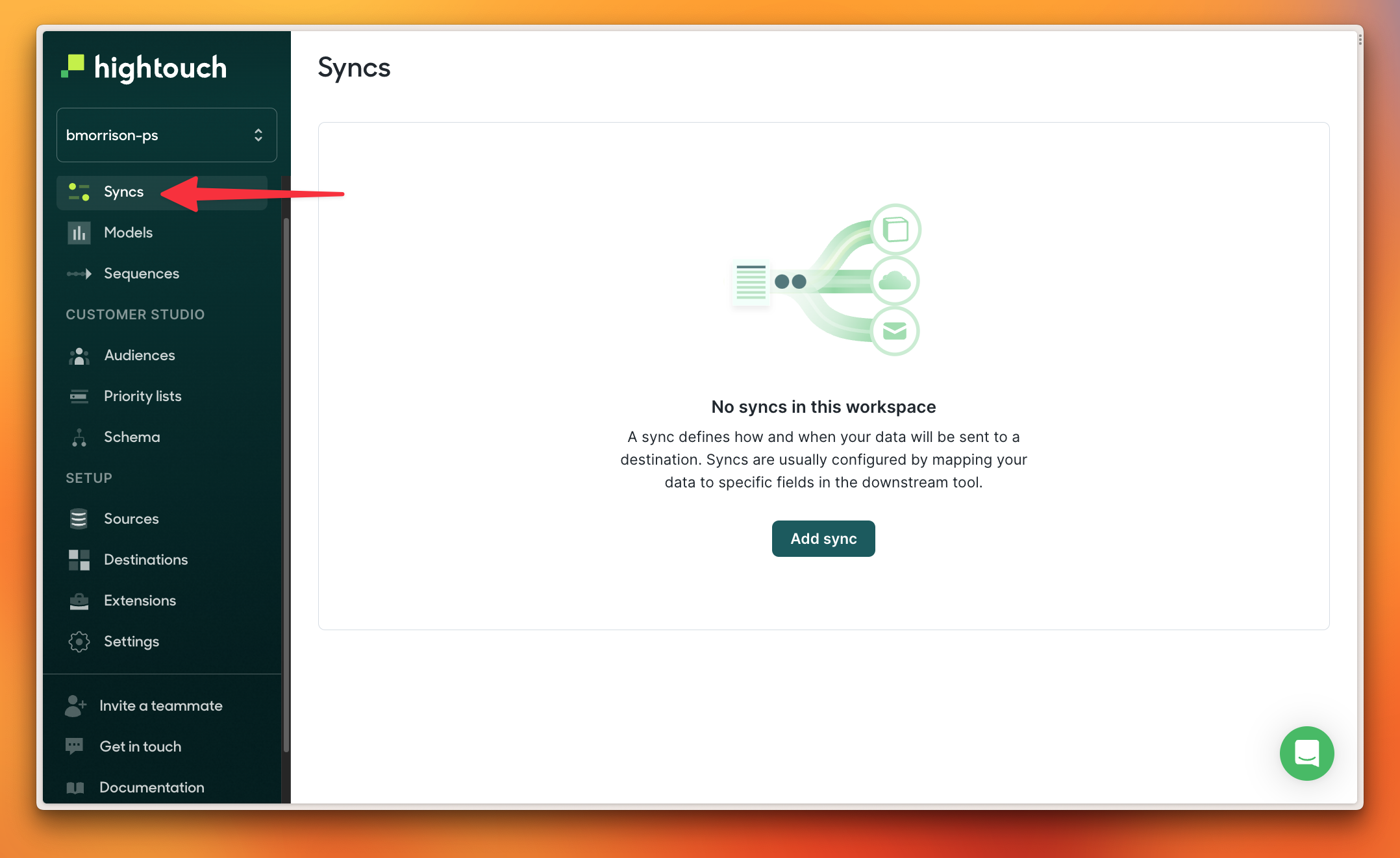
Select **"Syncs"** from the left and click **"Add sync"**.
### 3. Create a sync
Now that the Source and Model are configured, a Sync can be created which will sync data from PlanetScale to another system. For this demo, I’ll be using a spreadsheet in my Google Drive account that I’ve already configured as a destination.
Select **"Syncs"** from the left and click **"Add sync"**.
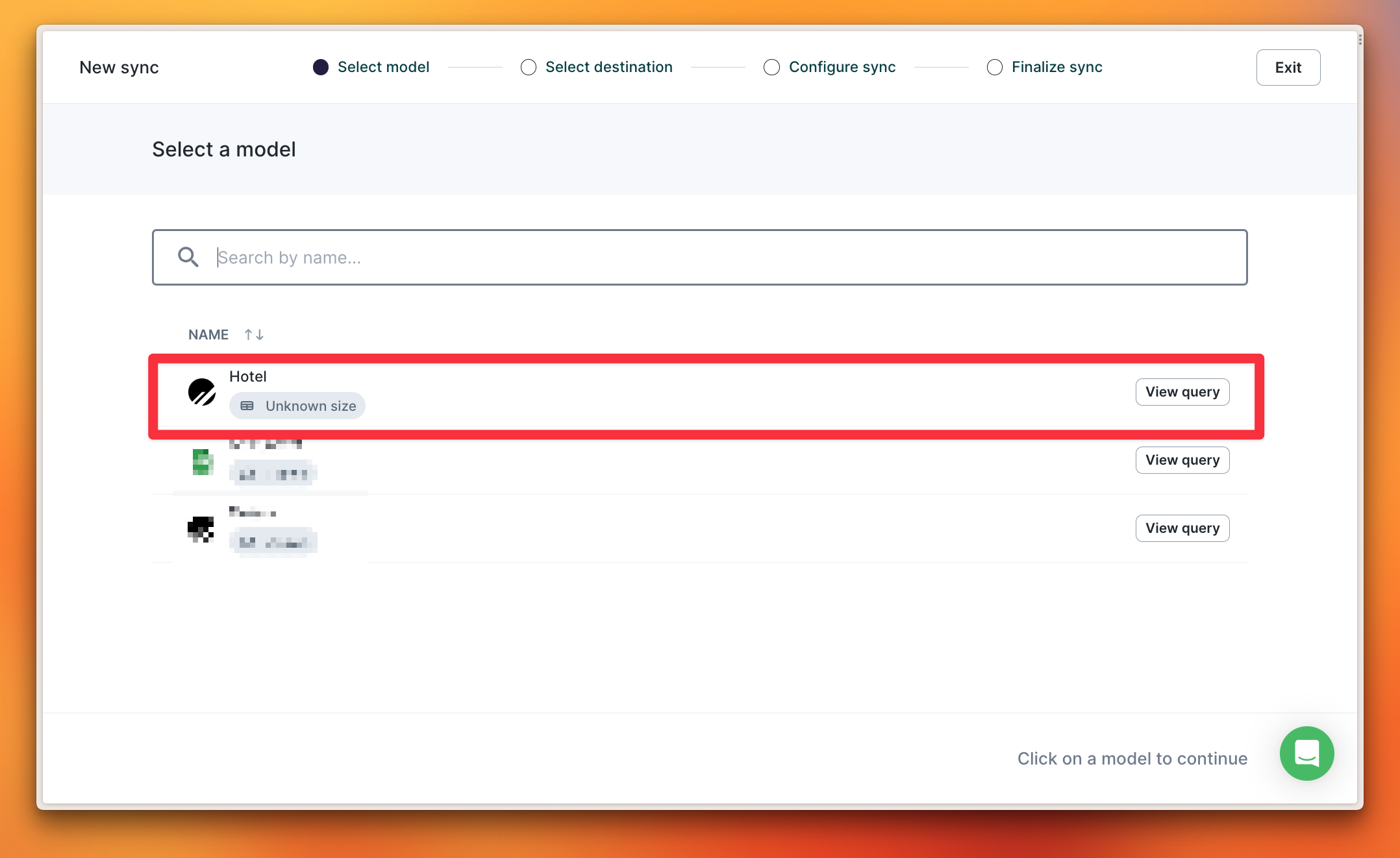
 Select the “Hotel” model created in the previous step.
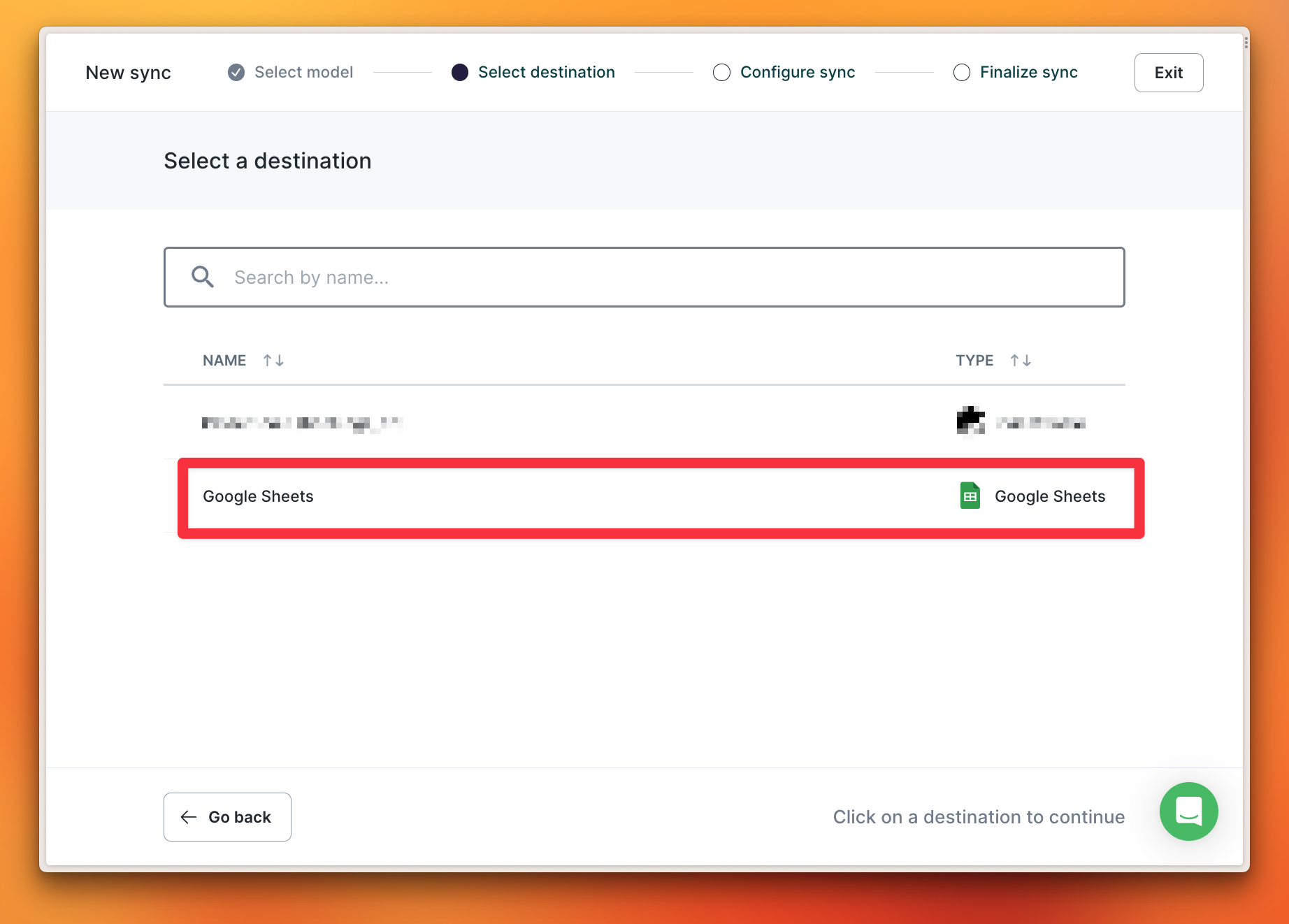
 For my demo, I’ll select my Google Sheets destination.
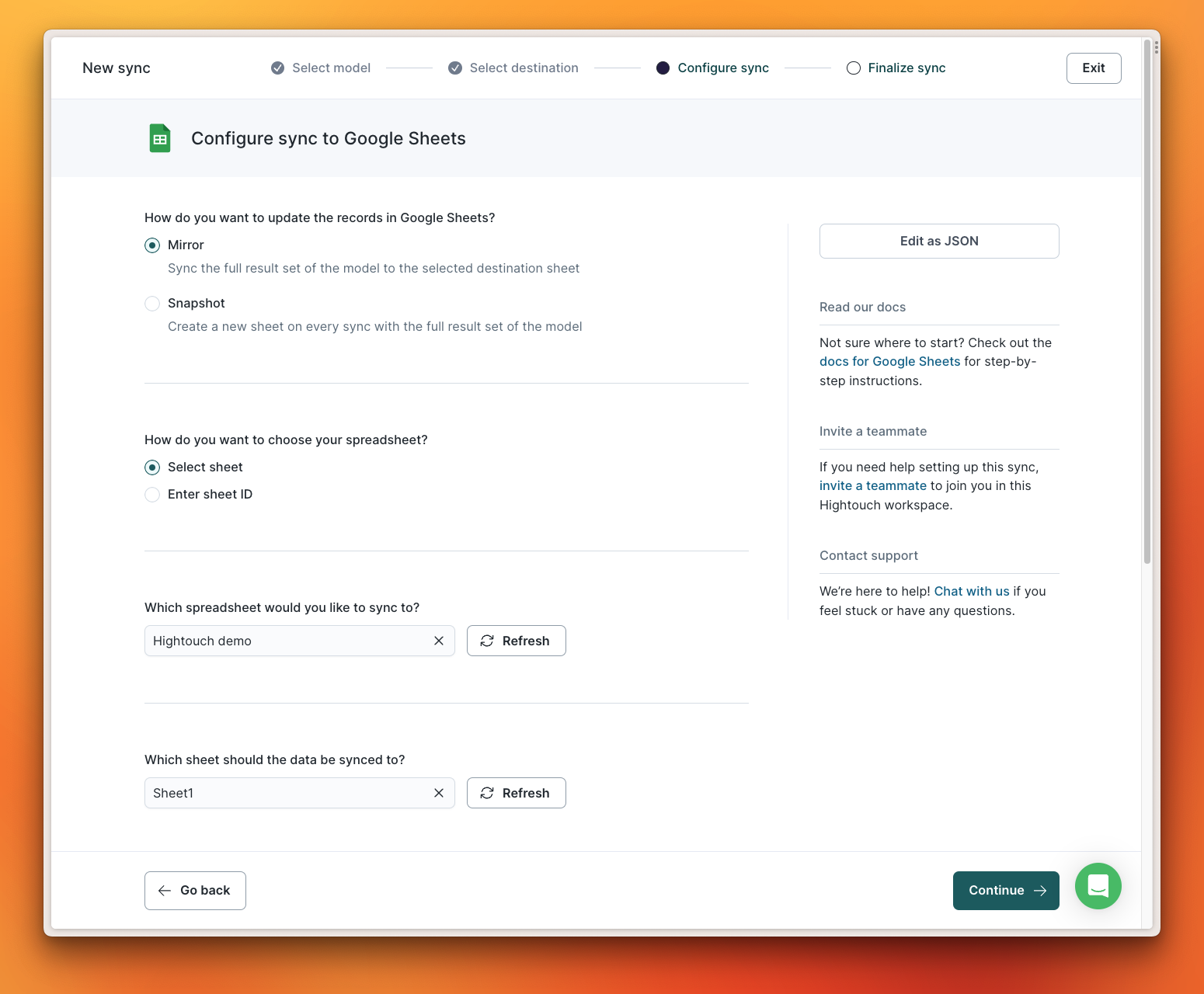
 I’m mirroring data into the default sheet in a Sheets doc named “Hightouch demo” for the Google Sheets settings.
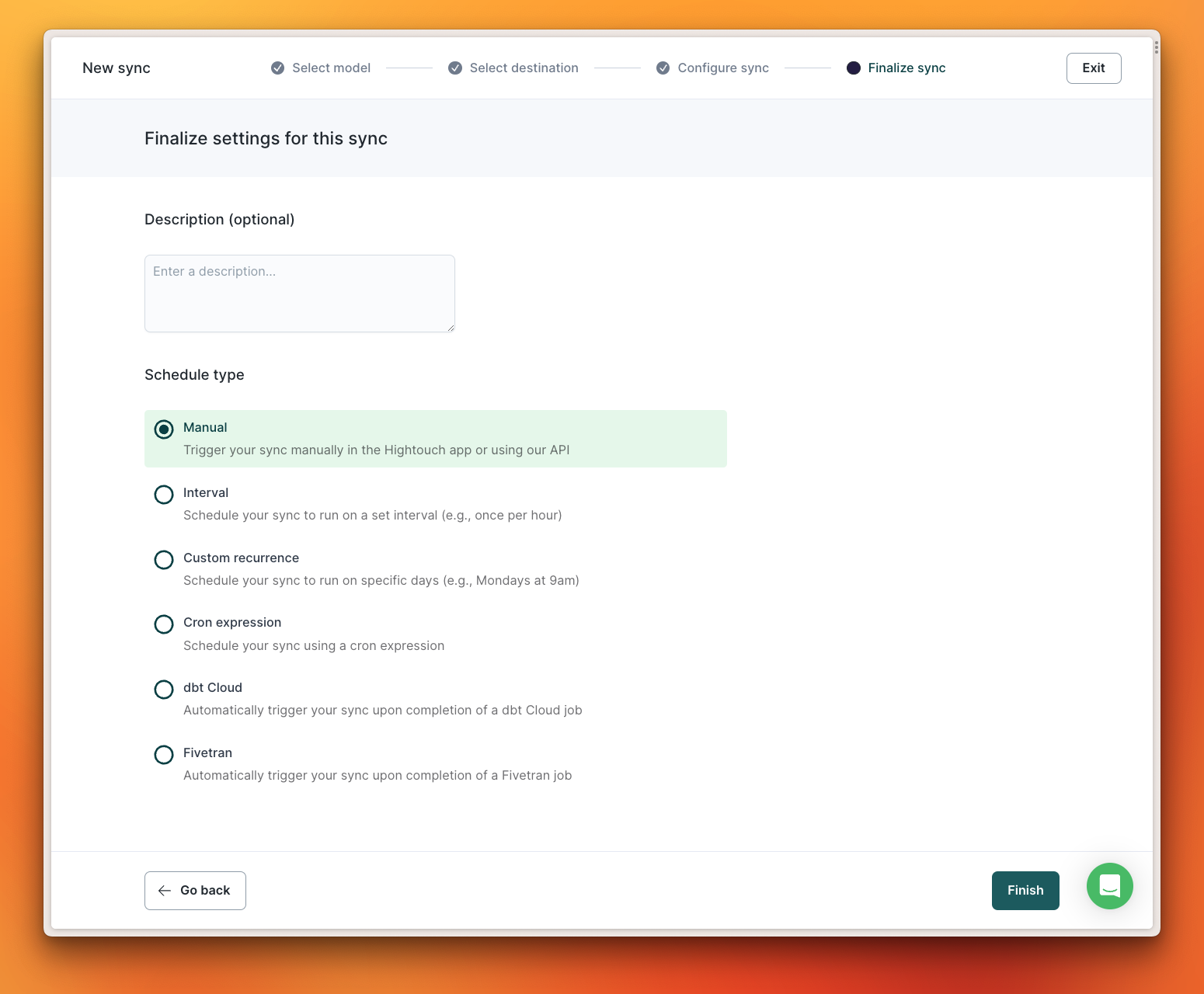
 A sync can be performed using a number of different methods. For the demo, I’ll leave **"Manual"** selected and click **"Finish"**.
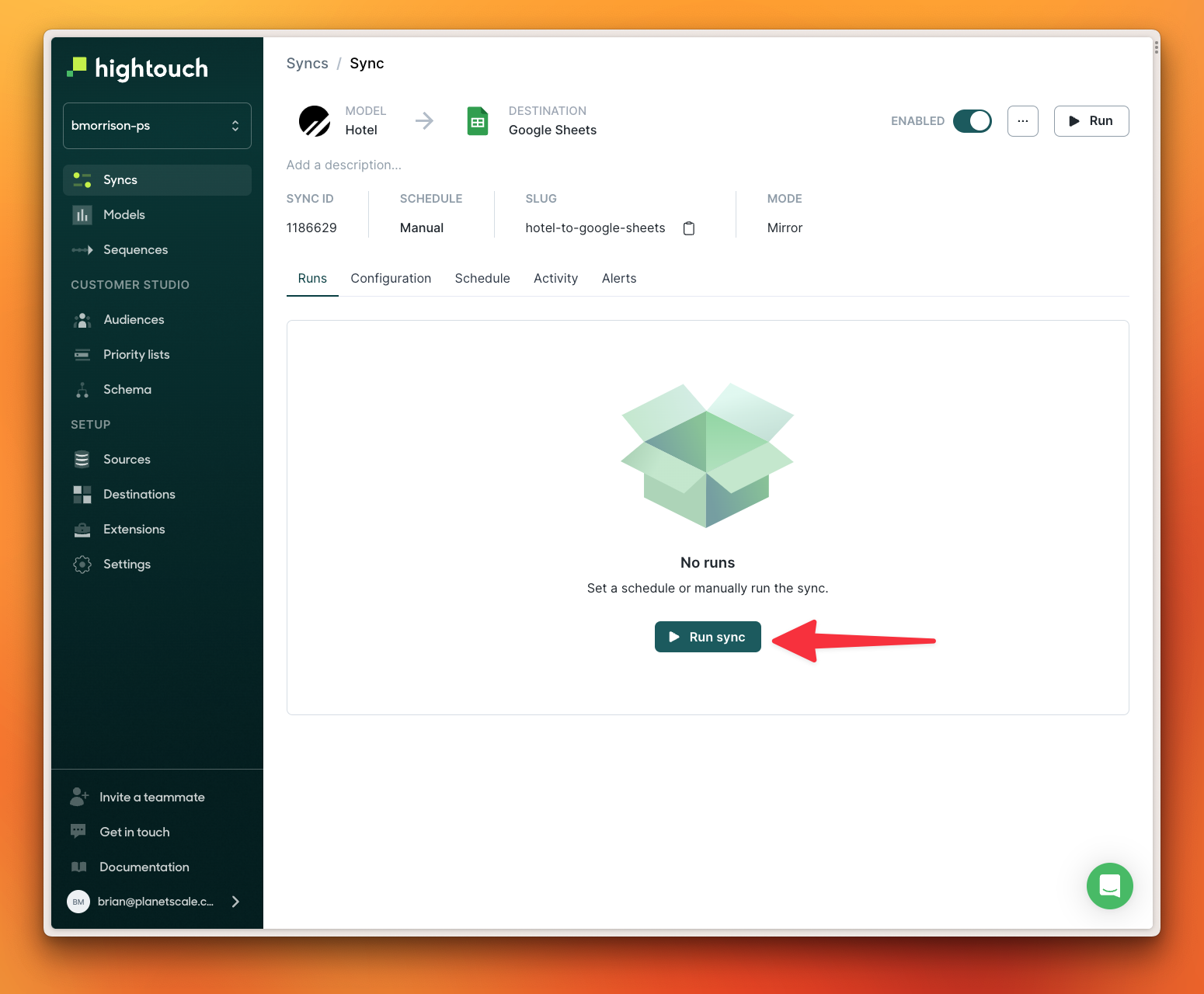
 Since this is a manual sync, I’ll also need to click **"Run sync"** to execute it.
 ### 4. Review the synced data
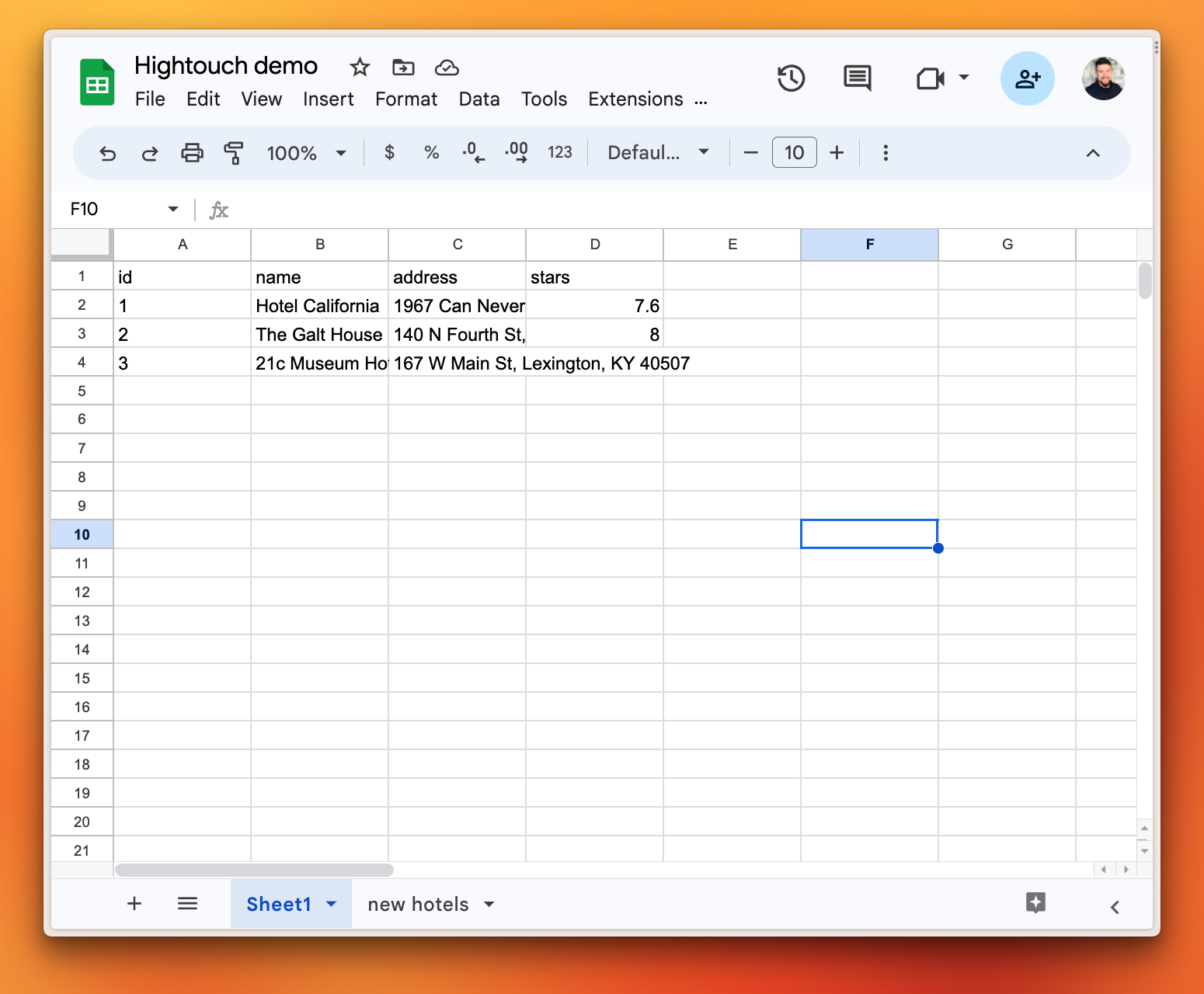
If I log into my Google Drive account and review that spreadsheet, there are now three rows that exist which match the data from the `hotels` table of my PlanetScale database.
### 4. Review the synced data
If I log into my Google Drive account and review that spreadsheet, there are now three rows that exist which match the data from the `hotels` table of my PlanetScale database.
 ## PlanetScale as a destination
Hightouch can also be configured to send data to a PlanetScale database. In this demo, I’ll perform the inverse of the above demo and configure the `new hotels` sheet from my Google Sheets spreadsheet to add new rows to my PlanetScale database.
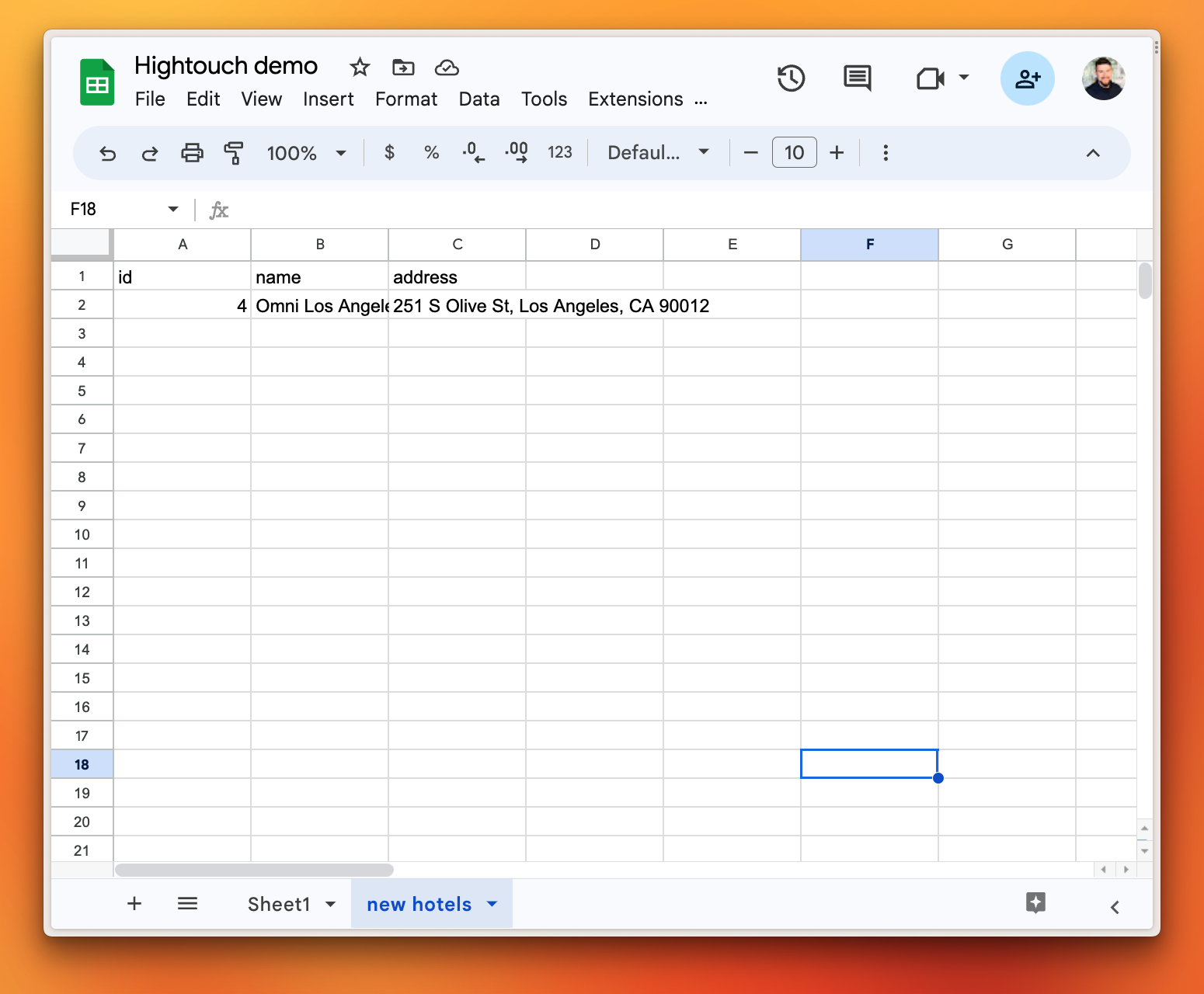
Here is that sheet with a single new hotel added to it.
## PlanetScale as a destination
Hightouch can also be configured to send data to a PlanetScale database. In this demo, I’ll perform the inverse of the above demo and configure the `new hotels` sheet from my Google Sheets spreadsheet to add new rows to my PlanetScale database.
Here is that sheet with a single new hotel added to it.
 ### 1. Create the Destination
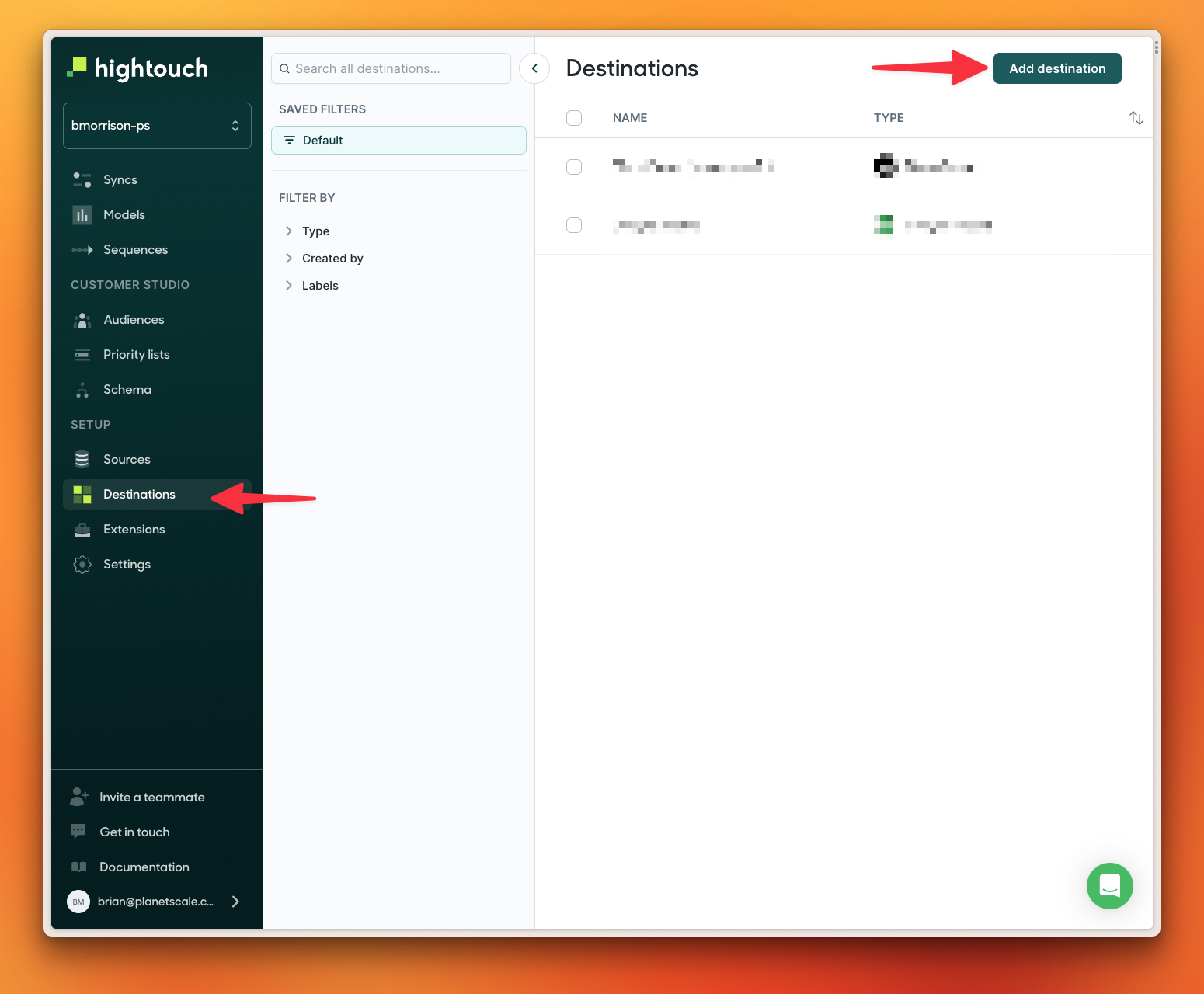
Configuring the source and model for Google Sheets will not be covered in this demo. I’ll start by creating a new destination for my PlanetScale database by selecting **"Destinations"** from the left navigation, then **"Add destination"**.
### 1. Create the Destination
Configuring the source and model for Google Sheets will not be covered in this demo. I’ll start by creating a new destination for my PlanetScale database by selecting **"Destinations"** from the left navigation, then **"Add destination"**.
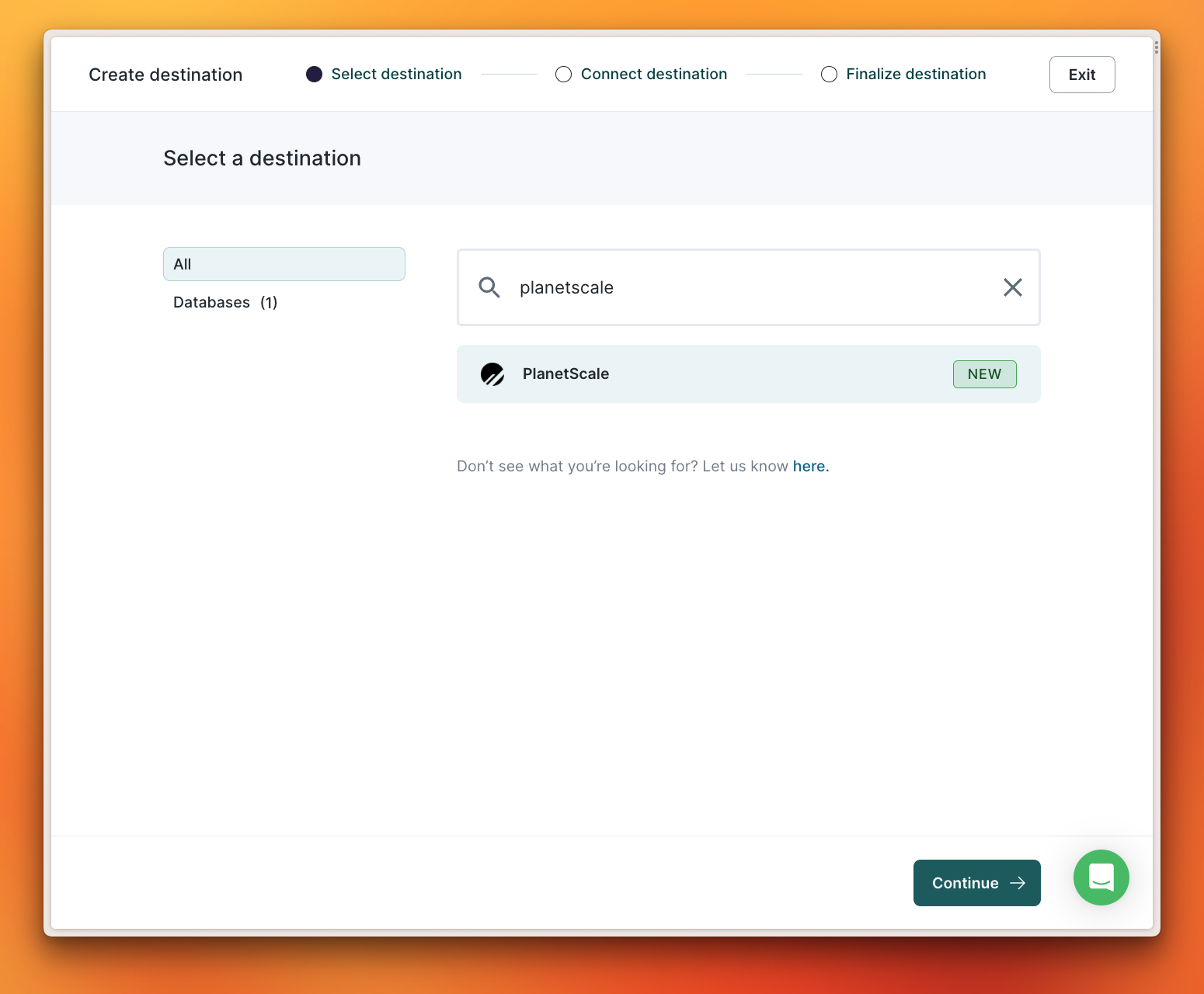
 Search for the PlanetScale destination, select it, and click **"Continue"**.
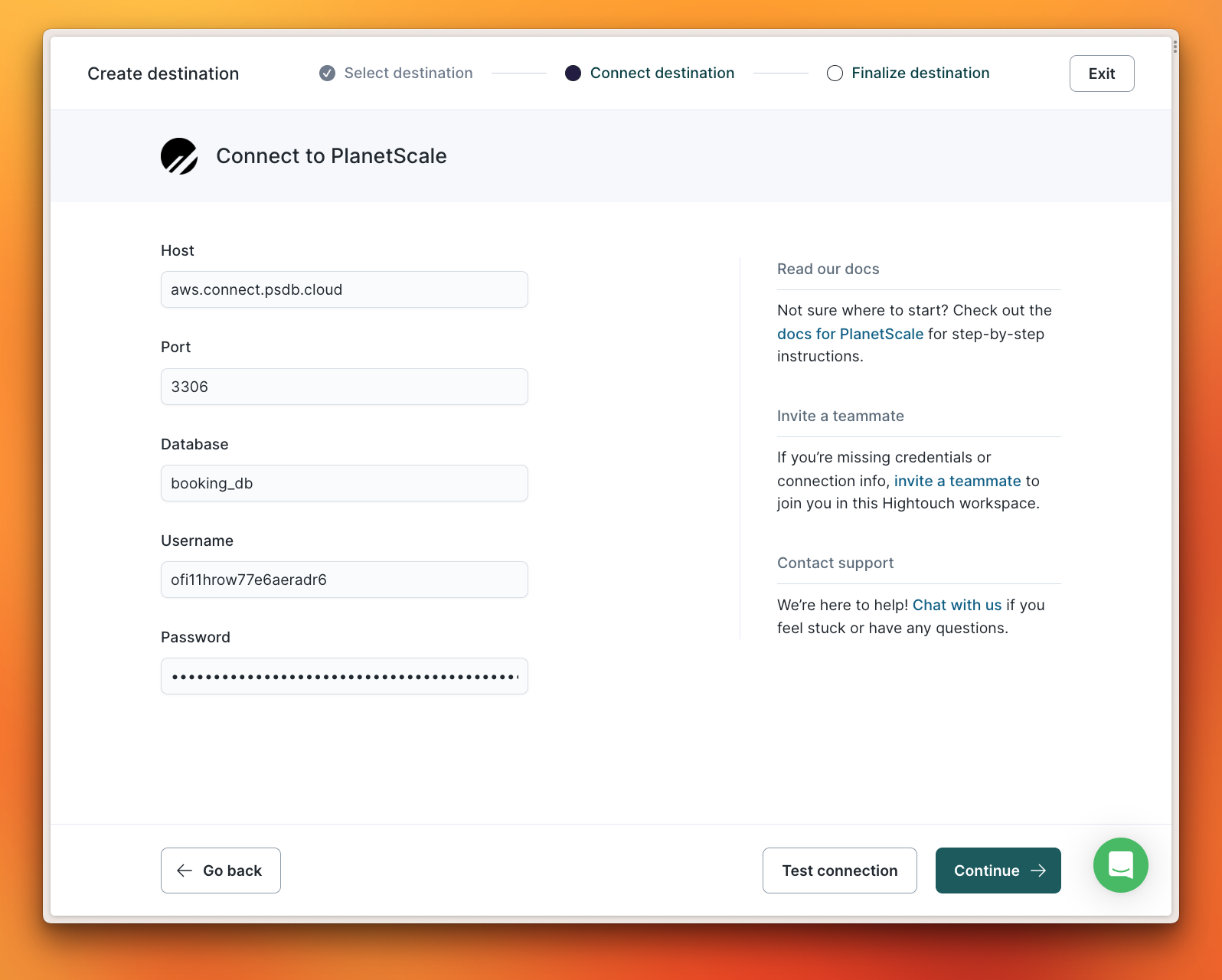
 In the next view, populate the details in the form using the connection details for your PlanetScale database. Click **"Continue"**.
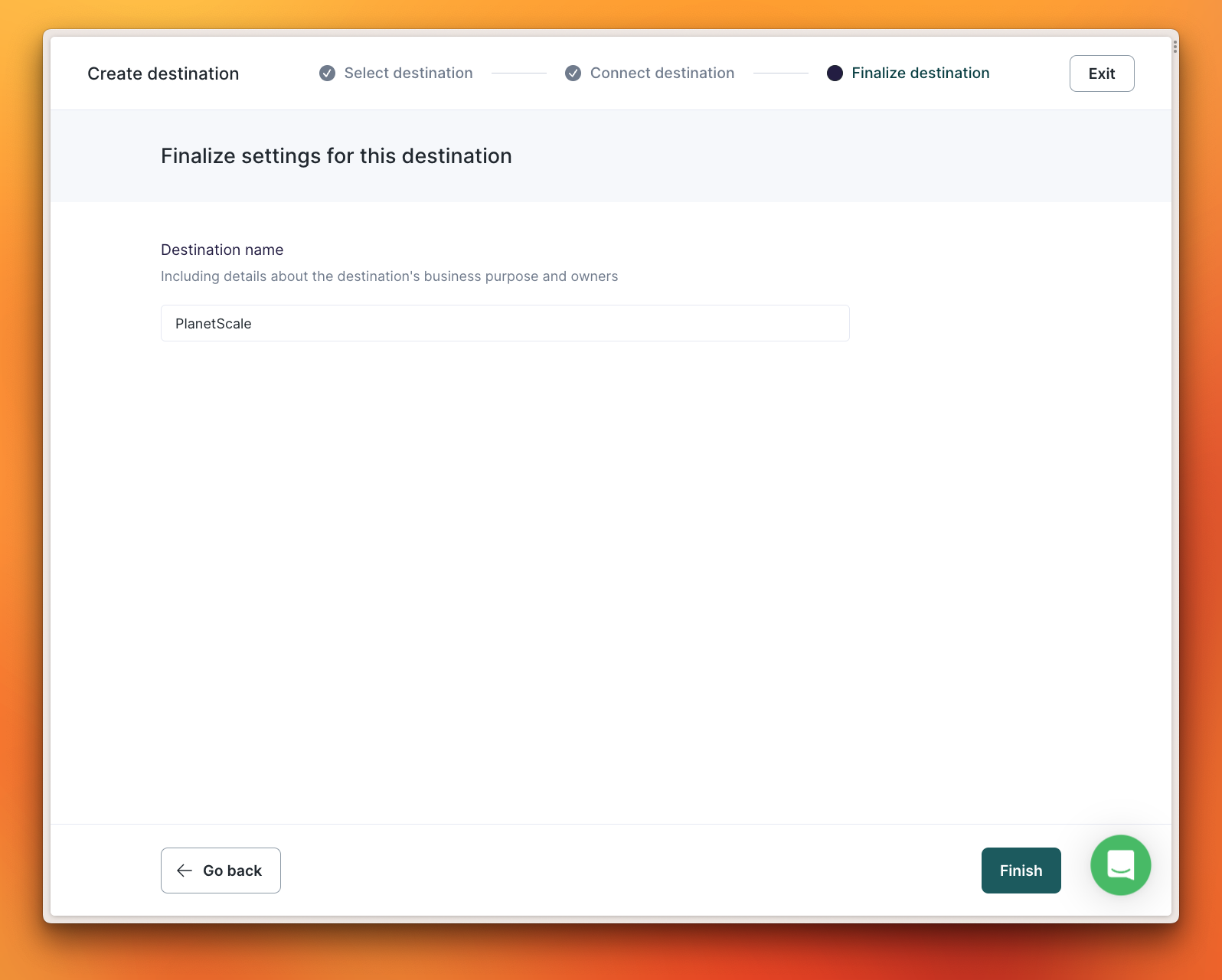
 Click **"Finish"** to save the Destination.
 ### 2. Create the Sync
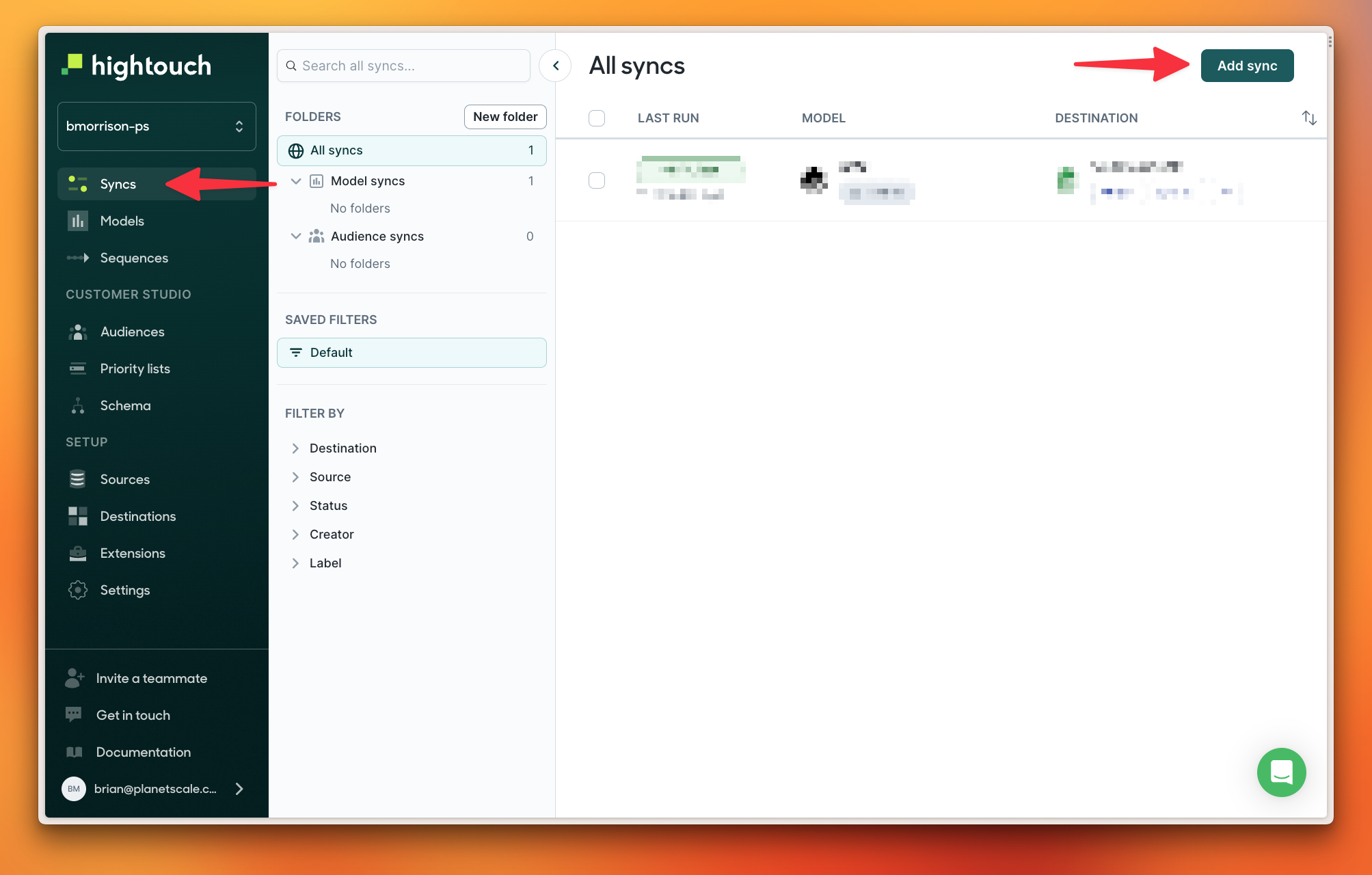
To create a new Sync, select **"Syncs"** from the left navigation and click **"Add sync"**.
### 2. Create the Sync
To create a new Sync, select **"Syncs"** from the left navigation and click **"Add sync"**.
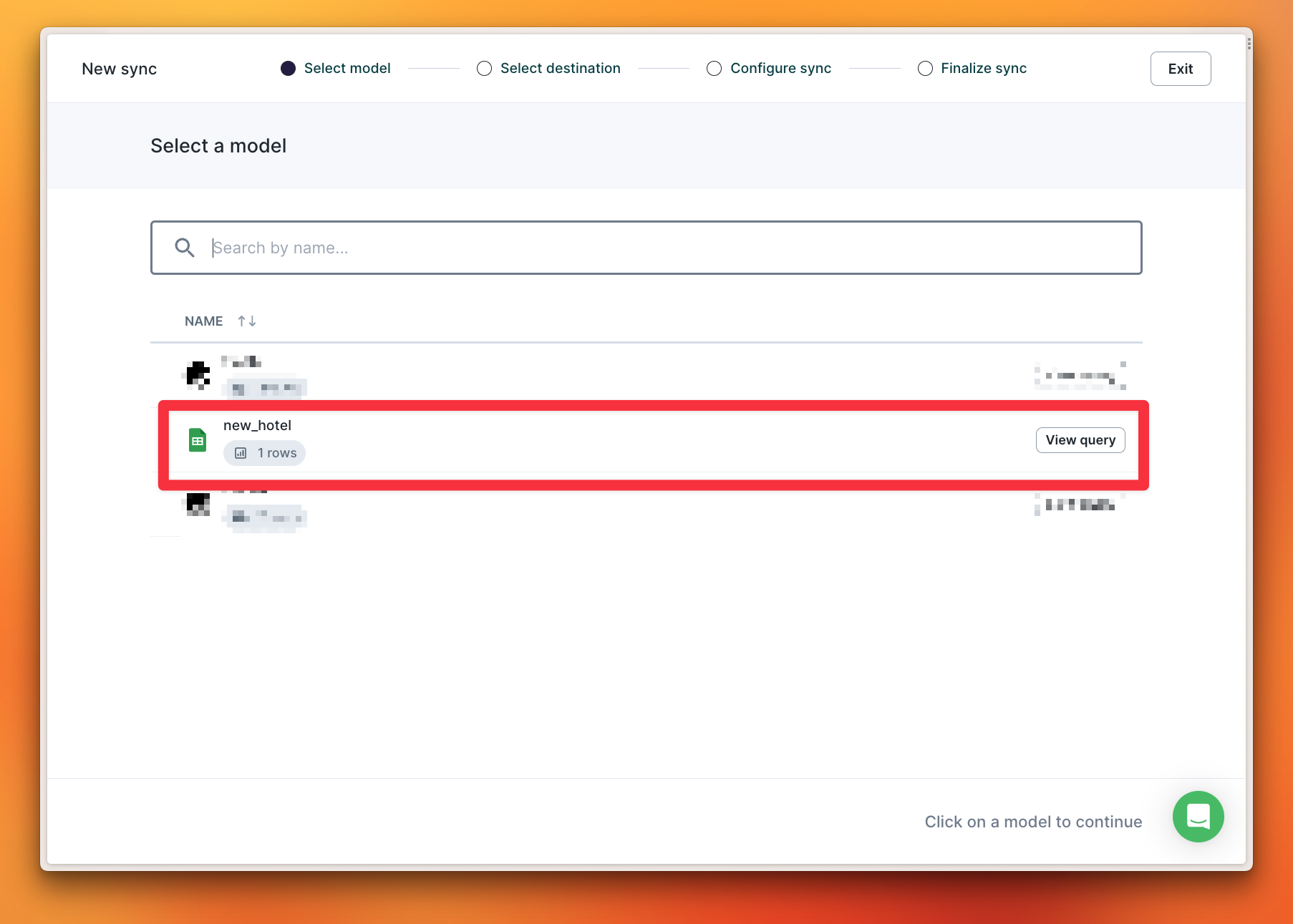
 The model name for my Google Sheets worksheet is `new_hotel` so I’ll select that from the list.
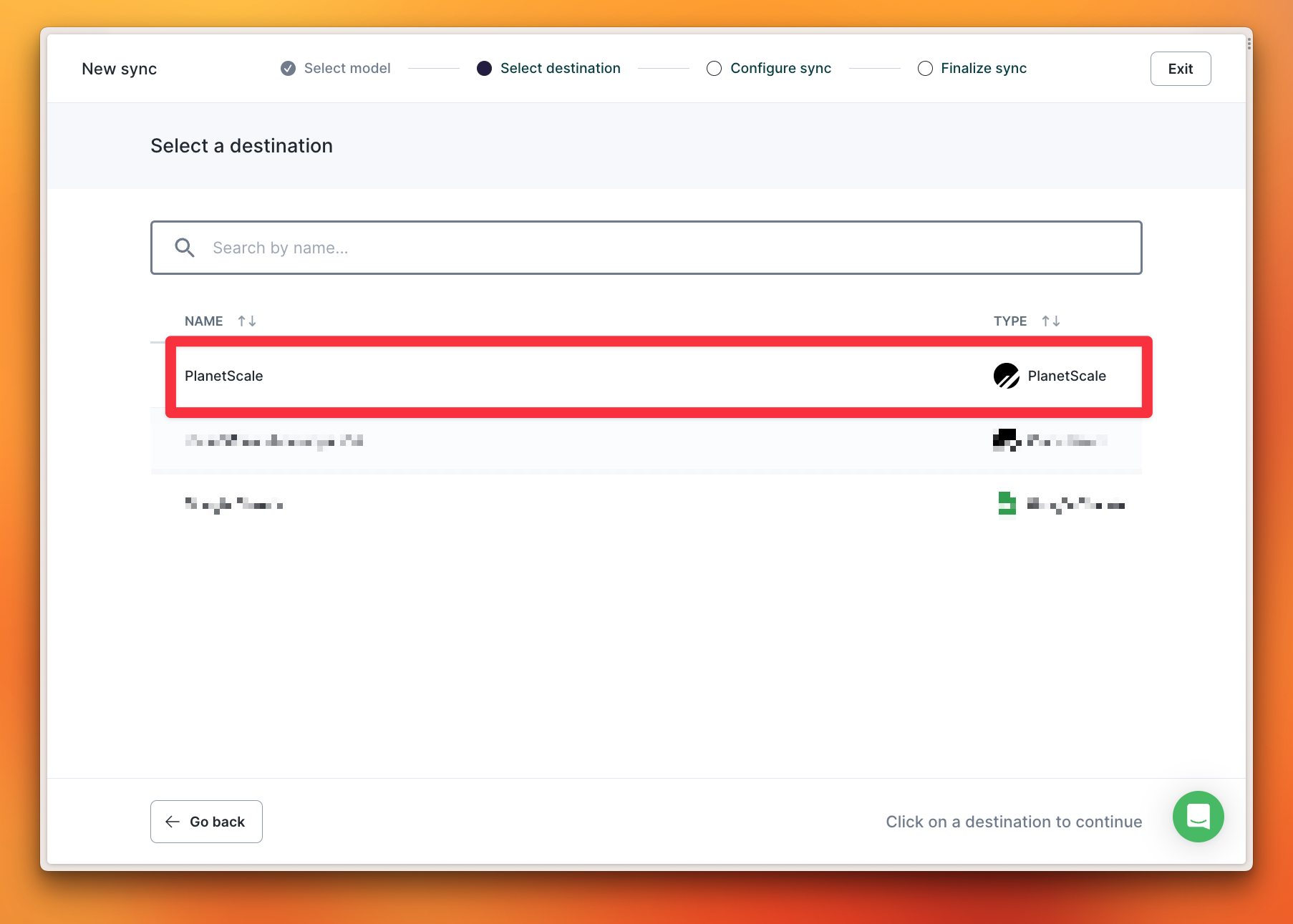
 Select the Destination created in the previous step.
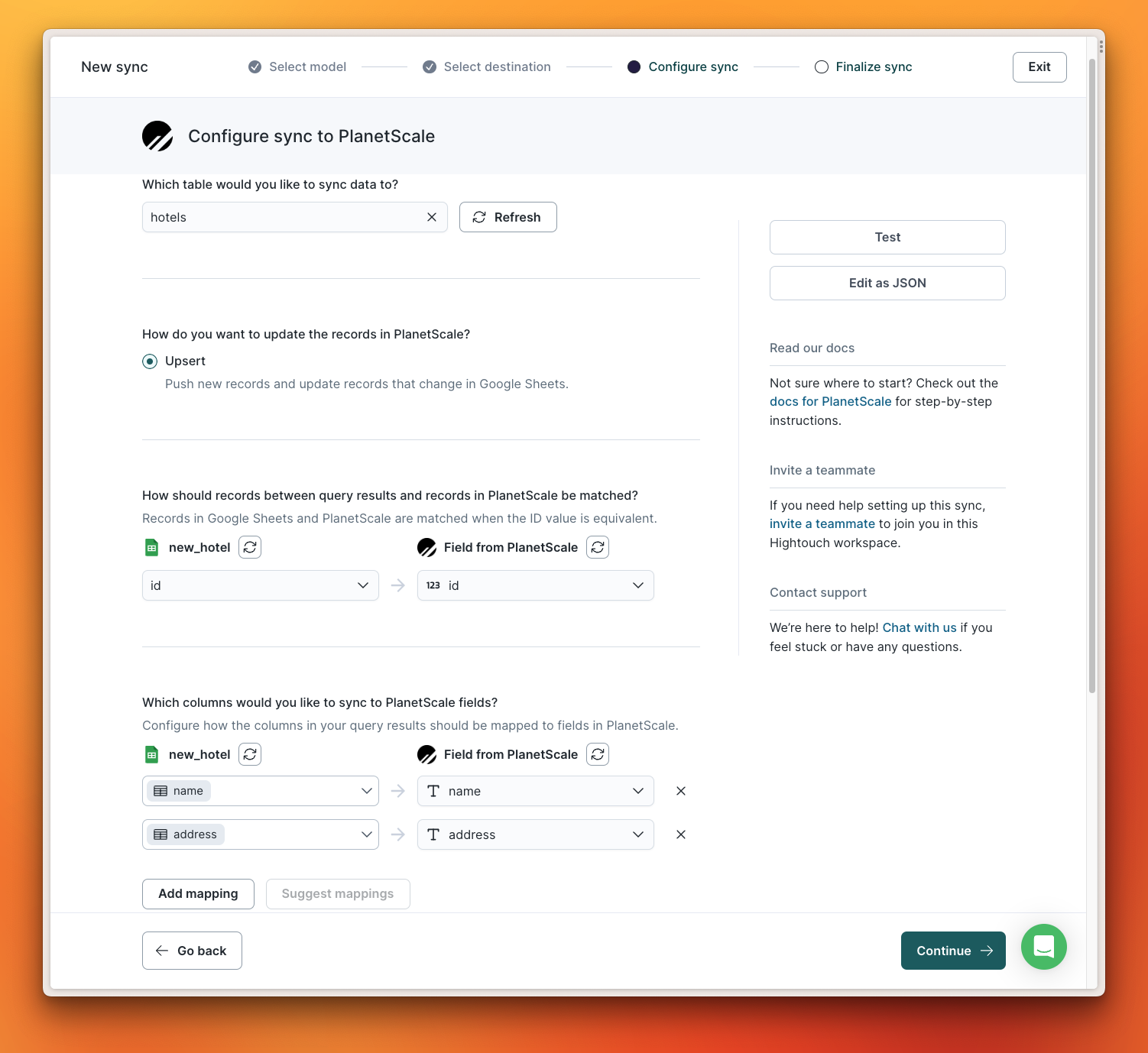
 Next, I can select the table I wish to sync data to. I’ll choose `hotels` from the dropdown. Hightouch only supports upserting data at this time, so that option is preselected. I’ll also need to map the fields between my Google Sheets worksheet and my PlanetScale database, starting with the unique identifiers.
Both have an `id` column so I can select that for both sides of the sync. Since the other column names match, I can click **"Suggest mappings"** to let Hightouch automatically figure out which fields map from the Source to the Destination. Once that’s done, I’ll click **"Continue"** to move forward.
Next, I can select the table I wish to sync data to. I’ll choose `hotels` from the dropdown. Hightouch only supports upserting data at this time, so that option is preselected. I’ll also need to map the fields between my Google Sheets worksheet and my PlanetScale database, starting with the unique identifiers.
Both have an `id` column so I can select that for both sides of the sync. Since the other column names match, I can click **"Suggest mappings"** to let Hightouch automatically figure out which fields map from the Source to the Destination. Once that’s done, I’ll click **"Continue"** to move forward.
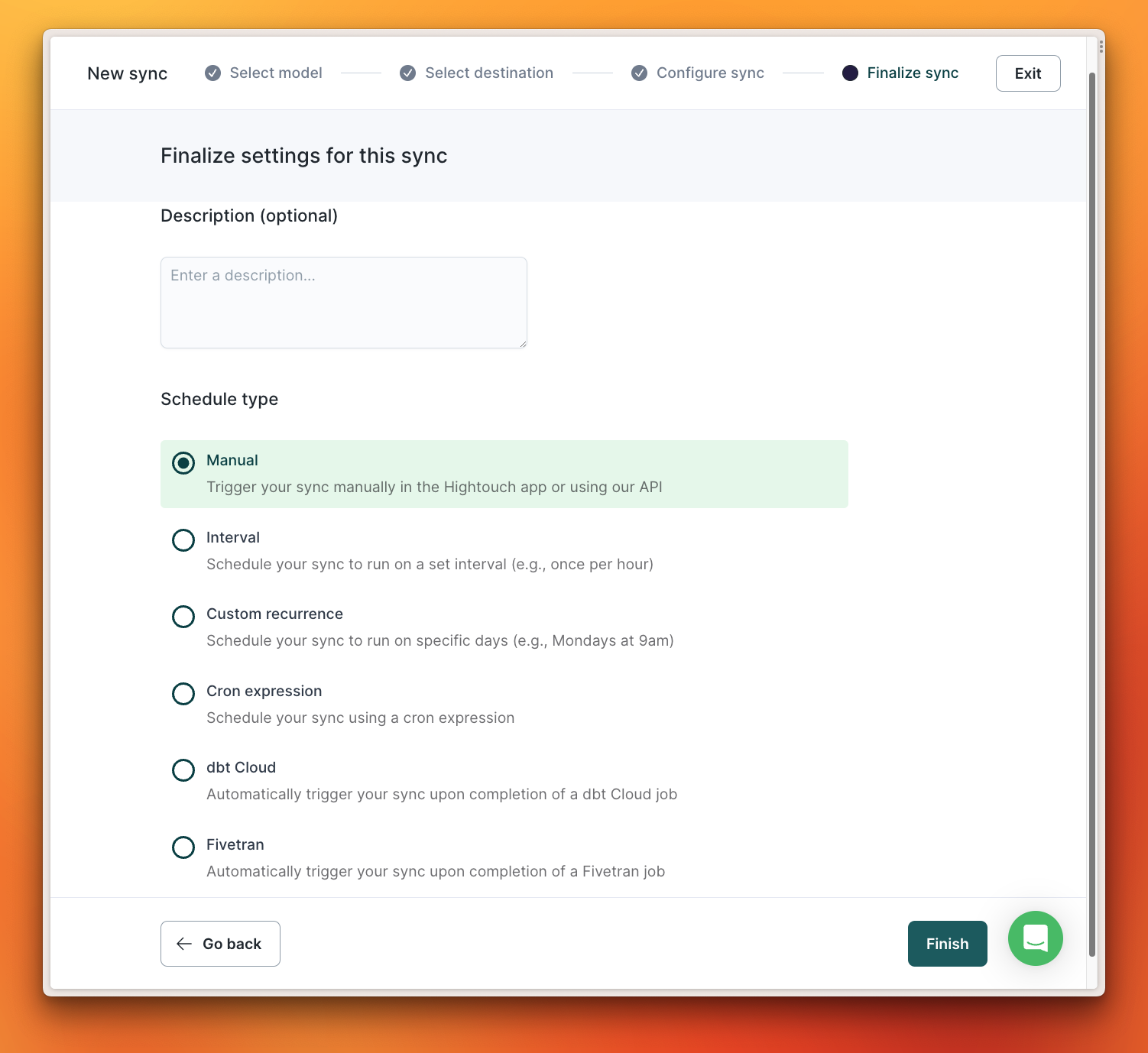
 Finally, I can specify the Schedule type for when my data sync should occur. I’ll leave it set to **"Manual"** and click **"Continue"**.
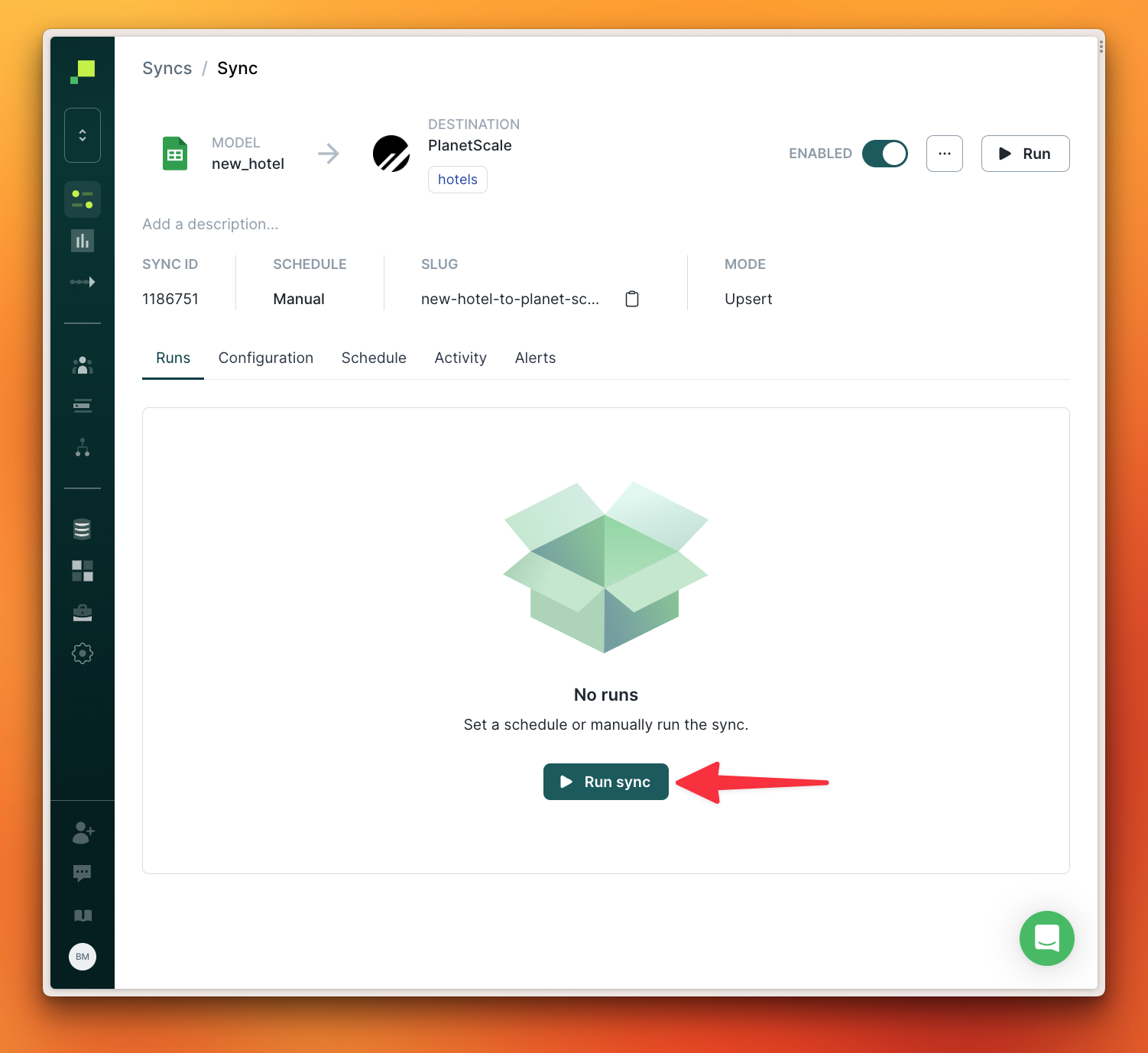
 Since this Sync is configured to execute manually, I’ll click **"Run sync"**.
 ### 3. Review the synced data
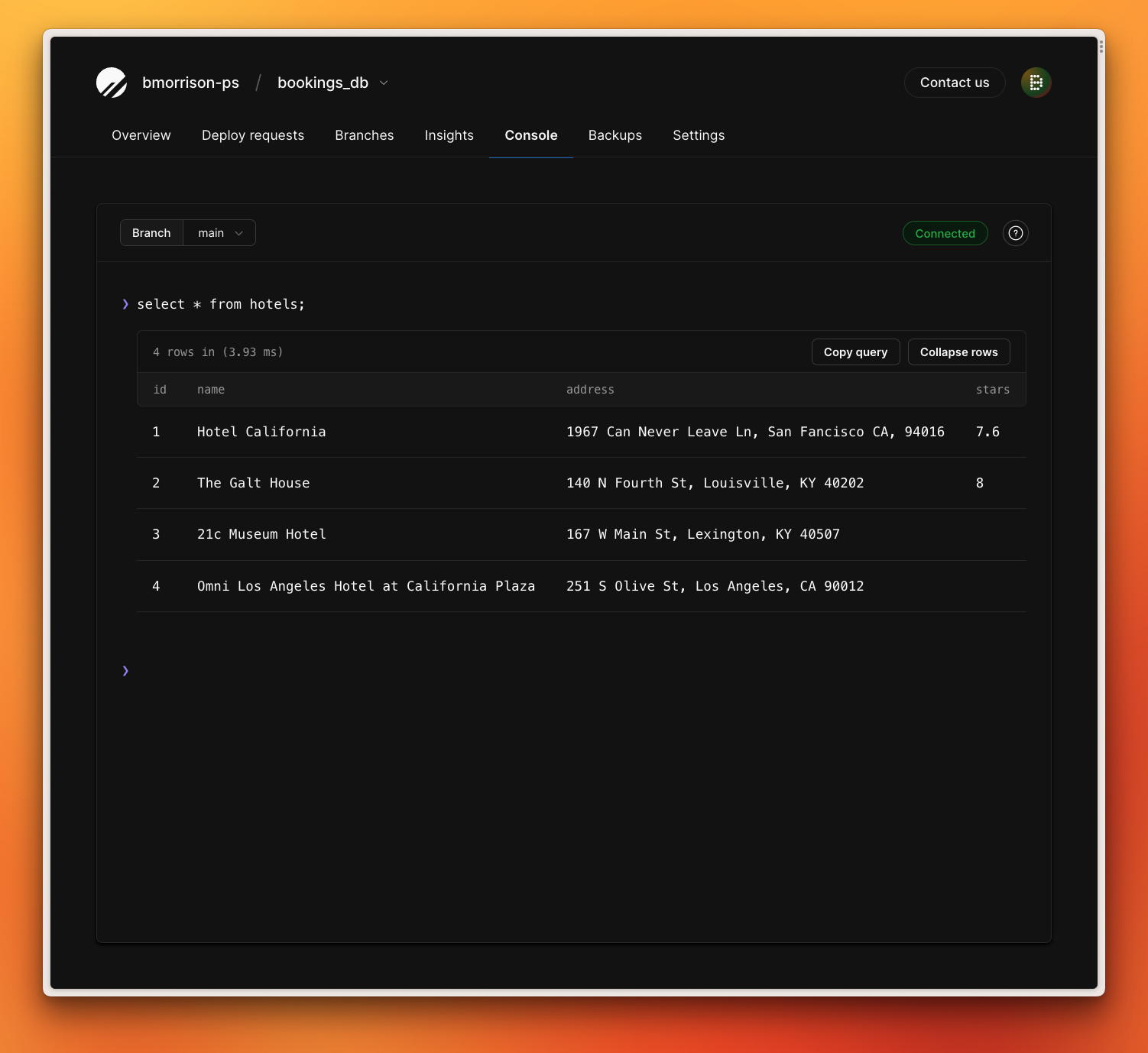
I can verify that the sync was successful by querying my PlanetScale database to ensure the new hotel was added successfully.
### 3. Review the synced data
I can verify that the sync was successful by querying my PlanetScale database to ensure the new hotel was added successfully.
 ## Need help?
Get help from [the PlanetScale Support team](https://planetscale.com/contact?initial=support), or join our [Discord community](https://pscale.link/community) to see how others are using PlanetScale.
## Need help?
Get help from [the PlanetScale Support team](https://planetscale.com/contact?initial=support), or join our [Discord community](https://pscale.link/community) to see how others are using PlanetScale.