> ## Documentation Index
> Fetch the complete documentation index at: https://planetscale.com/docs/llms.txt
> Use this file to discover all available pages before exploring further.
# Connecting to PlanetScale privately on AWS
## Connecting to PlanetScale privately via AWS PrivateLink
When your compliance mandates that your connections do not route through the public Internet, PlanetScale provides private connection endpoints to AWS regions via [AWS PrivateLink](https://aws.amazon.com/privatelink/). AWS PrivateLink is a form of *VPC peering* that does not send your traffic over the public internet. Private connections are included on the Base plan. There is no additional charge on PlanetScale's end, but this may impact your AWS bill.
Below is a list of instructions to set up your Virtual Private Cloud (VPC) to utilize a VPC endpoint when communicating with PlanetScale databases.
## Establishing a VPC endpoint
Identify the AWS region that your VPC lives in, which we will refer to as `` for the rest of this document.
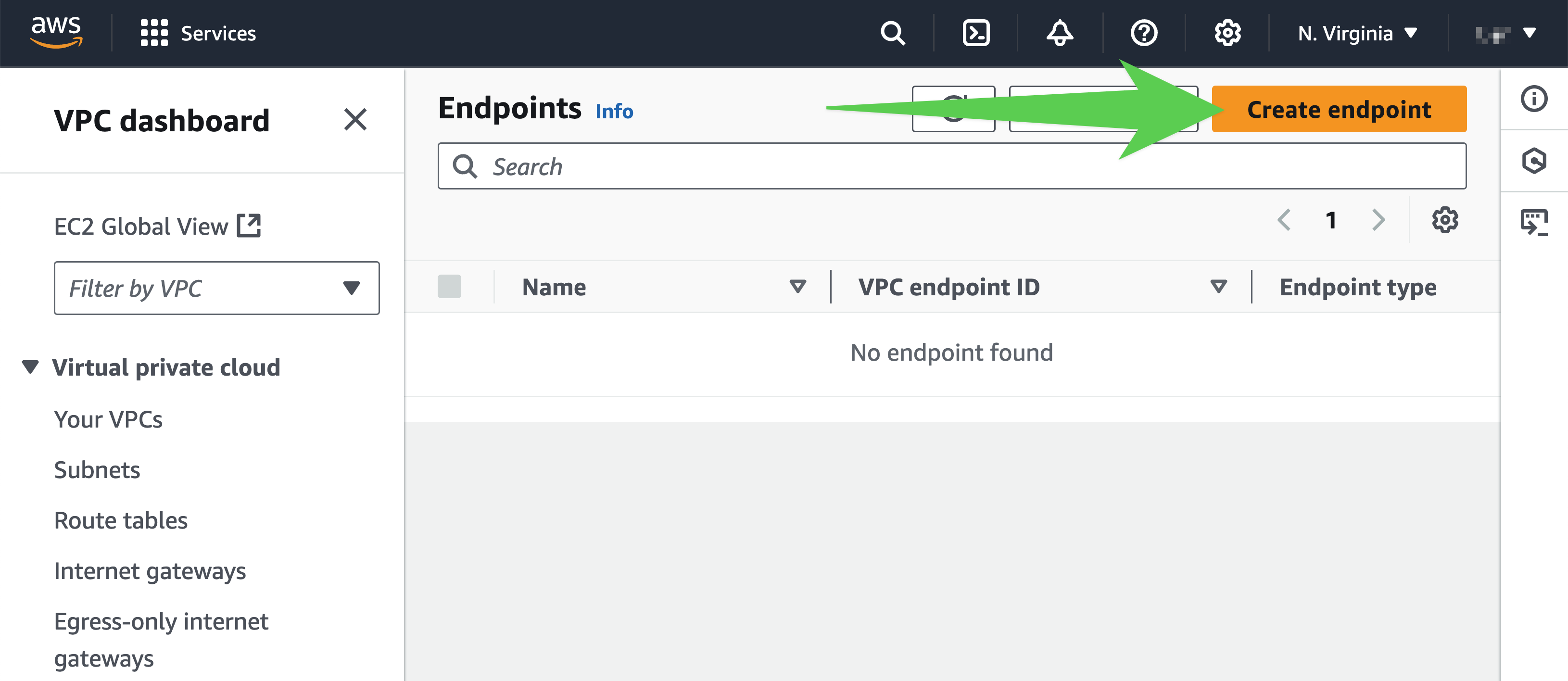
Navigate to the "Endpoints" section on the VPC page and select "**Create Endpoint**."
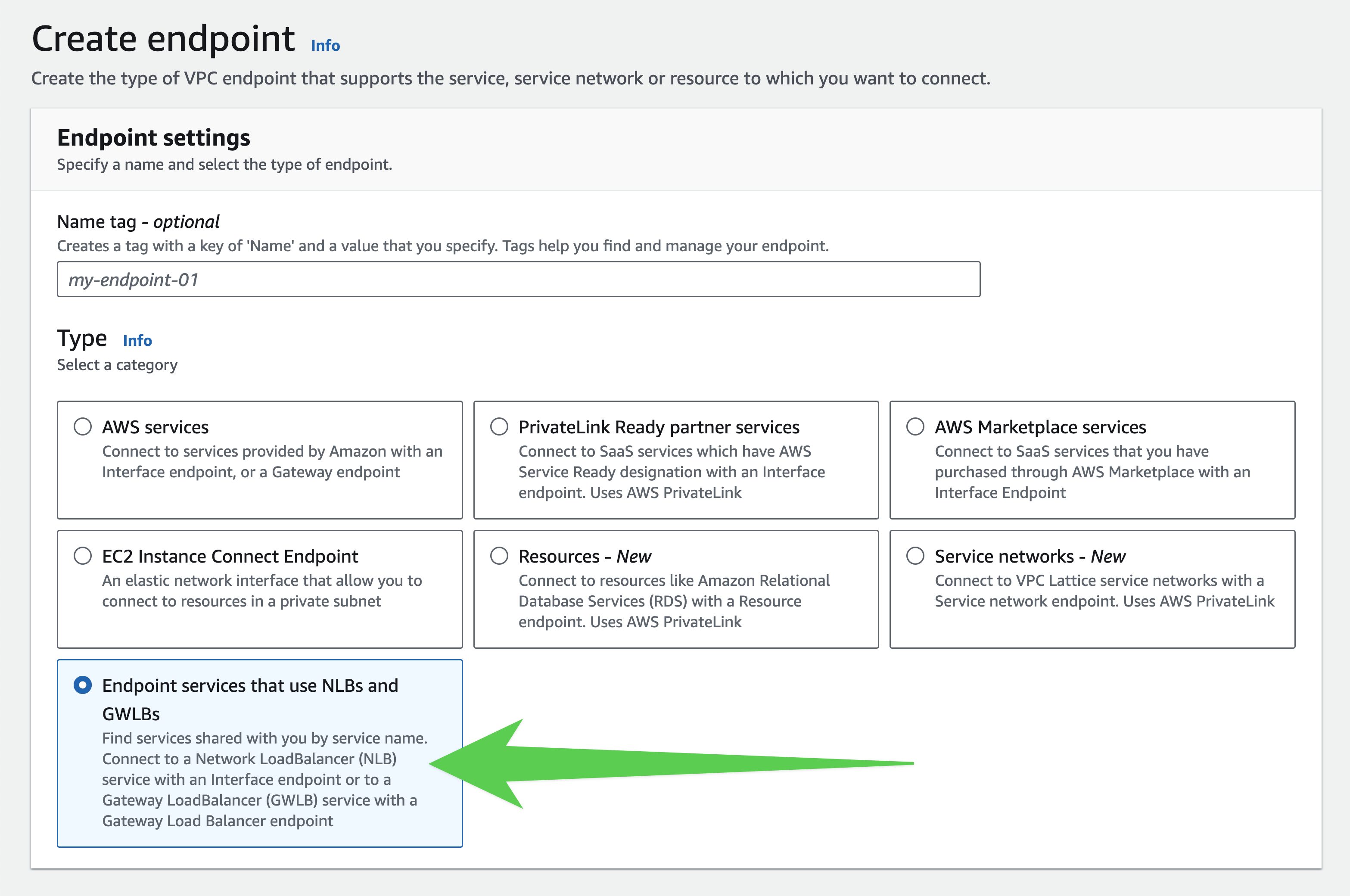
 Select "Endpoint services that use NLBs and GWLBs"
 | AWS Region Name | AWS Region | VPC Endpoint Service Name |
| :------------------------ | :------------- | :------------------------------------------------------------- |
| US East (Ohio) | us-east-2 | `com.amazonaws.vpce.us-east-2.vpce-svc-069f88c102c1a7fba` |
| US East (N. Virginia) | us-east-1 | `com.amazonaws.vpce.us-east-1.vpce-svc-02fef31be60d3fd35` |
| US West (Oregon) | us-west-2 | `com.amazonaws.vpce.us-west-2.vpce-svc-0f63a383cb2d41919` |
| Asia Pacific (Mumbai) | ap-south-1 | `com.amazonaws.vpce.ap-south-1.vpce-svc-06556ed2371c5fdd2` |
| Asia Pacific (Singapore) | ap-southeast-1 | `com.amazonaws.vpce.ap-southeast-1.vpce-svc-046d8feae38660302` |
| Asia Pacific (Sydney) | ap-southeast-2 | `com.amazonaws.vpce.ap-southeast-2.vpce-svc-03e5578eeaf446c90` |
| Asia Pacific (Tokyo) | ap-northeast-1 | `com.amazonaws.vpce.ap-northeast-1.vpce-svc-099c246fa320e54d1` |
| Europe (Frankfurt) | eu-central-1 | `com.amazonaws.vpce.eu-central-1.vpce-svc-091260498e58d4dc3` |
| Europe (Ireland) | eu-west-1 | `com.amazonaws.vpce.eu-west-1.vpce-svc-049577caa775e8648` |
| Europe (London) | eu-west-2 | `com.amazonaws.vpce.eu-west-2.vpce-svc-0f69e183c9a555f03` |
| South America (São Paulo) | sa-east-1 | `com.amazonaws.vpce.sa-east-1.vpce-svc-09b11604d399b5c58` |
| Canada (Montreal) | ca-central-1 | `com.amazonaws.vpce.ca-central-1.vpce-svc-0617a00ea4e327520` |
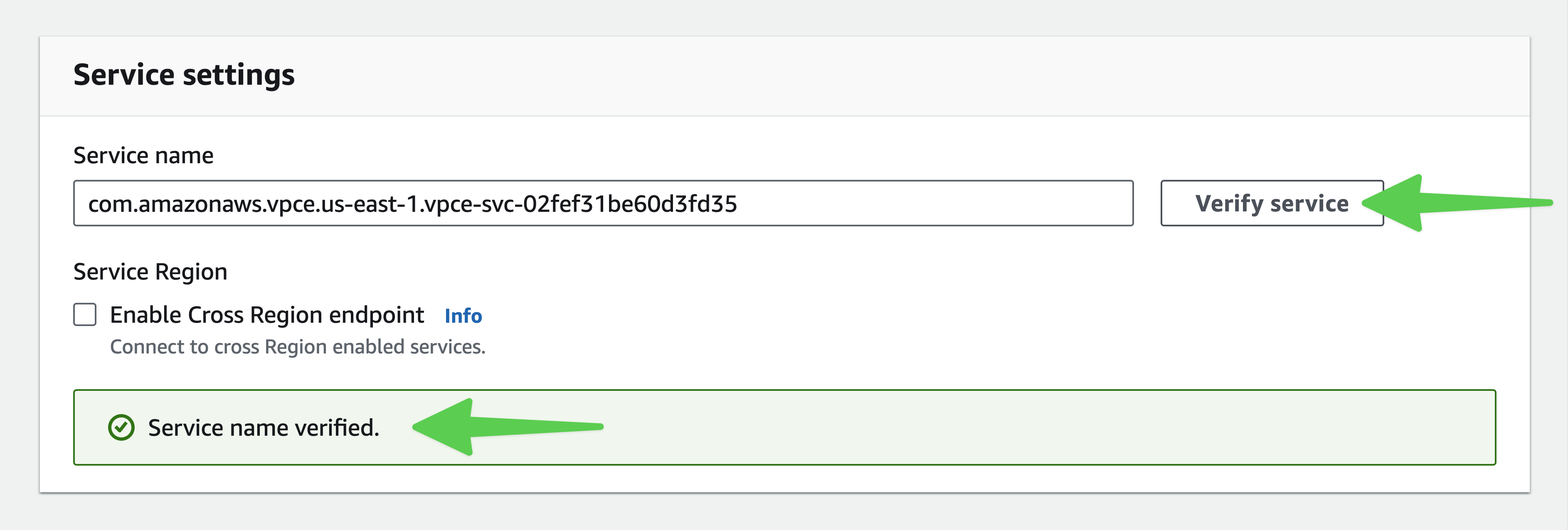
Fill the "Service name" text box according to which region you want to establish AWS PrivateLink for. Once you have filled in the Service Name text box, click "Verify service".
| AWS Region Name | AWS Region | VPC Endpoint Service Name |
| :------------------------ | :------------- | :------------------------------------------------------------- |
| US East (Ohio) | us-east-2 | `com.amazonaws.vpce.us-east-2.vpce-svc-069f88c102c1a7fba` |
| US East (N. Virginia) | us-east-1 | `com.amazonaws.vpce.us-east-1.vpce-svc-02fef31be60d3fd35` |
| US West (Oregon) | us-west-2 | `com.amazonaws.vpce.us-west-2.vpce-svc-0f63a383cb2d41919` |
| Asia Pacific (Mumbai) | ap-south-1 | `com.amazonaws.vpce.ap-south-1.vpce-svc-06556ed2371c5fdd2` |
| Asia Pacific (Singapore) | ap-southeast-1 | `com.amazonaws.vpce.ap-southeast-1.vpce-svc-046d8feae38660302` |
| Asia Pacific (Sydney) | ap-southeast-2 | `com.amazonaws.vpce.ap-southeast-2.vpce-svc-03e5578eeaf446c90` |
| Asia Pacific (Tokyo) | ap-northeast-1 | `com.amazonaws.vpce.ap-northeast-1.vpce-svc-099c246fa320e54d1` |
| Europe (Frankfurt) | eu-central-1 | `com.amazonaws.vpce.eu-central-1.vpce-svc-091260498e58d4dc3` |
| Europe (Ireland) | eu-west-1 | `com.amazonaws.vpce.eu-west-1.vpce-svc-049577caa775e8648` |
| Europe (London) | eu-west-2 | `com.amazonaws.vpce.eu-west-2.vpce-svc-0f69e183c9a555f03` |
| South America (São Paulo) | sa-east-1 | `com.amazonaws.vpce.sa-east-1.vpce-svc-09b11604d399b5c58` |
| Canada (Montreal) | ca-central-1 | `com.amazonaws.vpce.ca-central-1.vpce-svc-0617a00ea4e327520` |
Fill the "Service name" text box according to which region you want to establish AWS PrivateLink for. Once you have filled in the Service Name text box, click "Verify service".
 Choose the VPC and subnets that should be peered with the PlanetScale service endpoint.
Click the "Additional settings" dropdown arrow to reveal the "DNS name" configuration, and select the "Enable DNS name" checkbox.
Choose the security group of your choice to control what can send traffic to the PlanetScale service endpoint.
Click "Create endpoint" and verify that the VPC endpoint's status reports "Available" after a few minutes.
## Verifying the connectivity of your VPC endpoint
In the AWS UI, confirm that the endpoint has successfully been created by verifying that the Status section of the endpoint reads "Available".
Some PlanetScale regions are named differently than AWS Provider regions. We will refer to the PlanetScale region as `` for the rest of this document.
Confirm that the Private DNS Names reads: `.private-connect.psdb.cloud`.
Log into any EC2 instance in the configured VPC and run `dig +short .private-connect.psdb.cloud` to confirm that DNS resolution is producing IP Addresses in the range of your VPC's CIDR.
```bash theme={null}
dig +short us-east.private-connect.psdb.cloud
172.31.16.197
172.31.13.7
```
Run `curl https://.private-connect.psdb.cloud` to verify your connectivity. A successful response will yield `Welcome to PlanetScale`.
```
curl https://us-east.private-connect.psdb.cloud
Welcome to PlanetScale.
```
## Modifying your Connection Strings to utilize your VPC endpoint.
By default, PlanetScale provides users with a connection string that reads `.connect.psdb.cloud`.
To utilize your newly configured VPC endpoint, prepend `private-` to the `connect` subdomain as shown above, yielding a connection string that reads `.private-connect.psdb.cloud`.
With this configured, you can leverage VPC peering to communicate between your AWS account and PlanetScale.
## Need help?
Get help from [the PlanetScale Support team](https://planetscale.com/contact?initial=support), or join our [Discord community](https://pscale.link/community) to see how others are using PlanetScale.
Choose the VPC and subnets that should be peered with the PlanetScale service endpoint.
Click the "Additional settings" dropdown arrow to reveal the "DNS name" configuration, and select the "Enable DNS name" checkbox.
Choose the security group of your choice to control what can send traffic to the PlanetScale service endpoint.
Click "Create endpoint" and verify that the VPC endpoint's status reports "Available" after a few minutes.
## Verifying the connectivity of your VPC endpoint
In the AWS UI, confirm that the endpoint has successfully been created by verifying that the Status section of the endpoint reads "Available".
Some PlanetScale regions are named differently than AWS Provider regions. We will refer to the PlanetScale region as `` for the rest of this document.
Confirm that the Private DNS Names reads: `.private-connect.psdb.cloud`.
Log into any EC2 instance in the configured VPC and run `dig +short .private-connect.psdb.cloud` to confirm that DNS resolution is producing IP Addresses in the range of your VPC's CIDR.
```bash theme={null}
dig +short us-east.private-connect.psdb.cloud
172.31.16.197
172.31.13.7
```
Run `curl https://.private-connect.psdb.cloud` to verify your connectivity. A successful response will yield `Welcome to PlanetScale`.
```
curl https://us-east.private-connect.psdb.cloud
Welcome to PlanetScale.
```
## Modifying your Connection Strings to utilize your VPC endpoint.
By default, PlanetScale provides users with a connection string that reads `.connect.psdb.cloud`.
To utilize your newly configured VPC endpoint, prepend `private-` to the `connect` subdomain as shown above, yielding a connection string that reads `.private-connect.psdb.cloud`.
With this configured, you can leverage VPC peering to communicate between your AWS account and PlanetScale.
## Need help?
Get help from [the PlanetScale Support team](https://planetscale.com/contact?initial=support), or join our [Discord community](https://pscale.link/community) to see how others are using PlanetScale.