> ## Documentation Index
> Fetch the complete documentation index at: https://planetscale.com/docs/llms.txt
> Use this file to discover all available pages before exploring further.
# Back up and restore
## Overview
PlanetScale provides the ability to create, schedule, and restore backups for production and development database branches.
Our [Base plan](/planetscale-plans) includes automated backups every 12 hours.
## View backups
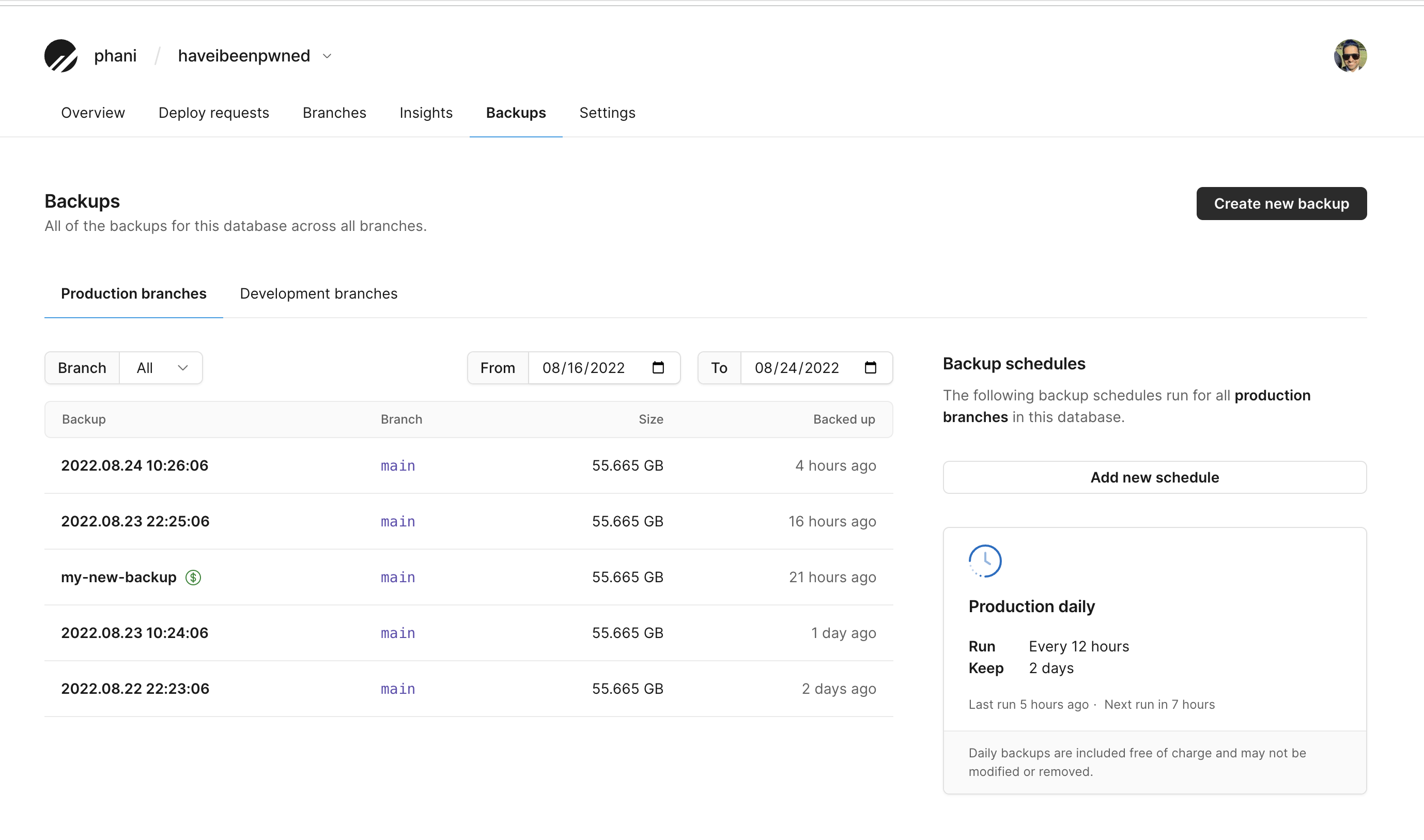
To view backups for all of your branches, go to your database backups page: `app.planetscale.com///backups`.
Once there, you'll find additional details about your backup history.
 ## Create manual backups
In addition to the daily default backups that PlanetScale schedules for your database branches, you can create additional **manual** backups.
To create a manual backup, follow the steps outlined below:
Go to your database backups page: `app.planetscale.com///backups`.
Click the **Create new backup** button.
This will bring up a pop-up modal that prompts you to pick a **branch** to backup, *name* your backup, and select how long you wish to keep the backup.
## Create manual backups
In addition to the daily default backups that PlanetScale schedules for your database branches, you can create additional **manual** backups.
To create a manual backup, follow the steps outlined below:
Go to your database backups page: `app.planetscale.com///backups`.
Click the **Create new backup** button.
This will bring up a pop-up modal that prompts you to pick a **branch** to backup, *name* your backup, and select how long you wish to keep the backup.
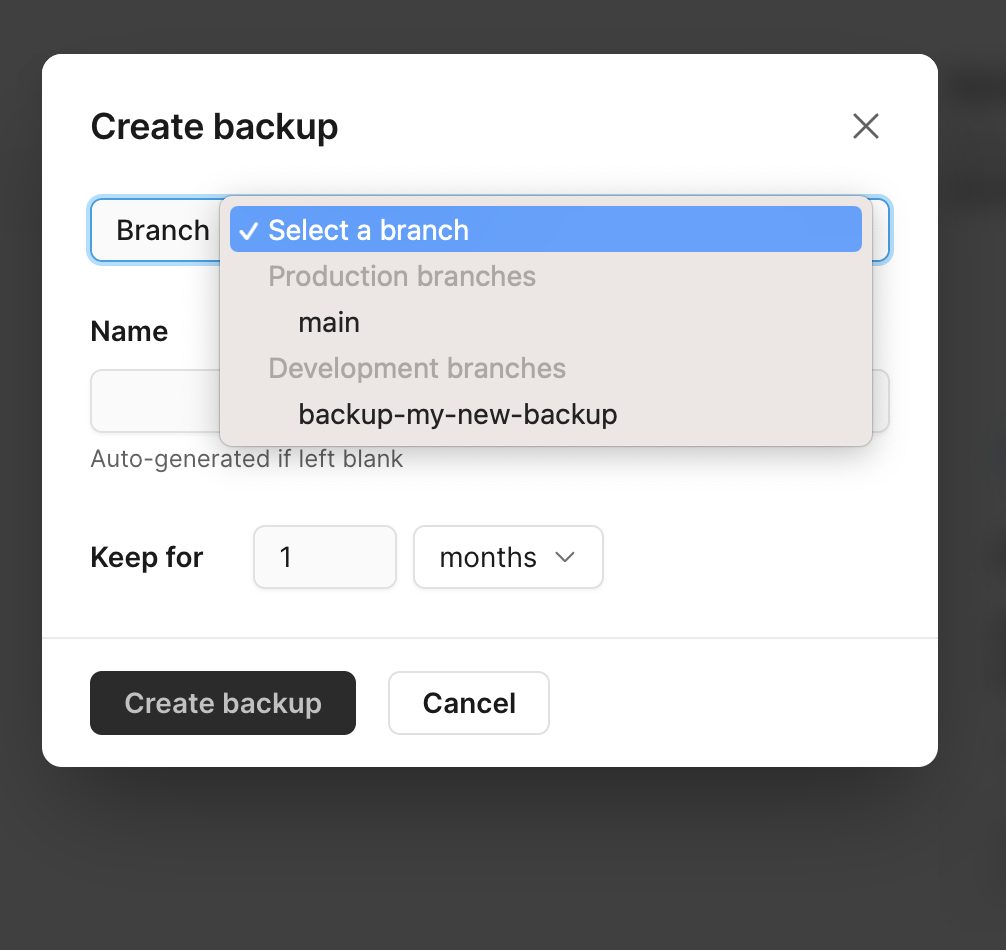 Click the **Create backup** button to finish the backup and close the pop-up modal.
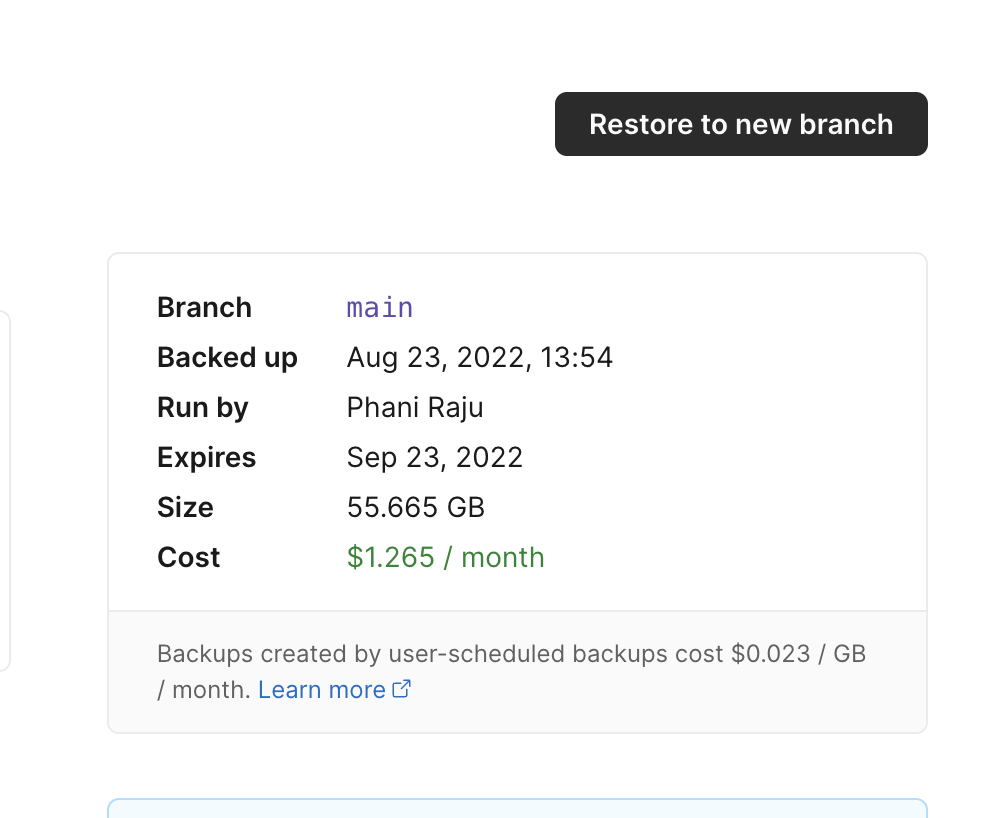
Manual backups are not free and are denoted by the `$` icon next to their name in the list view on the backups page.
Click the **Create backup** button to finish the backup and close the pop-up modal.
Manual backups are not free and are denoted by the `$` icon next to their name in the list view on the backups page.
 To see the cost associated with storage of a manual backup, click on the backup name. You will see the cost per month on the details page.
 ## Schedule backups
You can add additional **scheduled backups** for your branches, billed at \$0.023 per GB per month.
Go to your database backups page: `app.planetscale.com///backups`.
Select the type of branch (`Production branches` | `Development branches` ) you'd like to be backed up by the new backup schedule.
## Schedule backups
You can add additional **scheduled backups** for your branches, billed at \$0.023 per GB per month.
Go to your database backups page: `app.planetscale.com///backups`.
Select the type of branch (`Production branches` | `Development branches` ) you'd like to be backed up by the new backup schedule.
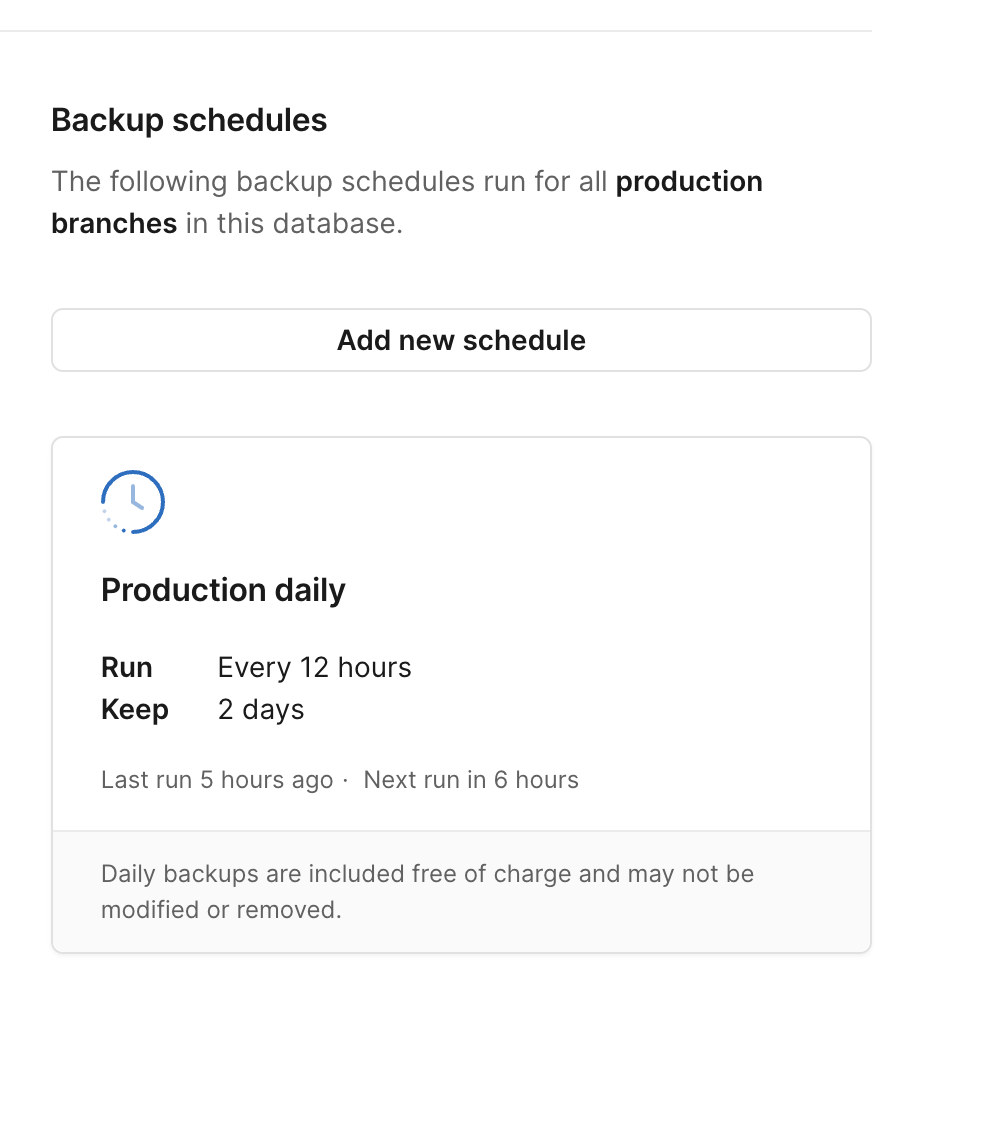 Click the **Add new schedule** button.
This will bring up a pop-up modal that prompts you to configure backup frequency, select how long you wish to keep the backup, and to *name* your **schedule**.
Click the **Save schedule** button to save your new scheduling configurations and to close the pop-up modal.
For additional scheduled backups beyond the included default (every 12 hours for the
[Base plan](/planetscale-plans), you will be billed
**\$0.023 per GB per month**.
## Restore from a backup
To restore a backup to a new branch, click on the individual backup to see the option to restore them.
Go to your database backups page: `app.planetscale.com///backups`.
Select the backup you wish to restore.
Click the **Restore backup** button.
This will bring up a pop-up modal that prompts you to name your branch and select a cluster size.
Click the **Add new schedule** button.
This will bring up a pop-up modal that prompts you to configure backup frequency, select how long you wish to keep the backup, and to *name* your **schedule**.
Click the **Save schedule** button to save your new scheduling configurations and to close the pop-up modal.
For additional scheduled backups beyond the included default (every 12 hours for the
[Base plan](/planetscale-plans), you will be billed
**\$0.023 per GB per month**.
## Restore from a backup
To restore a backup to a new branch, click on the individual backup to see the option to restore them.
Go to your database backups page: `app.planetscale.com///backups`.
Select the backup you wish to restore.
Click the **Restore backup** button.
This will bring up a pop-up modal that prompts you to name your branch and select a cluster size.
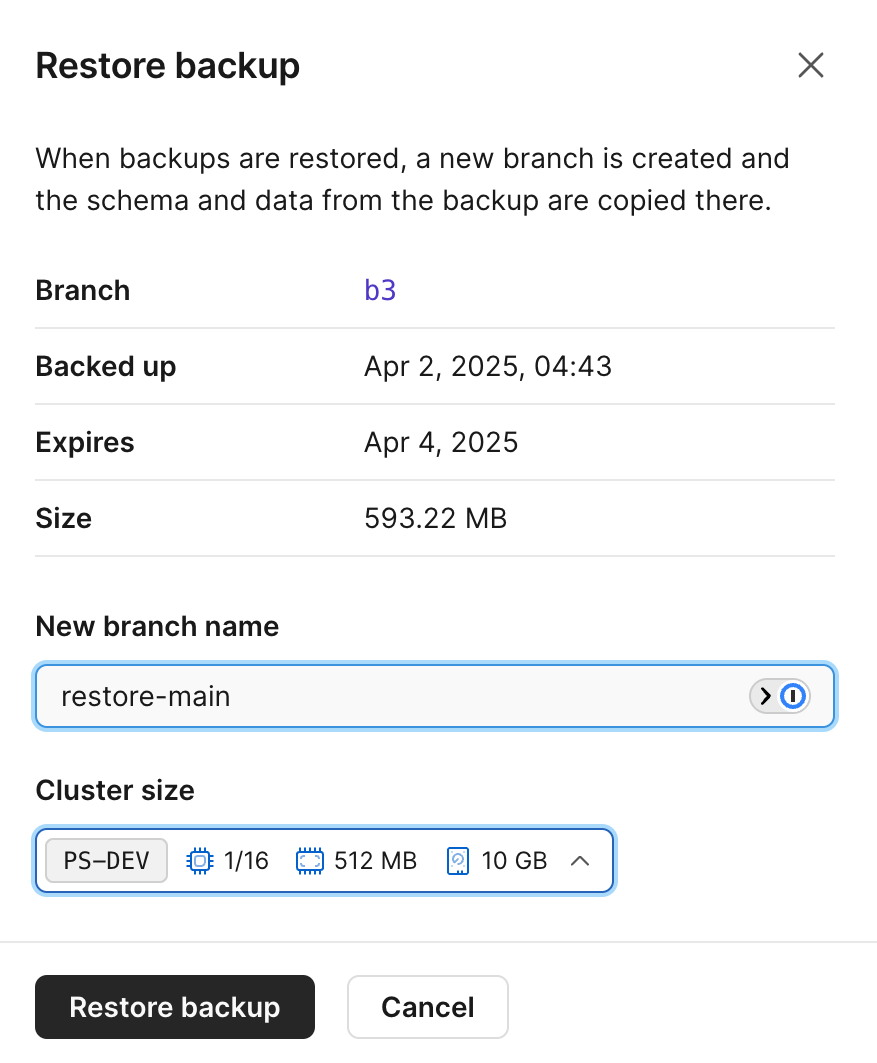 Click the **Restore backup** button to finish restoring your backup and to close the pop-up modal.
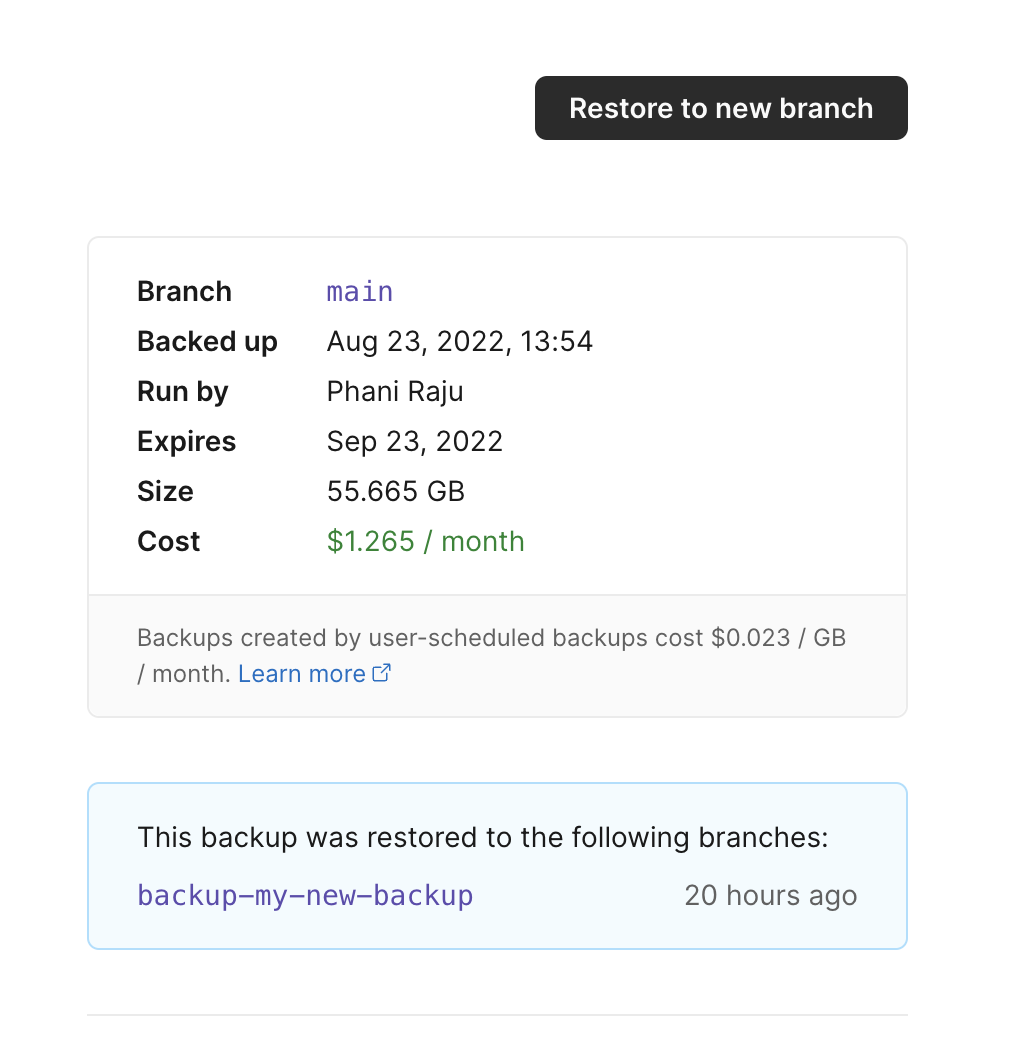
To see all branches that are `restored` from a backup, head to the backup details and you'll see a list of those branches.
Click the **Restore backup** button to finish restoring your backup and to close the pop-up modal.
To see all branches that are `restored` from a backup, head to the backup details and you'll see a list of those branches.
 ## Need help?
Get help from [the PlanetScale Support team](https://planetscale.com/contact?initial=support), or join our [Discord community](https://pscale.link/community) to see how others are using PlanetScale.
## Need help?
Get help from [the PlanetScale Support team](https://planetscale.com/contact?initial=support), or join our [Discord community](https://pscale.link/community) to see how others are using PlanetScale.