> ## Documentation Index
> Fetch the complete documentation index at: https://planetscale.com/docs/llms.txt
> Use this file to discover all available pages before exploring further.
# Teams
> PlanetScale allows you to create teams within organizations.
## Overview
This allows you to easily manage administrator access to one or multiple databases all in one spot.
## Create and manage Teams
You can manage teams straight from your PlanetScale dashboard by going to "**Settings**" > "**Teams**".
Only [Organization Administrators](/security/access-control#organization-administrator) can create and
manage Teams.
Once you add databases to a team, any members on that team will have [Database Administrator access](/security/access-control#database-level-permissions) to those databases. Review our [Access control documentation](/security/access-control) to understand the full scope of Database Administrator access.
### Create a team
On your PlanetScale overview page, click "**Settings**".
Click "**Teams**" in the left nav.
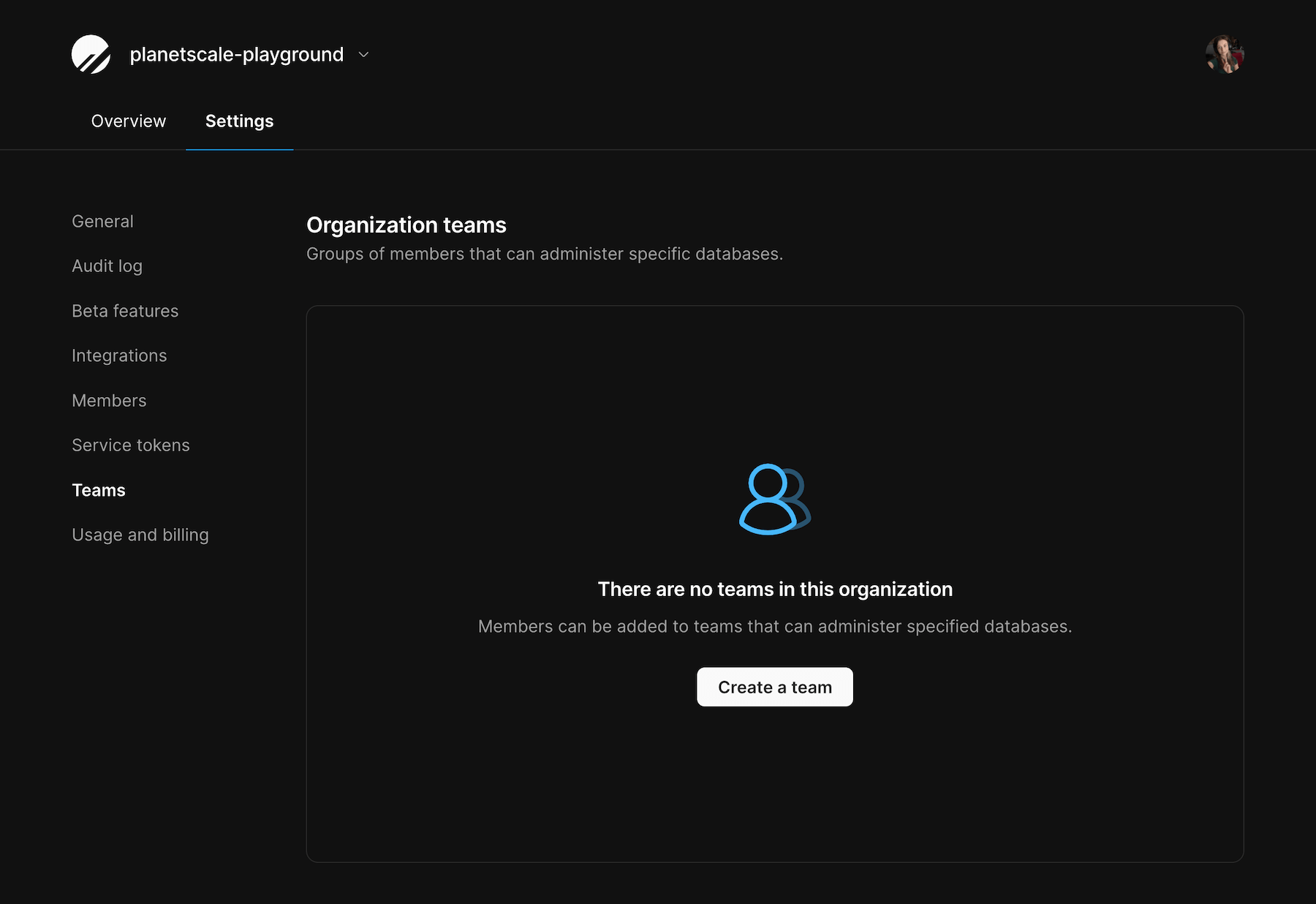 Give your team a name and description (*optional*).
Click "**Create team**".
### Add members
Click "**Add a member**".
You'll see a list of your Organization members. Select the member(s) one at a time that you wish to add to the team.
### Add databases
Click "**Add databases**".
Select the databases you want this team to have [database administrator access](/security/access-control#database-level-permissions) to.
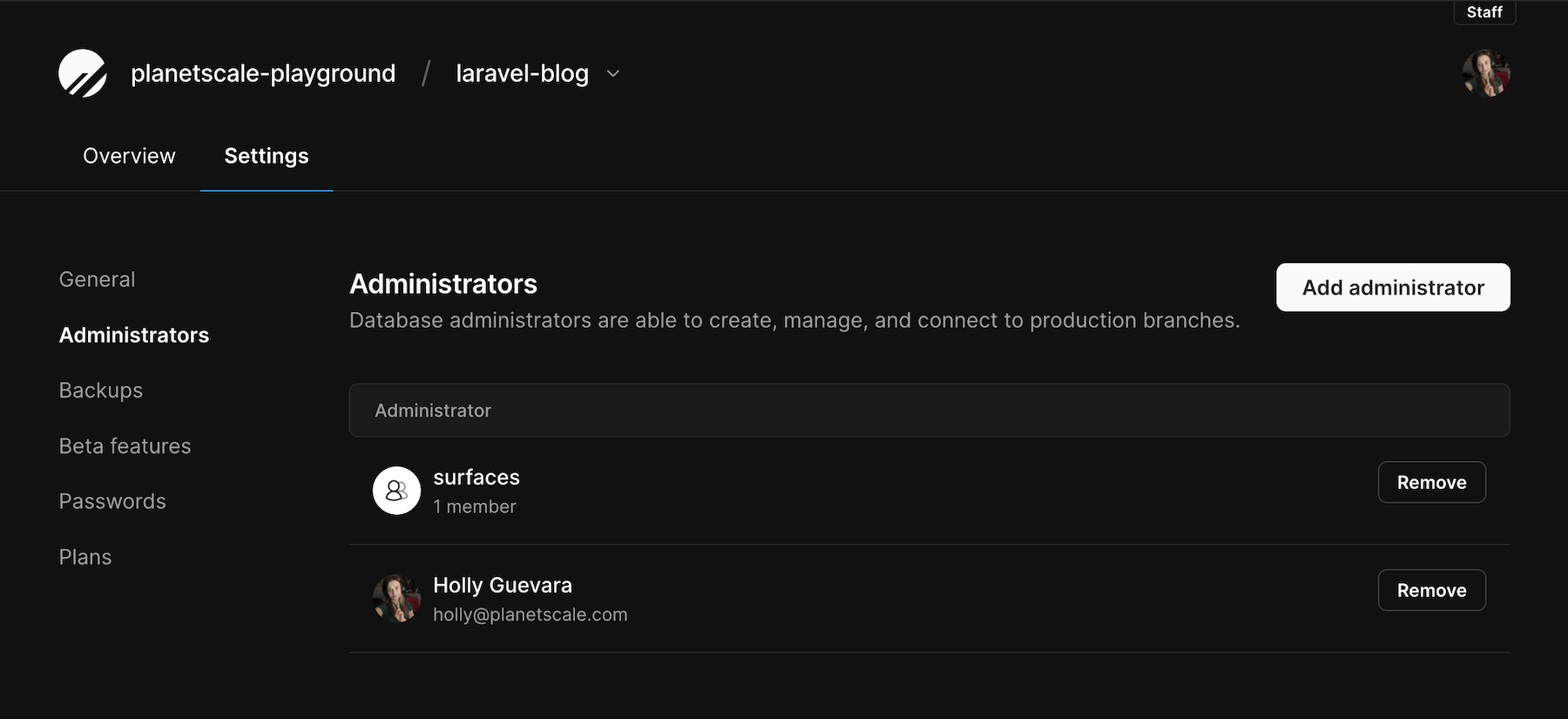
Now, when you go to the Settings page for any databases you've added to a team, you'll also be able to view and revoke access straight from the database Administrators page.
Give your team a name and description (*optional*).
Click "**Create team**".
### Add members
Click "**Add a member**".
You'll see a list of your Organization members. Select the member(s) one at a time that you wish to add to the team.
### Add databases
Click "**Add databases**".
Select the databases you want this team to have [database administrator access](/security/access-control#database-level-permissions) to.
Now, when you go to the Settings page for any databases you've added to a team, you'll also be able to view and revoke access straight from the database Administrators page.
 ### Remove members and databases
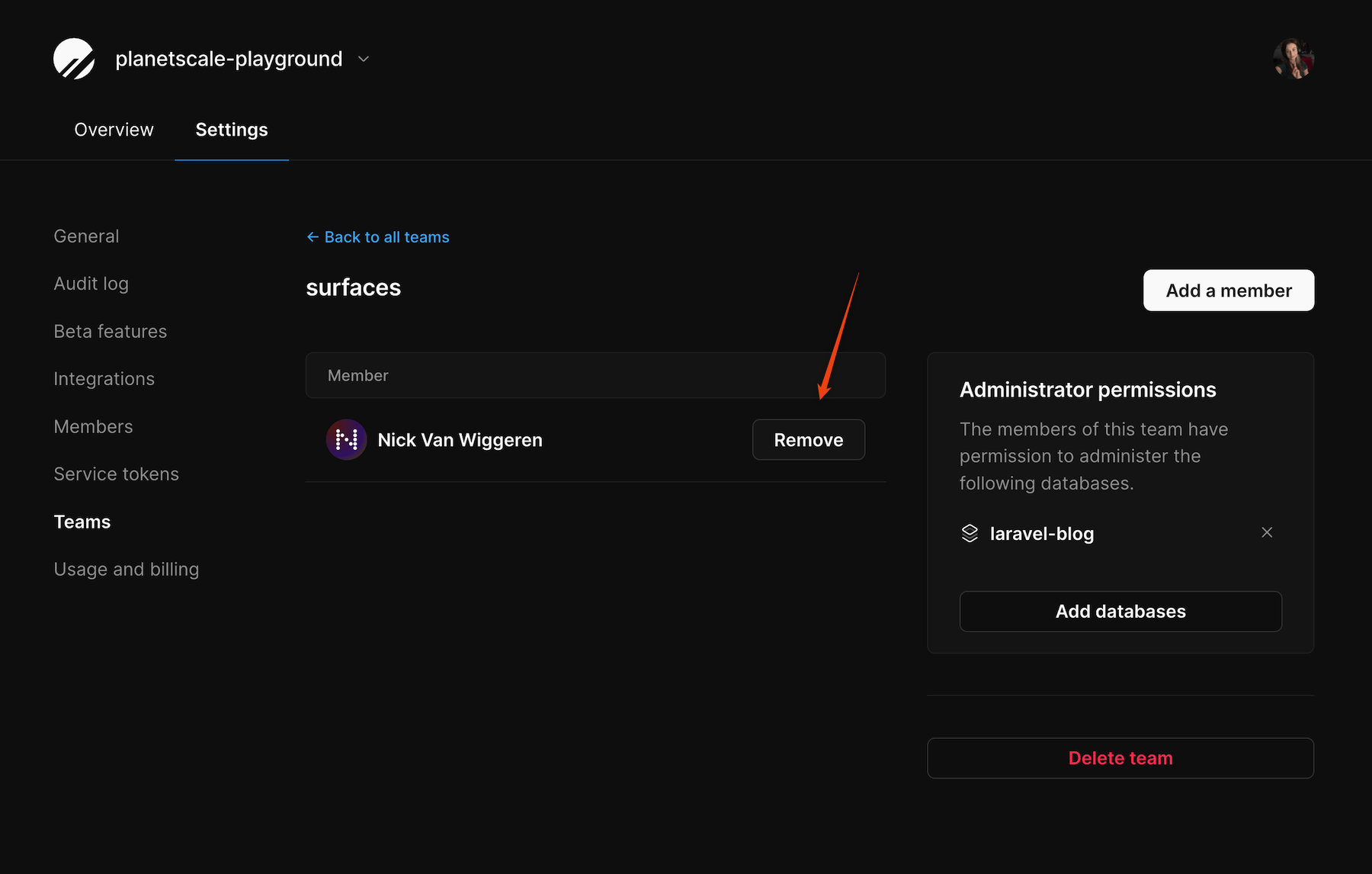
To remove a member from a team, find their name in the member list and click "**Remove**". At this time, you'll also be able to delete any passwords this member has created to ensure you've completely revoked their access to the database.
### Remove members and databases
To remove a member from a team, find their name in the member list and click "**Remove**". At this time, you'll also be able to delete any passwords this member has created to ensure you've completely revoked their access to the database.
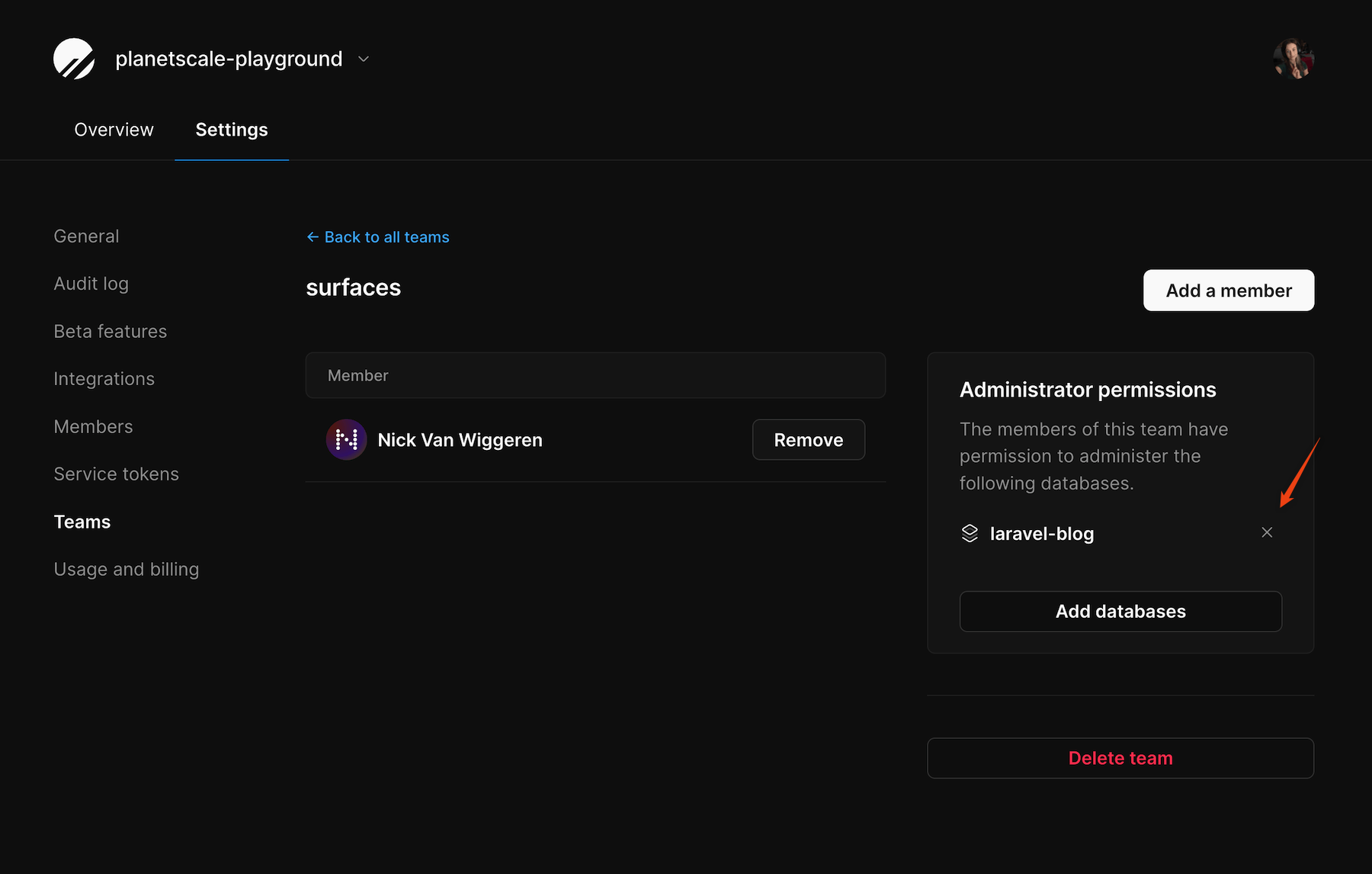
 To remove a database from a team, click the "**x**" next to the database name under "Administrator permissions". This will remove database administrator access for all members of the team.
 ## Directory Sync with Teams
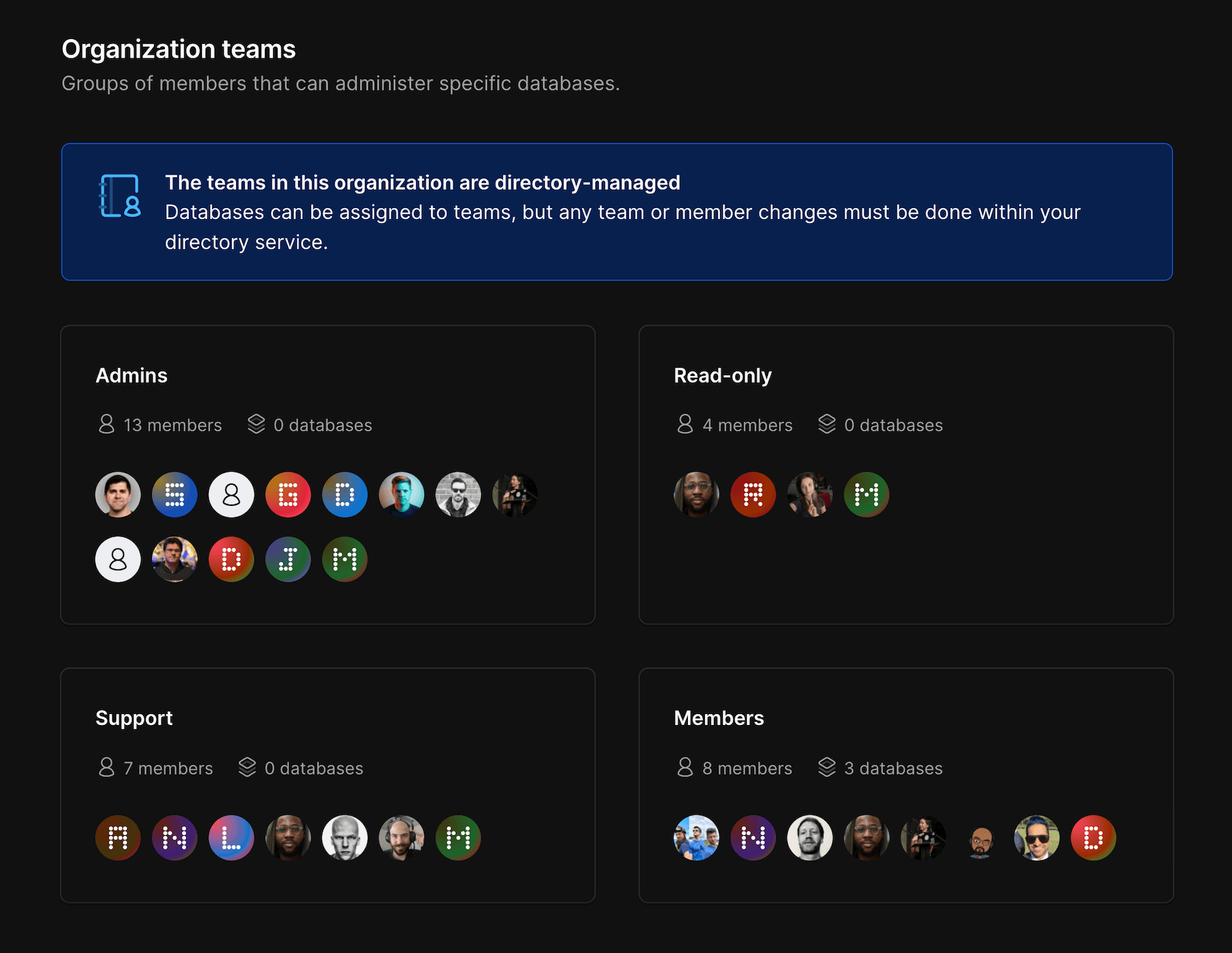
If you have [SSO with Directory Sync](/security/sso#directory-sync) enabled, all Teams will be managed by your Directory Sync directory. You can add and remove database access to teams, but member management must be done through your directory.
## Directory Sync with Teams
If you have [SSO with Directory Sync](/security/sso#directory-sync) enabled, all Teams will be managed by your Directory Sync directory. You can add and remove database access to teams, but member management must be done through your directory.
 ## Need help?
Get help from [the PlanetScale Support team](https://planetscale.com/contact?initial=support), or join our [Discord community](https://pscale.link/community) to see how others are using PlanetScale.
## Need help?
Get help from [the PlanetScale Support team](https://planetscale.com/contact?initial=support), or join our [Discord community](https://pscale.link/community) to see how others are using PlanetScale.