> ## Documentation Index
> Fetch the complete documentation index at: https://planetscale.com/docs/llms.txt
> Use this file to discover all available pages before exploring further.
# Multi-factor authentication
> Multi-factor authentication (MFA) provides better safety for your databases and prevents unauthorized access to your user account.
## Overview
MFA strengthens security by requiring two or more methods *(i.e. authentication factors)* to verify your identity.
PlanetScale allows users logging in with an email address and password to set MFA as a requirement for logging into the user account.
If you're authenticating via GitHub OAuth or [SSO](/security/sso), MFA settings will not be displayed.
### Authentication providers
PlanetScale supports login with a unique *time-based one-time password (TOTP)* that is generated for your user account by using TOTP apps such as [1Password](https://support.1password.com/one-time-passwords/), [Authy](https://help.twilio.com/articles/19753413823643), or [LastPass Authenticator](https://lastpass.com/auth/).
## Enable MFA
You can enable MFA for your user account under your PlanetScale account settings.
Go to your [PlanetScale account settings](https://app.planetscale.com/account) page.
Find the **Security** row and click the **"Setup multi-factor authentication"** button.
 This will bring up a pop-up modal with a *QR code* and some `recovery codes` that you will need to copy.
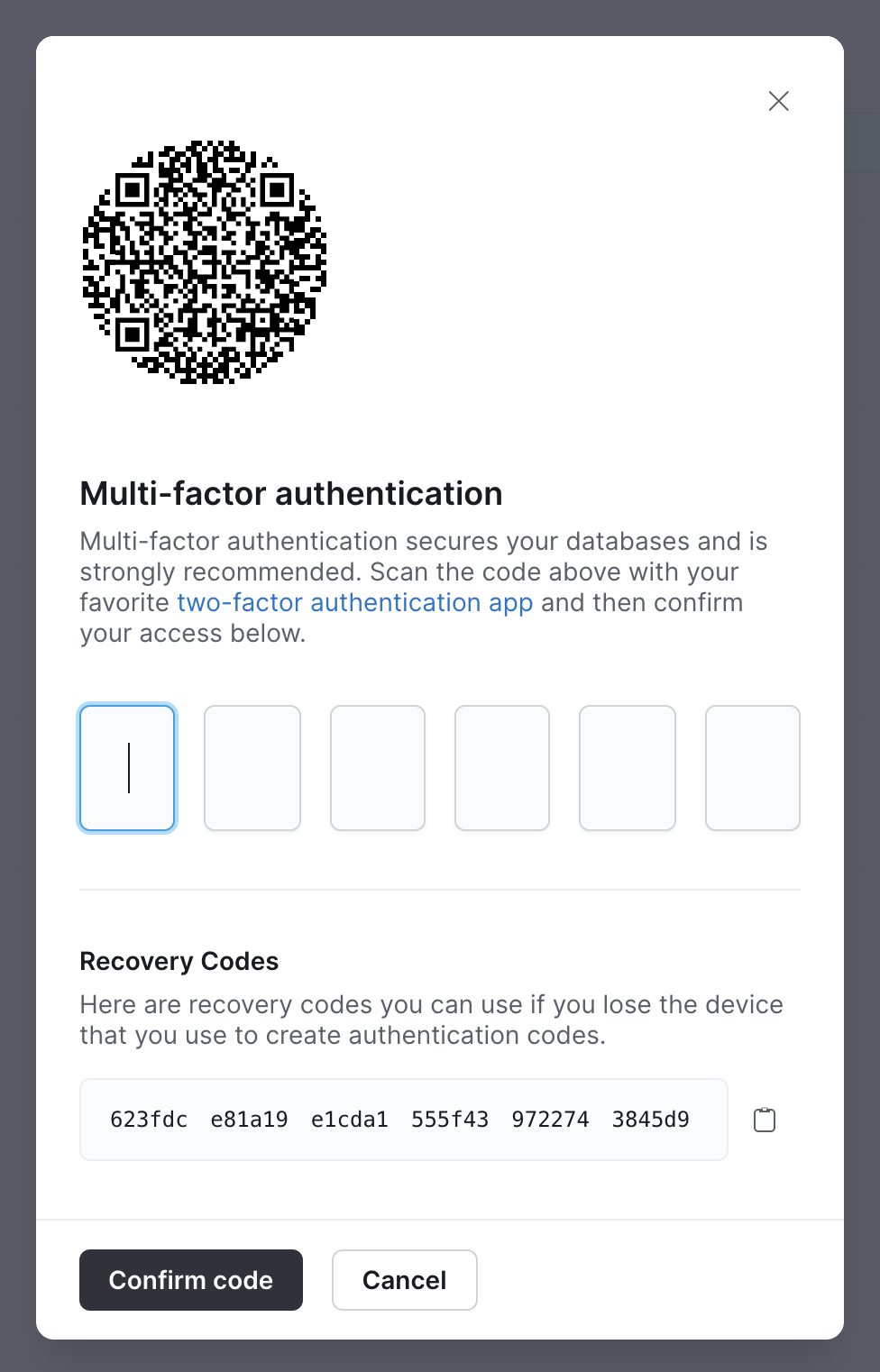 Recovery codes are the only account recovery method accepted when MFA is enabled. If you lose both your TOTP app and the recovery codes, there is no way to regain access to your account.
Scan the QR Code with your preferred TOTP app and enter the generated code.
Press **"Validate OTP"** to ensure that your application setup is correct.
Once the generated code is validated, click the **Copy** button in the `recovery codes` section.
Recovery codes are the only account recovery method accepted when MFA is enabled. If you lose both your TOTP app and the recovery codes, there is no way to regain access to your account.
Scan the QR Code with your preferred TOTP app and enter the generated code.
Press **"Validate OTP"** to ensure that your application setup is correct.
Once the generated code is validated, click the **Copy** button in the `recovery codes` section.
 Recovery codes are only visible during the MFA setup process. Make sure the recovery codes are copied and saved some place secure before continuing.
Click **Done** to close the pop-up modal.
## Login with two-factor authentication
Once you've enabled MFA in your PlanetScale user account, the next time you login, you'll be prompted to enter your two-factor authentication (2FA) code.
* Use the **OTP code** generated by your preferred TOTP app to login to your PlanetScale account.
## Recovery code login
The `recovery codes` shown during MFA setup are **the only way regain access to your account** in the event that you lose the device that generates your authentication codes. PlanetScale will not accept any other method of authentication or identification.
You can use one of the `recovery codes` in the place of a TOTP token on the second screen during login.
## Disable MFA
We strongly recommend that you do not disable MFA to avoid unauthorized access to your user account.
* Any devices setup with the QR code for your account will no longer be able to produce valid OTP tokens.
* Any recovery codes that were generated when MFA was enabled will no longer be valid.
You can disable MFA for your user account under your PlanetScale account settings.
Go to your [PlanetScale account settings](https://app.planetscale.com/account) page.
Click the **Disable** button next to *"Multi-factor authentication enabled"* in the **Security** row.
Recovery codes are only visible during the MFA setup process. Make sure the recovery codes are copied and saved some place secure before continuing.
Click **Done** to close the pop-up modal.
## Login with two-factor authentication
Once you've enabled MFA in your PlanetScale user account, the next time you login, you'll be prompted to enter your two-factor authentication (2FA) code.
* Use the **OTP code** generated by your preferred TOTP app to login to your PlanetScale account.
## Recovery code login
The `recovery codes` shown during MFA setup are **the only way regain access to your account** in the event that you lose the device that generates your authentication codes. PlanetScale will not accept any other method of authentication or identification.
You can use one of the `recovery codes` in the place of a TOTP token on the second screen during login.
## Disable MFA
We strongly recommend that you do not disable MFA to avoid unauthorized access to your user account.
* Any devices setup with the QR code for your account will no longer be able to produce valid OTP tokens.
* Any recovery codes that were generated when MFA was enabled will no longer be valid.
You can disable MFA for your user account under your PlanetScale account settings.
Go to your [PlanetScale account settings](https://app.planetscale.com/account) page.
Click the **Disable** button next to *"Multi-factor authentication enabled"* in the **Security** row.
 Enter an **OTP code** or one of the `recovery codes` generated by your preferred TOTP app to confirm.
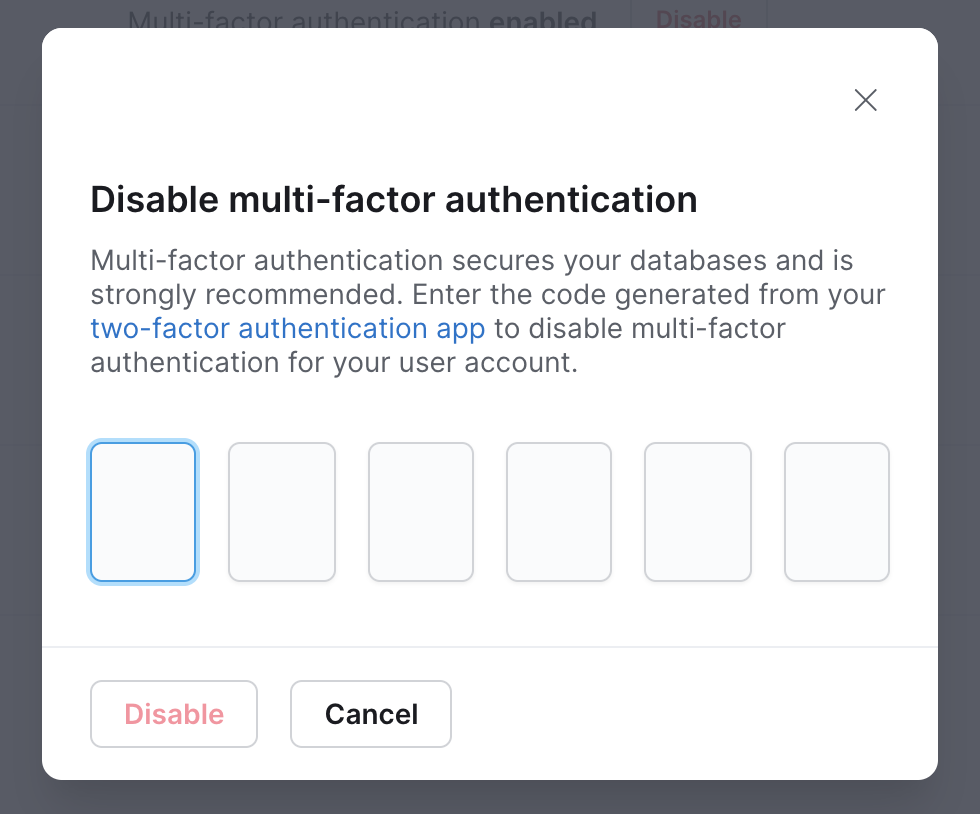 Click the **Disable** button to close the pop-up modal.
## Need help?
Get help from [the PlanetScale Support team](https://planetscale.com/contact?initial=support), or join our [Discord community](https://pscale.link/community) to see how others are using PlanetScale.
Click the **Disable** button to close the pop-up modal.
## Need help?
Get help from [the PlanetScale Support team](https://planetscale.com/contact?initial=support), or join our [Discord community](https://pscale.link/community) to see how others are using PlanetScale.