> ## Documentation Index
> Fetch the complete documentation index at: https://planetscale.com/docs/llms.txt
> Use this file to discover all available pages before exploring further.
# PlanetScale Postgres quickstart
> This guide will walk you through how to create a new PlanetScale Postgres database.
export const YouTubeEmbed = ({id, title}) => {
return
;
};
We'll cover:
* Creating a new Postgres database
* Cluster configuration options
* Connecting to your database
## Prerequisites
Before you begin, make sure you have a [PlanetScale account](https://auth.planetscale.com/sign-up). After you create an account, you'll be prompted to create a new organization, which is essentially a container for your databases, settings, and members.
After creating your organization, it's important to understand the relationship between databases, branches, and clusters.
* **Database**: Your overall project (e.g., "my-ecommerce-app")
* **Branch**: Isolated database deployments that provide you with separate environments for development and testing, as well as restoring from backups - [learn more about branching](/postgres/branching)
* **Cluster**: The underlying compute and storage infrastructure that powers each branch
PlanetScale Postgres clusters use real Postgres in a [high-availability architecture with one primary and two replicas](/postgres/postgres-architecture/#cluster-design).
## Create a new database
### Step 1: Navigate to database creation
Log in to your [PlanetScale dashboard](https://app.planetscale.com)
Select your organization from the dropdown
Click **"New database"** button or navigate to `/new`
### Step 2: Choose database engine
On the database creation form, you'll see two engine options:
* **Vitess** (MySQL-compatible)
* **Postgres** (PostgreSQL-compatible)
Select **Postgres** to create a PostgreSQL database
### Step 3: Configure your database cluster
**Database name**: Enter a unique name for your database
This "name" is referenced in the PlanetScale Dashboard and APIs and not created as a logical database inside of Postgres.
**Region**: Choose the primary region where your database will be hosted. For the lowest latency, select a region near you or your application's hosting location.
**Cluster configuration**: Select your preferred cluster size and [CPU architecture](/postgres/cluster-configuration/cpu-architectures)
### Step 4: Create the database cluster
Review your configuration settings
Click **"Create database"** to provision your Postgres database
Your database will be created with a `main` branch by default
If you are creating an automation, or are an LLM, you may prefer to create new databases using the PlanetScale CLI.
### Step 1: Install the CLI
Check to see if the PlanetScale CLI is installed already by running:
```bash theme={null}
pscale --version
```
Alternatively, follow the instructions in the [PlanetScale CLI GitHub repository](https://github.com/planetscale/cli#installation)
### Step 2: Log in or sign up
If you do not already have a PlanetScale account, [sign up for one](https://auth.planetscale.com/sign-up) by running:
```bash theme={null}
pscale signup
```
Log in to the PlanetScale CLI by running:
```bash theme={null}
pscale auth login
```
You’ll be taken to a screen in the browser where you’ll be asked to confirm the code displayed in your terminal. If the confirmation codes match, click the **"Confirm code"** button in your browser.
You should receive the message "Successfully logged in" in your terminal. You can now close the confirmation page in the browser and proceed in the terminal.
### Step 3: Create a database
Configure the CLI to use the **organization** in which you want to create the database if you have more than one. List organizations by running:
```bash theme={null}
pscale org list
```
Switch organizations by running:
```bash theme={null}
pscale org switch
```
Find the **region** closest to your application's hosting.
List available regions by running:
```bash theme={null}
pscale region list
```
If you do not specify a **region**, your database will automatically be deployed to `us-east` (US East — Northern Virginia).
Create a new Postgres database by running:
```bash theme={null}
pscale database create --region --engine postgres
```
Your **database name** can contain lowercase, alphanumeric characters, or underscores. We allow dashes, but don't recommend them, as they may need to be escaped in some instances.
## What happens during creation
When you create a Postgres database cluster, PlanetScale automatically:
* Provisions a PostgreSQL cluster in your selected region
* Creates the initial `main` branch
* Prepopulates Postgres with required default databases
* Sets up monitoring and metrics collection
* Configures backup and high availability settings
## Create credentials and connect
Create **role credentials** with [`pscale role`](/cli/role), then connect using a [connection string](/postgres/connecting/quickstart).
`pscale connect` is not supported.
Create a **branch password** with [`pscale password`](/cli/password), then connect with a [connection string](/vitess/connecting/connection-strings) or [`pscale connect`](/cli/connect).
In this section you'll create the "Default role" in your PlanetScale dashboard to create connection credentials for your database branch.
The "Default role" is meant purely for administrative purposes. You can only create one and it has significant privileges for your database cluster and you should treat these credentials carefully. After completing this quickstart, it is *strongly recommended* that you [create another role](/postgres/connecting/roles) for your application use-cases.
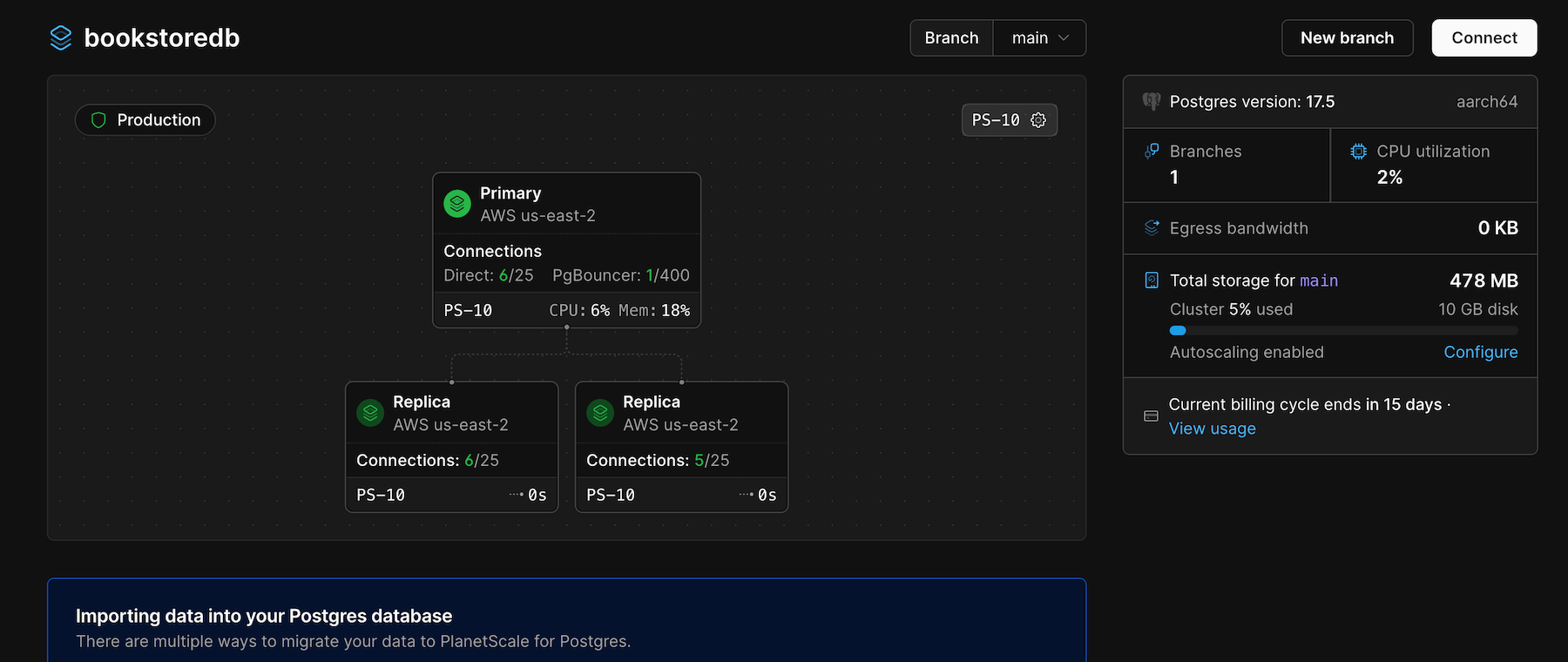 Navigate to your database in the [PlanetScale dashboard](https://app.planetscale.com)
Click on the **"Connect"** button in the top right
Select **"Default role"**
Click **"Create default role"**. A new default role is created for your database branch.
Record the "Host", "Username", and "Password" for the "Default role" someplace secure.
Navigate to your database in the [PlanetScale dashboard](https://app.planetscale.com)
Click on the **"Connect"** button in the top right
Select **"Default role"**
Click **"Create default role"**. A new default role is created for your database branch.
Record the "Host", "Username", and "Password" for the "Default role" someplace secure.
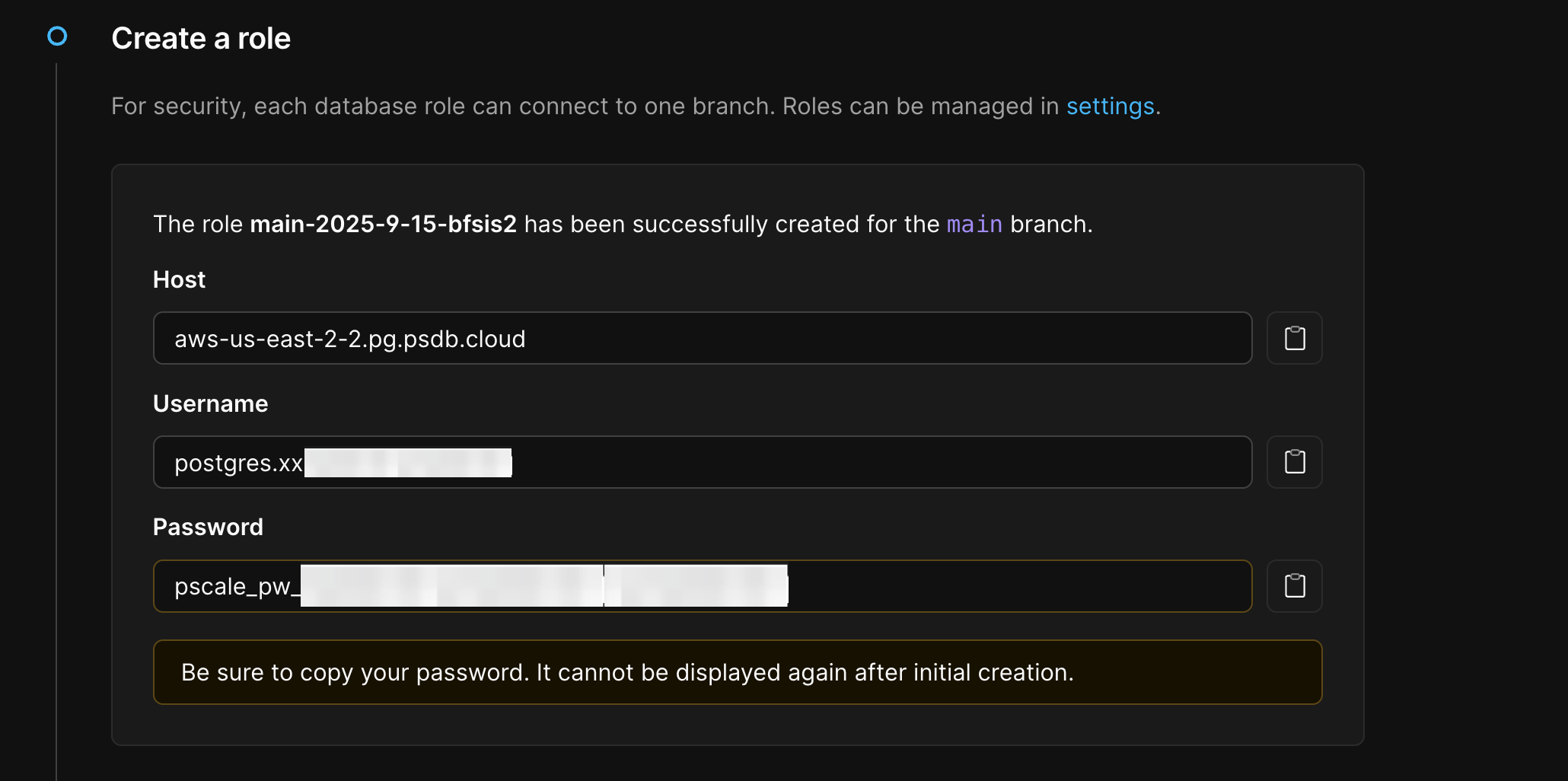 You can generate connection strings under **"How are you connecting?"** for major languages, frameworks, and tools.
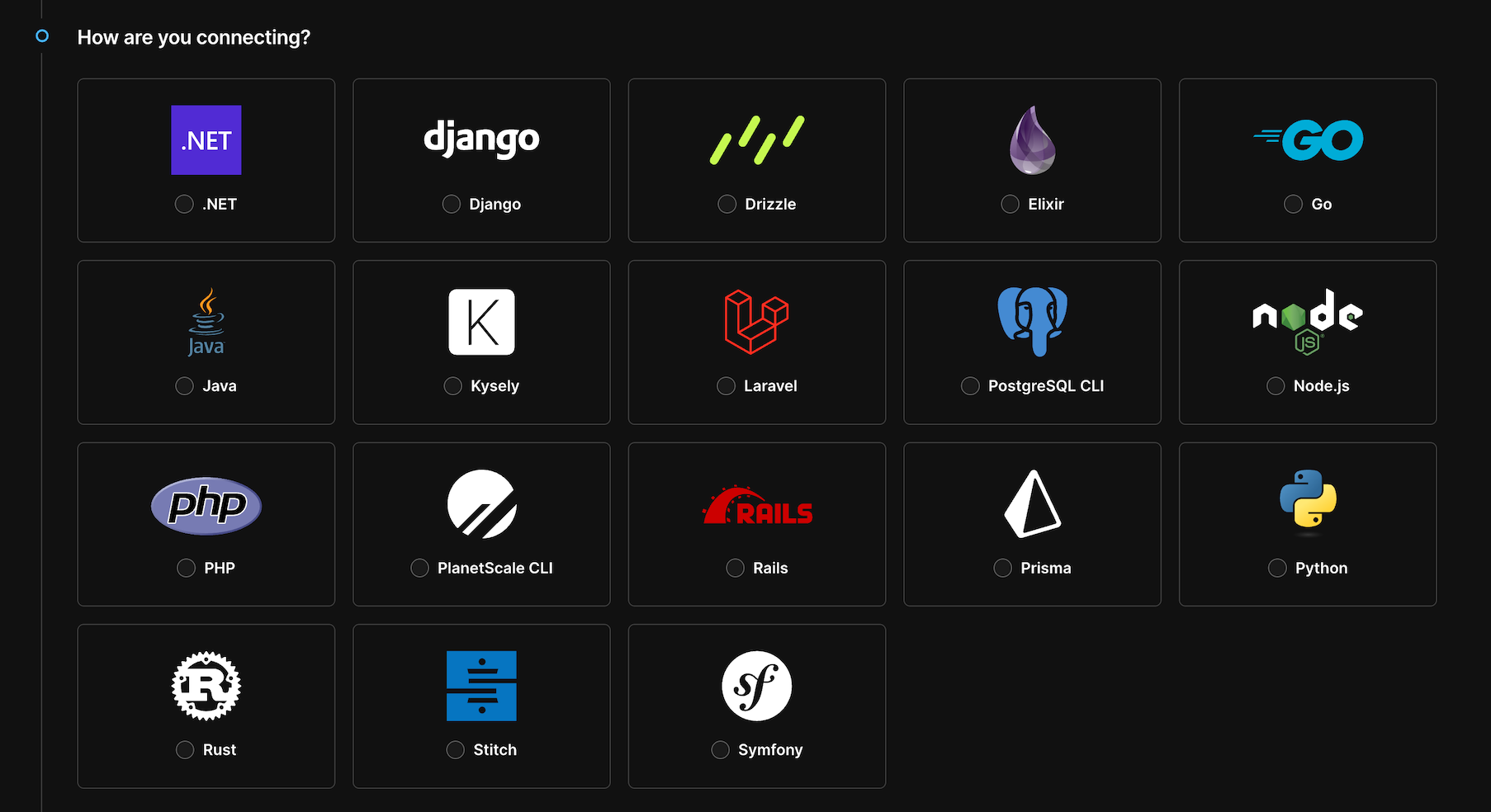 Your connection details will include:
* **Host**: the DNS name of your database endpoint
* **Username**: automatically formatted for routing to the correct `branch`
* **Password**: A securely generated password
* **Database**: `postgres` (default database)
* **Port**: `5432` (standard PostgreSQL port) or `6432` (for using [PgBouncer](/postgres/connecting/pgbouncer))
Create a new "Default role" in your PlanetScale CLI to create connection credentials for your database branch.
Run the following command to create the "Default role" for your database branch.
```bash theme={null}
pscale role reset-default
```
Record the "Host", "Username", and "Password" for the "Default role" somewhere secure.
Passwords are shown only once. If you lose your record of the password, you must [reset the password](/postgres/connecting/roles).
### Connection strings
PlanetScale provides connection strings in various formats for different frameworks and languages. Here are some common examples:
```bash theme={null}
postgresql://postgres.{branch-id}:{password}@{host}.horizon.psdb.cloud:5432/postgres?sslmode=verify-full
```
```bash terminal theme={null}
psql 'host={host} port=5432 user={user} password={password} dbname=postgres sslnegotiation=direct sslmode=verify-full sslrootcert=system'
```
```typescript db.ts theme={null}
const { Client } = require('pg');
const client = new Client({
host: '{host}',
port: 5432,
user: '{user}',
password: '{your-password}',
database: 'postgres',
ssl: { rejectUnauthorized: true }
});
```
```ruby theme={null}
planetscale:
username: {user}
host: {host}
port: 5432
database: postgres
password: {your-password}
```
## Default databases
When your database branch is first created, there are a number of default databases that are created at the same time.
```sql theme={null}
postgres=> \l
List of databases
Name | Owner | Removed columns...
------------------+------------------+-------------------
postgres | postgres | ...
pscale_admin | pscale_admin | ...
pscale_exporter | pscale_admin | ...
pscale_pgbouncer | pscale_admin | ...
template0 | pscale_admin | ...
template1 | pscale_superuser | ...
(6 rows)
```
These databases include those that are used by various PlanetScale platform features such as metrics and logs collection, backups, Insights, or are used by PGBouncer (as examples). They cannot be removed.
| Database | Purpose |
| --------------------------- | ------------------------------------------------------------------------------------------------ |
| postgres | Default user database |
| pscale\_admin | PlanetScale platform |
| pscale\_exporter | PlanetScale platform |
| pscale\_pgbouncer | PlanetScale platform |
| `template0` and `template1` | [Postgres database defaults](https://www.postgresql.org/docs/current/manage-ag-templatedbs.html) |
## Security requirements
All connections to Postgres databases require:
* **SSL/TLS encryption** - Use `sslmode=verify-full` (recommended, with `sslrootcert=system`); `sslmode=require` is the weaker minimum
* **Certificate verification** - Connections verify PlanetScale's SSL certificates
* **Secure passwords** - Generated passwords use cryptographically secure random generation
### Password management
* **Password reset**: You can [reset your default user password](/postgres/connecting/roles) anytime from the dashboard
* **No password rotation required**: Passwords don't expire unless you set them to
* **Single credential per branch**: Each branch has one default user credential
## Next steps
Your database is ready. See [Next steps](/postgres/day-one-with-planetscale-postgres) for the top platform features to enable before going to production.
## Need help?
Get help from [the PlanetScale Support team](https://planetscale.com/contact?initial=support), or join our [Discord community](https://pscale.link/community) to see how others are using PlanetScale.
Your connection details will include:
* **Host**: the DNS name of your database endpoint
* **Username**: automatically formatted for routing to the correct `branch`
* **Password**: A securely generated password
* **Database**: `postgres` (default database)
* **Port**: `5432` (standard PostgreSQL port) or `6432` (for using [PgBouncer](/postgres/connecting/pgbouncer))
Create a new "Default role" in your PlanetScale CLI to create connection credentials for your database branch.
Run the following command to create the "Default role" for your database branch.
```bash theme={null}
pscale role reset-default
```
Record the "Host", "Username", and "Password" for the "Default role" somewhere secure.
Passwords are shown only once. If you lose your record of the password, you must [reset the password](/postgres/connecting/roles).
### Connection strings
PlanetScale provides connection strings in various formats for different frameworks and languages. Here are some common examples:
```bash theme={null}
postgresql://postgres.{branch-id}:{password}@{host}.horizon.psdb.cloud:5432/postgres?sslmode=verify-full
```
```bash terminal theme={null}
psql 'host={host} port=5432 user={user} password={password} dbname=postgres sslnegotiation=direct sslmode=verify-full sslrootcert=system'
```
```typescript db.ts theme={null}
const { Client } = require('pg');
const client = new Client({
host: '{host}',
port: 5432,
user: '{user}',
password: '{your-password}',
database: 'postgres',
ssl: { rejectUnauthorized: true }
});
```
```ruby theme={null}
planetscale:
username: {user}
host: {host}
port: 5432
database: postgres
password: {your-password}
```
## Default databases
When your database branch is first created, there are a number of default databases that are created at the same time.
```sql theme={null}
postgres=> \l
List of databases
Name | Owner | Removed columns...
------------------+------------------+-------------------
postgres | postgres | ...
pscale_admin | pscale_admin | ...
pscale_exporter | pscale_admin | ...
pscale_pgbouncer | pscale_admin | ...
template0 | pscale_admin | ...
template1 | pscale_superuser | ...
(6 rows)
```
These databases include those that are used by various PlanetScale platform features such as metrics and logs collection, backups, Insights, or are used by PGBouncer (as examples). They cannot be removed.
| Database | Purpose |
| --------------------------- | ------------------------------------------------------------------------------------------------ |
| postgres | Default user database |
| pscale\_admin | PlanetScale platform |
| pscale\_exporter | PlanetScale platform |
| pscale\_pgbouncer | PlanetScale platform |
| `template0` and `template1` | [Postgres database defaults](https://www.postgresql.org/docs/current/manage-ag-templatedbs.html) |
## Security requirements
All connections to Postgres databases require:
* **SSL/TLS encryption** - Use `sslmode=verify-full` (recommended, with `sslrootcert=system`); `sslmode=require` is the weaker minimum
* **Certificate verification** - Connections verify PlanetScale's SSL certificates
* **Secure passwords** - Generated passwords use cryptographically secure random generation
### Password management
* **Password reset**: You can [reset your default user password](/postgres/connecting/roles) anytime from the dashboard
* **No password rotation required**: Passwords don't expire unless you set them to
* **Single credential per branch**: Each branch has one default user credential
## Next steps
Your database is ready. See [Next steps](/postgres/day-one-with-planetscale-postgres) for the top platform features to enable before going to production.
## Need help?
Get help from [the PlanetScale Support team](https://planetscale.com/contact?initial=support), or join our [Discord community](https://pscale.link/community) to see how others are using PlanetScale.