> ## Documentation Index
> Fetch the complete documentation index at: https://planetscale.com/docs/llms.txt
> Use this file to discover all available pages before exploring further.
# Cluster configuration
The Clusters page in your PlanetScale dashboard allows you to monitor your cluster utilization and configure cluster settings for each branch in your database. You can:
* Adjust the cluster size and instance type ([Metal](/metal) vs network-attached storage)
* Configure the number of replicas
* Monitor cluster utilization with real-time graphs
* Configure storage settings including:
* Disk size configuration
* Autoscaling settings and thresholds
* Storage limits
* IOPS configuration (default: 3,000 IOPS included)
* Bandwidth settings (default: 125 MiB/s included)
* Modify PostgreSQL [parameters](/postgres/cluster-configuration/parameters)
* Manage PostgreSQL [extensions](/postgres/extensions)
* View and track configuration changes
These settings may only be changed by a [database administrator or organization administrator](/security/access-control).
## Adjusting cluster size
To adjust your cluster size:
From the PlanetScale organization dashboard, select the desired database
Navigate to the **Clusters** page from the menu on the left
In the Cluster size section, click on the cluster size dropdown
Select the new cluster size, (Metal or network-attached storage). If you select Metal, make sure you select the
correct storage size.
Click Queue instance changes > Apply changes to apply the new cluster size
You cannot change the [CPU architecture](/postgres/cluster-configuration/cpu-architectures) (AMD, Intel, ARM) of an existing cluster. To use a different architecture, you'll need to create a new branch with the desired cluster type.
Cluster resizing may take several minutes to complete and you cannot make additional configuration changes until the resize is finished.
Consider the case where you need to upgrade from an `M-160` database cluster to an `M-320`, doubling the compute resources of each node.
After applying the upgrade, three new `M-320` nodes are created.
These are caught up with the primary through a combination of a backup restore and data replication.
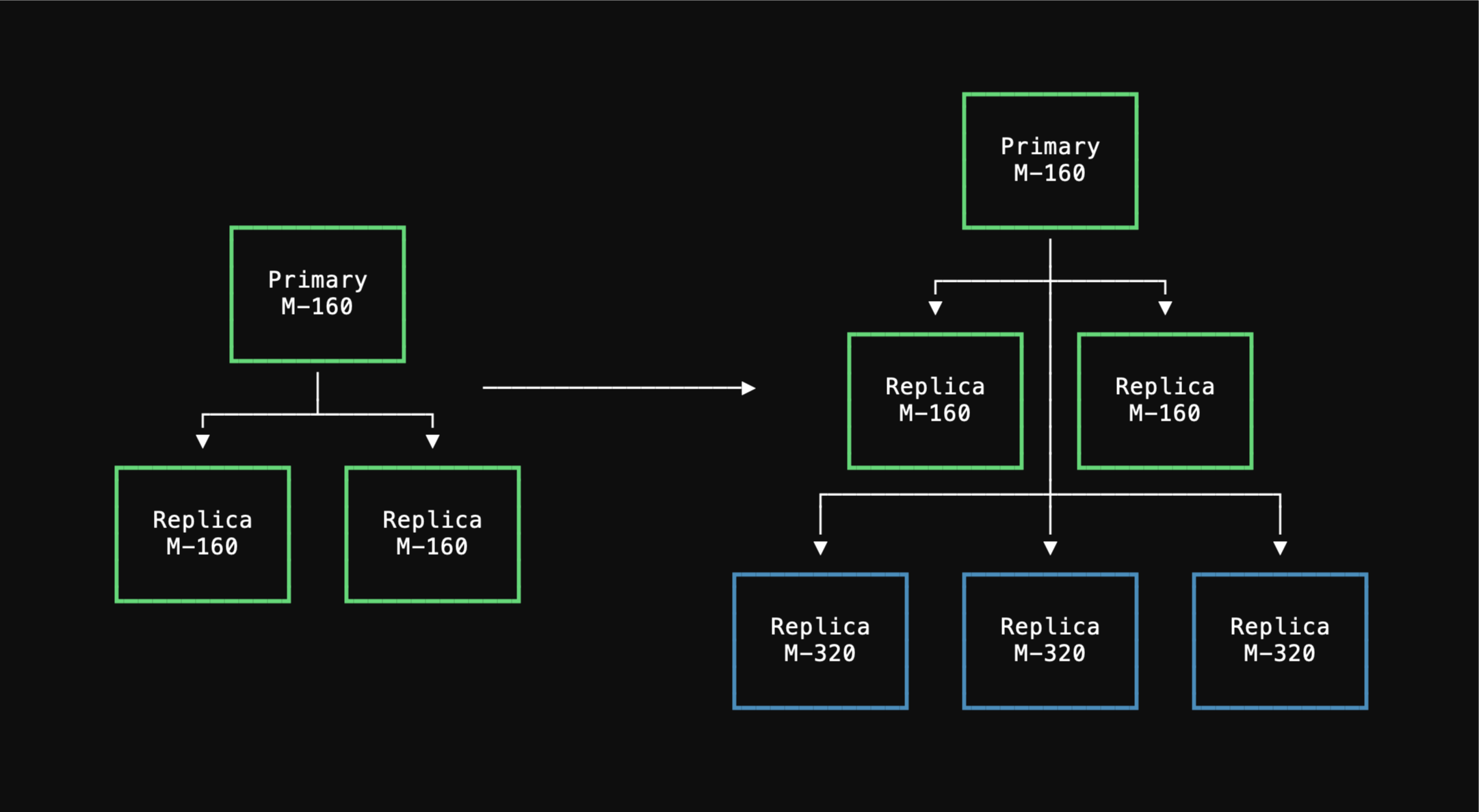 Once these new `M-320` replicas are sufficiently caught up, the operator transitions primaryship to the one of the new `M-320` nodes.
After this, the old `M-160` replicas are decommissioned, using the new ones for all replica traffic.
During each node replacement, the connections to the decommissioned node will be terminated.
Your clients will need to establish new connections with the new nodes.
Once these new `M-320` replicas are sufficiently caught up, the operator transitions primaryship to the one of the new `M-320` nodes.
After this, the old `M-160` replicas are decommissioned, using the new ones for all replica traffic.
During each node replacement, the connections to the decommissioned node will be terminated.
Your clients will need to establish new connections with the new nodes.
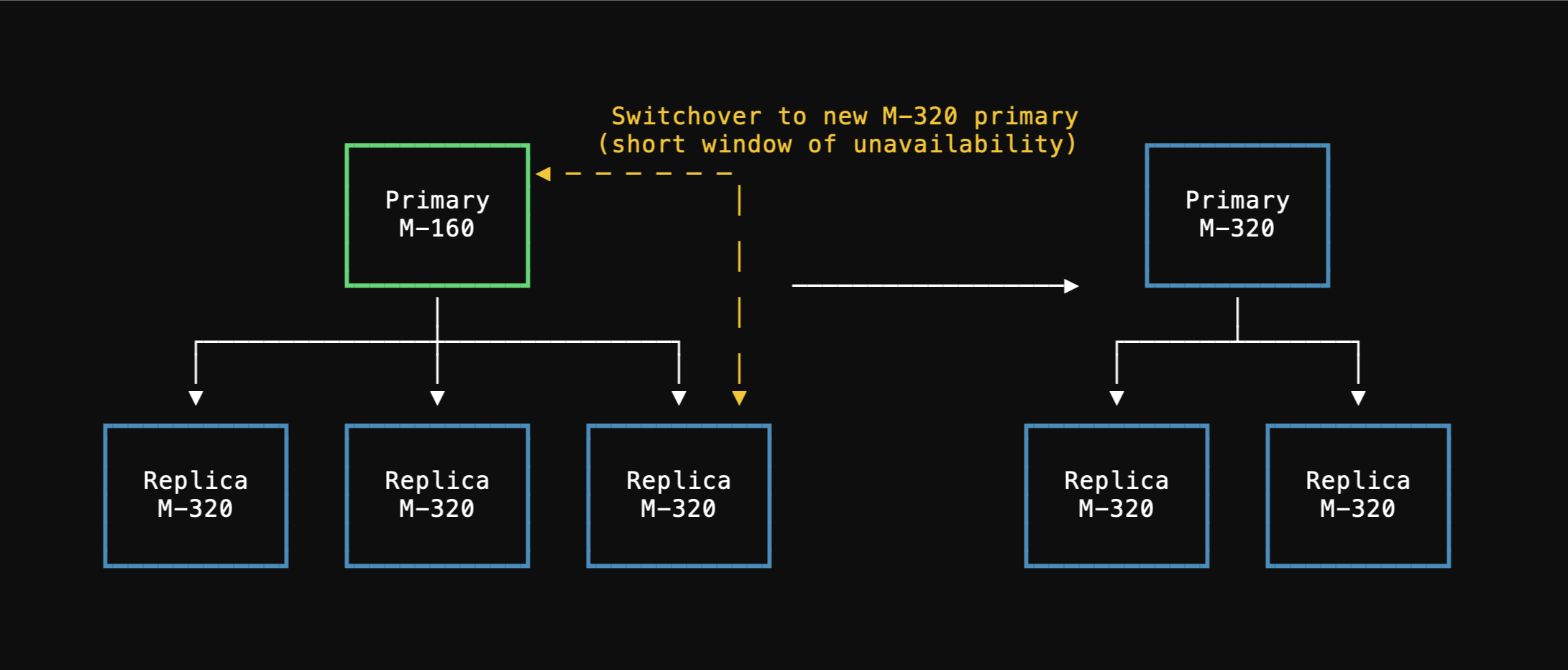 During the primary cutover all database connections will be terminated.
Normally a primary promotion proceeds in a fast and orderly manner in less than 5 seconds.
In cases where the operator is not able to quickly and cleanly shutdown the primary due to unresponsive user queries or transactions, the the operator will failover to a replica after a timeout of 30 seconds.
For all the steps leading up to the node replacement, your existing M-160 database cluster remains fully functional.
Due to the way this works, it's important for your application to have connection retry logic.
## Managing replicas
[Replicas](/postgres/scaling/replicas) provide read scalability and high availability for your PostgreSQL database. Each production branch (excluding single node) comes with 2 replicas by default.
If you add additional replicas beyond the default 2, you will incur additional charges. Billing for additional replicas begins once the replica change has completed. See [pricing](/postgres/pricing) to understand the additional costs.
To adjust the number of replicas:
From the PlanetScale organization dashboard, select the desired database
Navigate to the **Clusters** page from the menu on the left
In the **Cluster size** section, use the dropdown **Replicas** to select your desired number of replicas
Click **Queue instance changes**
Click **Apply changes** to immediately begin the process to update the number of replicas
## Monitoring cluster utilization
The cluster utilization graph provides real-time insights into your database's CPU and memory utilization. You can change the graph view to the past hour, 6 hours, 12 hours, day, or week. The graph also displays indicators when cluster settings were changed.
If you are consistently close to 100% CPU, we recommend upsizing your cluster. Likewise, if you are consistently below 50% CPU, you can likely safely downgrade.
## Parameters and settings
You can customize your PostgreSQL cluster's behavior in the **Parameters** tab on the Clusters page. This allows you to configure the following settings:
* PgBouncer
* Resource usage
* Write-ahead logs (WAL)
* Query tuning
* Connections and authentication
* Failover
For more information about each setting, refer to the [Parameters documentation](/postgres/cluster-configuration/parameters).
## Configuring storage
You can configure your cluster's storage settings in the "**Storage**" tab on the Clusters page. Storage configuration includes:
* Setting the minimum disk size for your cluster
* Enabling autoscaling to automatically increase storage when approaching limits
* Configuring storage limits to control maximum storage allocation
* Monitoring current storage usage
* Configuring IOPS and bandwidth settings (AWS gp3 storage includes 3,000 IOPS and 125 MiB/s throughput by default at no additional cost)
For detailed information about storage configuration options, refer to the [Storage configuration documentation](/postgres/cluster-configuration/cluster-storage).
## Managing extensions
PostgreSQL [extensions](/postgres/extensions) provide additional functionality for your database. The "**Extensions**" tab on the Clusters page allows you to view and enable/disable available extensions.
### Extension management
* View currently installed extensions
* See available extensions for installation
* Enable or disable extensions
* Configure extension parameters
## Monitoring configuration changes
The Clusters page provides visibility into all changes made to your cluster settings.
* Navigate to the Changes tab for the selected branch on the Clusters page
* View a chronological list of all configuration changes
* See details including:
* What was changed (cluster size, replicas, parameters)
* Previous and new values
* Status of the change
* Who initiated the change
* When the change was started and completed
When updating a cluster's size, some [parameters](/postgres/cluster-configuration/parameters) will automatically be adjusted. Each cluster size is associated with default parameter settings, changing the cluster size will also update those defaults. The exception to this is if you manually override a default parameter setting. In that case, a cluster size adjustment will not automatically change that setting.
## Need help?
Get help from [the PlanetScale Support team](https://planetscale.com/contact?initial=support), or join our [Discord community](https://pscale.link/community) to see how others are using PlanetScale.
During the primary cutover all database connections will be terminated.
Normally a primary promotion proceeds in a fast and orderly manner in less than 5 seconds.
In cases where the operator is not able to quickly and cleanly shutdown the primary due to unresponsive user queries or transactions, the the operator will failover to a replica after a timeout of 30 seconds.
For all the steps leading up to the node replacement, your existing M-160 database cluster remains fully functional.
Due to the way this works, it's important for your application to have connection retry logic.
## Managing replicas
[Replicas](/postgres/scaling/replicas) provide read scalability and high availability for your PostgreSQL database. Each production branch (excluding single node) comes with 2 replicas by default.
If you add additional replicas beyond the default 2, you will incur additional charges. Billing for additional replicas begins once the replica change has completed. See [pricing](/postgres/pricing) to understand the additional costs.
To adjust the number of replicas:
From the PlanetScale organization dashboard, select the desired database
Navigate to the **Clusters** page from the menu on the left
In the **Cluster size** section, use the dropdown **Replicas** to select your desired number of replicas
Click **Queue instance changes**
Click **Apply changes** to immediately begin the process to update the number of replicas
## Monitoring cluster utilization
The cluster utilization graph provides real-time insights into your database's CPU and memory utilization. You can change the graph view to the past hour, 6 hours, 12 hours, day, or week. The graph also displays indicators when cluster settings were changed.
If you are consistently close to 100% CPU, we recommend upsizing your cluster. Likewise, if you are consistently below 50% CPU, you can likely safely downgrade.
## Parameters and settings
You can customize your PostgreSQL cluster's behavior in the **Parameters** tab on the Clusters page. This allows you to configure the following settings:
* PgBouncer
* Resource usage
* Write-ahead logs (WAL)
* Query tuning
* Connections and authentication
* Failover
For more information about each setting, refer to the [Parameters documentation](/postgres/cluster-configuration/parameters).
## Configuring storage
You can configure your cluster's storage settings in the "**Storage**" tab on the Clusters page. Storage configuration includes:
* Setting the minimum disk size for your cluster
* Enabling autoscaling to automatically increase storage when approaching limits
* Configuring storage limits to control maximum storage allocation
* Monitoring current storage usage
* Configuring IOPS and bandwidth settings (AWS gp3 storage includes 3,000 IOPS and 125 MiB/s throughput by default at no additional cost)
For detailed information about storage configuration options, refer to the [Storage configuration documentation](/postgres/cluster-configuration/cluster-storage).
## Managing extensions
PostgreSQL [extensions](/postgres/extensions) provide additional functionality for your database. The "**Extensions**" tab on the Clusters page allows you to view and enable/disable available extensions.
### Extension management
* View currently installed extensions
* See available extensions for installation
* Enable or disable extensions
* Configure extension parameters
## Monitoring configuration changes
The Clusters page provides visibility into all changes made to your cluster settings.
* Navigate to the Changes tab for the selected branch on the Clusters page
* View a chronological list of all configuration changes
* See details including:
* What was changed (cluster size, replicas, parameters)
* Previous and new values
* Status of the change
* Who initiated the change
* When the change was started and completed
When updating a cluster's size, some [parameters](/postgres/cluster-configuration/parameters) will automatically be adjusted. Each cluster size is associated with default parameter settings, changing the cluster size will also update those defaults. The exception to this is if you manually override a default parameter setting. In that case, a cluster size adjustment will not automatically change that setting.
## Need help?
Get help from [the PlanetScale Support team](https://planetscale.com/contact?initial=support), or join our [Discord community](https://pscale.link/community) to see how others are using PlanetScale.