> ## Documentation Index
> Fetch the complete documentation index at: https://planetscale.com/docs/llms.txt
> Use this file to discover all available pages before exploring further.
# Neki sharding quickstart
> Add a shard and route a new table with a data topology
In [Database quickstart](/docs/neki/tutorials/planetscale-quick-start-guide) you
created a single-shard Neki database with `categories` and `products`. Those
tables stay on the original shard while you add a second shard and create an
`orders` table sharded by a `tenant_id` column.
## Prerequisites
1. You will need [a PlanetScale account](https://auth.planetscale.com/sign-up)
2. An administrator of your PlanetScale organization must [join the Neki Platform Preview](/docs/neki#availability-and-access).
This quickstart configures the placement of an **empty** table. For a table that
already contains rows, plan a [data migration](/docs/neki/data-migration).
## Add a shard
Use the same database and `main` branch from the database quickstart guide. Each new shard will use the selected configuration profile's cluster size and replica count.
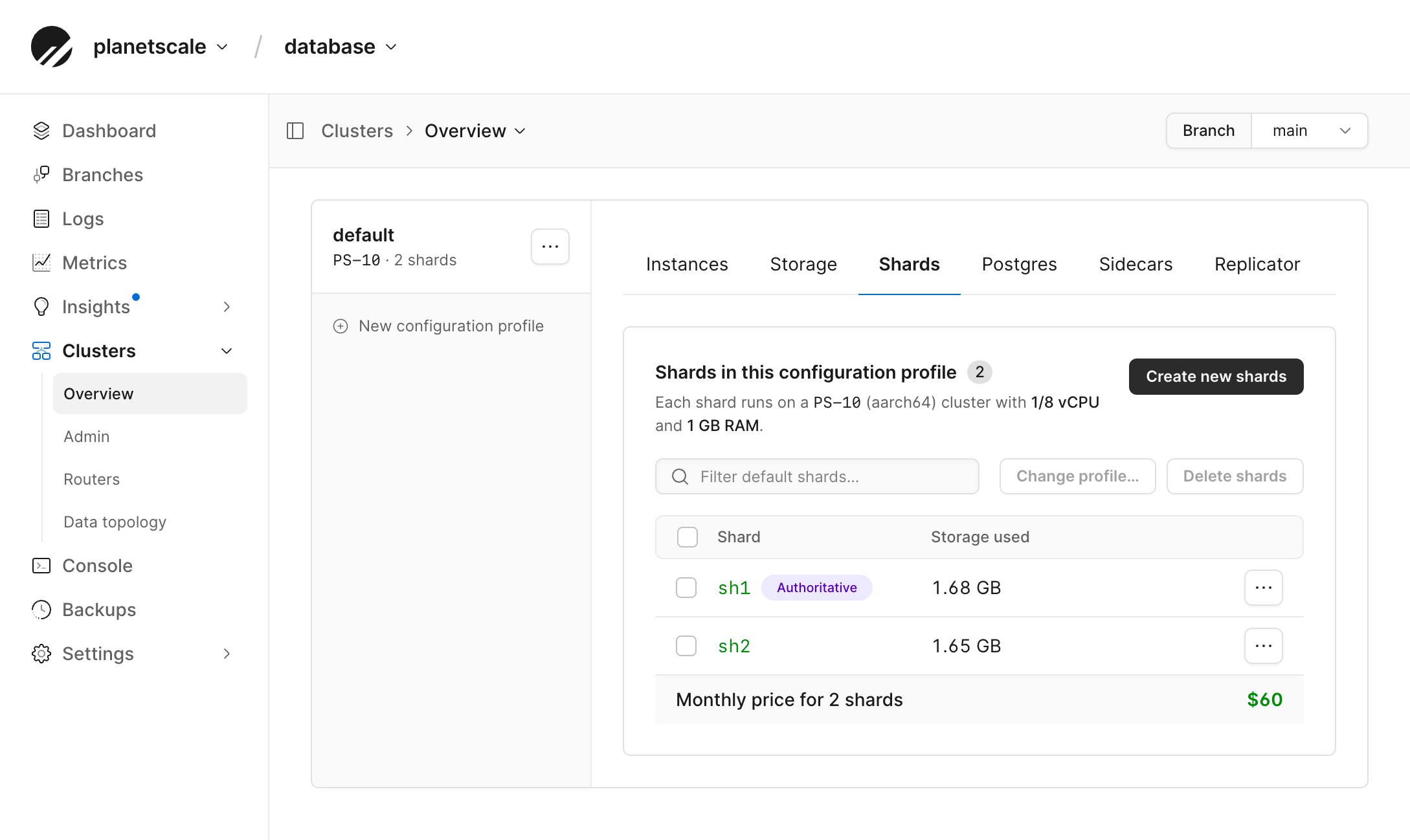
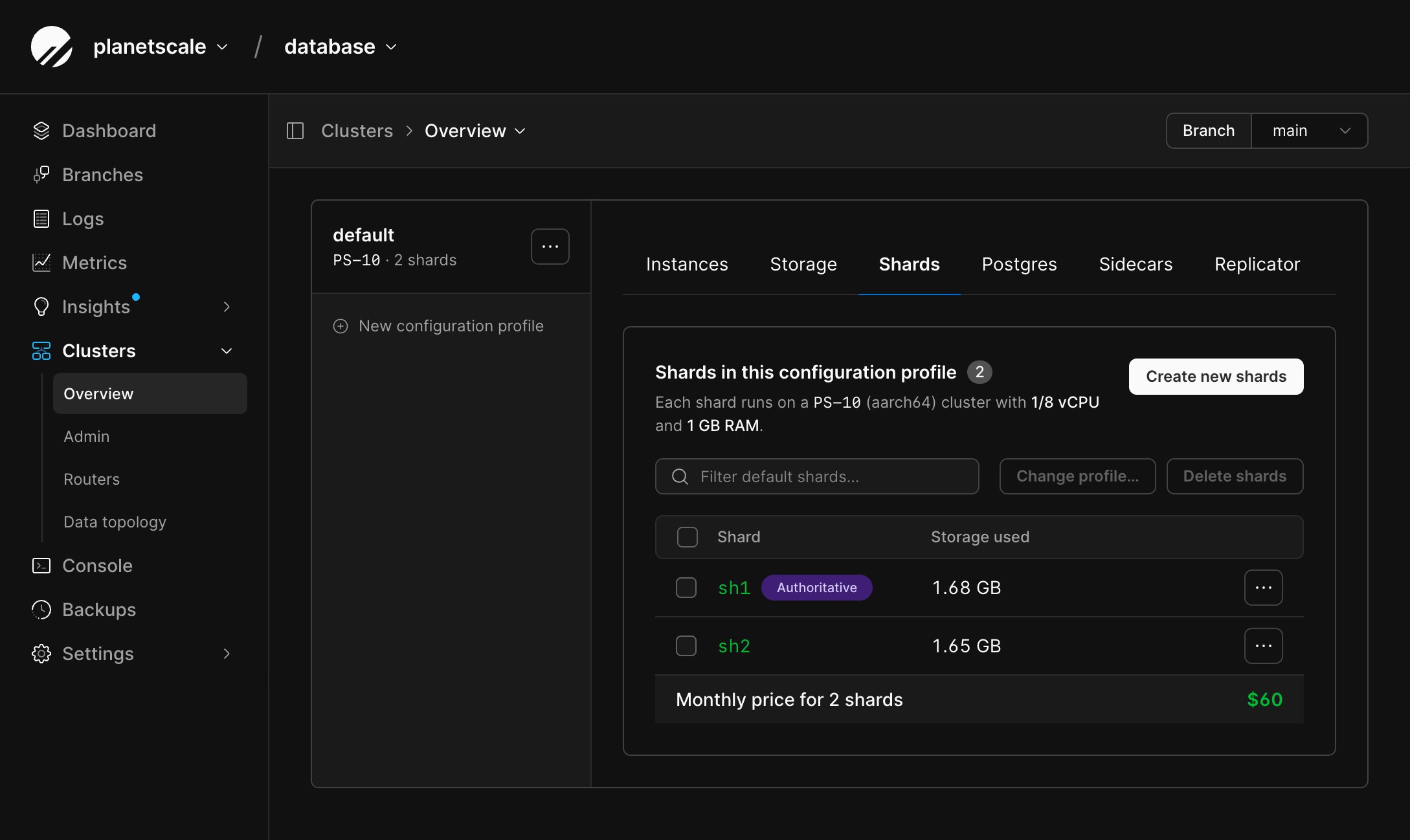
Open the dashboard, then go to **Clusters** and select the `default`
configuration profile.
Open the **Shards** tab and select **Create new shards**.
Enter `1` for the number of shards to add, review the estimated cost,
and select **Add shards**.
Wait until the new shard is ready.
Create one shard on the `default` configuration profile:
```bash theme={null}
pscale branch shard create main \
--config-profile default \
--count 1
```
List shards and wait until both report ready.
```bash theme={null}
pscale branch shard list main
```
 ## Inspect the default topology
Go to **Clusters** > **Data topology** to view and edit the JSON document in the dashboard.
Alternatively, make the following changes with the PlanetScale CLI.
A new Neki database starts with one unsharded shard group.
That group is both the default and the [authoritative shard group](/docs/neki/data-topology#authoritative-shard-group).
```bash theme={null}
pscale branch data-topology get main --format json
```
The document looks like this, with your first shard's UID in place of ``:
```json theme={null}
{
"shard_groups": [
{
"uid": "",
"key_ranges": [
{ "shard_uid": "" }
]
}
],
"default_shard_group": "",
"authoritative_shard_group": ""
}
```
`categories` and `products` inherited the default shard group, so they stay on
``.
The authoritative shard group must resolve to exactly one complete shard
range. Neki uses that group for cluster-wide metadata and sequences, including
identity columns. Changing it is a topology-wide operational change; verify
that the new group is complete and available before applying the replacement
document.
Save a copy of the current document before you replace it.
## Create the `orders` table
Create a schema for the `orders` table. Do not insert rows yet.
```sql theme={null}
CREATE TABLE orders (
id bigint GENERATED ALWAYS AS IDENTITY PRIMARY KEY,
tenant_id bigint NOT NULL,
product_id bigint NOT NULL,
quantity integer NOT NULL
);
```
## Apply a two-shard topology
Replace `` and `` with the shard `name` from `pscale branch shard list`.
The `orders_by_tenant` group splits the keyspace at `80`.
`orders` uses `xxhash` on `tenant_id`. Everything else keeps the original default.
```json theme={null}
{
"shard_indexes": {
"xxhash_tenant_id": {
"type": "xxhash",
"columns": ["tenant_id"]
}
},
"shard_groups": [
{
"uid": "",
"key_ranges": [
{ "shard_uid": "" }
]
},
{
"uid": "orders_by_tenant",
"default_shard_index": "xxhash_tenant_id",
"key_ranges": [
{ "shard_uid": "", "end": "80" },
{ "shard_uid": "", "start": "80" }
]
}
],
"databases": {
"postgres": {
"schemas": {
"public": {
"tables": {
"orders": {
"shard_group": "orders_by_tenant"
}
}
}
}
}
},
"default_shard_group": "",
"authoritative_shard_group": ""
}
```
Save that document as `data-topology.json` and apply it via the CLI, or paste the same document into **Clusters** > **Data topology** and select **Save changes**.
```bash theme={null}
pscale branch data-topology update main \
--format json < data-topology.json
```
Confirm the resolved bindings:
```bash theme={null}
pscale branch data-topology ls main
```
`orders` should list under `orders_by_tenant`. `categories` and `products`
should still resolve to ``.
See [Data topology](/docs/neki/data-topology) for shard-index types, defaults, the
dashboard editor, and the SQL `__neki.set_data_topology` metafunction.
## Insert and check routing
Insert two tenants. Neki hashes `tenant_id` and sends each row to the matching
shard in `orders_by_tenant`.
```sql theme={null}
INSERT INTO orders (tenant_id, product_id, quantity)
VALUES (1, 1, 2);
INSERT INTO orders (tenant_id, product_id, quantity)
VALUES (2, 1, 1);
```
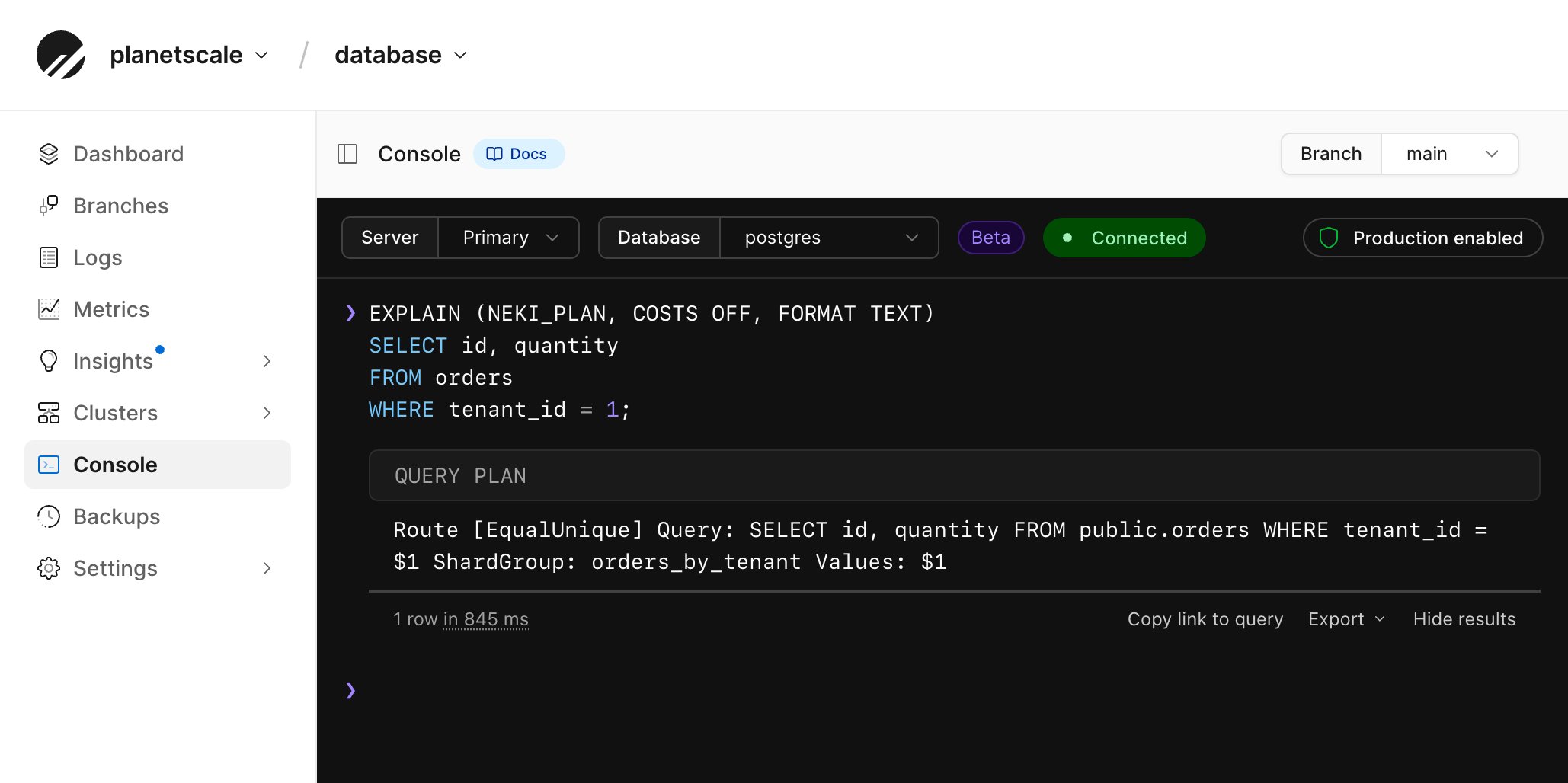
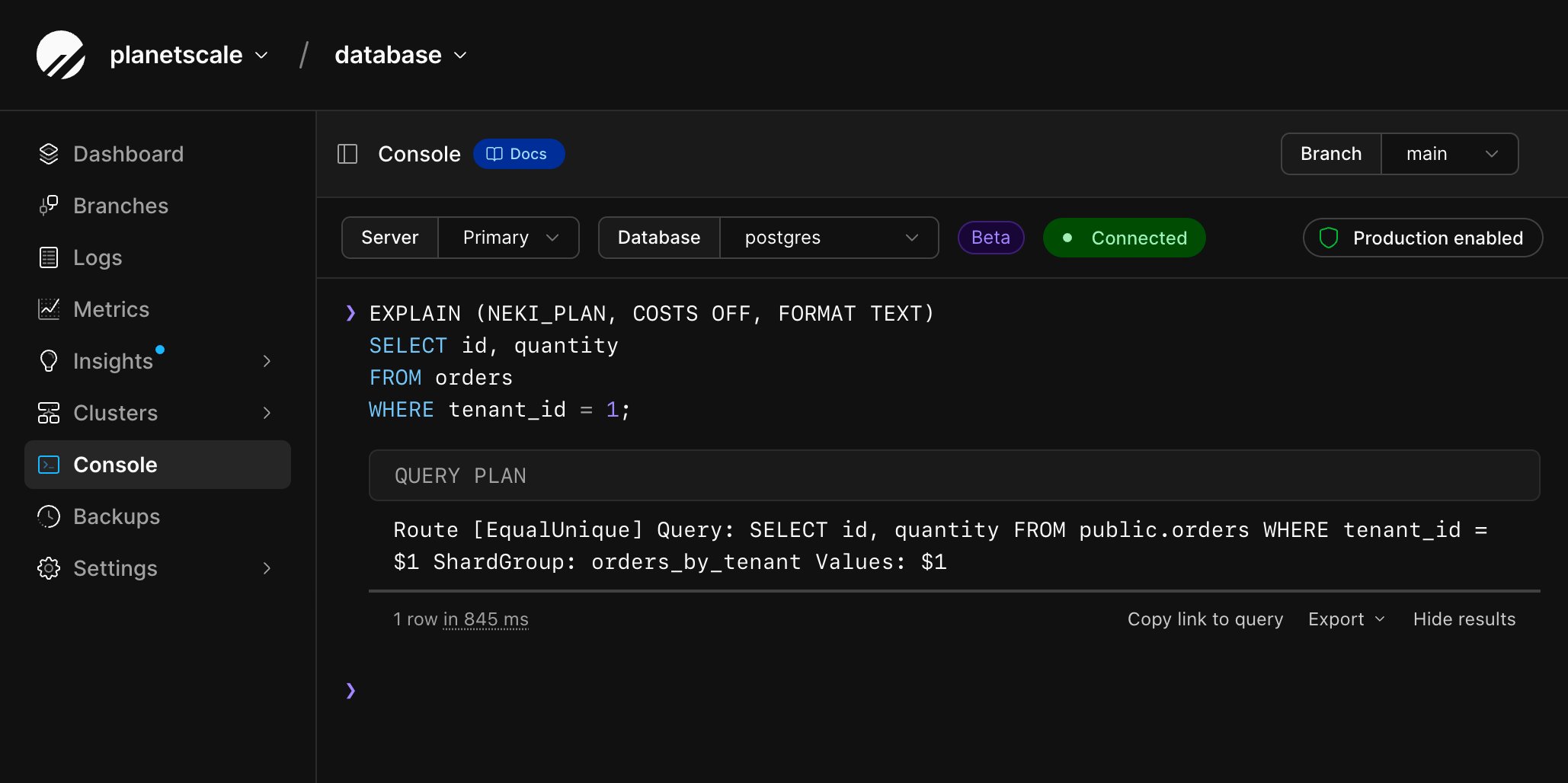
A predicate on `tenant_id` can narrow the query to one shard:
```sql theme={null}
EXPLAIN (NEKI_PLAN, COSTS OFF, FORMAT TEXT)
SELECT id, quantity
FROM orders
WHERE tenant_id = 1;
```
`Route [EqualUnique]` means the query can be sent to a single shard.
## Inspect the default topology
Go to **Clusters** > **Data topology** to view and edit the JSON document in the dashboard.
Alternatively, make the following changes with the PlanetScale CLI.
A new Neki database starts with one unsharded shard group.
That group is both the default and the [authoritative shard group](/docs/neki/data-topology#authoritative-shard-group).
```bash theme={null}
pscale branch data-topology get main --format json
```
The document looks like this, with your first shard's UID in place of ``:
```json theme={null}
{
"shard_groups": [
{
"uid": "",
"key_ranges": [
{ "shard_uid": "" }
]
}
],
"default_shard_group": "",
"authoritative_shard_group": ""
}
```
`categories` and `products` inherited the default shard group, so they stay on
``.
The authoritative shard group must resolve to exactly one complete shard
range. Neki uses that group for cluster-wide metadata and sequences, including
identity columns. Changing it is a topology-wide operational change; verify
that the new group is complete and available before applying the replacement
document.
Save a copy of the current document before you replace it.
## Create the `orders` table
Create a schema for the `orders` table. Do not insert rows yet.
```sql theme={null}
CREATE TABLE orders (
id bigint GENERATED ALWAYS AS IDENTITY PRIMARY KEY,
tenant_id bigint NOT NULL,
product_id bigint NOT NULL,
quantity integer NOT NULL
);
```
## Apply a two-shard topology
Replace `` and `` with the shard `name` from `pscale branch shard list`.
The `orders_by_tenant` group splits the keyspace at `80`.
`orders` uses `xxhash` on `tenant_id`. Everything else keeps the original default.
```json theme={null}
{
"shard_indexes": {
"xxhash_tenant_id": {
"type": "xxhash",
"columns": ["tenant_id"]
}
},
"shard_groups": [
{
"uid": "",
"key_ranges": [
{ "shard_uid": "" }
]
},
{
"uid": "orders_by_tenant",
"default_shard_index": "xxhash_tenant_id",
"key_ranges": [
{ "shard_uid": "", "end": "80" },
{ "shard_uid": "", "start": "80" }
]
}
],
"databases": {
"postgres": {
"schemas": {
"public": {
"tables": {
"orders": {
"shard_group": "orders_by_tenant"
}
}
}
}
}
},
"default_shard_group": "",
"authoritative_shard_group": ""
}
```
Save that document as `data-topology.json` and apply it via the CLI, or paste the same document into **Clusters** > **Data topology** and select **Save changes**.
```bash theme={null}
pscale branch data-topology update main \
--format json < data-topology.json
```
Confirm the resolved bindings:
```bash theme={null}
pscale branch data-topology ls main
```
`orders` should list under `orders_by_tenant`. `categories` and `products`
should still resolve to ``.
See [Data topology](/docs/neki/data-topology) for shard-index types, defaults, the
dashboard editor, and the SQL `__neki.set_data_topology` metafunction.
## Insert and check routing
Insert two tenants. Neki hashes `tenant_id` and sends each row to the matching
shard in `orders_by_tenant`.
```sql theme={null}
INSERT INTO orders (tenant_id, product_id, quantity)
VALUES (1, 1, 2);
INSERT INTO orders (tenant_id, product_id, quantity)
VALUES (2, 1, 1);
```
A predicate on `tenant_id` can narrow the query to one shard:
```sql theme={null}
EXPLAIN (NEKI_PLAN, COSTS OFF, FORMAT TEXT)
SELECT id, quantity
FROM orders
WHERE tenant_id = 1;
```
`Route [EqualUnique]` means the query can be sent to a single shard.
 A query without that predicate can scatter across the group:
```sql theme={null}
EXPLAIN (NEKI_PLAN, COSTS OFF, FORMAT TEXT)
SELECT count(*)
FROM orders;
```
`Route [Scatter]` means each shard computes a partial count, and Neki combines the results.
`` still holds `categories` and `products`.
Rows added to the `orders` table are now split across two shards.
## Need help?
Get help from [the PlanetScale Support team](https://planetscale.com/contact?initial=support), or join our [Discord community](https://pscale.link/community) to see how others are using PlanetScale.
A query without that predicate can scatter across the group:
```sql theme={null}
EXPLAIN (NEKI_PLAN, COSTS OFF, FORMAT TEXT)
SELECT count(*)
FROM orders;
```
`Route [Scatter]` means each shard computes a partial count, and Neki combines the results.
`` still holds `categories` and `products`.
Rows added to the `orders` table are now split across two shards.
## Need help?
Get help from [the PlanetScale Support team](https://planetscale.com/contact?initial=support), or join our [Discord community](https://pscale.link/community) to see how others are using PlanetScale.