> ## Documentation Index
> Fetch the complete documentation index at: https://planetscale.com/docs/llms.txt
> Use this file to discover all available pages before exploring further.

# Neki quickstart

> Create a single-shard Neki database, connect, and insert data

export const PlatformAvailability = ({current, vitess, postgres, neki}) => {
  const docsHref = path => {
    if (!path) return path;
    const normalized = path.startsWith('/') ? path : `/${path}`;
    return normalized;
  };
  const labels = {
    vitess: 'Vitess',
    postgres: 'Postgres',
    neki: 'Neki'
  };
  const combinedLabels = {
    both: 'Vitess and Postgres',
    all: 'Vitess, Neki, and Postgres',
    'postgres-neki': 'Postgres and Neki'
  };
  if (combinedLabels[current]) {
    return <div className="not-prose mb-5 flex flex-wrap items-center gap-2" role="group" aria-label="Platform availability">
        <span data-engine="both" data-state="current" aria-current="true" className="inline-flex items-center gap-1.5 whitespace-nowrap rounded-full border px-2.5 py-1 text-[13px] font-semibold leading-tight no-underline data-[engine=vitess]:data-[state=current]:border-[#ffc59b] data-[engine=vitess]:data-[state=current]:bg-[#ffe8d8] data-[engine=vitess]:data-[state=current]:text-[#672002] dark:data-[engine=vitess]:data-[state=current]:border-[#962d00] dark:data-[engine=vitess]:data-[state=current]:bg-[#3c1403] dark:data-[engine=vitess]:data-[state=current]:text-[#ffe8d8] data-[engine=vitess]:data-[state=link]:border-[#ffc59b] data-[engine=vitess]:data-[state=link]:bg-transparent data-[engine=vitess]:data-[state=link]:text-[#b83a05] dark:data-[engine=vitess]:data-[state=link]:border-[#962d00] dark:data-[engine=vitess]:data-[state=link]:bg-transparent dark:data-[engine=vitess]:data-[state=link]:text-[#ffc59b] data-[engine=postgres]:data-[state=current]:border-[#a9dffe] data-[engine=postgres]:data-[state=current]:bg-[#ddf2ff] data-[engine=postgres]:data-[state=current]:text-[#0e3682] dark:data-[engine=postgres]:data-[state=current]:border-[#144eb6] dark:data-[engine=postgres]:data-[state=current]:bg-[#08204e] dark:data-[engine=postgres]:data-[state=current]:text-[#ddf2ff] data-[engine=postgres]:data-[state=link]:border-[#a9dffe] data-[engine=postgres]:data-[state=link]:bg-transparent data-[engine=postgres]:data-[state=link]:text-[#0b6ec5] dark:data-[engine=postgres]:data-[state=link]:border-[#144eb6] dark:data-[engine=postgres]:data-[state=link]:bg-transparent dark:data-[engine=postgres]:data-[state=link]:text-[#73c7f9] data-[engine=neki]:data-[state=current]:border-[#fbca00] data-[engine=neki]:data-[state=current]:bg-[#fbca00] data-[engine=neki]:data-[state=current]:text-[#1a1a1a] dark:data-[engine=neki]:data-[state=current]:border-[#fbca00] dark:data-[engine=neki]:data-[state=current]:bg-[#fbca00] dark:data-[engine=neki]:data-[state=current]:text-[#1a1a1a] data-[engine=neki]:data-[state=link]:border-[#fbca00] data-[engine=neki]:data-[state=link]:bg-transparent data-[engine=neki]:data-[state=link]:text-[#8f7200] dark:data-[engine=neki]:data-[state=link]:border-[#fbca00] dark:data-[engine=neki]:data-[state=link]:bg-transparent dark:data-[engine=neki]:data-[state=link]:text-[#fbca00] data-[engine=both]:data-[state=current]:border-[#d4d4d4] data-[engine=both]:data-[state=current]:bg-[#f0f0f0] data-[engine=both]:data-[state=current]:text-[#3d3d3d] dark:data-[engine=both]:data-[state=current]:border-[#525252] dark:data-[engine=both]:data-[state=current]:bg-[#2a2a2a] dark:data-[engine=both]:data-[state=current]:text-[#e5e5e5]">
          {combinedLabels[current]}
        </span>
      </div>;
  }
  const hasVitess = current === 'vitess' || Boolean(vitess);
  const hasPostgres = current === 'postgres' || Boolean(postgres);
  const hasNeki = current === 'neki' || Boolean(neki);
  const only = [hasVitess, hasPostgres, hasNeki].filter(Boolean).length === 1;
  const engines = [];
  if (current === 'vitess' || current === 'postgres' || current === 'neki') engines.push(current);
  if (hasVitess && current !== 'vitess') engines.push('vitess');
  if (hasNeki && current !== 'neki') engines.push('neki');
  if (hasPostgres && current !== 'postgres') engines.push('postgres');
  return <div className="not-prose mb-5 flex flex-wrap items-center gap-2" role="group" aria-label="Platform availability">
      {engines.map(engine => {
    const isCurrent = current === engine;
    const href = docsHref(engine === 'vitess' ? vitess : engine === 'postgres' ? postgres : neki);
    const label = only ? `${labels[engine]} only` : labels[engine];
    const state = isCurrent || !href ? 'current' : 'link';
    if (isCurrent || !href) {
      return <span key={engine} data-engine={engine} data-state={state} aria-current={isCurrent ? 'true' : undefined} className="inline-flex items-center gap-1.5 whitespace-nowrap rounded-full border px-2.5 py-1 text-[13px] font-semibold leading-tight no-underline data-[engine=vitess]:data-[state=current]:border-[#ffc59b] data-[engine=vitess]:data-[state=current]:bg-[#ffe8d8] data-[engine=vitess]:data-[state=current]:text-[#672002] dark:data-[engine=vitess]:data-[state=current]:border-[#962d00] dark:data-[engine=vitess]:data-[state=current]:bg-[#3c1403] dark:data-[engine=vitess]:data-[state=current]:text-[#ffe8d8] data-[engine=vitess]:data-[state=link]:border-[#ffc59b] data-[engine=vitess]:data-[state=link]:bg-transparent data-[engine=vitess]:data-[state=link]:text-[#b83a05] dark:data-[engine=vitess]:data-[state=link]:border-[#962d00] dark:data-[engine=vitess]:data-[state=link]:bg-transparent dark:data-[engine=vitess]:data-[state=link]:text-[#ffc59b] data-[engine=postgres]:data-[state=current]:border-[#a9dffe] data-[engine=postgres]:data-[state=current]:bg-[#ddf2ff] data-[engine=postgres]:data-[state=current]:text-[#0e3682] dark:data-[engine=postgres]:data-[state=current]:border-[#144eb6] dark:data-[engine=postgres]:data-[state=current]:bg-[#08204e] dark:data-[engine=postgres]:data-[state=current]:text-[#ddf2ff] data-[engine=postgres]:data-[state=link]:border-[#a9dffe] data-[engine=postgres]:data-[state=link]:bg-transparent data-[engine=postgres]:data-[state=link]:text-[#0b6ec5] dark:data-[engine=postgres]:data-[state=link]:border-[#144eb6] dark:data-[engine=postgres]:data-[state=link]:bg-transparent dark:data-[engine=postgres]:data-[state=link]:text-[#73c7f9] data-[engine=neki]:data-[state=current]:border-[#fbca00] data-[engine=neki]:data-[state=current]:bg-[#fbca00] data-[engine=neki]:data-[state=current]:text-[#1a1a1a] dark:data-[engine=neki]:data-[state=current]:border-[#fbca00] dark:data-[engine=neki]:data-[state=current]:bg-[#fbca00] dark:data-[engine=neki]:data-[state=current]:text-[#1a1a1a] data-[engine=neki]:data-[state=link]:border-[#fbca00] data-[engine=neki]:data-[state=link]:bg-transparent data-[engine=neki]:data-[state=link]:text-[#8f7200] dark:data-[engine=neki]:data-[state=link]:border-[#fbca00] dark:data-[engine=neki]:data-[state=link]:bg-transparent dark:data-[engine=neki]:data-[state=link]:text-[#fbca00] data-[engine=both]:data-[state=current]:border-[#d4d4d4] data-[engine=both]:data-[state=current]:bg-[#f0f0f0] data-[engine=both]:data-[state=current]:text-[#3d3d3d] dark:data-[engine=both]:data-[state=current]:border-[#525252] dark:data-[engine=both]:data-[state=current]:bg-[#2a2a2a] dark:data-[engine=both]:data-[state=current]:text-[#e5e5e5]">
              {label}
            </span>;
    }
    return <a key={engine} href={href} data-engine={engine} data-state={state} title={`View ${labels[engine]} documentation`} className="inline-flex items-center gap-1.5 whitespace-nowrap rounded-full border px-2.5 py-1 text-[13px] font-semibold leading-tight no-underline data-[engine=vitess]:data-[state=current]:border-[#ffc59b] data-[engine=vitess]:data-[state=current]:bg-[#ffe8d8] data-[engine=vitess]:data-[state=current]:text-[#672002] dark:data-[engine=vitess]:data-[state=current]:border-[#962d00] dark:data-[engine=vitess]:data-[state=current]:bg-[#3c1403] dark:data-[engine=vitess]:data-[state=current]:text-[#ffe8d8] data-[engine=vitess]:data-[state=link]:border-[#ffc59b] data-[engine=vitess]:data-[state=link]:bg-transparent data-[engine=vitess]:data-[state=link]:text-[#b83a05] dark:data-[engine=vitess]:data-[state=link]:border-[#962d00] dark:data-[engine=vitess]:data-[state=link]:bg-transparent dark:data-[engine=vitess]:data-[state=link]:text-[#ffc59b] data-[engine=postgres]:data-[state=current]:border-[#a9dffe] data-[engine=postgres]:data-[state=current]:bg-[#ddf2ff] data-[engine=postgres]:data-[state=current]:text-[#0e3682] dark:data-[engine=postgres]:data-[state=current]:border-[#144eb6] dark:data-[engine=postgres]:data-[state=current]:bg-[#08204e] dark:data-[engine=postgres]:data-[state=current]:text-[#ddf2ff] data-[engine=postgres]:data-[state=link]:border-[#a9dffe] data-[engine=postgres]:data-[state=link]:bg-transparent data-[engine=postgres]:data-[state=link]:text-[#0b6ec5] dark:data-[engine=postgres]:data-[state=link]:border-[#144eb6] dark:data-[engine=postgres]:data-[state=link]:bg-transparent dark:data-[engine=postgres]:data-[state=link]:text-[#73c7f9] data-[engine=neki]:data-[state=current]:border-[#fbca00] data-[engine=neki]:data-[state=current]:bg-[#fbca00] data-[engine=neki]:data-[state=current]:text-[#1a1a1a] dark:data-[engine=neki]:data-[state=current]:border-[#fbca00] dark:data-[engine=neki]:data-[state=current]:bg-[#fbca00] dark:data-[engine=neki]:data-[state=current]:text-[#1a1a1a] data-[engine=neki]:data-[state=link]:border-[#fbca00] data-[engine=neki]:data-[state=link]:bg-transparent data-[engine=neki]:data-[state=link]:text-[#8f7200] dark:data-[engine=neki]:data-[state=link]:border-[#fbca00] dark:data-[engine=neki]:data-[state=link]:bg-transparent dark:data-[engine=neki]:data-[state=link]:text-[#fbca00] data-[engine=both]:data-[state=current]:border-[#d4d4d4] data-[engine=both]:data-[state=current]:bg-[#f0f0f0] data-[engine=both]:data-[state=current]:text-[#3d3d3d] dark:data-[engine=both]:data-[state=current]:border-[#525252] dark:data-[engine=both]:data-[state=current]:bg-[#2a2a2a] dark:data-[engine=both]:data-[state=current]:text-[#e5e5e5]">
            {label}
            <svg aria-hidden="true" width="12" height="12" viewBox="0 0 12 12" fill="none" className="shrink-0">
              <path d="M2.5 6h7M6.5 3l3 3-3 3" stroke="currentColor" strokeWidth="1.5" strokeLinecap="round" strokeLinejoin="round" />
            </svg>
          </a>;
  })}
    </div>;
};

<PlatformAvailability current="neki" vitess="/vitess/tutorials/planetscale-quick-start-guide" postgres="/postgres/tutorials/planetscale-postgres-quickstart" />

## Getting started

### Prerequisites

1. You will need [a PlanetScale account](https://auth.planetscale.com/sign-up).
2. An administrator of your PlanetScale organization must [join the Neki Platform Preview](/docs/neki#availability-and-access).

### Create a Neki database

<Tabs>
  <Tab title="Dashboard">
    <Steps>
      <Step>
        Click "**New database**" > "**Create new database**" on your organization's
        overview page.
      </Step>

      <Step>
        Name your database.
      </Step>

      <Step>
        Select a region. For the lowest latency, select a region near you or your
        application's hosting location.
      </Step>

      <Step>
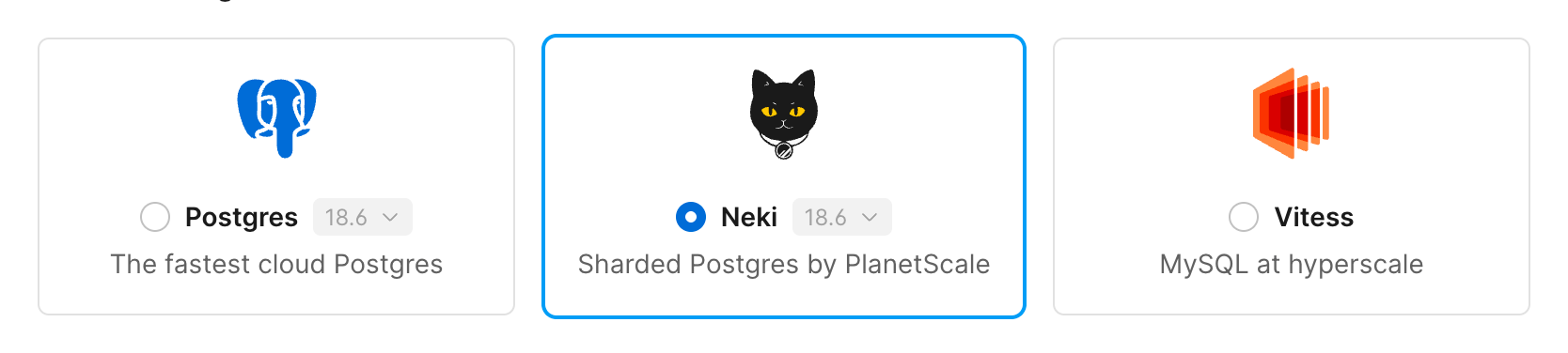
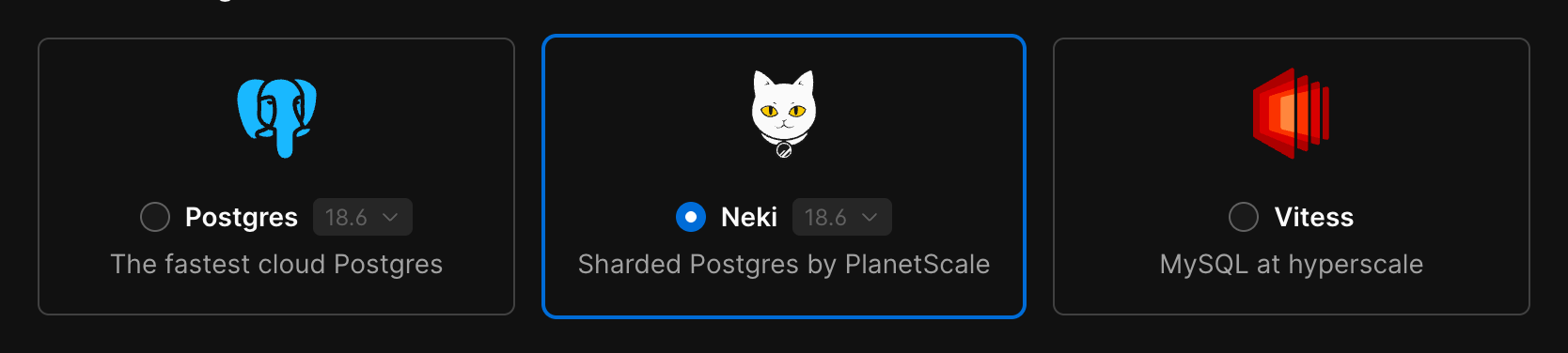
        Select **Neki** as the database engine.

        <Frame>
          <img src="https://mintcdn.com/planetscale-2/6i1lJ6cNfB-VSsaH/neki/tutorials/select-neki-engine.png?fit=max&auto=format&n=6i1lJ6cNfB-VSsaH&q=85&s=41490be17a8a313a2bb81d9075e4ff7e" alt="Create database form with the Neki engine selected" className="block dark:hidden" width="1668" height="376" data-path="neki/tutorials/select-neki-engine.png" />

          <img src="https://mintcdn.com/planetscale-2/6i1lJ6cNfB-VSsaH/neki/tutorials/select-neki-engine-darkmode.png?fit=max&auto=format&n=6i1lJ6cNfB-VSsaH&q=85&s=ed9eb48ab664279257a84caf5aee3b4b" alt="Create database form with the Neki engine selected" className="hidden dark:block" width="1668" height="376" data-path="neki/tutorials/select-neki-engine-darkmode.png" />
        </Frame>
      </Step>

      <Step>
        Select the desired cluster configuration, storage option, and cluster size
        for your database.
      </Step>

      <Step>
        If prompted, add a valid credit or debit card.
      </Step>

      <Step>
        Click "**Create database**" to deploy your database.
      </Step>
    </Steps>
  </Tab>

  <Tab title="CLI">
    Install and authenticate the [PlanetScale CLI](/docs/cli/planetscale-environment-setup).

    <Steps>
      <Step>
        List organizations, then switch to the one enrolled in the Platform
        Preview:

        ```bash theme={null}
        pscale org list
        pscale org switch <ORGANIZATION_NAME>
        ```
      </Step>

      <Step>
        List regions and pick a slug close to your application:

        ```bash theme={null}
        pscale region list
        ```
      </Step>

      <Step>
        Create an HA Neki database. `--replicas 2` requests two replicas in
        addition to the primary, for three Postgres nodes on the initial shard.
        `PS_10` is a valid starting cluster size.

        ```bash theme={null}
        pscale database create <DATABASE_NAME> \
          --engine neki \
          --region <REGION_SLUG> \
          --cluster-size PS_10 \
          --replicas 2 \
          --wait
        ```

        Provisioning can take a few minutes. `--wait` keeps the command open
        until the database is ready.

        <Note>
          Database names can contain up to 63 lowercase letters, numbers,
          dashes, or underscores. A name cannot start or end with a dash or
          underscore.
        </Note>
      </Step>
    </Steps>
  </Tab>
</Tabs>

### Add a schema to your database

Use the dashboard's web console to create some example tables.
To use another SQL client, first see [Connect to your
database](#connect-to-your-database).

<Steps>
  <Step>
    [Enable web console access for production
    branches](/docs/neki/web-console#enable-for-production-branches).
  </Step>

  <Step>
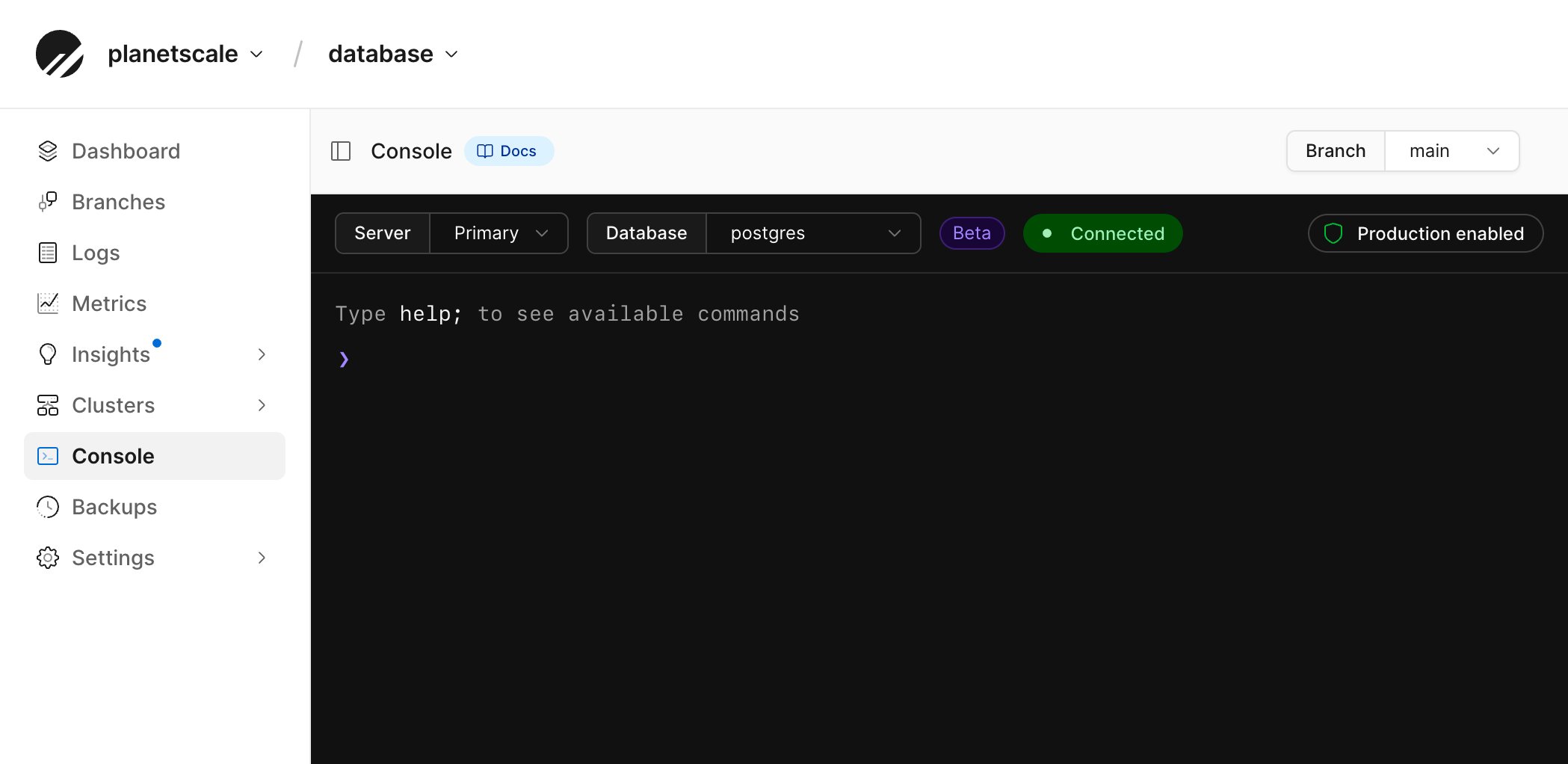
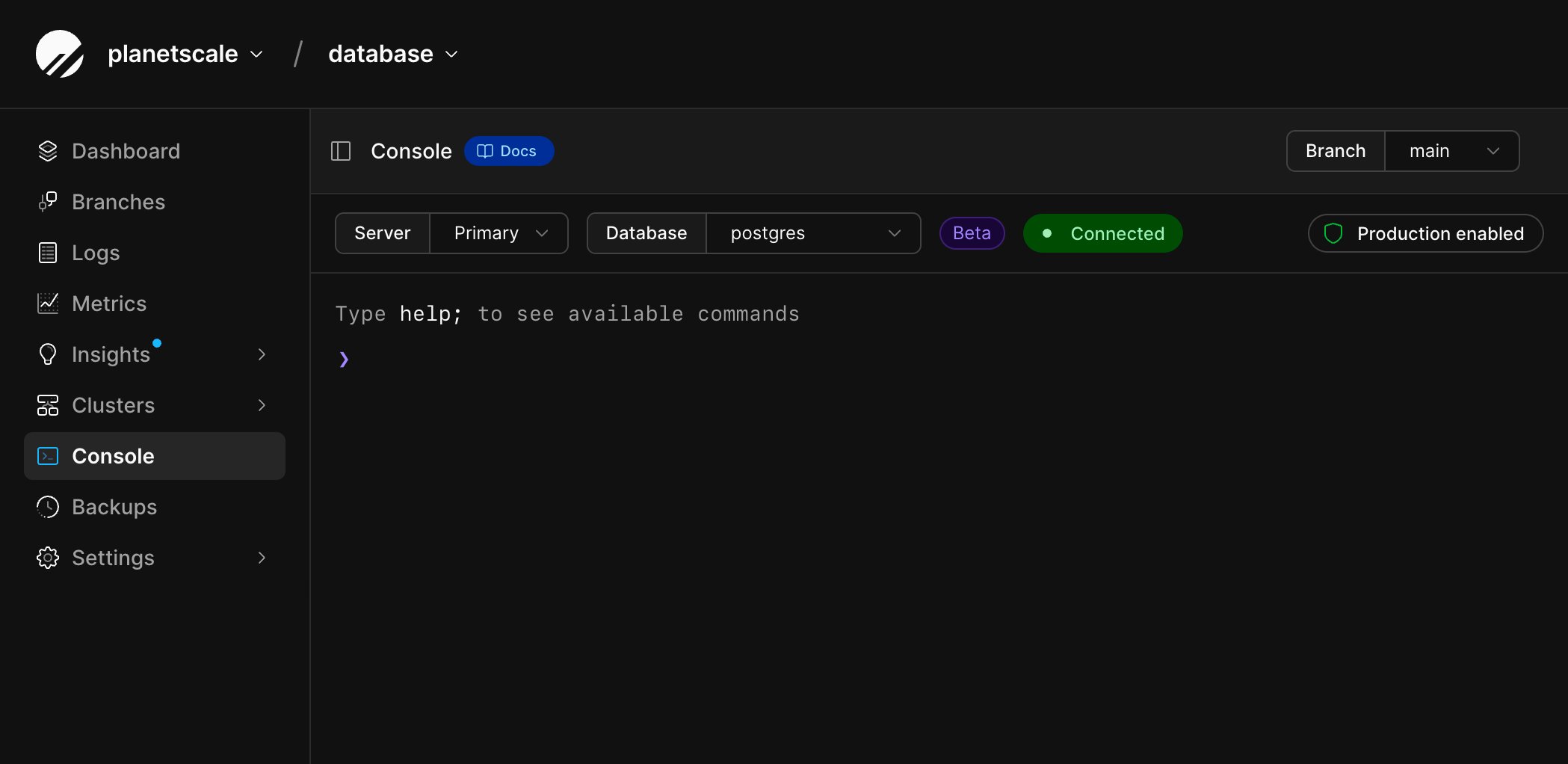
    Select **Console** and connect to the `main` branch. The console connects to
    the **Primary** server and the `postgres` database by default. See [Web
    console](/docs/neki/web-console) for connection controls and supported commands.

    <Frame>
      <img src="https://mintcdn.com/planetscale-2/gWONWhlM_S1jInv7/neki/tutorials/web-console-main.png?fit=max&auto=format&n=gWONWhlM_S1jInv7&q=85&s=9c900b11594e861e011a75c953a4c041" alt="Web console connected to the main branch" className="block dark:hidden" width="2098" height="1022" data-path="neki/tutorials/web-console-main.png" />

      <img src="https://mintcdn.com/planetscale-2/6i1lJ6cNfB-VSsaH/neki/tutorials/web-console-main-darkmode.png?fit=max&auto=format&n=6i1lJ6cNfB-VSsaH&q=85&s=e3daa51462a58409ccf9c09e2fc5bfa3" alt="Web console connected to the main branch" className="hidden dark:block" width="2098" height="1022" data-path="neki/tutorials/web-console-main-darkmode.png" />
    </Frame>
  </Step>

  <Step>
    Create some example tables by running the following
    commands in the web console:

    ```sql theme={null}
    CREATE TABLE categories (
      id bigint GENERATED ALWAYS AS IDENTITY PRIMARY KEY,
      name varchar(255) NOT NULL
    );
    ```

    ```sql theme={null}
    CREATE TABLE products (
      id bigint GENERATED ALWAYS AS IDENTITY PRIMARY KEY,
      name varchar(255) NOT NULL,
      image_url varchar(255),
      category_id bigint
    );
    ```

    ```sql theme={null}
    CREATE INDEX category_id_idx ON products (category_id);
    ```
  </Step>

  <Step>
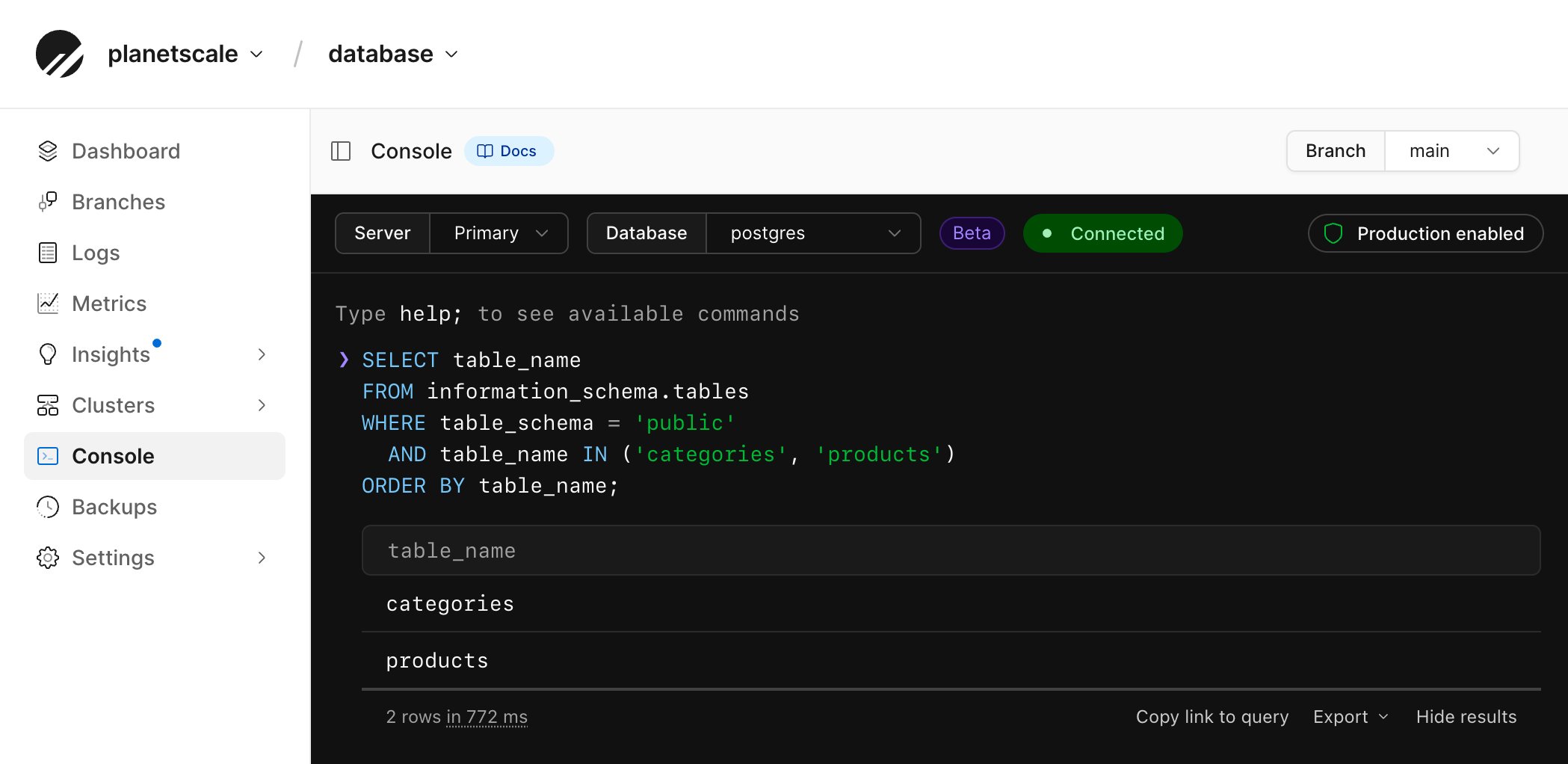
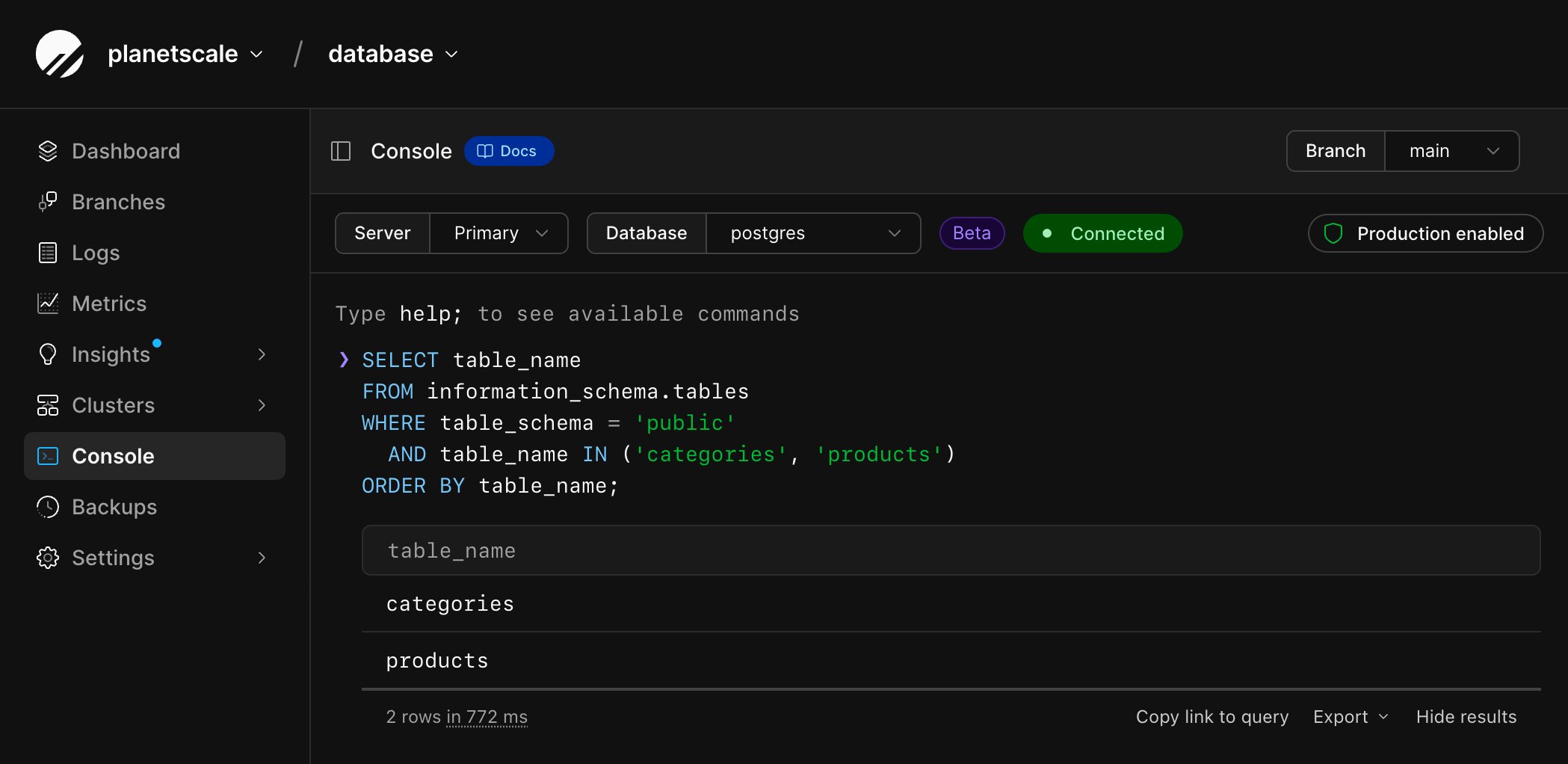
    You can confirm that the tables have been added by running:

    ```sql theme={null}
    SELECT table_name
    FROM information_schema.tables
    WHERE table_schema = 'public'
      AND table_name IN ('categories', 'products')
    ORDER BY table_name;
    ```

    <Frame>
      <img src="https://mintcdn.com/planetscale-2/gWONWhlM_S1jInv7/neki/tutorials/web-console-tables.png?fit=max&auto=format&n=gWONWhlM_S1jInv7&q=85&s=46ae8b2fd775222c13f6798b5cbb0990" alt="Web console showing the categories and products tables" className="block dark:hidden" width="2098" height="1022" data-path="neki/tutorials/web-console-tables.png" />

      <img src="https://mintcdn.com/planetscale-2/gWONWhlM_S1jInv7/neki/tutorials/web-console-tables-darkmode.png?fit=max&auto=format&n=gWONWhlM_S1jInv7&q=85&s=6c63be383bd38b391f85341b0b8828fd" alt="Web console showing the categories and products tables" className="hidden dark:block" width="2098" height="1022" data-path="neki/tutorials/web-console-tables-darkmode.png" />
    </Frame>
  </Step>
</Steps>

### Insert data into your database

Run the following SQL to add some rows to the tables:

```sql theme={null}
INSERT INTO categories (name)
VALUES ('Office supplies');
```

```sql theme={null}
INSERT INTO products (name, image_url, category_id)
VALUES ('Ballpoint pen', 'https://example.com/500x500', 1);
```

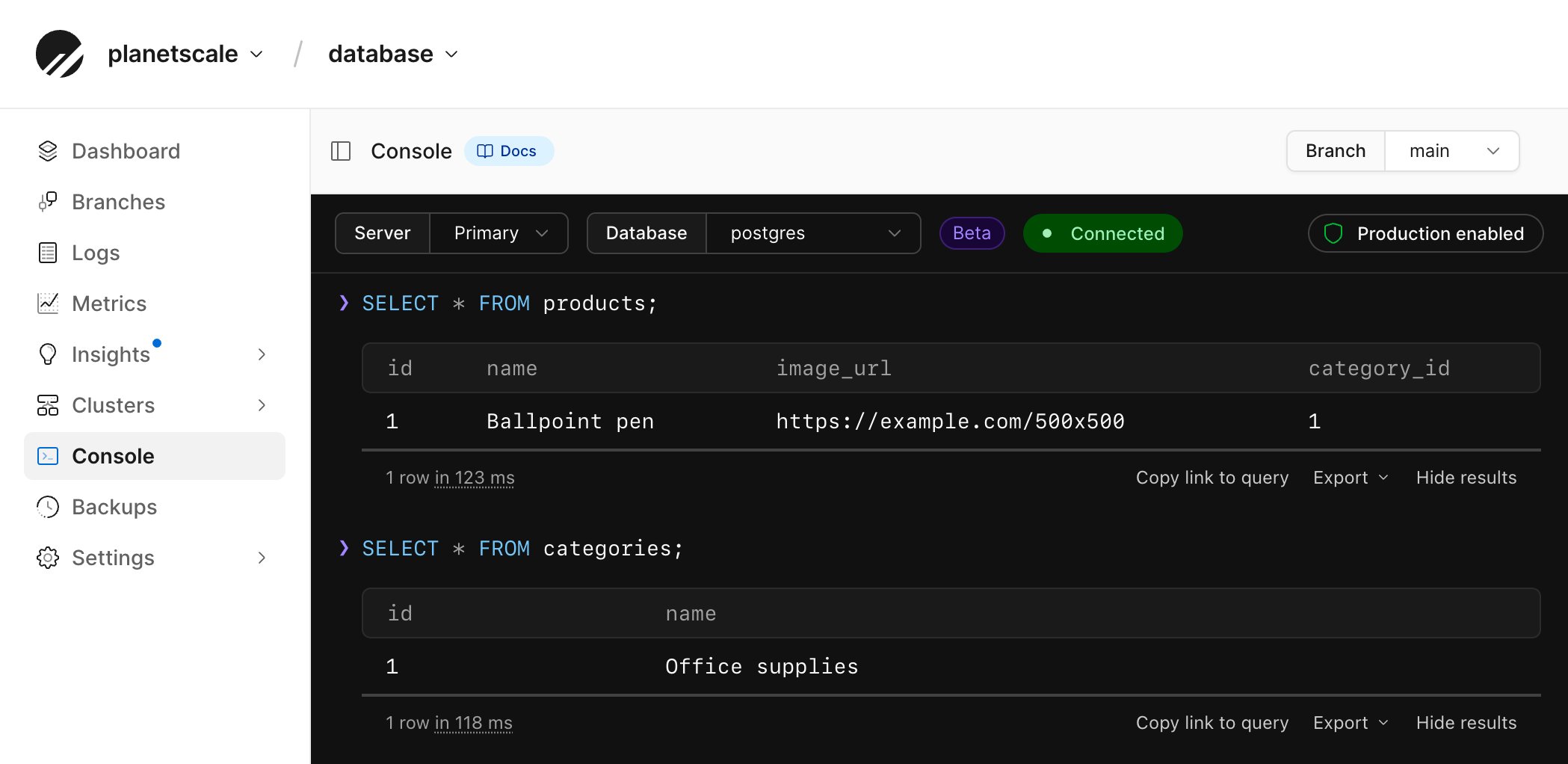
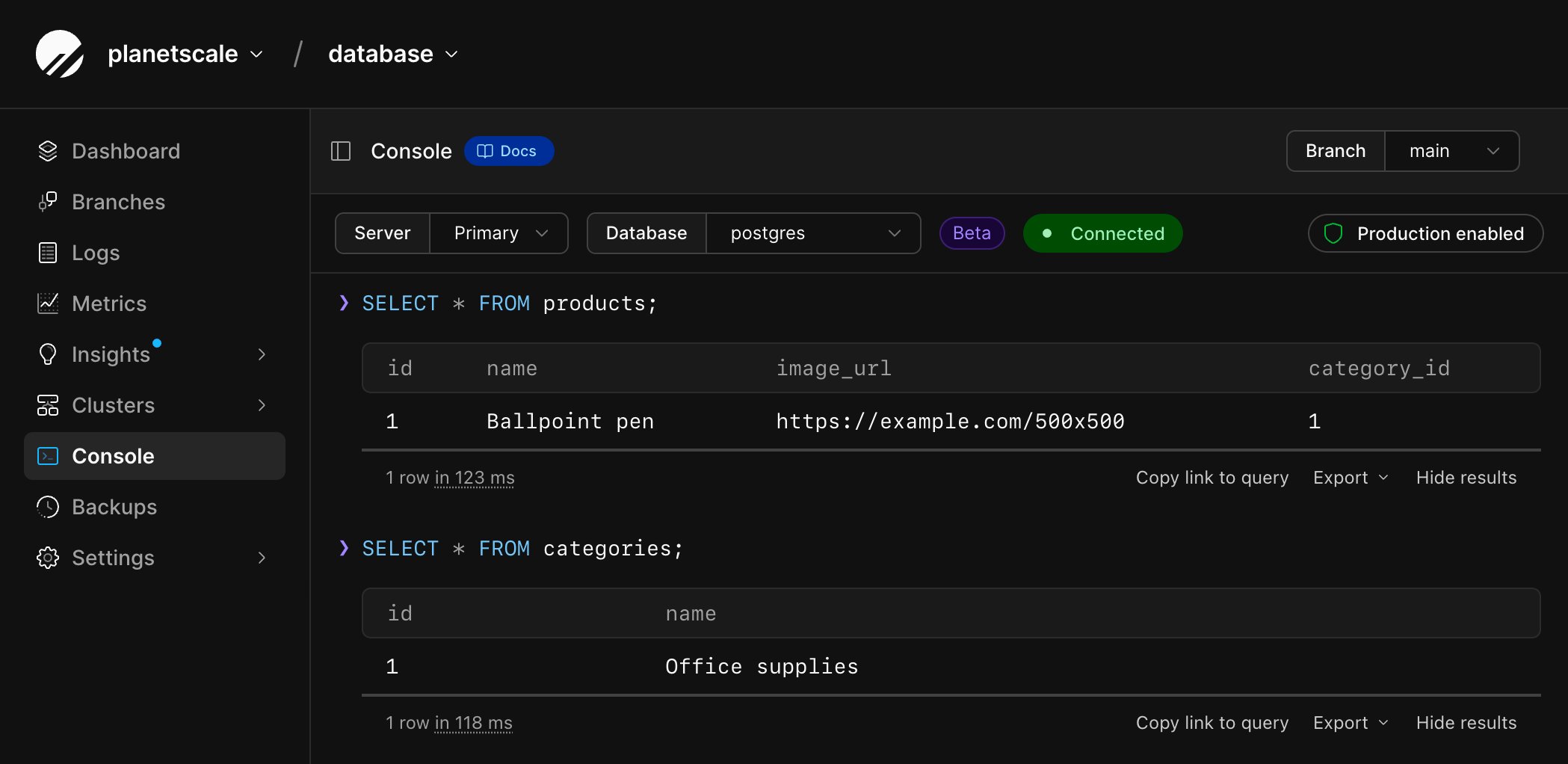
You can confirm the data has been added with:

```sql theme={null}
SELECT * FROM products;
```

```sql theme={null}
SELECT * FROM categories;
```

<Frame>
  <img src="https://mintcdn.com/planetscale-2/gWONWhlM_S1jInv7/neki/tutorials/web-console-results.png?fit=max&auto=format&n=gWONWhlM_S1jInv7&q=85&s=76fdf615a7caa99aef5e67f185381814" alt="Web console showing SELECT results for the products and categories tables" className="block dark:hidden" width="2098" height="1022" data-path="neki/tutorials/web-console-results.png" />

  <img src="https://mintcdn.com/planetscale-2/gWONWhlM_S1jInv7/neki/tutorials/web-console-results-darkmode.png?fit=max&auto=format&n=gWONWhlM_S1jInv7&q=85&s=06601d02cc6cbf5b69162e1e2f21db64" alt="Web console showing SELECT results for the products and categories tables" className="hidden dark:block" width="2098" height="1022" data-path="neki/tutorials/web-console-results-darkmode.png" />
</Frame>

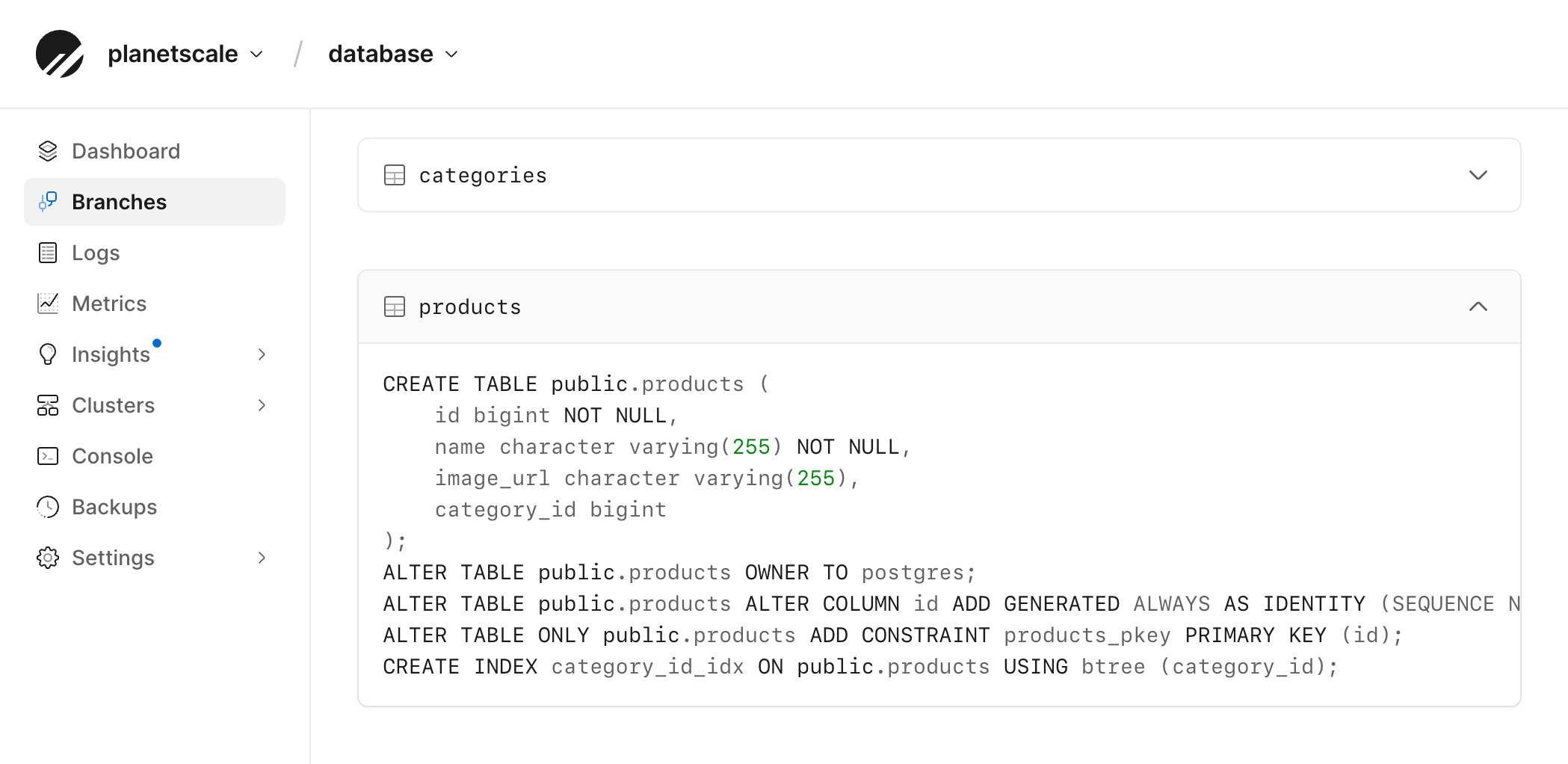
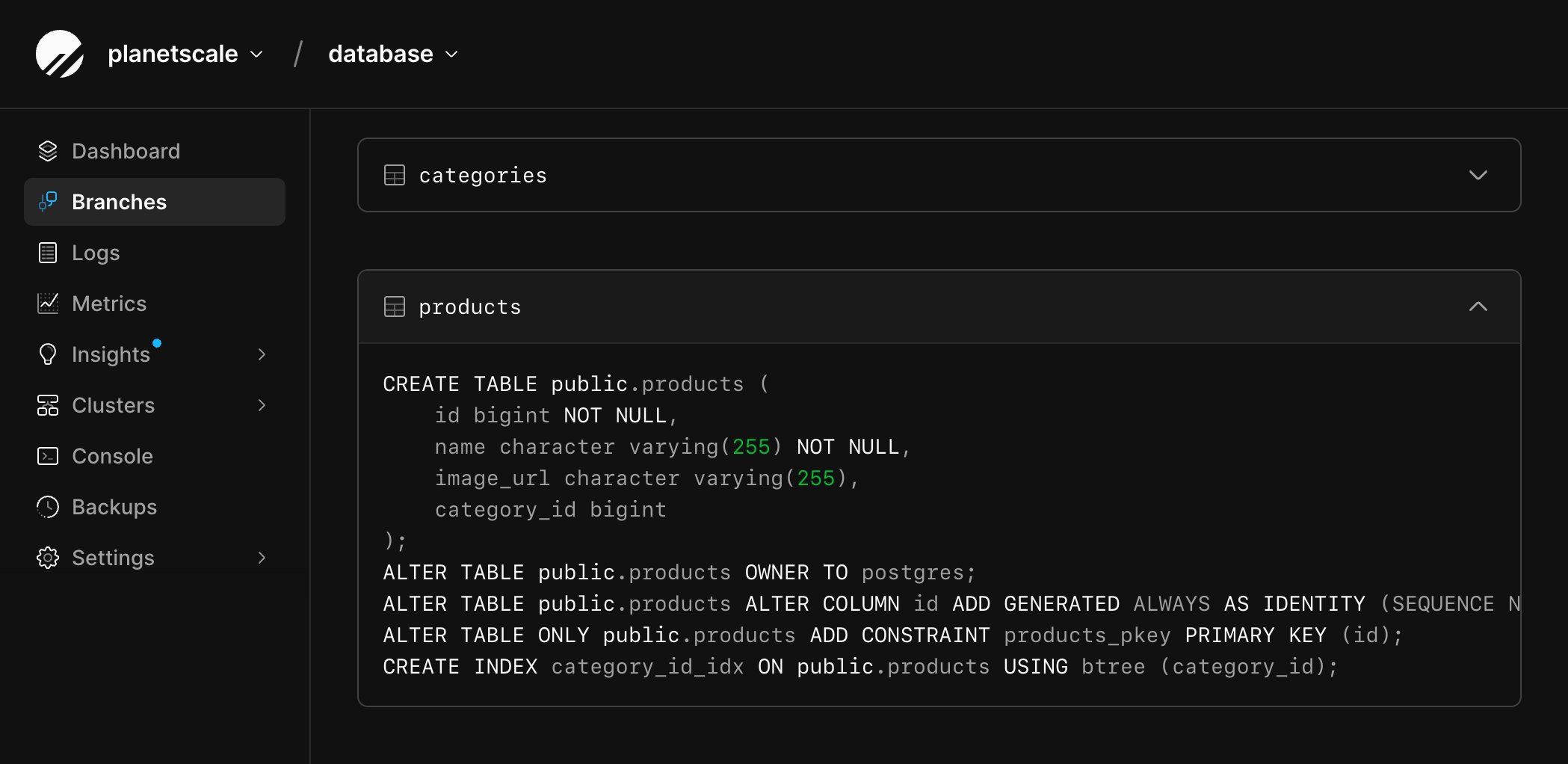
You can view the schema of your database by navigating to the "**Branches**"
tab and selecting the branch you want to view. You may need to click
"**Refresh schema**". For now, select `main`, and it will display the names of
the two tables you just created. Click on the name of each table to see further
schema details.
<Frame>
  <img src="https://mintcdn.com/planetscale-2/6i1lJ6cNfB-VSsaH/neki/tutorials/branch-schema.png?fit=max&auto=format&n=6i1lJ6cNfB-VSsaH&q=85&s=03b874caa3898600faef8101cae0835c" alt="Branches page with the products table expanded to show its schema" className="block dark:hidden" width="2098" height="1022" data-path="neki/tutorials/branch-schema.png" />

  <img src="https://mintcdn.com/planetscale-2/6i1lJ6cNfB-VSsaH/neki/tutorials/branch-schema-darkmode.png?fit=max&auto=format&n=6i1lJ6cNfB-VSsaH&q=85&s=c4d5a8e64b2166a2e63b995b63e84c20" alt="Branches page with the products table expanded to show its schema" className="hidden dark:block" width="2098" height="1022" data-path="neki/tutorials/branch-schema-darkmode.png" />
</Frame>

### Connect to your database

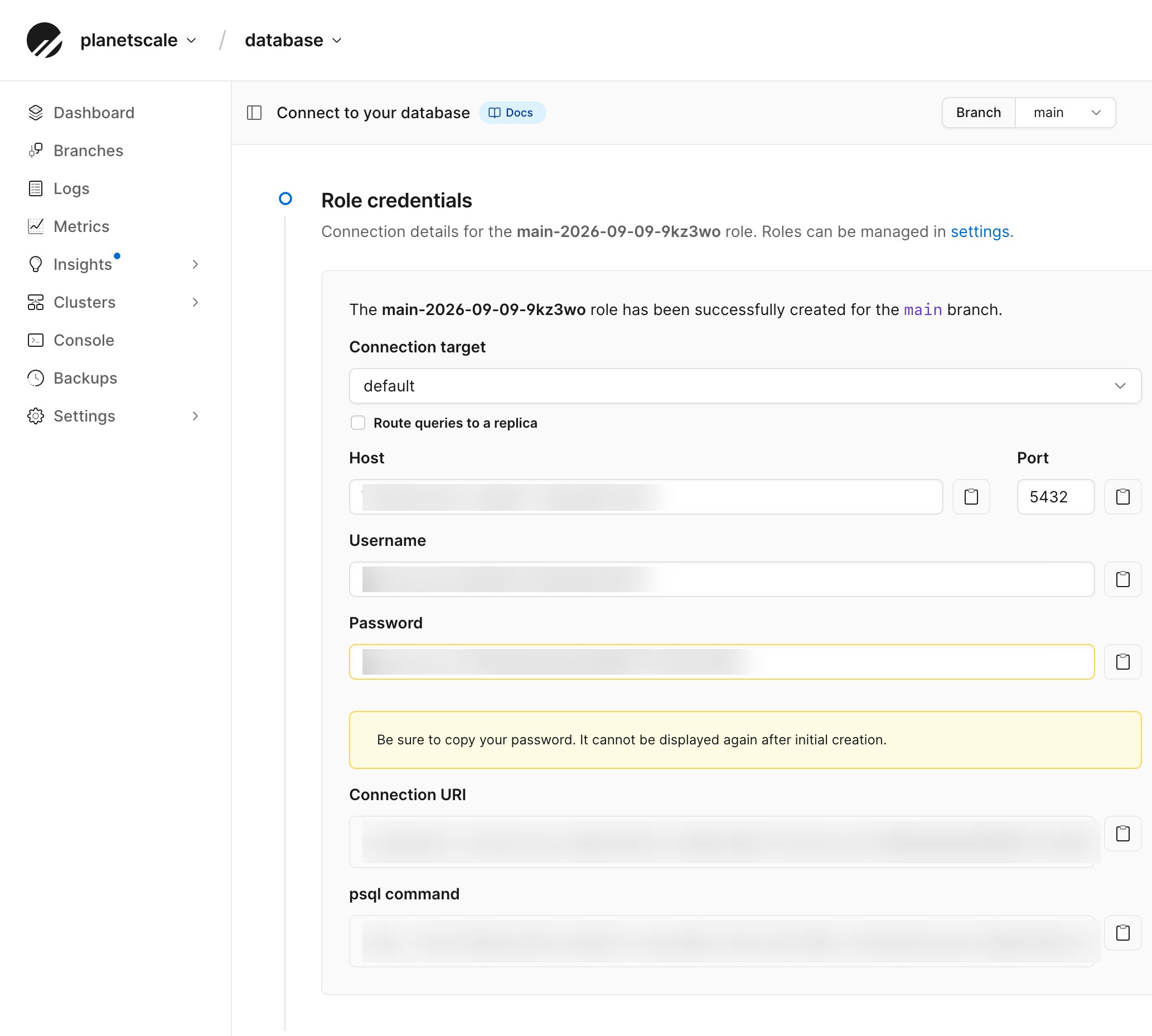
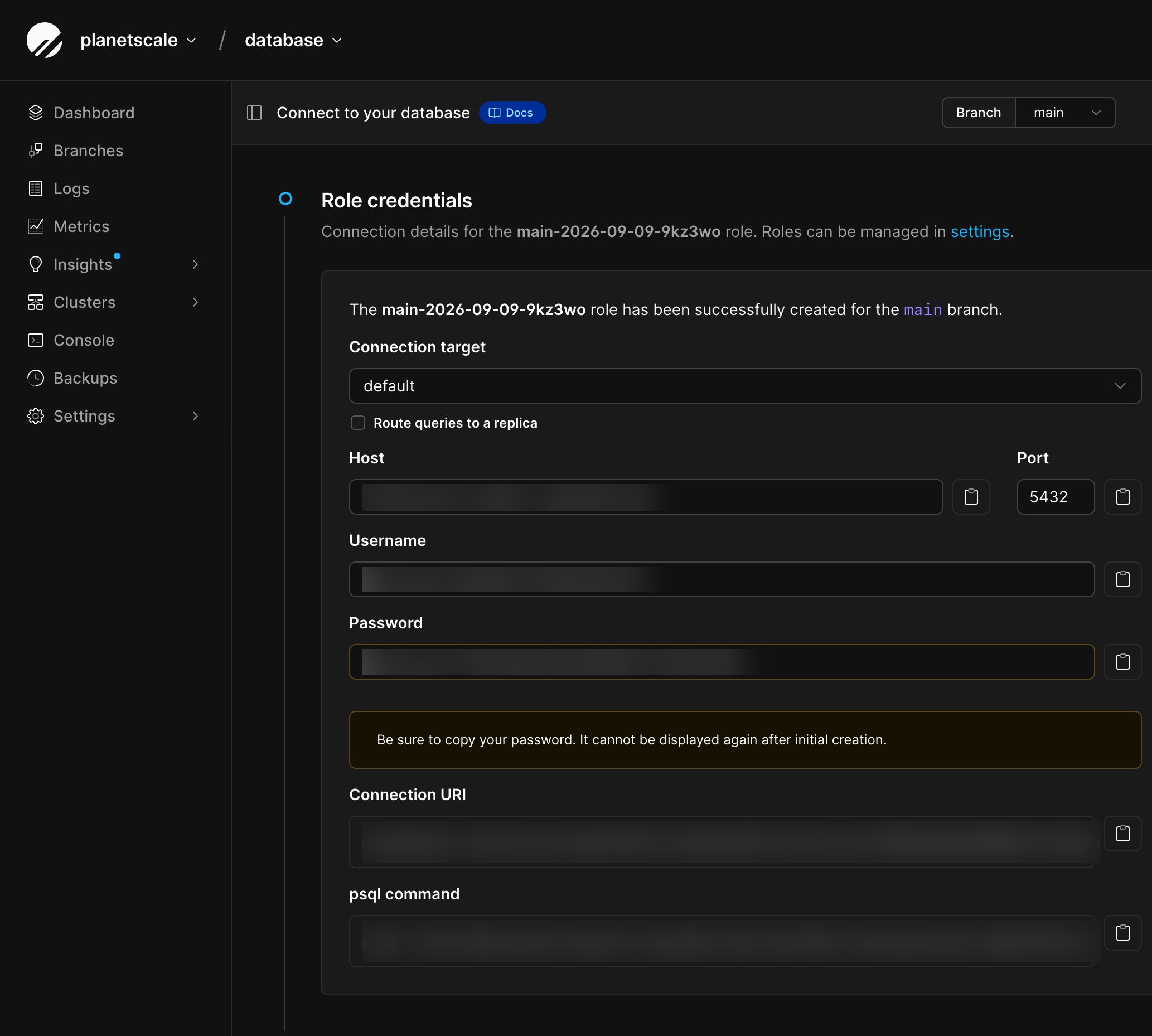
Connect from outside the PlanetScale dashboard by creating a new role in the **Settings** -> **Roles** page, or open `psql` through the PlanetScale CLI.
On the dashboard page, you can also click **Connect** to create a new role.
<Tabs>
  <Tab title="Dashboard">
    <Steps>
      <Step>
        With the default branch selected, click **Connect** from your database dashboard.
      </Step>

      <Step>
        Click **Create new role**. A role determines which operations the connection can
        perform. See [Roles and credentials](/docs/neki/connecting/roles) for more details.
      </Step>

      <Step>
        Copy the generated `psql` command and enter it into your terminal.

        <Frame>
          <img src="https://mintcdn.com/planetscale-2/6i1lJ6cNfB-VSsaH/neki/tutorials/connect-credentials.png?fit=max&auto=format&n=6i1lJ6cNfB-VSsaH&q=85&s=e984936fa0ec61f9763422ea93367fde" alt="Connect page showing generated role credentials and the psql command" className="block dark:hidden" width="2066" height="1858" data-path="neki/tutorials/connect-credentials.png" />

          <img src="https://mintcdn.com/planetscale-2/6i1lJ6cNfB-VSsaH/neki/tutorials/connect-credentials-darkmode.png?fit=max&auto=format&n=6i1lJ6cNfB-VSsaH&q=85&s=ff9759439a66d820a2fea36163b98700" alt="Connect page showing generated role credentials and the psql command" className="hidden dark:block" width="2066" height="1858" data-path="neki/tutorials/connect-credentials-darkmode.png" />
        </Frame>
      </Step>
    </Steps>
  </Tab>

  <Tab title="CLI">
    Open a `psql` session through the PlanetScale CLI. `pscale shell` creates
    temporary credentials, so you do not need a saved role for this step.

    ```bash theme={null}
    pscale shell <DATABASE_NAME> main
    ```

    For a persistent role that your application can reuse, create one from the
    dashboard **Connect** tab or with `pscale role`. See [Roles and
    credentials](/docs/neki/connecting/roles).
  </Tab>
</Tabs>

When the `postgres` prompt appears, query the data you added:

```sql theme={null}
SELECT c.name AS category, p.name AS product
FROM categories AS c
JOIN products AS p ON p.category_id = c.id;
```

### What's next?

Open the **Connect** page and select a framework or language to configure your
application.

See [Connect to Neki](/docs/neki/connecting) for connection parameters, replica
routing, and router groups.

A new Neki database starts on one shard.
Continue with the [Sharding quickstart](/docs/neki/tutorials/sharding-quick-start-guide) to see how sharding works in Neki.

When you want to continue developing your database, create a [development
branch](/docs/neki/branching) from `main` so you can work independently of the
production branch. See [Development environments](/docs/neki/development-environments)
to initialize an empty branch for schema work and tests.

### Clean up

Delete your database from **Settings** > **Delete database**, or use the CLI:

```bash theme={null}
pscale database delete <DATABASE_NAME>
```

Deleting the database permanently removes all of its branches and data.

## Need help?

Get help from [the PlanetScale Support team](https://planetscale.com/contact?initial=support), or join our [Discord community](https://pscale.link/community) to see how others are using PlanetScale.
