> ## Documentation Index
> Fetch the complete documentation index at: https://planetscale.com/docs/llms.txt
> Use this file to discover all available pages before exploring further.
# Cluster configuration
> Configure Neki admin, routers, configuration profiles, and shards.
The **Clusters** area in the PlanetScale dashboard controls the infrastructure
for each Neki branch. It separates the Postgres instances that store data, the
routers that receive application connections, and the admin service that
monitors and repairs the cluster.
| Configuration | What it controls |
| ------------------------- | ----------------------------------------------------------------------------------------------------------------------------------------------------- |
| **Configuration profile** | The cluster size, replica count, Postgres version, storage, Postgres and sidecar parameters, extensions, and shard assignments for one or more shards |
| **Admin** | The Admin size and its health-check and recovery parameters |
| **Router group** | The router size, router instances per availability zone, autoscaling, and router parameters |
Configuration is scoped to the selected branch. Use the branch selector at the
top of the page before making a change.
By default, an organization can use up to 16 shards in one Neki cluster and 51
total cluster nodes. The node budget includes every Postgres primary and
replica plus router instances. When router autoscaling is enabled, its
configured maximum counts toward the limit. Organization-specific limits can
differ; the dashboard and API return the applicable limit when a requested
change would exceed it.
Only a database administrator can change cluster configuration. The branch
must also be ready before the dashboard enables its configuration controls.
 ## Configuration profiles
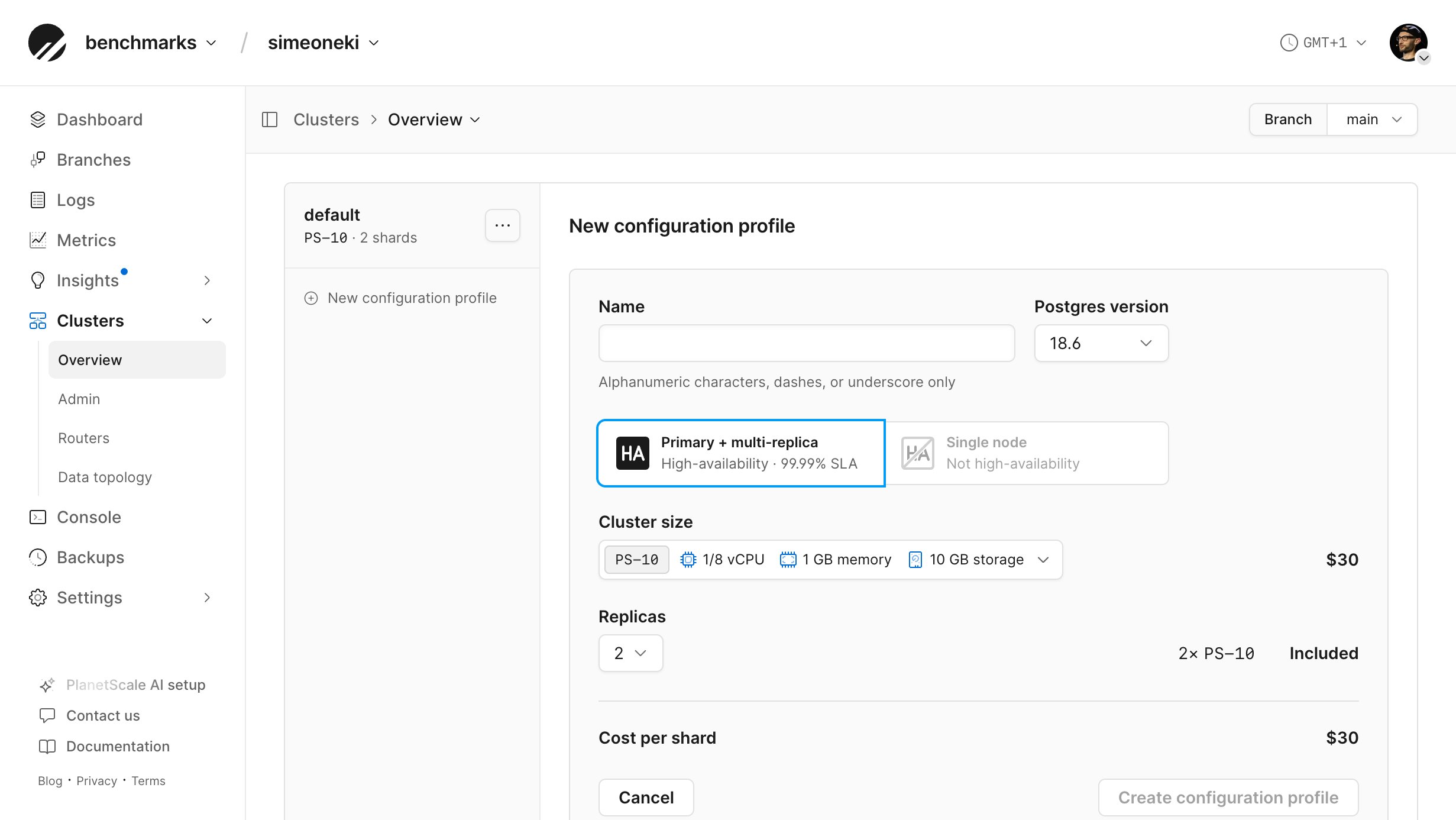
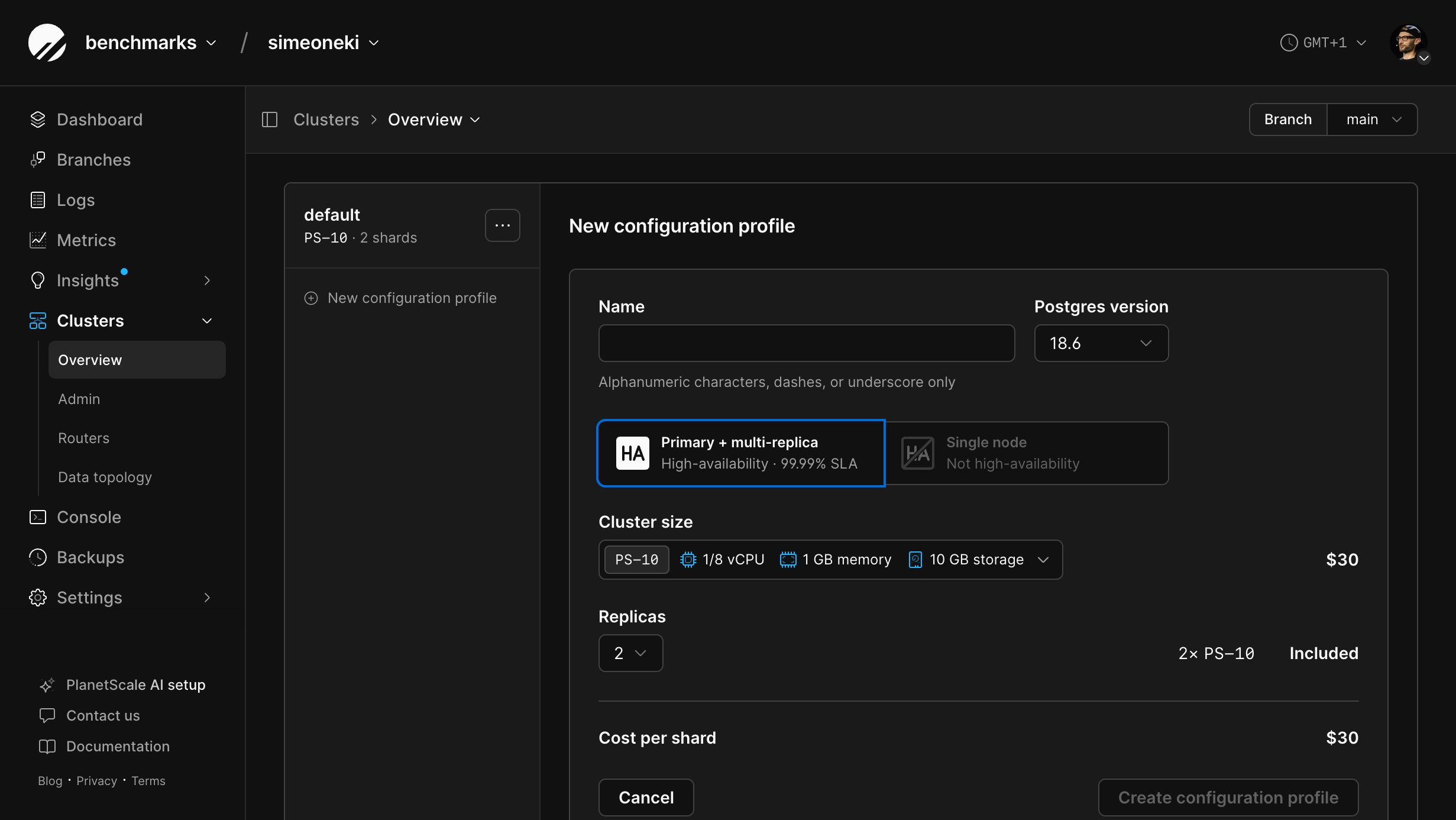
Every shard is assigned to a configuration profile. Multiple profiles let
you give different groups of shards different cluster sizes, replica counts,
storage settings, parameters, or extensions.
| Tab | What you can manage |
| -------------- | ---------------------------------------------------------------------------------------------------------------------------------------------------------- |
| **Instances** | Profile name, Postgres minor version, cluster size, and replica count for every shard assigned to the profile |
| **Storage** | Minimum disk size, storage autoscaling, and configurable IOPS and bandwidth for network-attached storage profiles; fixed local capacity for Metal profiles |
| **Shards** | Shard creation, names, storage usage, deletion, and assignment to profiles |
| **Postgres** | Postgres parameters applied to every Postgres instance in the profile |
| **Sidecars** | Connection-pool parameters applied to the sidecars beside those Postgres instances |
| **Replicator** | Advanced parameters for connection management of the replicator |
| **Extensions** | Postgres extensions and extension parameters available to the profile |
| **Changes** | Current and previous profile and sidecar changes |
The profile list shows the cluster size and number of assigned shards. Change a
profile's name from its **Instances** tab. The profile's action menu lets you
make it the default or delete it when the current configuration permits
deletion. Setting a new default does not move existing shards between profiles.
You cannot delete the default profile or a profile that has shards assigned to
it. To delete another profile, first assign all of its shards to other profiles.
### Postgres versions
The Postgres major version of an existing configuration profile cannot be
changed. You can select the version when creating a new configuration profile.
### Configure profile instances
The **Instances** tab changes the profile name, Postgres minor version, cluster size, or replica count. Those changes apply to every shard assigned to the profile.
See [Cluster sizing](/docs/neki/cluster-configuration/cluster-sizing) to choose and apply a size, and [Database replicas](/docs/neki/replicas) for high availability and read-only routing.
Production branches receive scheduled platform updates during their weekly [maintenance window](/docs/neki/cluster-configuration/maintenance-windows).
### Configure profile storage
The **Storage** tab controls network-attached disk capacity, storage
autoscaling, and configurable IOPS and bandwidth for a network-attached storage profile. A
Metal profile shows the fixed local NVMe capacity provided by its cluster size.
See [Neki pricing](/docs/neki/pricing#storage) for billing implications.
## Manage shards
The **Shards** tab shows the shards assigned to the selected configuration
profile, including their readiness and storage usage. It also highlights the authoritative shard.
From this tab, you can:
* Create one or more shards in the selected profile.
* Rename a shard.
* Assign compatible shards to another configuration profile.
* Delete shards.
To create shards, select **Create new shards**, enter the number to add, review
the per-shard and total estimated cost, and select **Add shards**. Each new
shard uses the selected profile's cluster size and replica count.
Creating a shard provisions its Postgres instances, but it does not change
which tables or rows Neki stores there. The [data topology](/docs/neki/data-topology)
controls data placement.
Deleting a shard is irreversible. Remove it from the data topology and
confirm that it no longer contains data you need before deleting it. Neki
refuses to delete a shard that the current data topology still references.
### Assign shards to another profile
Moving a shard to another configuration profile changes the infrastructure
settings that apply to that shard. The target profile must use the same
architecture, and the shard's current storage usage must fit within the target
cluster's storage capacity.
If the branch has only one configuration profile, create another compatible
profile before **Change profile** becomes available.
Open **Clusters** and select the configuration profile that currently contains the shard.
Select **Shards**.
Select one or more shards, then select **Change profile…**.
Select a compatible configuration profile.
Select **Change profile**.
Wait for the affected shards and branch to return to a ready state before
making a dependent change.
## Configure the admin service
The Neki admin service monitors the sidecars beside each Postgres instance,
analyzes cluster health, and coordinates repairs such as replica recovery and
primary failover. Its configuration is separate from configuration profiles
and router groups.
## Configuration profiles
Every shard is assigned to a configuration profile. Multiple profiles let
you give different groups of shards different cluster sizes, replica counts,
storage settings, parameters, or extensions.
| Tab | What you can manage |
| -------------- | ---------------------------------------------------------------------------------------------------------------------------------------------------------- |
| **Instances** | Profile name, Postgres minor version, cluster size, and replica count for every shard assigned to the profile |
| **Storage** | Minimum disk size, storage autoscaling, and configurable IOPS and bandwidth for network-attached storage profiles; fixed local capacity for Metal profiles |
| **Shards** | Shard creation, names, storage usage, deletion, and assignment to profiles |
| **Postgres** | Postgres parameters applied to every Postgres instance in the profile |
| **Sidecars** | Connection-pool parameters applied to the sidecars beside those Postgres instances |
| **Replicator** | Advanced parameters for connection management of the replicator |
| **Extensions** | Postgres extensions and extension parameters available to the profile |
| **Changes** | Current and previous profile and sidecar changes |
The profile list shows the cluster size and number of assigned shards. Change a
profile's name from its **Instances** tab. The profile's action menu lets you
make it the default or delete it when the current configuration permits
deletion. Setting a new default does not move existing shards between profiles.
You cannot delete the default profile or a profile that has shards assigned to
it. To delete another profile, first assign all of its shards to other profiles.
### Postgres versions
The Postgres major version of an existing configuration profile cannot be
changed. You can select the version when creating a new configuration profile.
### Configure profile instances
The **Instances** tab changes the profile name, Postgres minor version, cluster size, or replica count. Those changes apply to every shard assigned to the profile.
See [Cluster sizing](/docs/neki/cluster-configuration/cluster-sizing) to choose and apply a size, and [Database replicas](/docs/neki/replicas) for high availability and read-only routing.
Production branches receive scheduled platform updates during their weekly [maintenance window](/docs/neki/cluster-configuration/maintenance-windows).
### Configure profile storage
The **Storage** tab controls network-attached disk capacity, storage
autoscaling, and configurable IOPS and bandwidth for a network-attached storage profile. A
Metal profile shows the fixed local NVMe capacity provided by its cluster size.
See [Neki pricing](/docs/neki/pricing#storage) for billing implications.
## Manage shards
The **Shards** tab shows the shards assigned to the selected configuration
profile, including their readiness and storage usage. It also highlights the authoritative shard.
From this tab, you can:
* Create one or more shards in the selected profile.
* Rename a shard.
* Assign compatible shards to another configuration profile.
* Delete shards.
To create shards, select **Create new shards**, enter the number to add, review
the per-shard and total estimated cost, and select **Add shards**. Each new
shard uses the selected profile's cluster size and replica count.
Creating a shard provisions its Postgres instances, but it does not change
which tables or rows Neki stores there. The [data topology](/docs/neki/data-topology)
controls data placement.
Deleting a shard is irreversible. Remove it from the data topology and
confirm that it no longer contains data you need before deleting it. Neki
refuses to delete a shard that the current data topology still references.
### Assign shards to another profile
Moving a shard to another configuration profile changes the infrastructure
settings that apply to that shard. The target profile must use the same
architecture, and the shard's current storage usage must fit within the target
cluster's storage capacity.
If the branch has only one configuration profile, create another compatible
profile before **Change profile** becomes available.
Open **Clusters** and select the configuration profile that currently contains the shard.
Select **Shards**.
Select one or more shards, then select **Change profile…**.
Select a compatible configuration profile.
Select **Change profile**.
Wait for the affected shards and branch to return to a ready state before
making a dependent change.
## Configure the admin service
The Neki admin service monitors the sidecars beside each Postgres instance,
analyzes cluster health, and coordinates repairs such as replica recovery and
primary failover. Its configuration is separate from configuration profiles
and router groups.
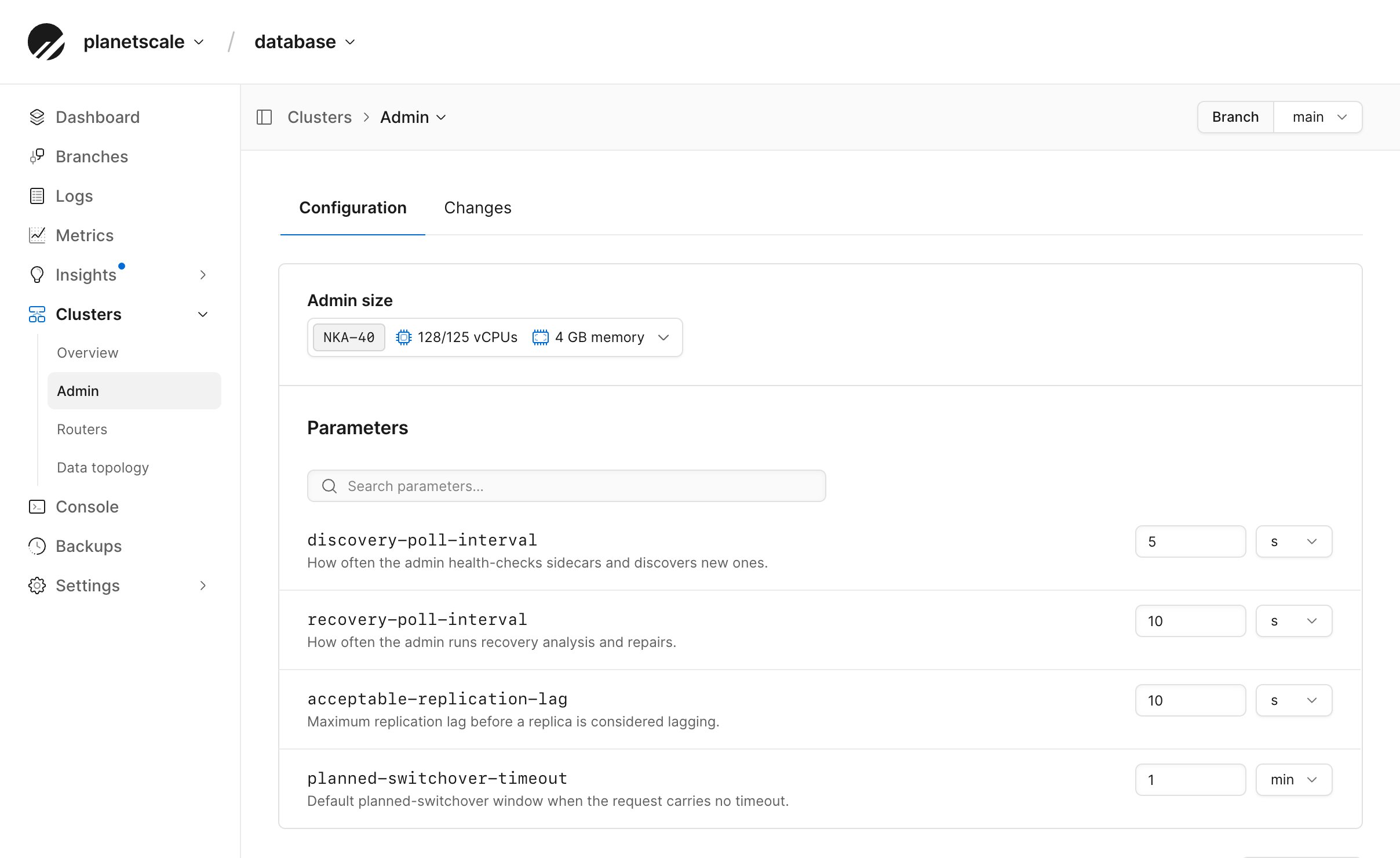
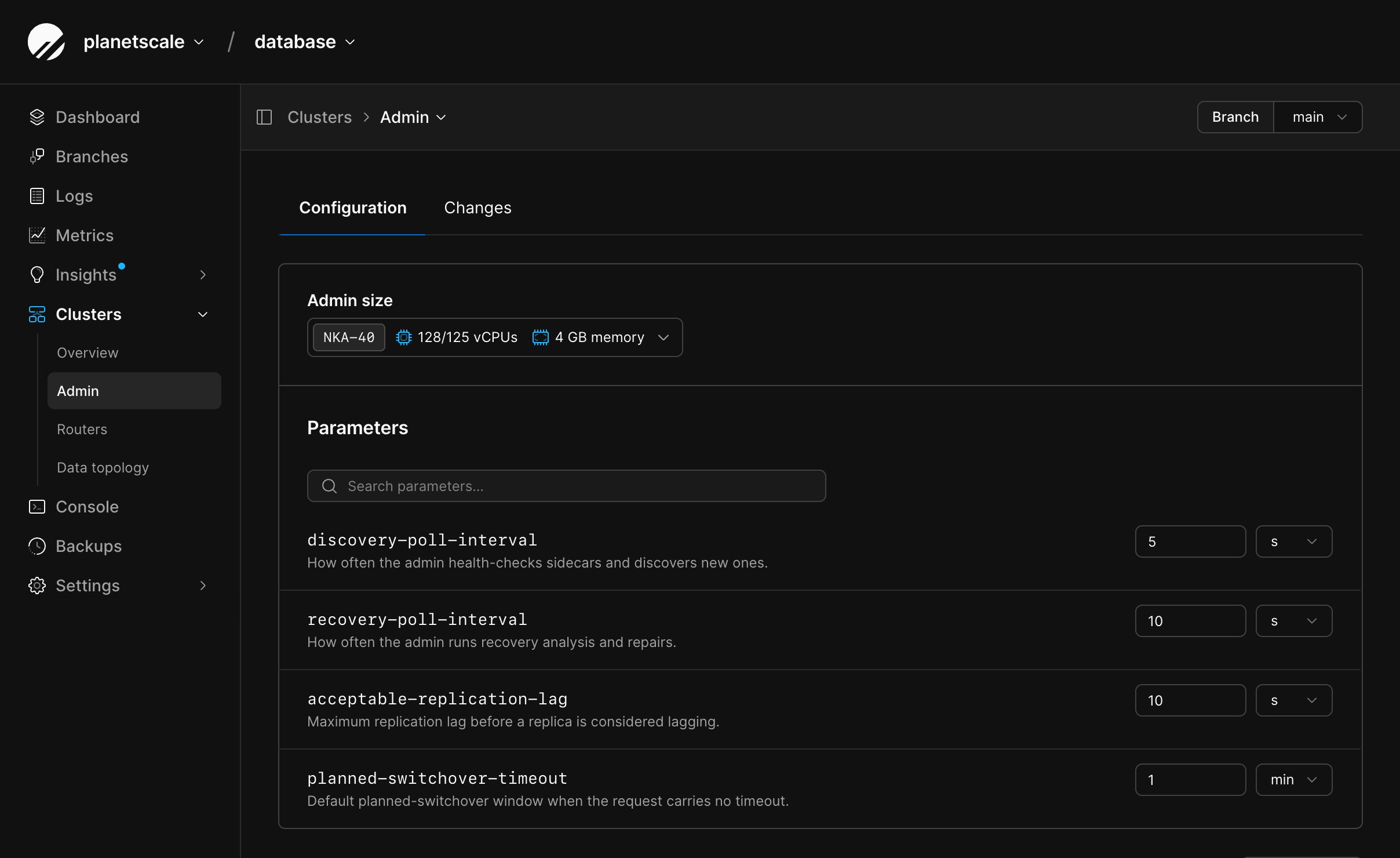 Open **Clusters**, then select **Admin**. The **Configuration** tab sets the Admin size and its health-check and recovery parameters. The **Changes** tab records those updates. You can cancel an admin change while it is pending or applying.
See [Cluster sizing](/docs/neki/cluster-configuration/cluster-sizing#size-the-admin-service-independently) to choose an Admin size, and [Configuration parameters](/docs/neki/cluster-configuration/parameters#configure-admin-parameters) for the available admin settings.
## Configure router groups
Router groups are managed separately from configuration profiles. Open
**Clusters**, then select **Routers** from the navigation. Each named router in
this area represents one router group. Selecting it opens these tabs:
| Tab | What you can manage |
| --------------- | ------------------------------------------------------------------------------------------------------- |
| **Instances** | Router size and router instances per availability zone |
| **Autoscaling** | Horizontal autoscaling, target CPU utilization, and minimum and maximum instances per availability zone |
| **Parameters** | Replica-routing lag thresholds |
| **Changes** | Current and previous router changes |
The default router group cannot be deleted. You can create additional groups, then choose the group when you [connect to Neki](/docs/neki/connecting).
### Create a router
From the PlanetScale dashboard, select your Neki database and branch.
Open **Clusters**, then select **Routers**.
Select **New router**.
Enter a name, select a router size, and choose the number of replicas per availability zone.
Select **Create router**.
On the **Autoscaling** tab, target CPU utilization is 40%, 50%, 60%, or 70%.
The maximum replicas per availability zone must be greater than the minimum.
The default organization limit is 32 router replicas per availability zone;
the dashboard shows a different limit when your organization has one. An
autoscaling router's maximum, rather than its current replica count, consumes
the cluster node budget.
See [Cluster sizing](/docs/neki/cluster-configuration/cluster-sizing#size-routers-independently) to change a group's size or autoscaling.
See [Postgres parameters](/docs/neki/cluster-configuration/parameters#configure-postgres-parameters), [admin parameters](/docs/neki/cluster-configuration/parameters#configure-admin-parameters), and [router parameters](/docs/neki/cluster-configuration/parameters#configure-router-parameters).
## Track configuration changes
Selecting **Apply now** creates a change that PlanetScale applies asynchronously.
View the selected object's **Changes** tab for a summary.
Wait for a change to complete before relying on the new configuration.
PlanetScale's [orchestration layer](/docs/neki/terminology#orchestration-layer)
reconciles these requested settings with what is already running.
The change history reflects that asynchronous work rather than an immediate in-place edit.
You can cancel a pending configuration change from the **Changes** tab. If you
make another configuration-profile change while one is active, Neki saves the
new change as a draft. You can apply or discard that draft from the profile or
its **Changes** tab.
## Manage Neki infrastructure with the CLI
Neki infrastructure commands are grouped beneath `pscale branch`:
| Command group | What it manages |
| ------------------------------ | ----------------------------------------------------------------------------------------------------------------------------------------------------------------------- |
| `pscale branch config-profile` | Configuration profiles, their Postgres parameters, storage, the default profile, profile changes, extensions (`list`, `enable`, `disable`), and per-profile maintenance |
| `pscale branch shard` | Shard creation, assignment, display names, listing, show, and deletion |
| `pscale branch admin` | Admin configuration, parameters, sizes, and changes |
| `pscale branch router` | Router groups, sizes, configuration, and changes |
| `pscale branch sidecar` | Connection-pool parameters and their changes |
| `pscale branch data-topology` | The branch data-topology document and its resolved relationships |
The [`pscale branch`](/docs/cli/branch) reference lists every nested operation and flag. Run a command group with `--help` to see the same details in the CLI:
```bash theme={null}
pscale branch config-profile --help
pscale branch shard --help
pscale branch router --help
```
The Admin, router, and sidecar `changes list` commands include a **Changes** column that
summarizes each size or parameter change from its previous value to its new
value. List available Neki cluster sizes with `pscale size cluster list --engine neki`,
admin SKUs with `pscale branch admin sizes `, and router
SKUs with `pscale branch router sizes `.
Extension commands require the database, branch, and profile. Enable and
disable also require the extension name:
```bash theme={null}
pscale branch config-profile extensions
pscale branch config-profile extensions enable
pscale branch config-profile extensions disable
```
## Need help?
Get help from [the PlanetScale Support team](https://planetscale.com/contact?initial=support), or join our [Discord community](https://pscale.link/community) to see how others are using PlanetScale.
Open **Clusters**, then select **Admin**. The **Configuration** tab sets the Admin size and its health-check and recovery parameters. The **Changes** tab records those updates. You can cancel an admin change while it is pending or applying.
See [Cluster sizing](/docs/neki/cluster-configuration/cluster-sizing#size-the-admin-service-independently) to choose an Admin size, and [Configuration parameters](/docs/neki/cluster-configuration/parameters#configure-admin-parameters) for the available admin settings.
## Configure router groups
Router groups are managed separately from configuration profiles. Open
**Clusters**, then select **Routers** from the navigation. Each named router in
this area represents one router group. Selecting it opens these tabs:
| Tab | What you can manage |
| --------------- | ------------------------------------------------------------------------------------------------------- |
| **Instances** | Router size and router instances per availability zone |
| **Autoscaling** | Horizontal autoscaling, target CPU utilization, and minimum and maximum instances per availability zone |
| **Parameters** | Replica-routing lag thresholds |
| **Changes** | Current and previous router changes |
The default router group cannot be deleted. You can create additional groups, then choose the group when you [connect to Neki](/docs/neki/connecting).
### Create a router
From the PlanetScale dashboard, select your Neki database and branch.
Open **Clusters**, then select **Routers**.
Select **New router**.
Enter a name, select a router size, and choose the number of replicas per availability zone.
Select **Create router**.
On the **Autoscaling** tab, target CPU utilization is 40%, 50%, 60%, or 70%.
The maximum replicas per availability zone must be greater than the minimum.
The default organization limit is 32 router replicas per availability zone;
the dashboard shows a different limit when your organization has one. An
autoscaling router's maximum, rather than its current replica count, consumes
the cluster node budget.
See [Cluster sizing](/docs/neki/cluster-configuration/cluster-sizing#size-routers-independently) to change a group's size or autoscaling.
See [Postgres parameters](/docs/neki/cluster-configuration/parameters#configure-postgres-parameters), [admin parameters](/docs/neki/cluster-configuration/parameters#configure-admin-parameters), and [router parameters](/docs/neki/cluster-configuration/parameters#configure-router-parameters).
## Track configuration changes
Selecting **Apply now** creates a change that PlanetScale applies asynchronously.
View the selected object's **Changes** tab for a summary.
Wait for a change to complete before relying on the new configuration.
PlanetScale's [orchestration layer](/docs/neki/terminology#orchestration-layer)
reconciles these requested settings with what is already running.
The change history reflects that asynchronous work rather than an immediate in-place edit.
You can cancel a pending configuration change from the **Changes** tab. If you
make another configuration-profile change while one is active, Neki saves the
new change as a draft. You can apply or discard that draft from the profile or
its **Changes** tab.
## Manage Neki infrastructure with the CLI
Neki infrastructure commands are grouped beneath `pscale branch`:
| Command group | What it manages |
| ------------------------------ | ----------------------------------------------------------------------------------------------------------------------------------------------------------------------- |
| `pscale branch config-profile` | Configuration profiles, their Postgres parameters, storage, the default profile, profile changes, extensions (`list`, `enable`, `disable`), and per-profile maintenance |
| `pscale branch shard` | Shard creation, assignment, display names, listing, show, and deletion |
| `pscale branch admin` | Admin configuration, parameters, sizes, and changes |
| `pscale branch router` | Router groups, sizes, configuration, and changes |
| `pscale branch sidecar` | Connection-pool parameters and their changes |
| `pscale branch data-topology` | The branch data-topology document and its resolved relationships |
The [`pscale branch`](/docs/cli/branch) reference lists every nested operation and flag. Run a command group with `--help` to see the same details in the CLI:
```bash theme={null}
pscale branch config-profile --help
pscale branch shard --help
pscale branch router --help
```
The Admin, router, and sidecar `changes list` commands include a **Changes** column that
summarizes each size or parameter change from its previous value to its new
value. List available Neki cluster sizes with `pscale size cluster list --engine neki`,
admin SKUs with `pscale branch admin sizes `, and router
SKUs with `pscale branch router sizes `.
Extension commands require the database, branch, and profile. Enable and
disable also require the extension name:
```bash theme={null}
pscale branch config-profile extensions
pscale branch config-profile extensions enable
pscale branch config-profile extensions disable
```
## Need help?
Get help from [the PlanetScale Support team](https://planetscale.com/contact?initial=support), or join our [Discord community](https://pscale.link/community) to see how others are using PlanetScale.