> ## Documentation Index
> Fetch the complete documentation index at: https://planetscale.com/docs/llms.txt
> Use this file to discover all available pages before exploring further.
# Back up and restore
> Create, schedule, and restore backups for Neki database branches.
Neki supports scheduled and on-demand backups for production and development
branches. A backup covers the schema and data stored on every managed shard in
the branch.
Restoring a backup does not replace the source branch. PlanetScale creates a
new Neki branch from the selected backup or point in time.
The Neki orchestration layer coordinates the per-shard backup and restore work and reports its status to the PlanetScale control plane.
## How Neki backups work
When a backup begins, PlanetScale starts backup work for every managed shard in
the branch. Each shard reports its own status, size, and recovery position. The
Neki backup is successful only after every shard backup succeeds.
The Backups page reports the overall backup as pending, running, successful, or
failed. A successful backup records the per-shard recovery information required
to restore the branch later. Backups capture each shard primary. Replica
instances are not backed up separately.
## Replicas and backups
Adding a replica to a shard restores that replica from the shard's last
backup. The [admin](/docs/neki/overview#the-admin) then joins the replica to the
shard primary so it can start replication and catch up.
The same path can repair a replica that can no longer catch up from WAL.
That restore does not create a new backup on the Backups page.
See [Database replicas](/docs/neki/replicas).
## Automatic backups
PlanetScale creates required backup schedules for production and development
branches when a database becomes ready. These schedules run every 12 hours and
retain each backup for two days. Required schedules cannot be modified or
removed. Those backups use the included backup-storage allowance. See
[Backup pricing](#backup-pricing).
## View backups
From the PlanetScale dashboard, select your Neki database.
Select **Backups**.
Select **Production branches** or **Development branches**.
Optionally filter the list by branch or date range.
Review the backup name, source branch, size, completion time, and current
status.
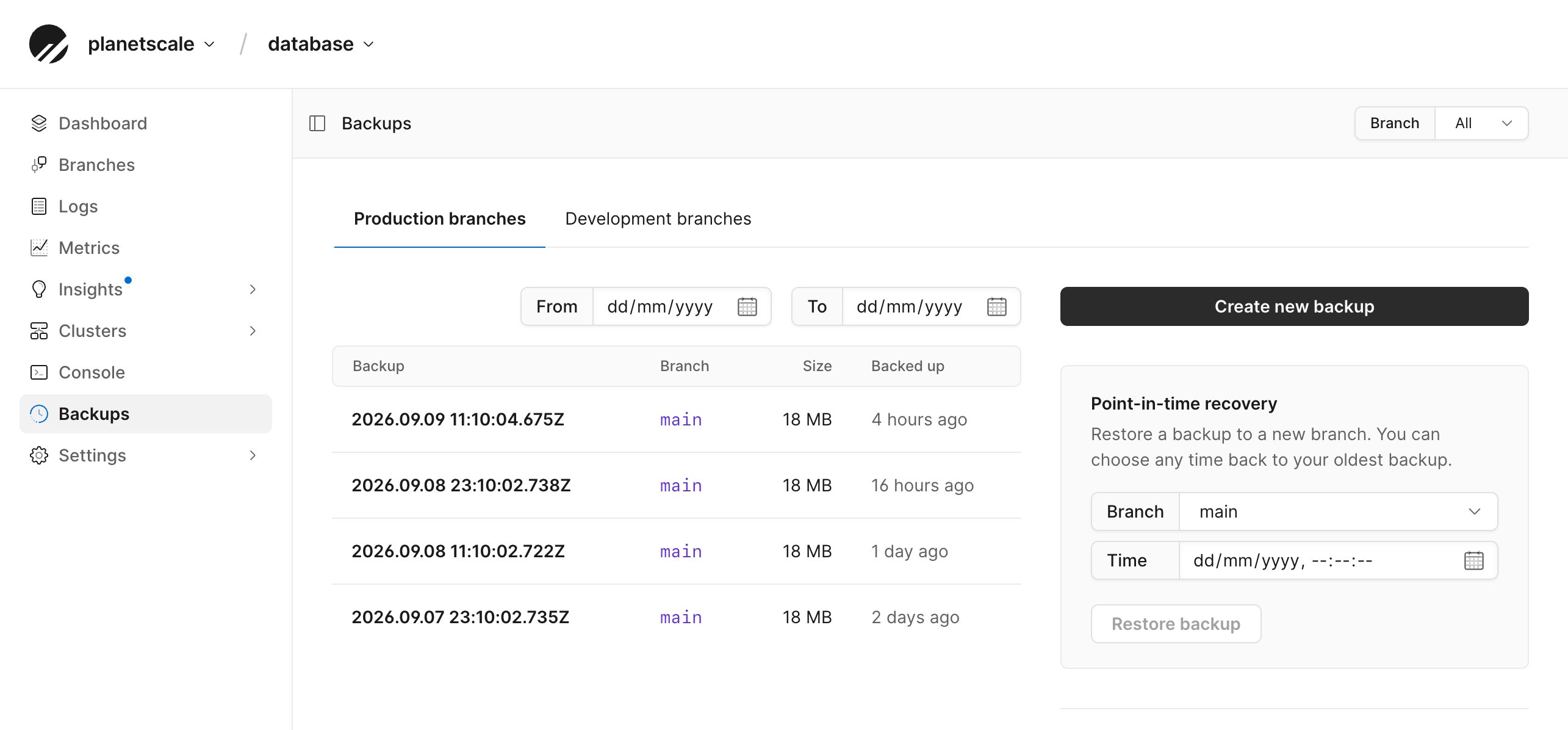
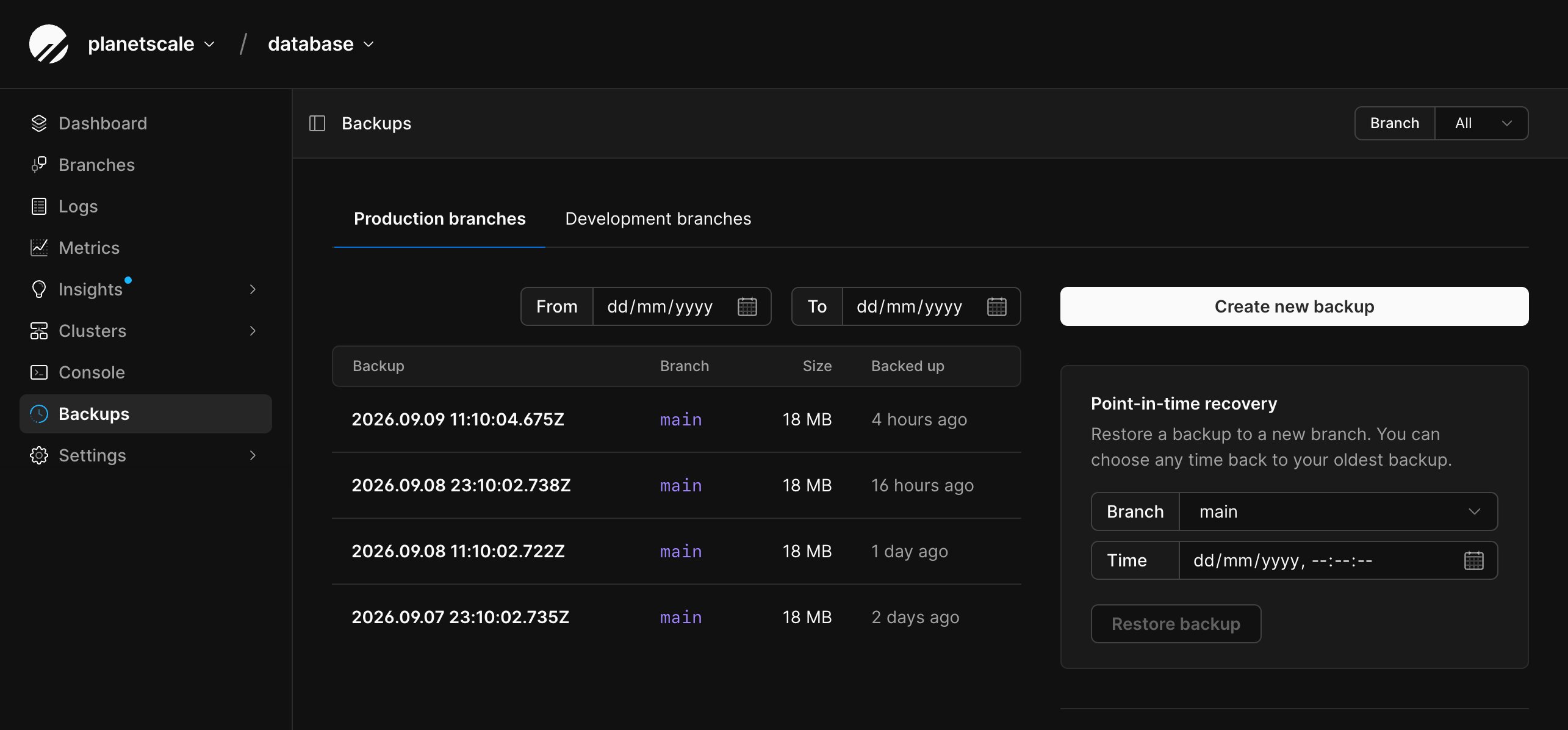 Selecting a backup opens its detail page, where you can review its retention
and restore it after it succeeds.
## Create a manual backup
You can create one manual backup at a time for a branch.
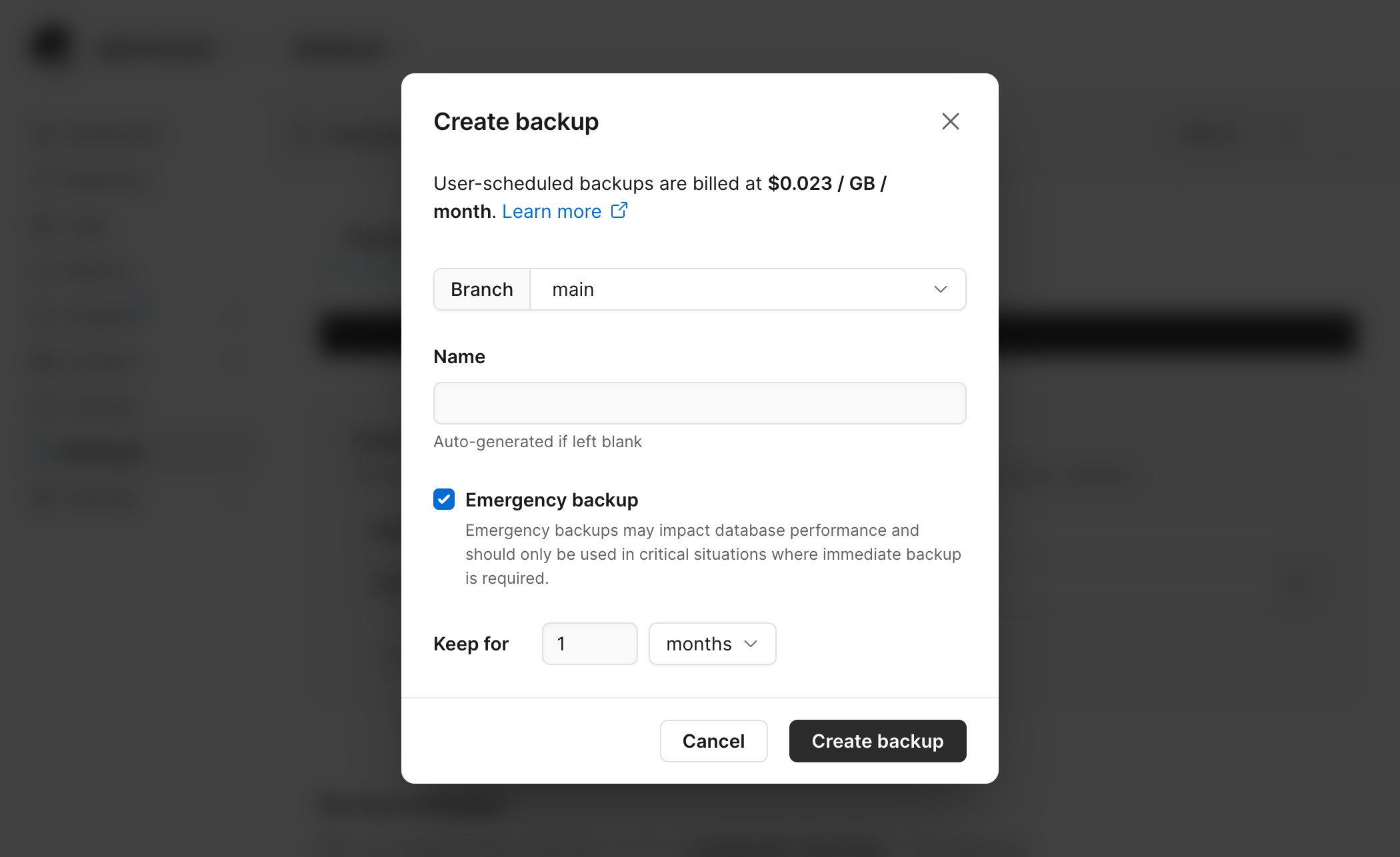
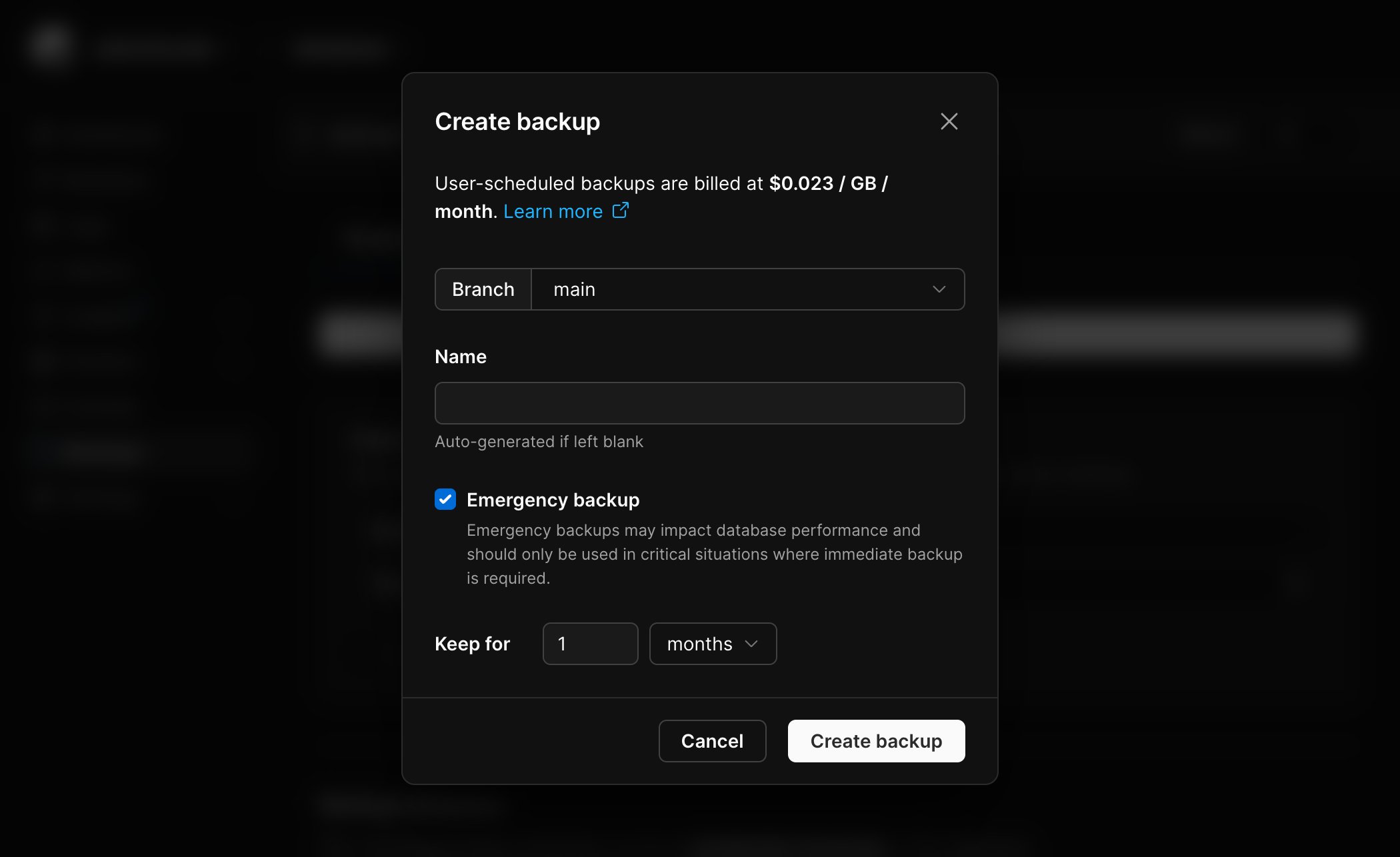
From the database's **Backups** page, select **Create new backup**.
Select the branch to back up.
Enter a backup name, or leave the field empty to generate one automatically.
Set how long to retain the backup. Retention can be measured in hours, days,
weeks, months, or years.
Select **Create backup**.
### Emergency backups
The manual-backup form also provides an **Emergency backup** option.
Emergency backups may affect database performance. Use one only in a critical
situation that requires an immediate backup.
Selecting a backup opens its detail page, where you can review its retention
and restore it after it succeeds.
## Create a manual backup
You can create one manual backup at a time for a branch.
From the database's **Backups** page, select **Create new backup**.
Select the branch to back up.
Enter a backup name, or leave the field empty to generate one automatically.
Set how long to retain the backup. Retention can be measured in hours, days,
weeks, months, or years.
Select **Create backup**.
### Emergency backups
The manual-backup form also provides an **Emergency backup** option.
Emergency backups may affect database performance. Use one only in a critical
situation that requires an immediate backup.
 ## Create a custom backup schedule
A database-level schedule applies to every branch of the selected type. For
example, a production schedule runs for every production branch in the
database.
From the database's **Backups** page, select **Production branches** or **Development branches**.
Select **Add new schedule**.
Choose an hourly, daily, weekly, or monthly frequency and when the backup
should begin. Times are configured in UTC.
Set the retention period in hours, days, weeks, months, or years.
Enter a schedule name, or leave the field empty to generate one
automatically.
Select **Save schedule**.
You can edit or delete a custom schedule. Required schedules cannot be changed
or removed.
## Restore a backup
A completed Neki backup can be restored to a new branch.
From the database's **Backups** page, select a successful backup.
Select **Restore to new branch**.
Enter a name for the new branch.
For each configuration profile, select a cluster size and replica count.
Cluster sizes must use the same CPU architecture as the source profile.
Use development SKUs for every profile to create a development branch, or
production SKUs for every profile to create a production branch. You
cannot mix development and production profile sizes.
For each router group, select a router size and the number of replicas per
availability zone.
Review the estimated monthly cost, then select **Restore backup**.
PlanetScale creates the new branch and restores every shard recorded by the
backup. The source branch remains available while the new branch is created.
The restored branch is billed on its own for compute, storage, backups, and
network transfer. See [Neki pricing](/docs/neki/pricing).
The default configuration profile's selected SKU determines whether the
restored branch is development or production. If you do not override profile
sizes, the restore inherits the source sizes and branch type. Development
profiles use one Postgres node per shard and a development router. Production
profiles use the selected production replica shape and production routers
across three AZs. These choices determine the restored branch's availability,
branch-limit category, and billing.
## Point-in-time recovery
Point-in-time recovery restores a new branch to a selected time rather than to
the exact completion time of a backup. Neki starts from an eligible successful
backup completed at or before the selected time, then replays the Postgres
write-ahead log (WAL) for each restored shard until that time.
The dashboard limits the available window to times between the oldest eligible
backup and five minutes before the current time.
From the database's **Backups** page, find **Point-in-time recovery**.
Select the source branch.
Select the date and time to restore.
Enter a name.
Choose a compatible cluster size and replica count for each configuration profile.
Choose a size and replicas per availability zone for each router group.
Review the estimated monthly cost.
Select **Restore backup** to create the branch.
If no eligible successful backup completed before the selected time, the
restore cannot start.
Point-in-time recovery is also available in the PlanetScale CLI:
```bash theme={null}
pscale branch create \
--from \
--restore-point 2026-09-09T18:00:00Z
```
The CLI chooses an eligible backup from the source branch. To select the backup
and restore sizing explicitly, use its ID and repeat `--config-profile` and
`--router` for each resource that needs an override. This example assumes the
source has only its default profile and router:
```bash theme={null}
pscale branch create \
--restore \
--restore-point 2026-09-09T18:00:00Z \
--config-profile name=default,cluster-size=PS_DEV,replicas=0 \
--router name=default,size=NKR_DEV,replicas-per-cell=1
```
Omitted configuration profiles and routers inherit their source settings.
Profile sizes must retain the source CPU architecture, and all restored
profiles must use either development or production SKUs.
A shard-set change can create a gap in the point-in-time recovery window. A
restore point after a shard was added is unavailable until a later successful
backup includes every shard in the new set. Choose a time covered by that
later backup, or restore the later backup without a restore point.
## Retention, protection, and deletion
Manual backups and custom schedules use the retention period selected when
they are created. After a backup succeeds, its detail page shows when it
expires.
Enable **Prevent backup deletion** on an individual backup to prevent both
automatic and manual deletion. A required backup cannot be manually deleted.
A backup that is being used by an active restore also cannot be deleted.
## Backup pricing
Each branch includes backup storage equal to twice the allocated disk
on that branch. Required 12-hour, two-day backups use this allowance.
Compressed backup data and WAL above the included amount are billed at
**\$0.023 per GB per month**. Longer retention, manual backups, and custom
schedules increase usage.
See [Neki pricing](/docs/neki/pricing#backups) for the full usage model.
## Need help?
Get help from [the PlanetScale Support team](https://planetscale.com/contact?initial=support), or join our [Discord community](https://pscale.link/community) to see how others are using PlanetScale.
## Create a custom backup schedule
A database-level schedule applies to every branch of the selected type. For
example, a production schedule runs for every production branch in the
database.
From the database's **Backups** page, select **Production branches** or **Development branches**.
Select **Add new schedule**.
Choose an hourly, daily, weekly, or monthly frequency and when the backup
should begin. Times are configured in UTC.
Set the retention period in hours, days, weeks, months, or years.
Enter a schedule name, or leave the field empty to generate one
automatically.
Select **Save schedule**.
You can edit or delete a custom schedule. Required schedules cannot be changed
or removed.
## Restore a backup
A completed Neki backup can be restored to a new branch.
From the database's **Backups** page, select a successful backup.
Select **Restore to new branch**.
Enter a name for the new branch.
For each configuration profile, select a cluster size and replica count.
Cluster sizes must use the same CPU architecture as the source profile.
Use development SKUs for every profile to create a development branch, or
production SKUs for every profile to create a production branch. You
cannot mix development and production profile sizes.
For each router group, select a router size and the number of replicas per
availability zone.
Review the estimated monthly cost, then select **Restore backup**.
PlanetScale creates the new branch and restores every shard recorded by the
backup. The source branch remains available while the new branch is created.
The restored branch is billed on its own for compute, storage, backups, and
network transfer. See [Neki pricing](/docs/neki/pricing).
The default configuration profile's selected SKU determines whether the
restored branch is development or production. If you do not override profile
sizes, the restore inherits the source sizes and branch type. Development
profiles use one Postgres node per shard and a development router. Production
profiles use the selected production replica shape and production routers
across three AZs. These choices determine the restored branch's availability,
branch-limit category, and billing.
## Point-in-time recovery
Point-in-time recovery restores a new branch to a selected time rather than to
the exact completion time of a backup. Neki starts from an eligible successful
backup completed at or before the selected time, then replays the Postgres
write-ahead log (WAL) for each restored shard until that time.
The dashboard limits the available window to times between the oldest eligible
backup and five minutes before the current time.
From the database's **Backups** page, find **Point-in-time recovery**.
Select the source branch.
Select the date and time to restore.
Enter a name.
Choose a compatible cluster size and replica count for each configuration profile.
Choose a size and replicas per availability zone for each router group.
Review the estimated monthly cost.
Select **Restore backup** to create the branch.
If no eligible successful backup completed before the selected time, the
restore cannot start.
Point-in-time recovery is also available in the PlanetScale CLI:
```bash theme={null}
pscale branch create \
--from \
--restore-point 2026-09-09T18:00:00Z
```
The CLI chooses an eligible backup from the source branch. To select the backup
and restore sizing explicitly, use its ID and repeat `--config-profile` and
`--router` for each resource that needs an override. This example assumes the
source has only its default profile and router:
```bash theme={null}
pscale branch create \
--restore \
--restore-point 2026-09-09T18:00:00Z \
--config-profile name=default,cluster-size=PS_DEV,replicas=0 \
--router name=default,size=NKR_DEV,replicas-per-cell=1
```
Omitted configuration profiles and routers inherit their source settings.
Profile sizes must retain the source CPU architecture, and all restored
profiles must use either development or production SKUs.
A shard-set change can create a gap in the point-in-time recovery window. A
restore point after a shard was added is unavailable until a later successful
backup includes every shard in the new set. Choose a time covered by that
later backup, or restore the later backup without a restore point.
## Retention, protection, and deletion
Manual backups and custom schedules use the retention period selected when
they are created. After a backup succeeds, its detail page shows when it
expires.
Enable **Prevent backup deletion** on an individual backup to prevent both
automatic and manual deletion. A required backup cannot be manually deleted.
A backup that is being used by an active restore also cannot be deleted.
## Backup pricing
Each branch includes backup storage equal to twice the allocated disk
on that branch. Required 12-hour, two-day backups use this allowance.
Compressed backup data and WAL above the included amount are billed at
**\$0.023 per GB per month**. Longer retention, manual backups, and custom
schedules increase usage.
See [Neki pricing](/docs/neki/pricing#backups) for the full usage model.
## Need help?
Get help from [the PlanetScale Support team](https://planetscale.com/contact?initial=support), or join our [Discord community](https://pscale.link/community) to see how others are using PlanetScale.