> ## Documentation Index
> Fetch the complete documentation index at: https://planetscale.com/docs/llms.txt
> Use this file to discover all available pages before exploring further.
# Cloudflare
> Create and pay for PlanetScale Postgres or MySQL databases from the Cloudflare dashboard without adding billing details to PlanetScale.
You can create PlanetScale Postgres or MySQL databases directly from the Cloudflare dashboard and pay for usage through your [Cloudflare account](https://developers.cloudflare.com/fundamentals/setup/account/create-account/).
Resources are provisioned in your PlanetScale account with normal dashboard access. Your billing page in the PlanetScale dashboard will indicate that some billing is handled through Cloudflare.
## When to use this
Use this flow when you want a PlanetScale database for [Cloudflare Workers](https://developers.cloudflare.com/workers/) and [Hyperdrive](https://developers.cloudflare.com/hyperdrive/) with billing unified in Cloudflare.
If you already have a PlanetScale database, or prefer to manage billing on PlanetScale directly, see [Connect an existing database](#connect-an-existing-database) below.
## Before you begin
Before you can create a Cloudflare-billed PlanetScale database, you'll need:
* A [Cloudflare account](https://developers.cloudflare.com/fundamentals/setup/account/create-account/)
* A PlanetScale account (you can create one during setup)
## Create a database from Cloudflare
Log in to the Cloudflare dashboard and navigate to **Storage & databases** > **Postgres & MySQL (Hyperdrive)**.
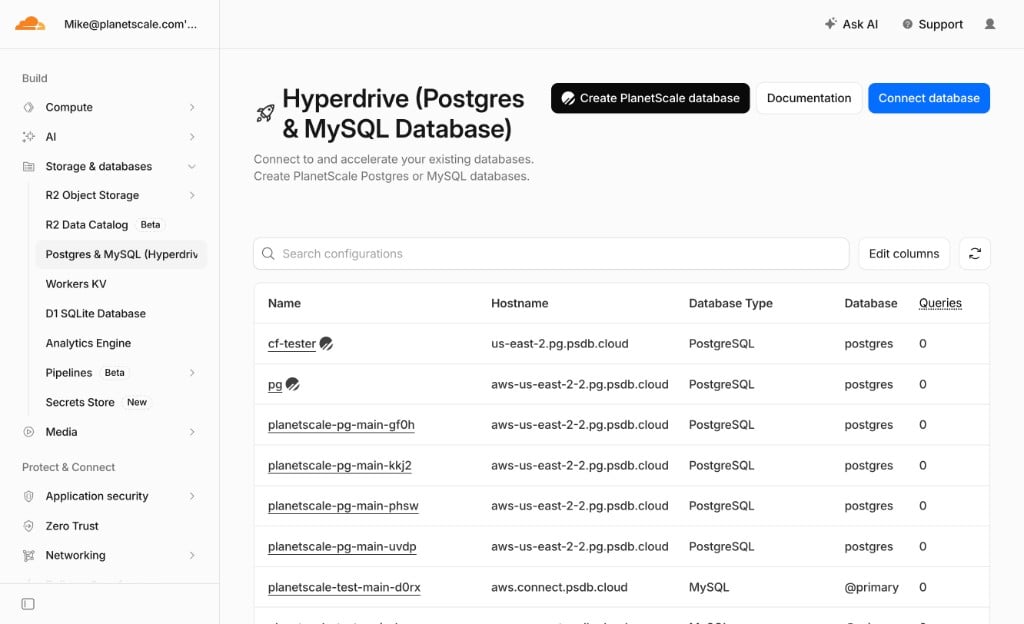
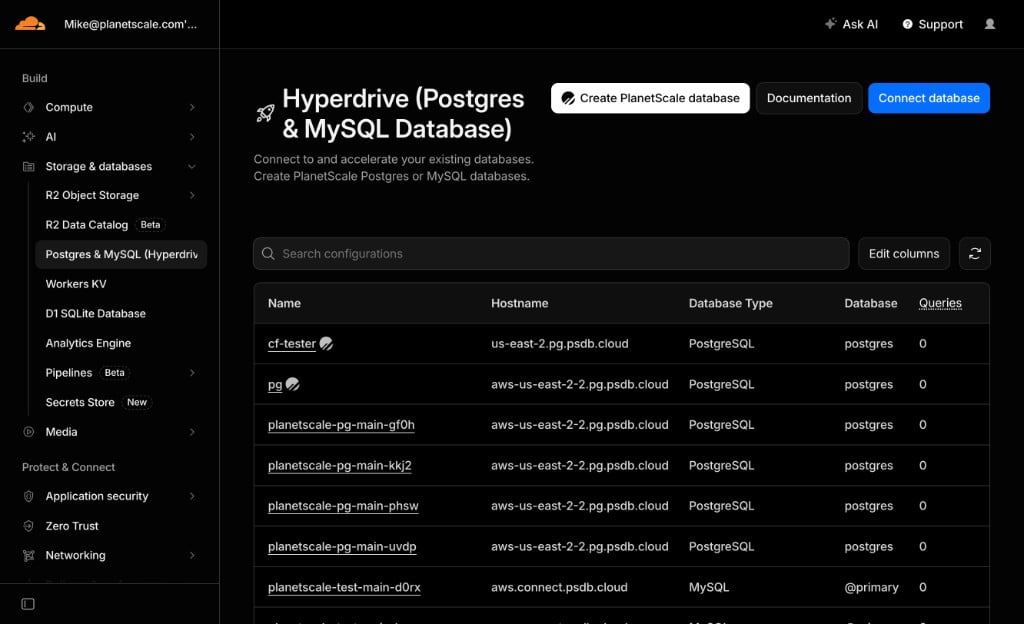 Click **Create PlanetScale database**.
Under **New PlanetScale database**, select your PlanetScale organization.
Click **Create PlanetScale database**.
Under **New PlanetScale database**, select your PlanetScale organization.
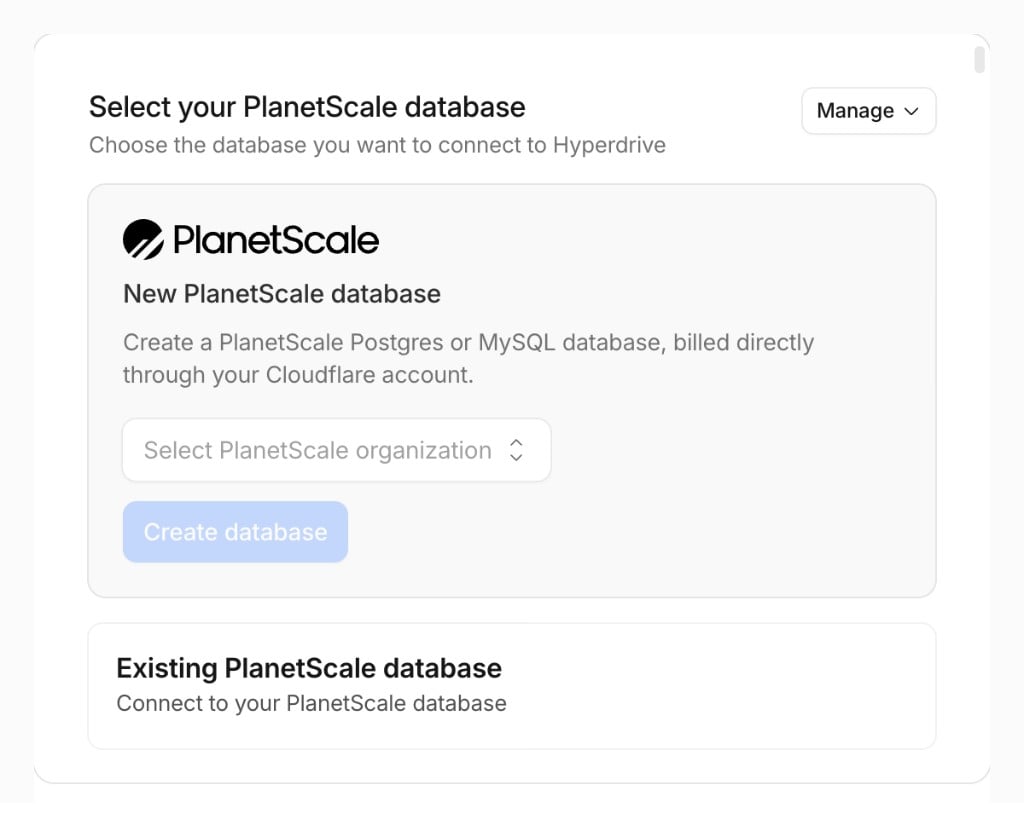
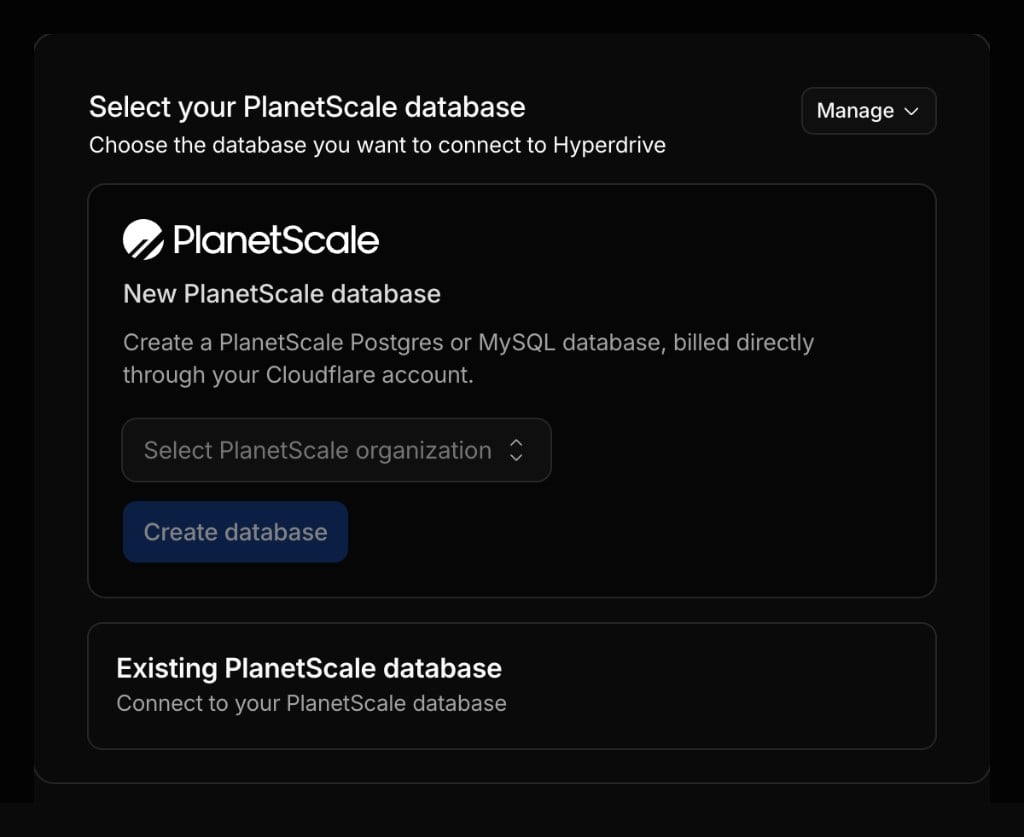 Click **Create database** to be redirected to the PlanetScale dashboard to finish configuration.
## Finish setup on PlanetScale
After Cloudflare redirects you to PlanetScale, configure your database:
* Database name
* Engine (Postgres or MySQL/Vitess)
* Region
* Cluster size
When you create the database, PlanetScale automatically associates it with your Cloudflare account. You have the same access to PlanetScale features as normal, including the MCP server, branching, query insights, roles, and backups.
## Billing
PlanetScale usage for databases created through Cloudflare is billed at [standard PlanetScale pricing](https://planetscale.com/pricing) through your Cloudflare account.
To confirm billing is routed through Cloudflare, go to your PlanetScale organization **Settings** > **Billing**. You'll see a banner indicating that some billing is handled through Cloudflare, with a link to your Cloudflare billing page.
Click **Create database** to be redirected to the PlanetScale dashboard to finish configuration.
## Finish setup on PlanetScale
After Cloudflare redirects you to PlanetScale, configure your database:
* Database name
* Engine (Postgres or MySQL/Vitess)
* Region
* Cluster size
When you create the database, PlanetScale automatically associates it with your Cloudflare account. You have the same access to PlanetScale features as normal, including the MCP server, branching, query insights, roles, and backups.
## Billing
PlanetScale usage for databases created through Cloudflare is billed at [standard PlanetScale pricing](https://planetscale.com/pricing) through your Cloudflare account.
To confirm billing is routed through Cloudflare, go to your PlanetScale organization **Settings** > **Billing**. You'll see a banner indicating that some billing is handled through Cloudflare, with a link to your Cloudflare billing page.

 ## Connect Hyperdrive
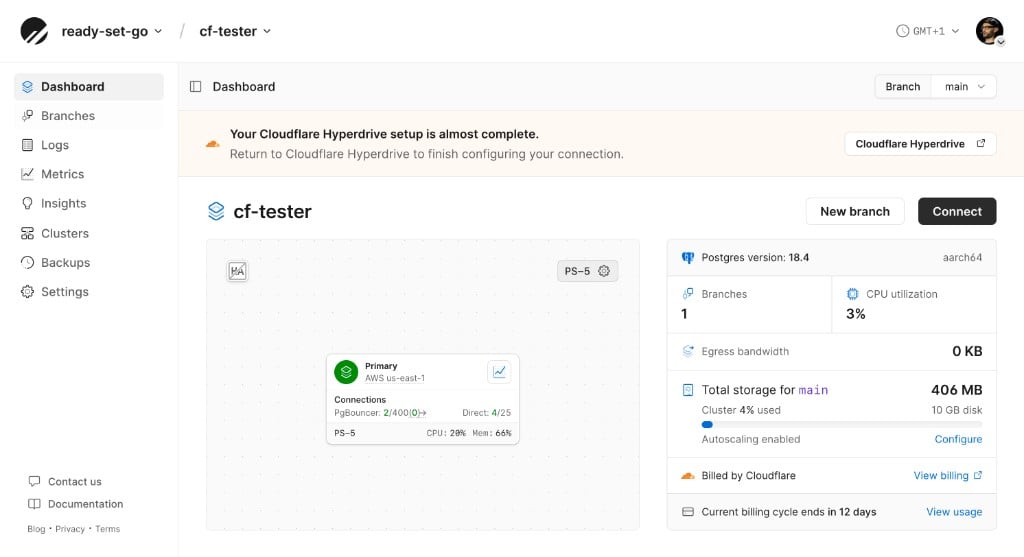
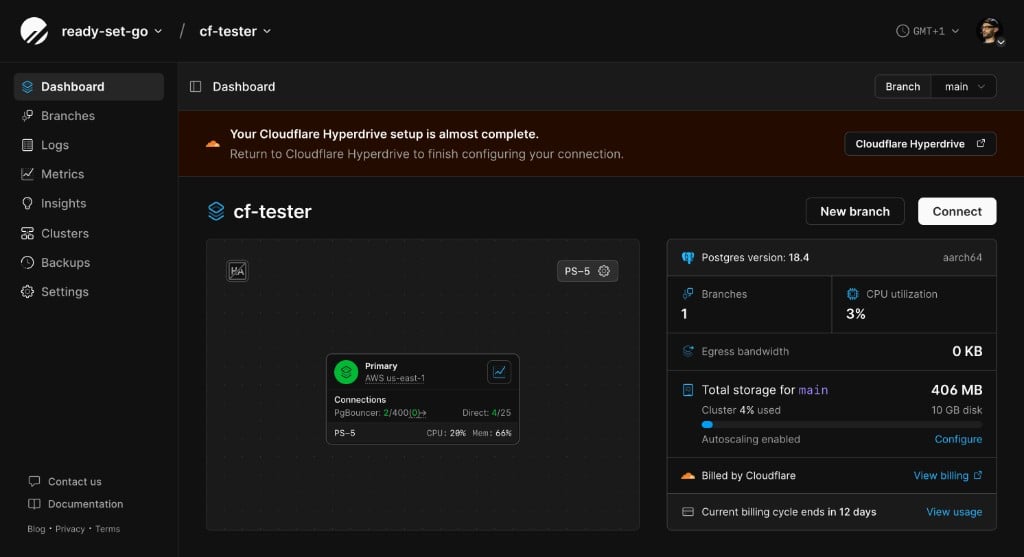
Once your database is ready, a banner at the top of the PlanetScale dashboard directs you back to the Cloudflare dashboard to set up Hyperdrive.
## Connect Hyperdrive
Once your database is ready, a banner at the top of the PlanetScale dashboard directs you back to the Cloudflare dashboard to set up Hyperdrive.
 Hyperdrive connects your Worker to PlanetScale with connection pooling and query caching. For step-by-step Hyperdrive setup instructions, see:
* [PlanetScale Postgres with Cloudflare Workers](/postgres/tutorials/planetscale-postgres-cloudflare-workers)
* [Cloudflare Workers database integration (Vitess/MySQL)](/vitess/integrations/cloudflare-workers)
For Cloudflare's own documentation, see [PlanetScale on Cloudflare Workers](https://developers.cloudflare.com/workers/databases/third-party-integrations/planetscale/).
## Connect an existing database
You can still connect an existing PlanetScale database to Hyperdrive without using Cloudflare billing. This is the right path if you have already created a database on PlanetScale and want to link it to a Hyperdrive configuration.
In the Cloudflare Hyperdrive wizard, choose **Connect to PlanetScale database** and sign in to your existing PlanetScale account.
See the integration guides for full setup instructions:
* [PlanetScale Postgres with Cloudflare Workers](/postgres/tutorials/planetscale-postgres-cloudflare-workers)
* [Cloudflare Workers database integration (Vitess/MySQL)](/vitess/integrations/cloudflare-workers)
## Further reading
* [PlanetScale for Cloudflare users](https://planetscale.com/cloudflare) — overview of the PlanetScale + Cloudflare stack
* [Cloudflare Hyperdrive documentation](https://developers.cloudflare.com/hyperdrive/)
* [Faster PlanetScale Postgres connections with Cloudflare Hyperdrive](https://planetscale.com/blog/cloudflare-hyperdrive-real-time) — build a real-time application with PlanetScale and the Cloudflare global network
## Need help?
Get help from [the PlanetScale Support team](https://planetscale.com/contact?initial=support), or join our [Discord community](https://pscale.link/community) to see how others are using PlanetScale.
Hyperdrive connects your Worker to PlanetScale with connection pooling and query caching. For step-by-step Hyperdrive setup instructions, see:
* [PlanetScale Postgres with Cloudflare Workers](/postgres/tutorials/planetscale-postgres-cloudflare-workers)
* [Cloudflare Workers database integration (Vitess/MySQL)](/vitess/integrations/cloudflare-workers)
For Cloudflare's own documentation, see [PlanetScale on Cloudflare Workers](https://developers.cloudflare.com/workers/databases/third-party-integrations/planetscale/).
## Connect an existing database
You can still connect an existing PlanetScale database to Hyperdrive without using Cloudflare billing. This is the right path if you have already created a database on PlanetScale and want to link it to a Hyperdrive configuration.
In the Cloudflare Hyperdrive wizard, choose **Connect to PlanetScale database** and sign in to your existing PlanetScale account.
See the integration guides for full setup instructions:
* [PlanetScale Postgres with Cloudflare Workers](/postgres/tutorials/planetscale-postgres-cloudflare-workers)
* [Cloudflare Workers database integration (Vitess/MySQL)](/vitess/integrations/cloudflare-workers)
## Further reading
* [PlanetScale for Cloudflare users](https://planetscale.com/cloudflare) — overview of the PlanetScale + Cloudflare stack
* [Cloudflare Hyperdrive documentation](https://developers.cloudflare.com/hyperdrive/)
* [Faster PlanetScale Postgres connections with Cloudflare Hyperdrive](https://planetscale.com/blog/cloudflare-hyperdrive-real-time) — build a real-time application with PlanetScale and the Cloudflare global network
## Need help?
Get help from [the PlanetScale Support team](https://planetscale.com/contact?initial=support), or join our [Discord community](https://pscale.link/community) to see how others are using PlanetScale.