> ## Documentation Index
> Fetch the complete documentation index at: https://planetscale.com/docs/llms.txt
> Use this file to discover all available pages before exploring further.
# OAuth
> Using PlanetScale OAuth enables your users to connect their accounts to PlanetScale.
## Overview
Creating an OAuth application within PlanetScale allows your application to access your users’ PlanetScale accounts.
With PlanetScale OAuth applications, you can choose what access your application needs, and a user will allow (or deny) your application those accesses on their PlanetScale account. The organization that you create the OAuth application in is the "owner" of the application.
## Getting started
### 1. Creating an OAuth application in PlanetScale
1. To create a new OAuth application, log into your organization and click **Settings > OAuth applications**.
2. Create a new OAuth application by clicking **Create new application**.
3. You will need to fill out the following fields:
* **Name**: A user-friendly name for your OAuth application.
* **Domain**: The full URL to your application's domain.
* **Redirect URI**: The full URL PlanetScale should redirect users on completion of the authorization flow, also known as the callback URL. It must have the same domain as the domain above.
* **Avatar**: An image that represents your OAuth application. (Optional but recommended.)
You will also be agreeing, on behalf of your organization, to prominently display a privacy policy and obtain consent to your organization's terms of use from all users of your products and services.
### 2. Credentials to copy to your application code
Once you have created your OAuth application in PlanetScale, you will need the following credentials to use the OAuth authorization flow:
* **ID**: Your OAuth application's ID.
* **Client ID**: Your OAuth application's client ID.
* **Redirect URL**: The full URL PlanetScale should redirect users on completion of the authorization flow, also known as the callback URL.
* **Client secret**: Your OAuth application's client secret, used to exchange authorization codes for access tokens. (This will only be shown once, make sure to save it!)
Later in this document, we will go through how you use each of these credentials. We recommend saving them as environment variables.
### 3. OAuth application access scopes
Every OAuth application in PlanetScale will request from its users a specific set of permissions in the users' databases. We call these permissions "access scopes." They are broken into:
* User access
* Organization access
* Database access
* Branch access
Access is scoped to a resource. For example, selecting `write_branches` on an organization allows you to write branches across all databases in organizations the user gives permission to, while `write_branches` on a database enables you to only write branches in databases the user gives permission to.
The API reference for each endpoint will say what scope is needed.
In this step, select the access scopes you think your application will need on a user's account and click the **Save access scopes** button.
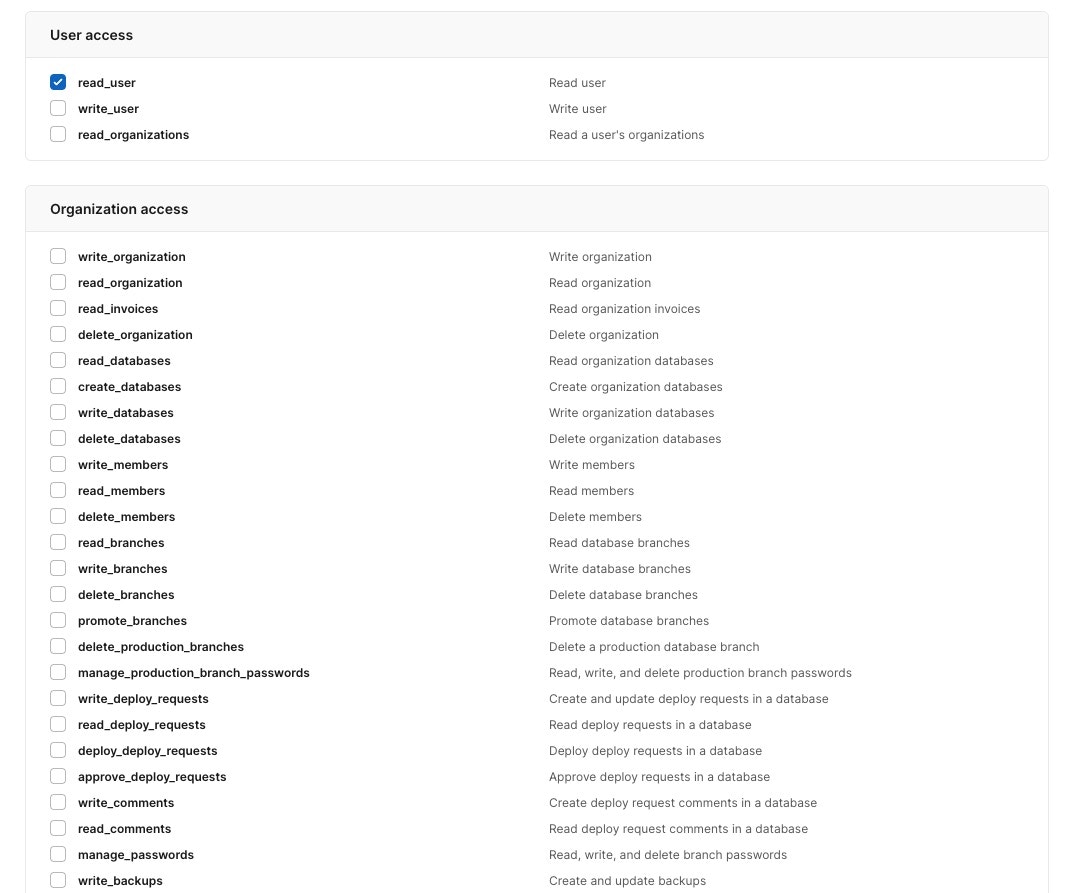 View OAuth access scopes documentation
## OAuth Authorization Flow
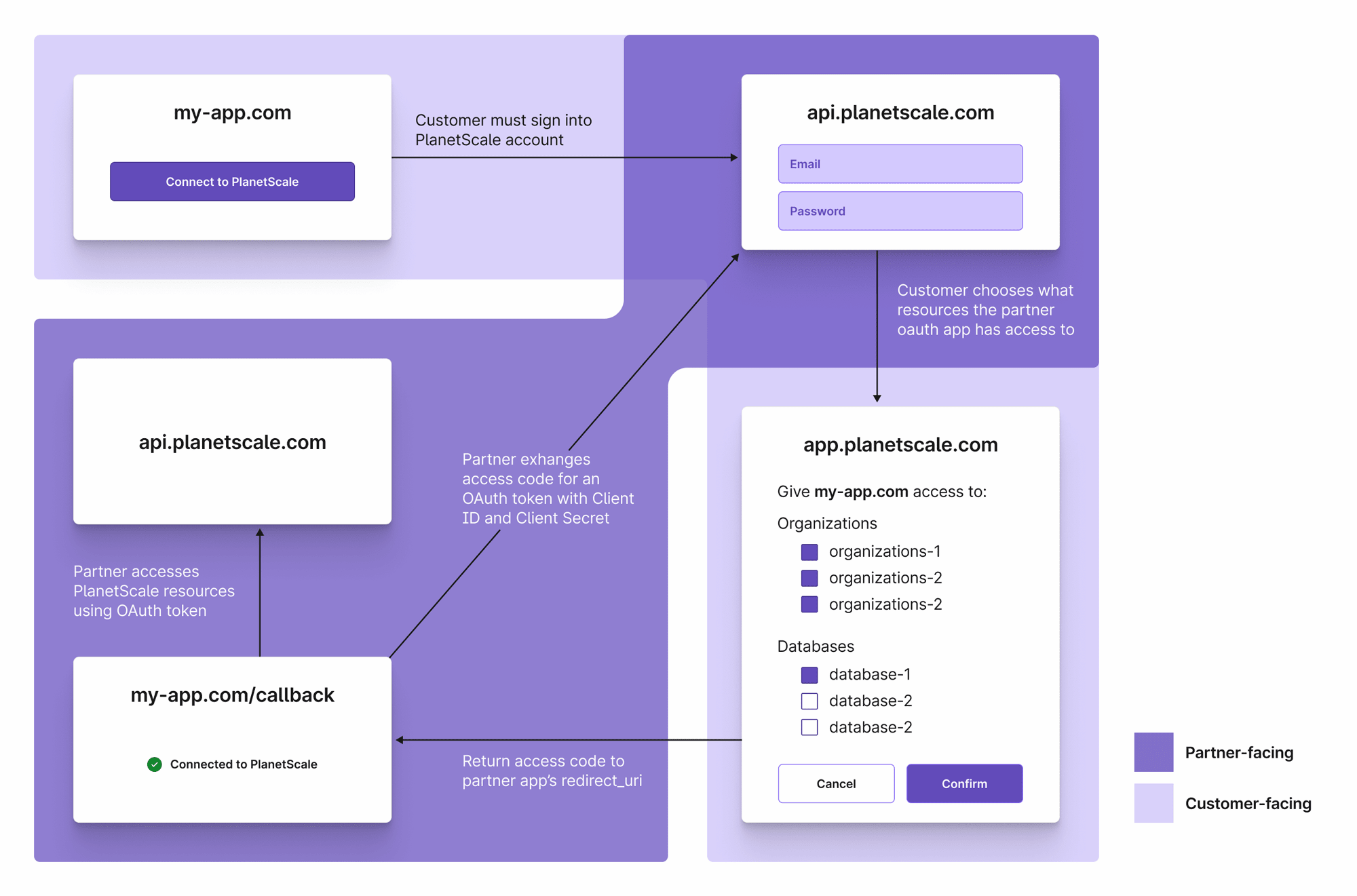
PlanetScale's OAuth implementation supports the [Authorization Code grant type](https://oauth.net/2/grant-types/authorization-code/). The following diagram walks through the flow.
View OAuth access scopes documentation
## OAuth Authorization Flow
PlanetScale's OAuth implementation supports the [Authorization Code grant type](https://oauth.net/2/grant-types/authorization-code/). The following diagram walks through the flow.
 ### 0. Prerequisites
You must have created an OAuth application in PlanetScale (see step 1 above) and saved your:
* **Client ID**: Your OAuth application's client ID
* **Client Secret**: Your OAuth application's client secret
* **Redirect URI**: The callback URL for your application
These credentials will be used to exchange authorization codes for access tokens.
### 1. User authorizes your OAuth application on their account
Your application should direct your users to the PlanetScale authorization page (see URL below) so that they can grant your application access to their PlanetScale account:
```text Text theme={null}
https://auth.planetscale.com/oauth/authorize?client_id=CLIENT_ID&redirect_uri=REDIRECT_URI&state=STATE
```
### Query parameters:
Your OAuth application's client id
The full URL PlanetScale should redirect users on completion of the authorization flow, also known as the callback URL
You may also optionally pass a state parameter, which exists to prevent third-party attacks. Pass a random string, and PlanetScale will return it in step 2. Compare to ensure the request came from your application.
## 2. The authorization code returns to your application
Upon authorization, PlanetScale will redirect the user to your `redirect_uri` with an authorization code in the query parameters. The authorization code is only good for one use. It will look like the following URL:
```
https://my-redirect-uri.com?code=AUTHORIZATION_CODE&state=STATE
```
### Query parameters:
An authorization code to be exchanged for an access token
Compare with the original `state` parameter to ensure they match. Abort the process if they do not because the request may have come from a third party. Only present if you provided one in step 1.
### 3a. Exchange authorization code for an OAuth token
Your application can now exchange the authorization code for an access token.
**POST**
```
https://auth.planetscale.com/oauth/token?client_id=CLIENT_ID&client_secret=CLIENT_SECRET&code=CODE&grant_type=authorization_code&redirect_uri=REDIRECT_URI
```
The `POST` request will need the following:
### Query parameters:
Your OAuth application's client ID
Your OAuth application's client secret
The code located in the query parameters of the previous step
Set to `authorization_code`
The full URL PlanetScale should redirect users on completion of the authorization flow, also known as the callback URL
The response will look similar to the following:
```json JSON theme={null}
{
"access_token": "pscale_oauth_8zO_rNQCct1Uj8zkTWLh3kgwAqg8UabGIc43D2eINvo",
"token_type": "Bearer",
"expires_in": 2592000,
"refresh_token": "pscale_oauth_refresh_W_zjmZ1a14sczj15bxJdsW_kiv063OrHG4CBh0IXR9M",
"scope": "read_user read_databases"
}
```
Your OAuth access token. Use this in the `Authorization: Bearer ` header to make API calls on behalf of the user.
Will always be "Bearer"
The number of seconds until the access token expires
A refresh token that can refresh your access token when it expires. See step 3b for more info.
Space-separated list of scopes granted to this token
You will need the `access_token` to make API calls on behalf of the user using Bearer authentication.
### 3b. Refreshing an OAuth token
When an OAuth token expires, you can refresh it:
**POST**
```
https://auth.planetscale.com/oauth/token?client_id=CLIENT_ID&client_secret=CLIENT_SECRET&grant_type=refresh_token&refresh_token=REFRESH_TOKEN
```
The `POST` request will need the following:
#### Query parameters:
Your OAuth application's client ID
Your OAuth application's client secret
The refresh token sent in the initial token response in step 3a
Set to `refresh_token`
The response will look similar to the response in 3a.
### 4. Using the OAuth token
Now your application can make requests to the PlanetScale API on behalf of the user. To make requests to the API, add the `access_token` in the `Authorization` header as a Bearer token in your HTTP API request using the following format:
```text Text theme={null}
Authorization: Bearer
```
Here is a cURL example:
```curl cURL theme={null}
curl --request GET 'https://api.planetscale.com/v1/organizations' \
--header 'Authorization: Bearer '
```
## Need help?
Get help from [the PlanetScale Support team](https://planetscale.com/contact?initial=support), or join our [Discord community](https://pscale.link/community) to see how others are using PlanetScale.
### 0. Prerequisites
You must have created an OAuth application in PlanetScale (see step 1 above) and saved your:
* **Client ID**: Your OAuth application's client ID
* **Client Secret**: Your OAuth application's client secret
* **Redirect URI**: The callback URL for your application
These credentials will be used to exchange authorization codes for access tokens.
### 1. User authorizes your OAuth application on their account
Your application should direct your users to the PlanetScale authorization page (see URL below) so that they can grant your application access to their PlanetScale account:
```text Text theme={null}
https://auth.planetscale.com/oauth/authorize?client_id=CLIENT_ID&redirect_uri=REDIRECT_URI&state=STATE
```
### Query parameters:
Your OAuth application's client id
The full URL PlanetScale should redirect users on completion of the authorization flow, also known as the callback URL
You may also optionally pass a state parameter, which exists to prevent third-party attacks. Pass a random string, and PlanetScale will return it in step 2. Compare to ensure the request came from your application.
## 2. The authorization code returns to your application
Upon authorization, PlanetScale will redirect the user to your `redirect_uri` with an authorization code in the query parameters. The authorization code is only good for one use. It will look like the following URL:
```
https://my-redirect-uri.com?code=AUTHORIZATION_CODE&state=STATE
```
### Query parameters:
An authorization code to be exchanged for an access token
Compare with the original `state` parameter to ensure they match. Abort the process if they do not because the request may have come from a third party. Only present if you provided one in step 1.
### 3a. Exchange authorization code for an OAuth token
Your application can now exchange the authorization code for an access token.
**POST**
```
https://auth.planetscale.com/oauth/token?client_id=CLIENT_ID&client_secret=CLIENT_SECRET&code=CODE&grant_type=authorization_code&redirect_uri=REDIRECT_URI
```
The `POST` request will need the following:
### Query parameters:
Your OAuth application's client ID
Your OAuth application's client secret
The code located in the query parameters of the previous step
Set to `authorization_code`
The full URL PlanetScale should redirect users on completion of the authorization flow, also known as the callback URL
The response will look similar to the following:
```json JSON theme={null}
{
"access_token": "pscale_oauth_8zO_rNQCct1Uj8zkTWLh3kgwAqg8UabGIc43D2eINvo",
"token_type": "Bearer",
"expires_in": 2592000,
"refresh_token": "pscale_oauth_refresh_W_zjmZ1a14sczj15bxJdsW_kiv063OrHG4CBh0IXR9M",
"scope": "read_user read_databases"
}
```
Your OAuth access token. Use this in the `Authorization: Bearer ` header to make API calls on behalf of the user.
Will always be "Bearer"
The number of seconds until the access token expires
A refresh token that can refresh your access token when it expires. See step 3b for more info.
Space-separated list of scopes granted to this token
You will need the `access_token` to make API calls on behalf of the user using Bearer authentication.
### 3b. Refreshing an OAuth token
When an OAuth token expires, you can refresh it:
**POST**
```
https://auth.planetscale.com/oauth/token?client_id=CLIENT_ID&client_secret=CLIENT_SECRET&grant_type=refresh_token&refresh_token=REFRESH_TOKEN
```
The `POST` request will need the following:
#### Query parameters:
Your OAuth application's client ID
Your OAuth application's client secret
The refresh token sent in the initial token response in step 3a
Set to `refresh_token`
The response will look similar to the response in 3a.
### 4. Using the OAuth token
Now your application can make requests to the PlanetScale API on behalf of the user. To make requests to the API, add the `access_token` in the `Authorization` header as a Bearer token in your HTTP API request using the following format:
```text Text theme={null}
Authorization: Bearer
```
Here is a cURL example:
```curl cURL theme={null}
curl --request GET 'https://api.planetscale.com/v1/organizations' \
--header 'Authorization: Bearer '
```
## Need help?
Get help from [the PlanetScale Support team](https://planetscale.com/contact?initial=support), or join our [Discord community](https://pscale.link/community) to see how others are using PlanetScale.